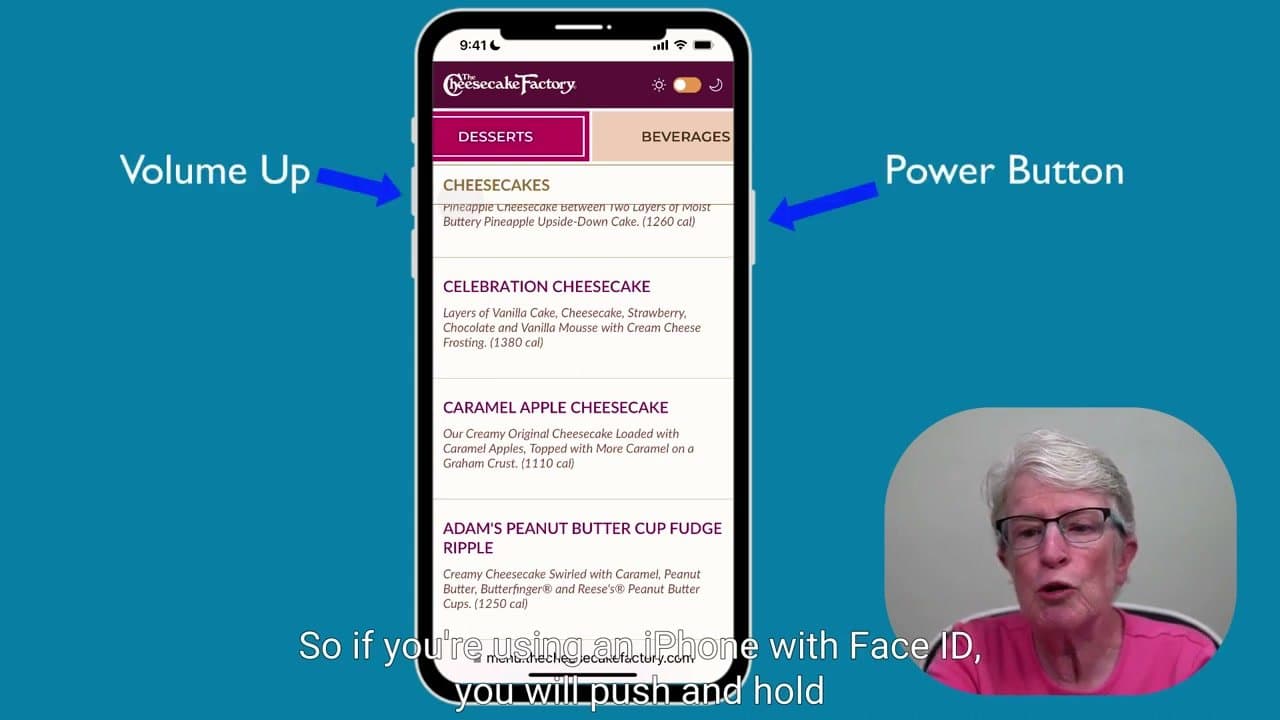
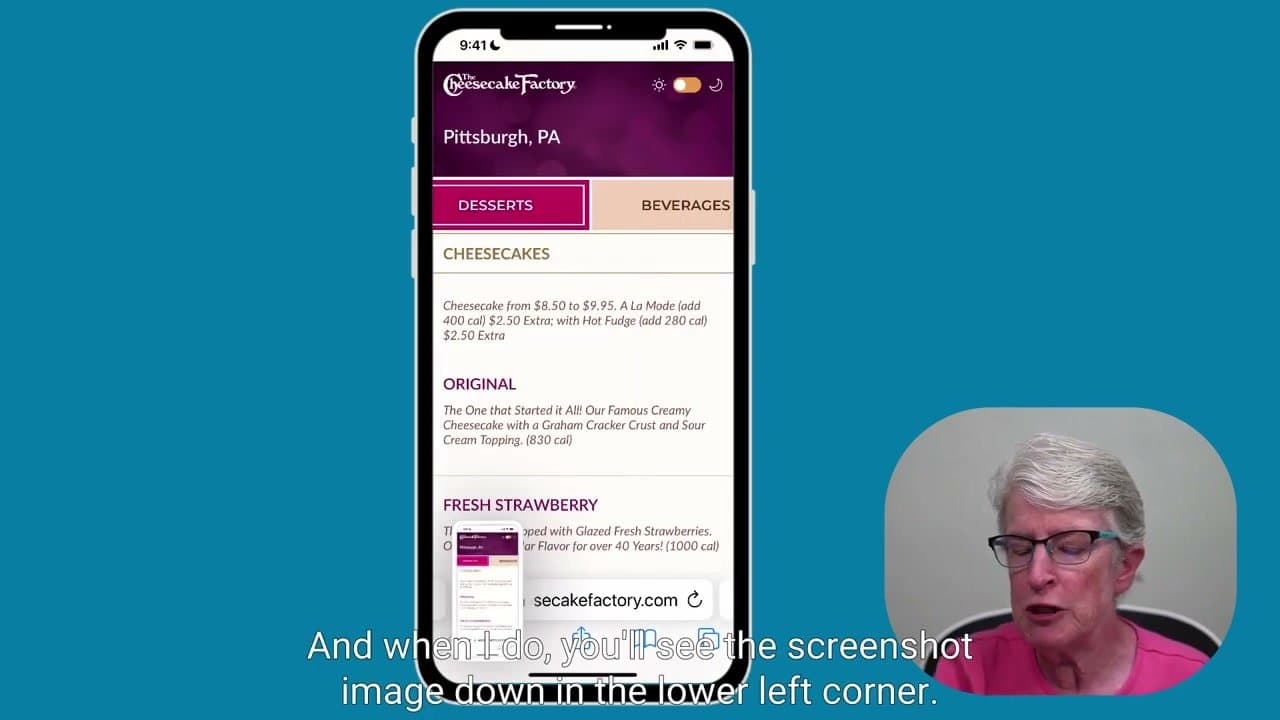
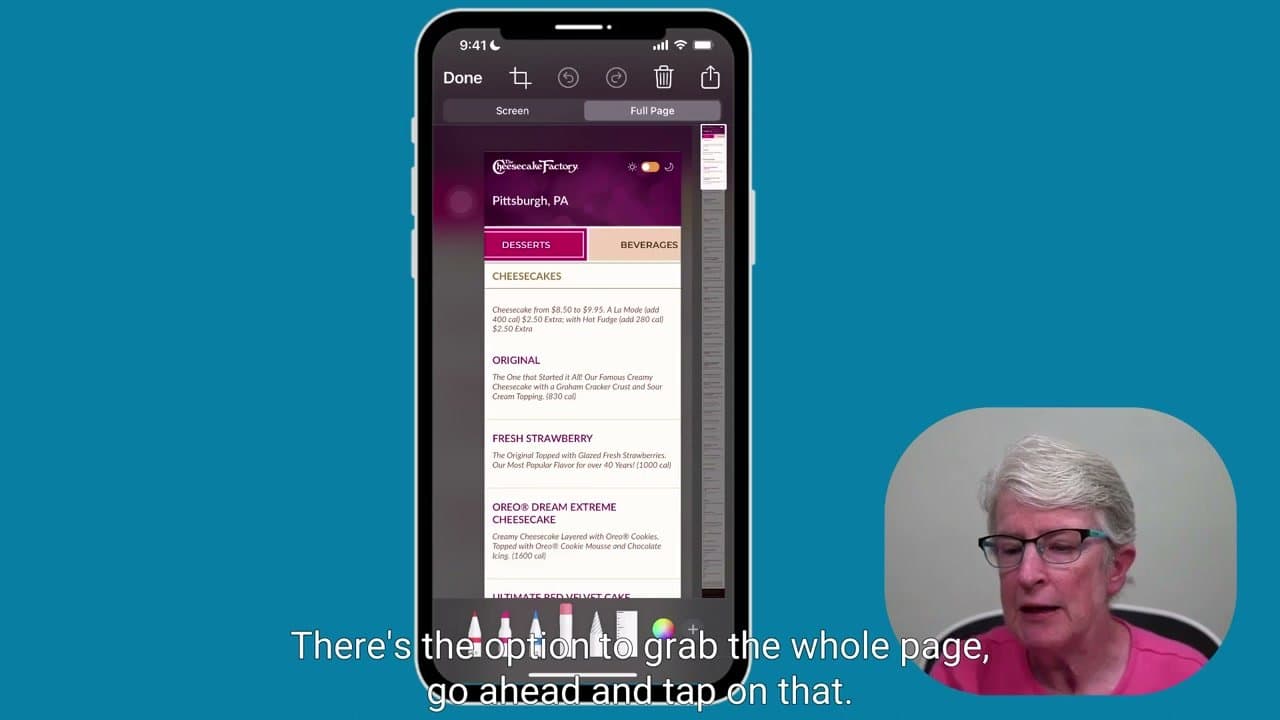
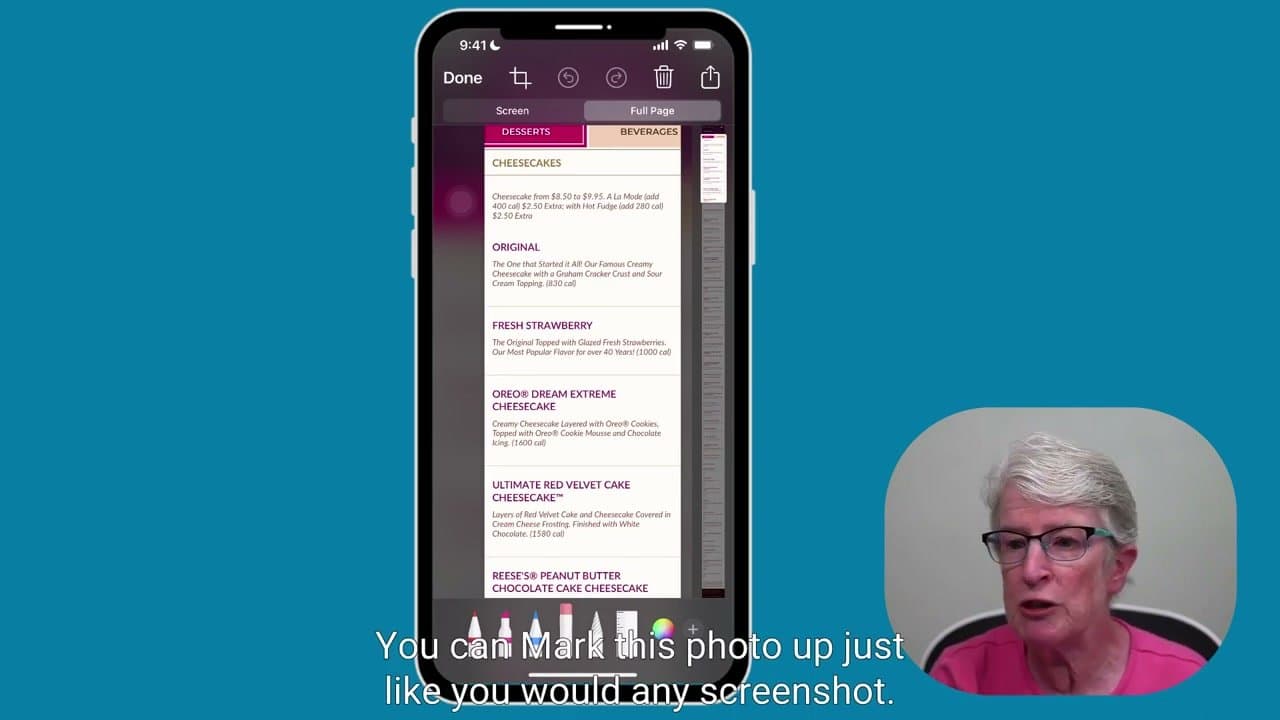
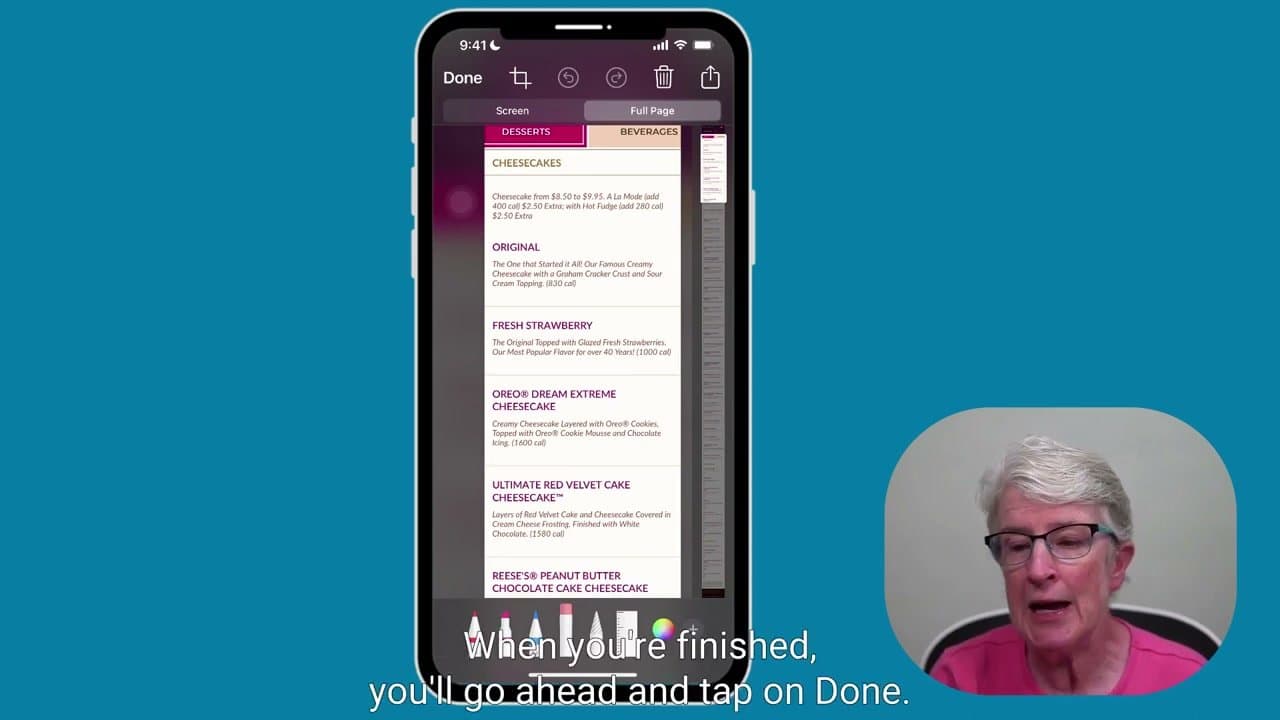
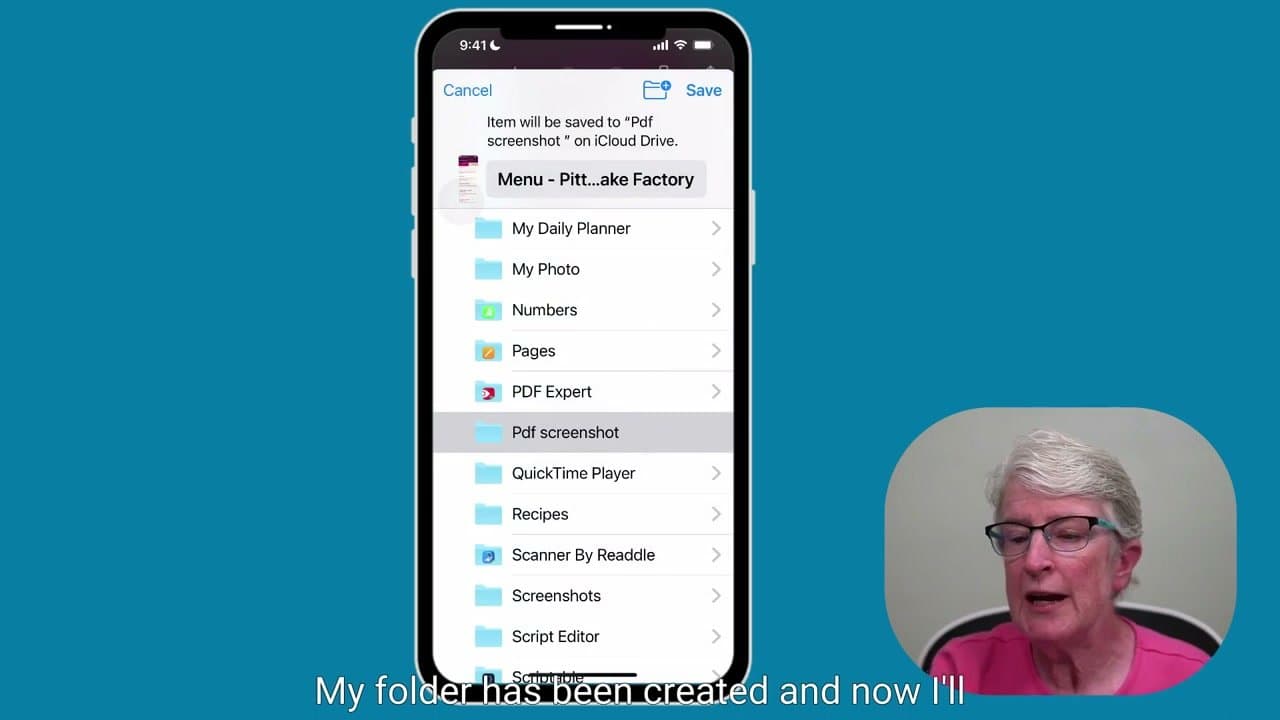
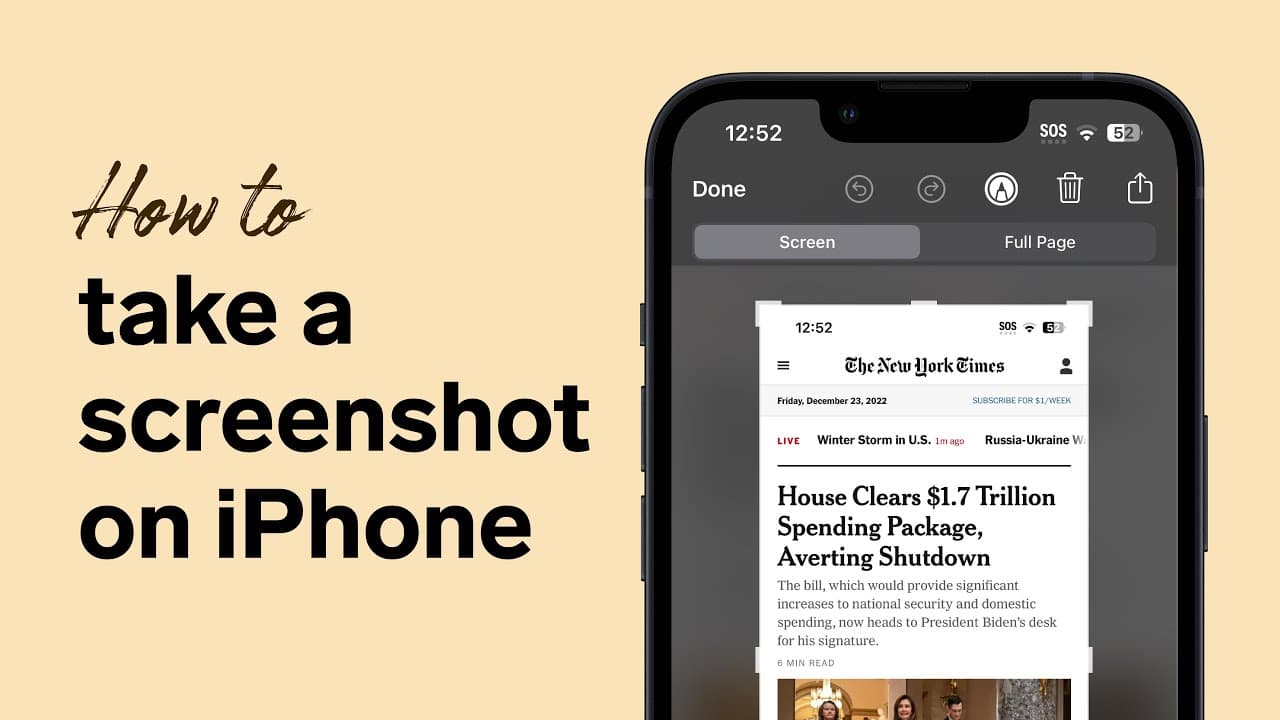
How to take a long screenshot on iPhone: open the page in Safari, take a normal screenshot (side button + volume up, or home button + side on older iPhones), tap the preview thumbnail in the bottom-left corner, and switch the tab at the top from Screen to Full Page. That's the iPhone scrolling screenshot - a full page screenshot of the entire article, saved as a PDF so you can scroll the whole thing.
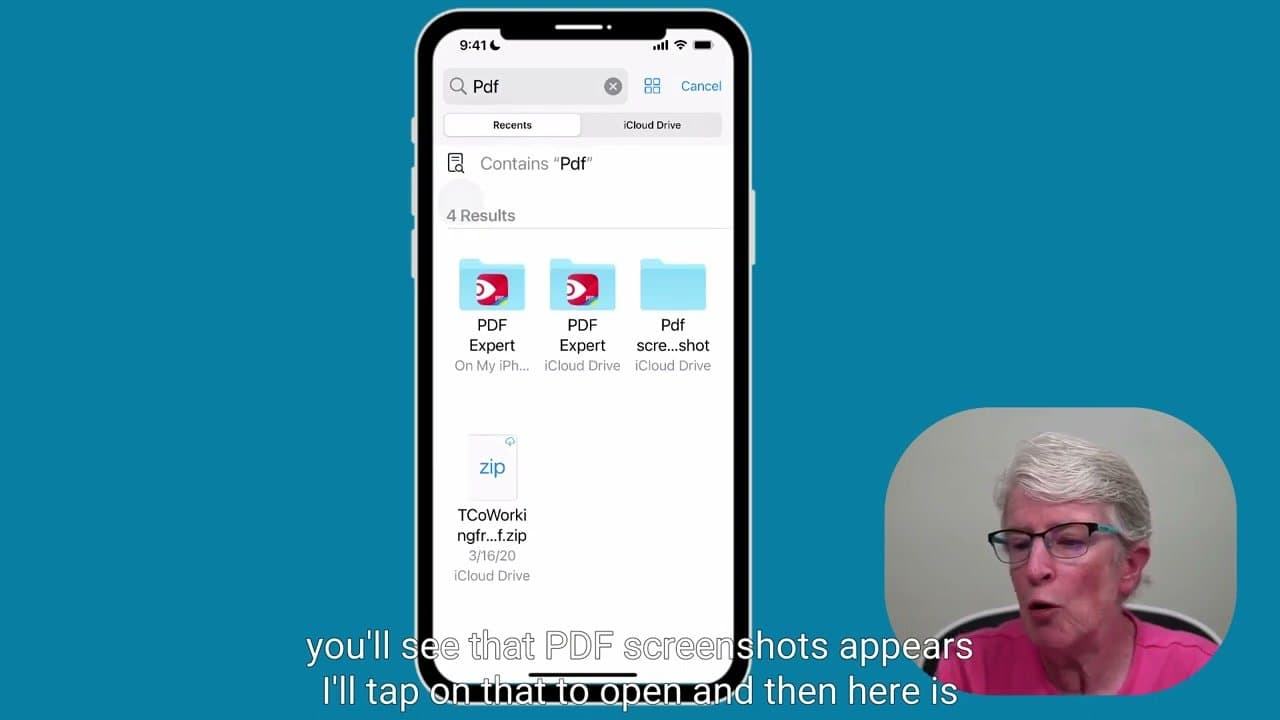
A full page screenshot on iPhone only works in Safari. The Full Page tab won't appear if you took the shot in Chrome, Instagram, or most third-party apps. The fix is to open the page in Safari before you screenshot it. Once saved, the PDF lands in Files (or Photos as a PDF, depending on iOS version) and you can mark it up, share it, or email it like any other file.
For related Apple-tech how-tos, see how to take a regular screenshot on iPhone, how to screenshot on Mac, how to take a screenshot on a Dell, how to set up a new iPhone, and how to set up Apple Pay.
Frequently asked questions
How do you screenshot a whole webpage on iPhone?
Open the page in Safari. Take a normal screenshot, then tap the preview thumbnail before it disappears. At the top of the editor you'll see two tabs: Screen and Full Page. Tap Full Page and the entire scrolling article is captured as a PDF. Tap Done > Save to Files.
What is a full-page screenshot on iPhone?
A full-page screenshot is the whole web page rendered top to bottom in a single PDF, not just the visible portion. iPhone calls it Full Page in the screenshot editor. The output is a PDF (not a PNG or JPG) because the page is taller than the screen.
Why can't I take a long screenshot on my iPhone?
The Full Page tab only shows up when you screenshot inside Safari. If you took the shot in Chrome, Edge, Instagram, X, or any other app the tab is missing and you're stuck with a regular screen-sized capture. Reopen the page in Safari, then screenshot again.
Can you take a long screenshot in apps other than Safari?
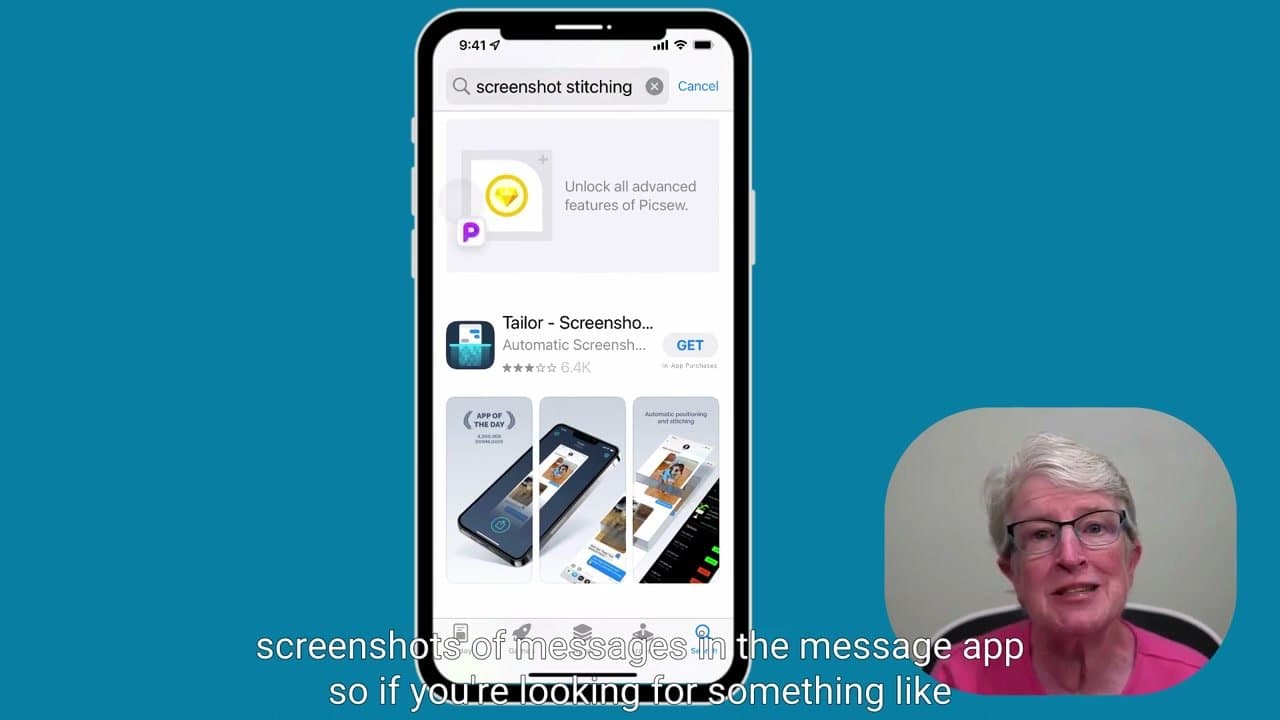
Not natively. iOS limits Full Page to Safari. For other apps you can scroll-record with the Screen Recording control (Settings > Control Center > Screen Recording), or use a third-party long-screenshot app from the App Store. The Safari method is faster when the content is a web page you can open in Safari first.