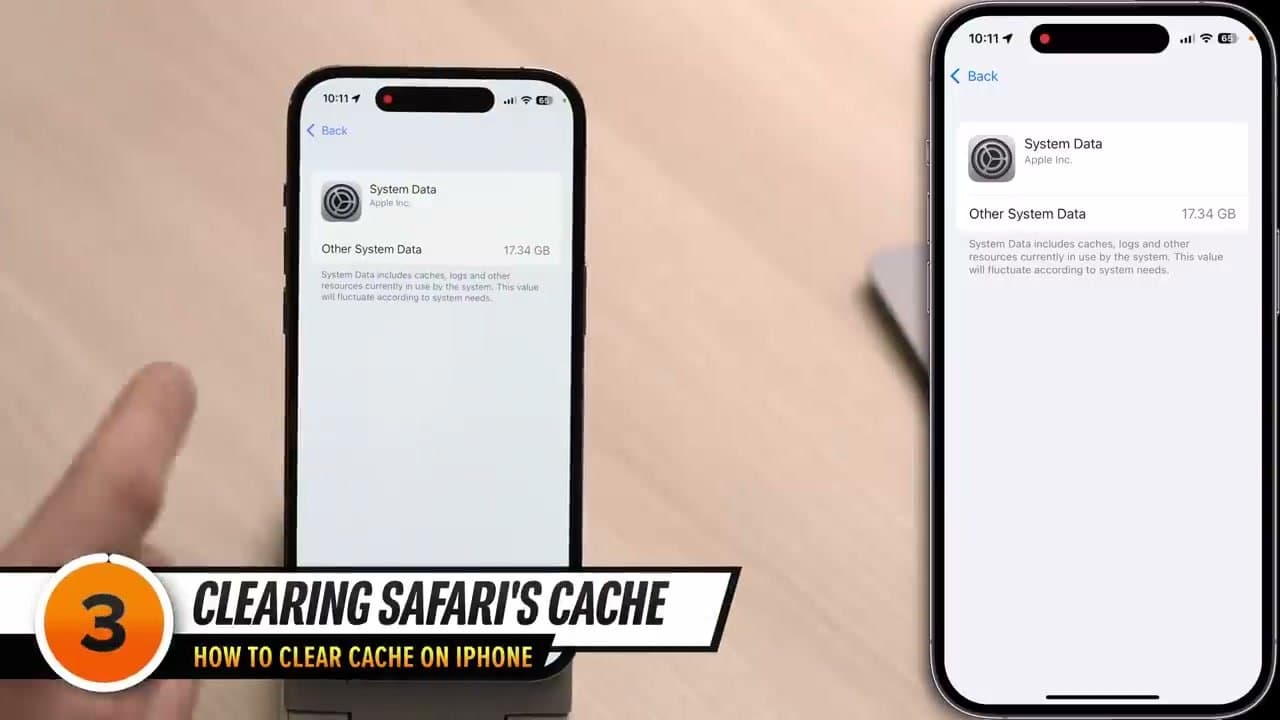
There is no Clear Cache button on an iPhone. That is the whole problem. Android has one per app; iOS does not, so space piles up under a line called System Data that Apple describes as caches, logs and other resources and leaves at that. On a two-year-old phone it is often 15 GB.
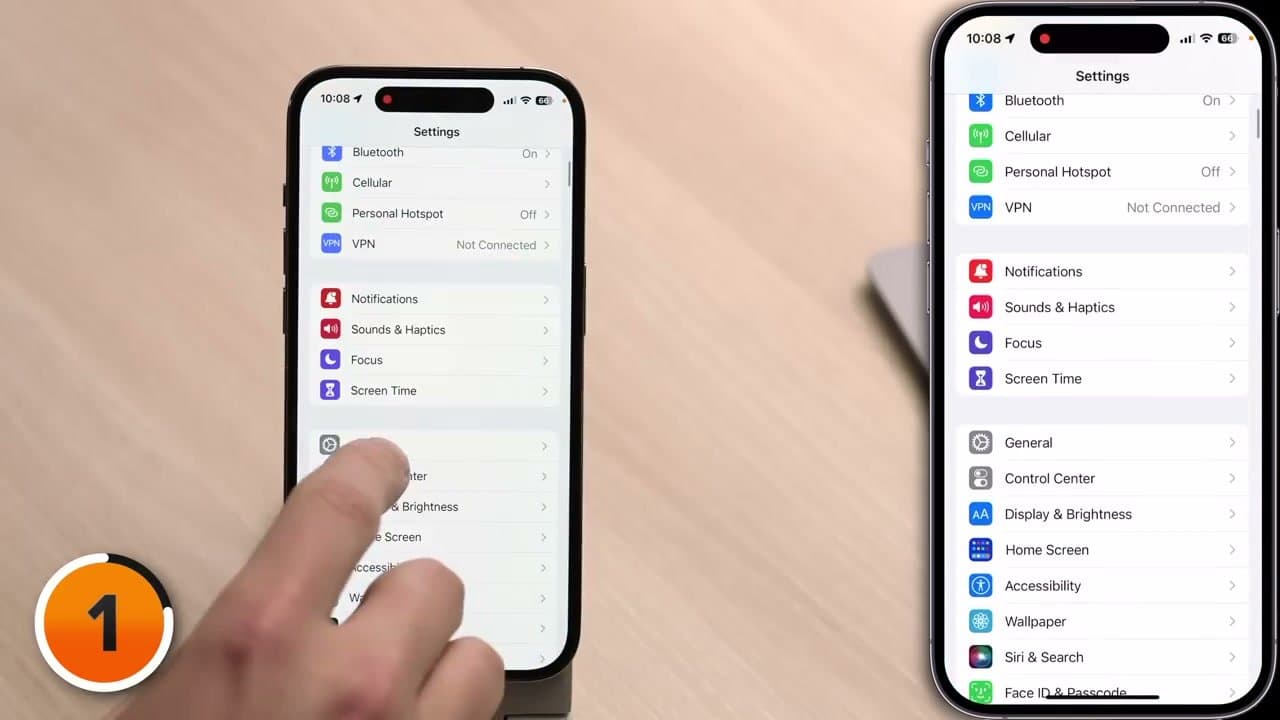
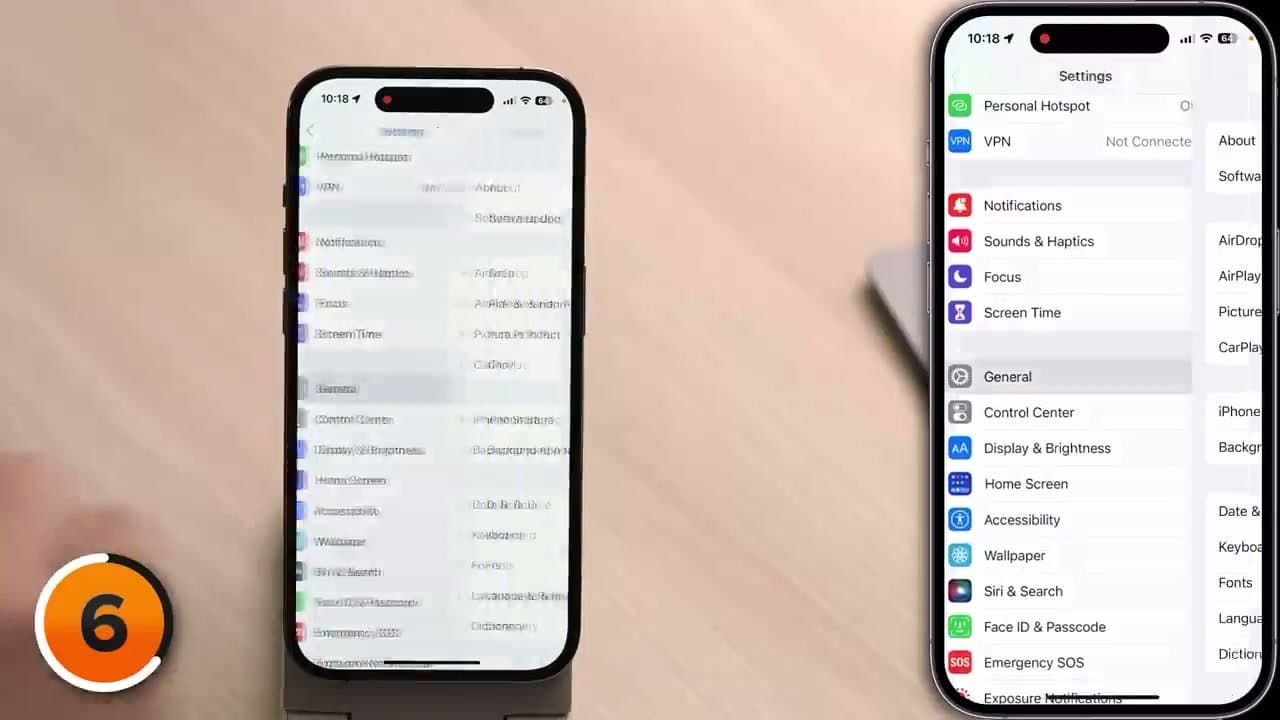
Payette Forward works through the settings that actually move that number, and the steps below follow his order. One warning: Apple shuffles these menus between iOS versions, so go by the wording on the button, not by how far down the screen it sits.
What Cache Actually Means on an iPhone
A cache is a file an app downloaded once and kept so it would not have to fetch it twice. Safari holds page images. Instagram holds every video you scrolled past. None of it is data you made, and all of it rebuilds from the internet, which is why deleting it is safe.
iOS does purge caches on its own, but only when you are nearly out of room. A phone at 95 percent full can shed gigabytes overnight; one at 60 percent never does a thing. You are doing by hand what the system saves for a crisis.
Safari Has Two Caches. Apps Have a Third.
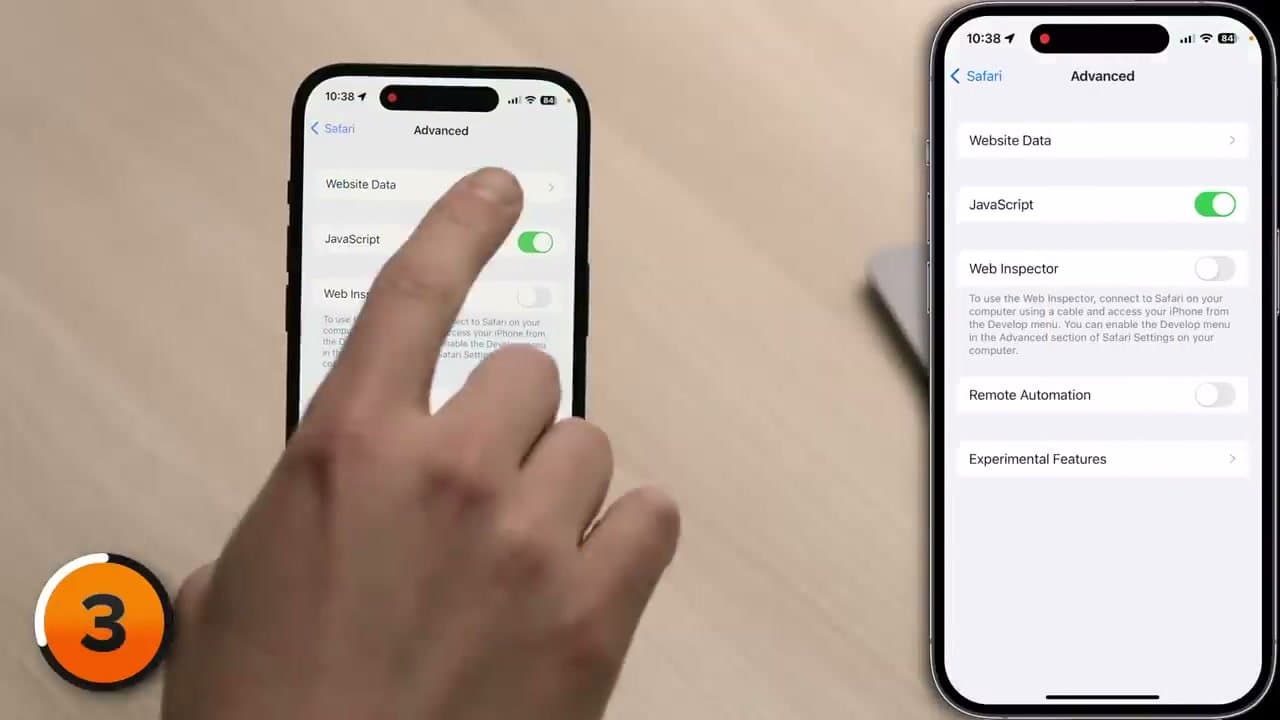
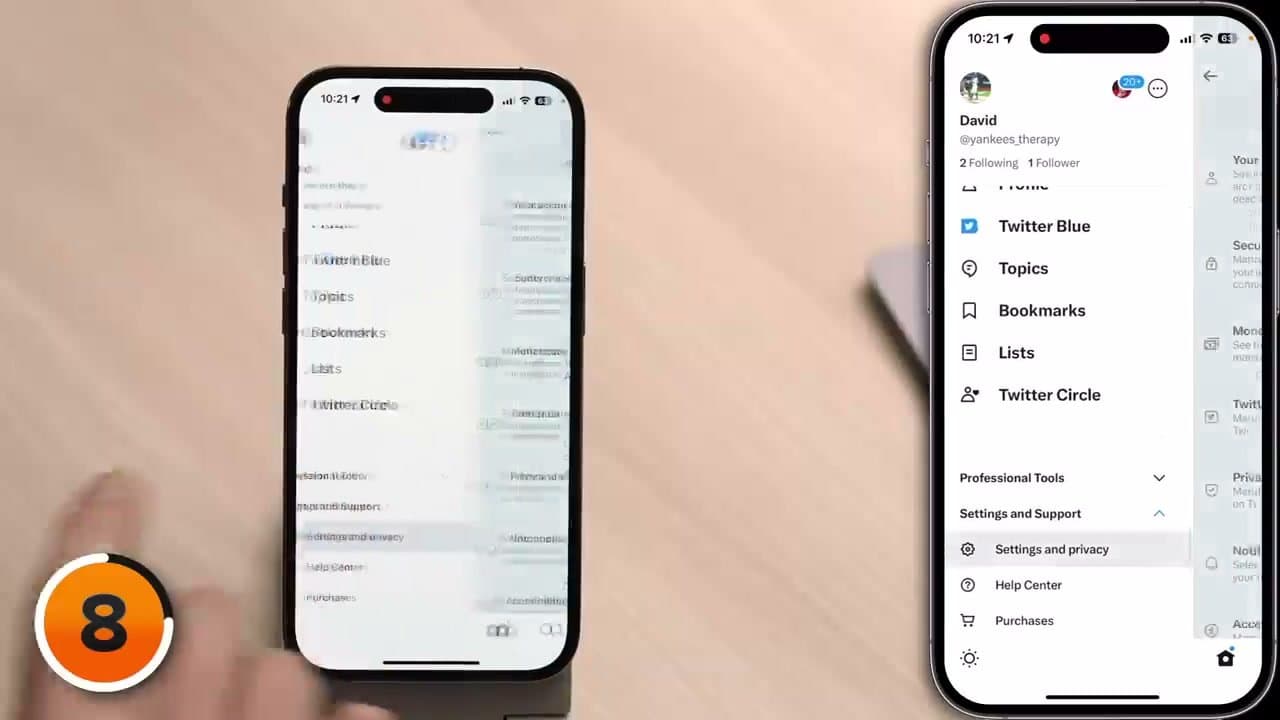
Safari keeps a front door and a back door. Clear History and Website Data is the front door: one tap wipes history, cookies and cached pages, and signs you out of most sites, so know where your passwords live first. Advanced then Website Data is the back door, a per-site list of what is hoarding the most. Long-time users often find a few hundred megabytes still sitting there after clearing the front door.
App caches work differently. Most apps give you no control, so your levers are offloading or a delete and reinstall. Chrome keeps its own separate pile, and the desktop version of that job is how to clear cache in Chrome.
Offload an App or Delete It
This is the real question. Offload throws away the app itself and keeps your documents and data, so your login, your drafts and your download list survive. The icon stays put with a small cloud on it, and tapping it reinstalls and drops you back where you were. Delete throws away both.
There is a catch. Offloading frees the size of the app, not the Documents and Data figure underneath it. A 300 MB app hoarding 6 GB of cached video barely moves. For that one, delete it and install it fresh. Rough rule:
- Offload anything you will open again but not this month.
- Delete anything whose bulk is downloaded media you do not need.
Sign-ins and unsynced work can go with a delete, so run a backup of your iPhone before a deleting spree.
Finding the Apps That Hoard the Most Storage
The iPhone Storage list sorts every app by size, biggest first, and it is the only honest map you get. Read the smaller Documents and Data number under each app rather than the app size. The app size is fixed; the data figure is what grew.
Usual culprits: podcast apps with auto-downloads on, streaming apps holding offline episodes, messaging apps carrying years of photos. Clear three or four from the top, then restart the iPhone so the storage bar recalculates rather than showing a stale figure.
What Clearing Cache Will Not Fix
If the phone feels slow, cache is rarely the cause. Look at battery health, an app running in the background, or a half-finished software update. Getting current on the latest iOS version fixes more slowdowns than any amount of cache clearing.
If storage is still tight after all eight steps, the weight is not cache. It is Photos and Messages. A photo library is your own data and nothing above touches it, so move the originals off the phone - see transferring photos to a computer. For Messages, set Keep Messages to one year and open Review Large Attachments.
Skip the cleaner apps too. iOS sandboxing stops any third-party app from reaching another app cache, so they cannot do what they advertise.