How to Restart an iPhone (Force Restart Any Model)

TechEasy4:267 stepsBrowse more →
Also in:Adulting

By ShowMeStepByStepPublished Updated

Based on a video by Apple Support.

If your iPhone is stuck on the Apple logo, ignoring your taps, or refusing to wake up, you do not need an Apple Store appointment. A force restart fixes most of these problems in under fifteen seconds, and Apple's own support video says it is the first thing to try.

The good news is the sequence is identical on every iPhone made since 2017 - iPhone 8, every iPhone SE from the second generation forward, and every Face ID iPhone (X, 11, 12, 13, 14, 15, 16, and all their Plus, Pro, Pro Max, and Mini variants). One pattern to memorize.

This walkthrough follows Apple Support step by step. We will cover the basic force restart first, then the recovery mode procedure for the rare case the restart alone does not bring the phone back. If you are setting up a phone fresh or coming back to iOS, the iPhone setup guide and the iOS update walkthrough are the natural next reads.

Step-by-Step Guide

1

Step 1: Know When a Force Restart Is the Right Move

0:08
Step 1: Step 1: Know When a Force Restart Is the Right Move

Force restart is the move when your iPhone is frozen on the Apple logo, the screen will not respond to touch, or the phone is stuck partway through powering on. It shuts the device down hard and powers it back up without erasing a single photo, message, or app. It does not factory reset anything.

The button sequence below is the same for iPhone 8, every iPhone SE (2nd generation or later), and every Face ID iPhone. If you have an iPhone 7 or older, the sequence is different (hold side and volume down). For everyone else, read on.

Watch the intro at 0:03.

Tip

If the phone is responsive but acting weird, try a regular shutdown first (hold side + volume up, slide to power off). A force restart is the next escalation when the touchscreen will not cooperate.

2

Step 2: Press and Release the Volume Up Button

0:30
Step 2: Step 2: Press and Release the Volume Up Button

Find the upper of the two volume buttons on the left edge of your iPhone. Press it once, like you are turning the volume up a single notch, and let go right away. Do not hold it down. The screen will not change yet - that is fine, you are just starting the sequence.

Watch Apple show the button at 0:28.

3

Step 3: Press and Release the Volume Down Button

0:36
Step 3: Step 3: Press and Release the Volume Down Button

Right after the volume up tap, do the same thing to the lower volume button. Quick press, quick release. You have a few seconds between the two presses so there is no need to panic, but try to do it within two or three seconds for the sequence to register.

If you pause too long between the volume up and volume down, the phone treats it as two random button presses and nothing happens. Just start over from step 2 if that happens.

4

Step 4: Hold the Side Button Until the Apple Logo Appears

0:42
Step 4: Step 4: Hold the Side Button Until the Apple Logo Appears

Now press and hold the side button - the long button on the right edge of your iPhone. Keep holding even after the screen goes black. That blank screen is normal and means the phone is shutting down. After about ten seconds the Apple logo will pop up. Release the button at that point.

Your iPhone is now restarting on its own. Give it another twenty or thirty seconds to finish booting and land back on the lock screen.

Watch the hold at 0:40.

Tip

If the Apple logo never shows up and the phone stays black, the battery may be completely dead. Plug it into a charger for at least fifteen minutes, then try the force restart again.

Products used in this step

5

Step 5: Still Frozen? Plug It Into a Computer

1:35
Step 5: Step 5: Still Frozen? Plug It Into a Computer

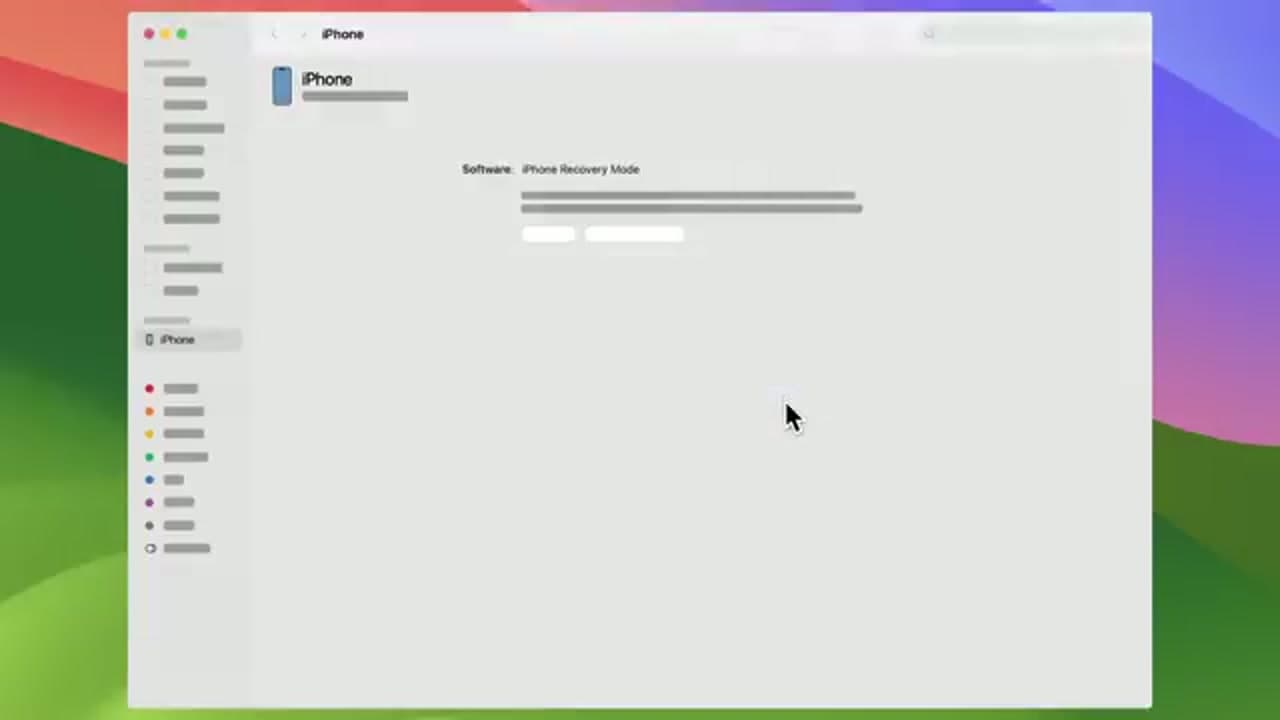
If the force restart did not bring your iPhone back, you are in the small percentage of cases that needs recovery mode. Grab a Mac or Windows PC and the cable that came with your phone (or any Apple-certified one that fits).

On a Mac running macOS Catalina or later, open Finder. On a Mac running Mojave or older, open iTunes. On a Windows PC, open the Apple Devices app or iTunes. With the iPhone plugged in, the device should appear in the left sidebar of whichever app you opened.

Watch Apple set this up at 1:32.

Tip

The Apple Devices app on Windows is the modern replacement for iTunes. If you cannot find iTunes in the Microsoft Store, grab Apple Devices instead - it does the same thing for our purposes.

6

Step 6: Enter Recovery Mode

2:10
Step 6: Step 6: Enter Recovery Mode

With the iPhone connected to the computer, repeat the same force restart sequence: quick press volume up, quick press volume down, then press and hold the side button. The trick this time is to keep holding past the Apple logo. Do not let go when you see it.

After a few more seconds the recovery mode screen appears - a small picture of a computer and a cable. That tells your computer the phone is ready to be repaired through software, not just rebooted.

Tip

The recovery mode button hold can take twenty to thirty seconds in total. Be patient and do not release the side button just because the Apple logo showed up.

7

Step 7: Click Update to Reinstall iOS Without Losing Data

3:20
Step 7: Step 7: Click Update to Reinstall iOS Without Losing Data

Your computer will pop up a dialog with two buttons: Update and Restore. Click Update first. It reinstalls iOS while keeping your photos, messages, and apps right where they are. Restore wipes the phone clean back to factory settings - only do that if Update fails.

Follow the prompts, accept terms if asked, and keep the iPhone plugged in the entire time. The Apple logo and progress bar will sit on the screen for a while. When it finishes, the phone restarts on its own and shows the lock screen. If the download takes longer than fifteen minutes the iPhone will drop out of recovery mode - just repeat the button sequence in step 6 to put it back.

If neither Update nor Restore works, that is the point to contact Apple Support or visit a Genius Bar.

Tip

Restore only works cleanly if you have a recent iCloud or computer backup. After a Restore you will set the phone up as new and pull your data back from the backup during setup.

Products Used

Your Guide

Apple Support

As an Amazon Associate we earn from qualifying purchases. Links on this page may be affiliate links - clicking them and buying doesn't change your price, but helps support ShowMeStepByStep.

Tags

What's next

Related collections

Curated theme pages that include this tutorial.

Weekly Digest

Liked this tech tutorial?

Pick the categories you want to hear about. Weekly digest of new step-by-step tutorials. No spam, easy unsubscribe.

Send me tutorials about

We only email about new tutorials. Easy unsubscribe anytime.