How to Restart Your Router

TechEasy6:516 steps
Also in:Adulting

Based on a video by NetWork From Home.

Your Wi-Fi dropped again. Or pages are loading slow. Or a device just won't connect. Before you call your ISP, try the one fix that works more often than any other: restart the router.

This walkthrough is based on a tutorial from Network from Home. It takes two minutes and doesn't require any technical knowledge.

Step-by-Step Guide

1

Know When a Restart Helps

0:33
Step 1: Know When a Restart Helps

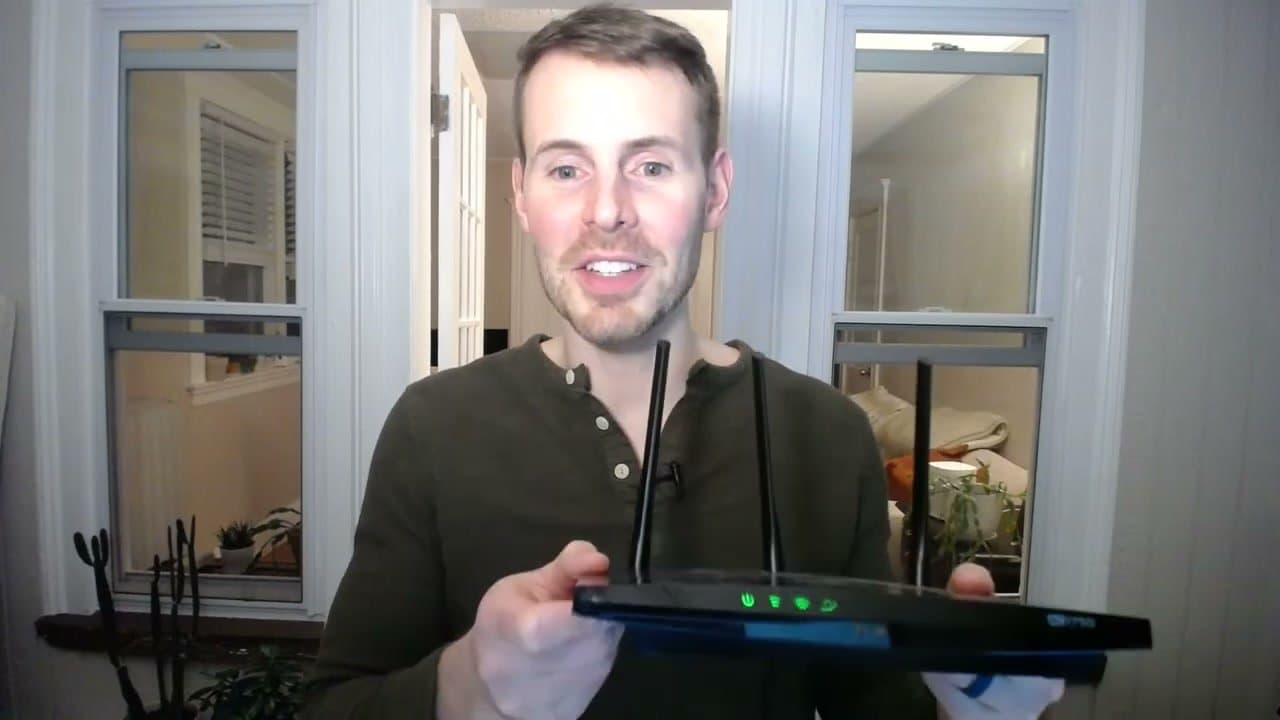
Most home internet problems clear up with a router restart: slow speeds, Wi-Fi dropping, a device that refuses to reconnect, the little light on the router turning red, or internet that just... stops. When you call your ISP's support line, this is always the first thing they make you do anyway.

So before you wait on hold, give this 2-minute process a try.

Tip

If you've already restarted once today and problems came back, it can be worth restarting once more - but if the issue keeps returning, something else is going on and it's time to call your ISP.
2

Press the Power Button

0:55
Step 2: Press the Power Button

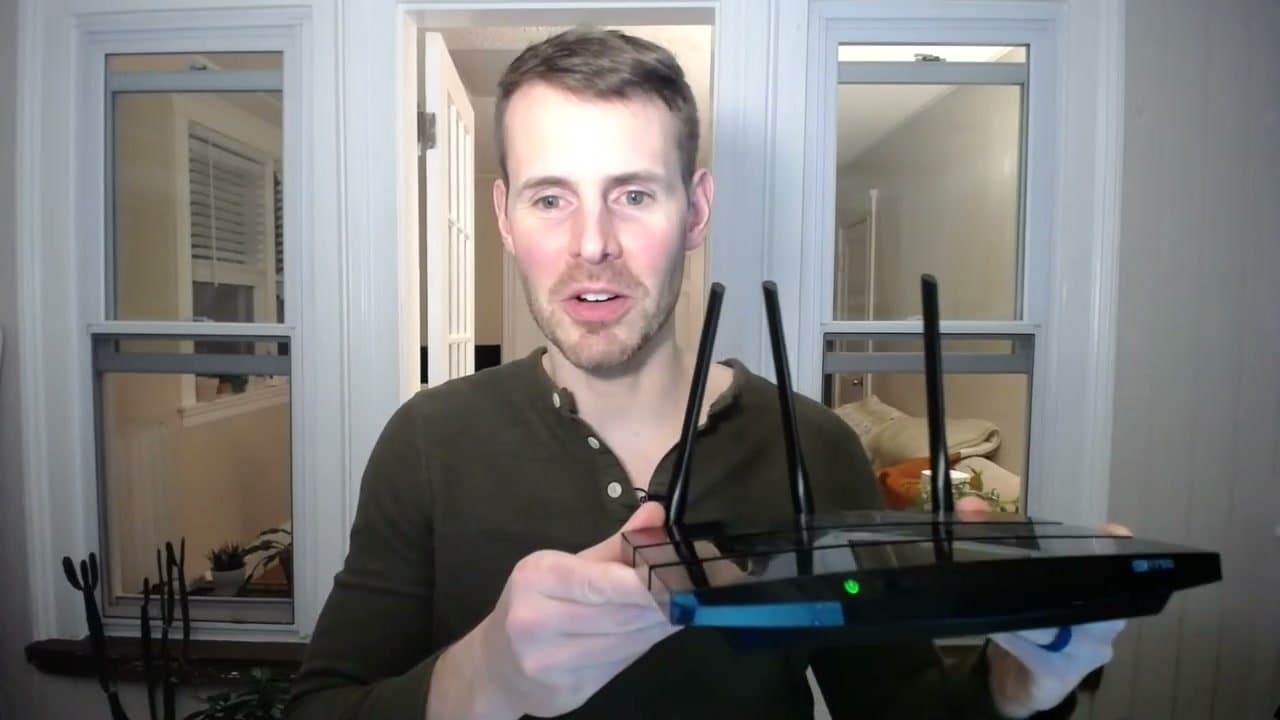
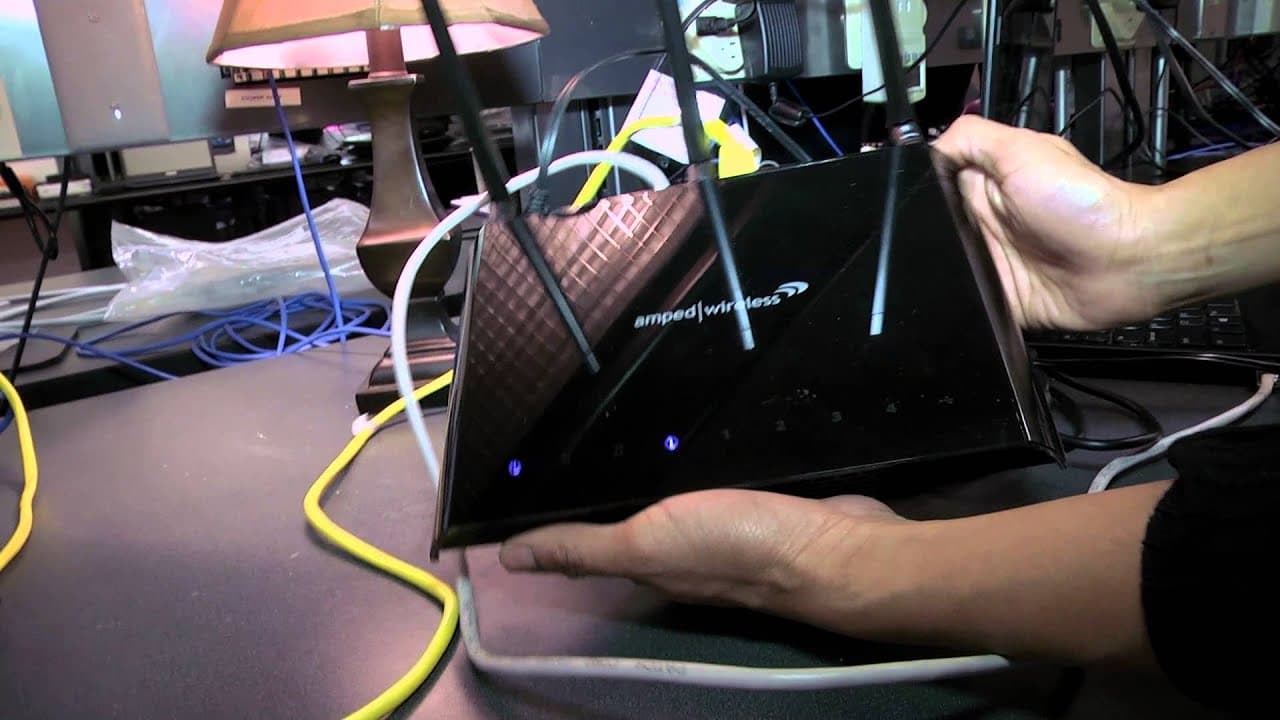
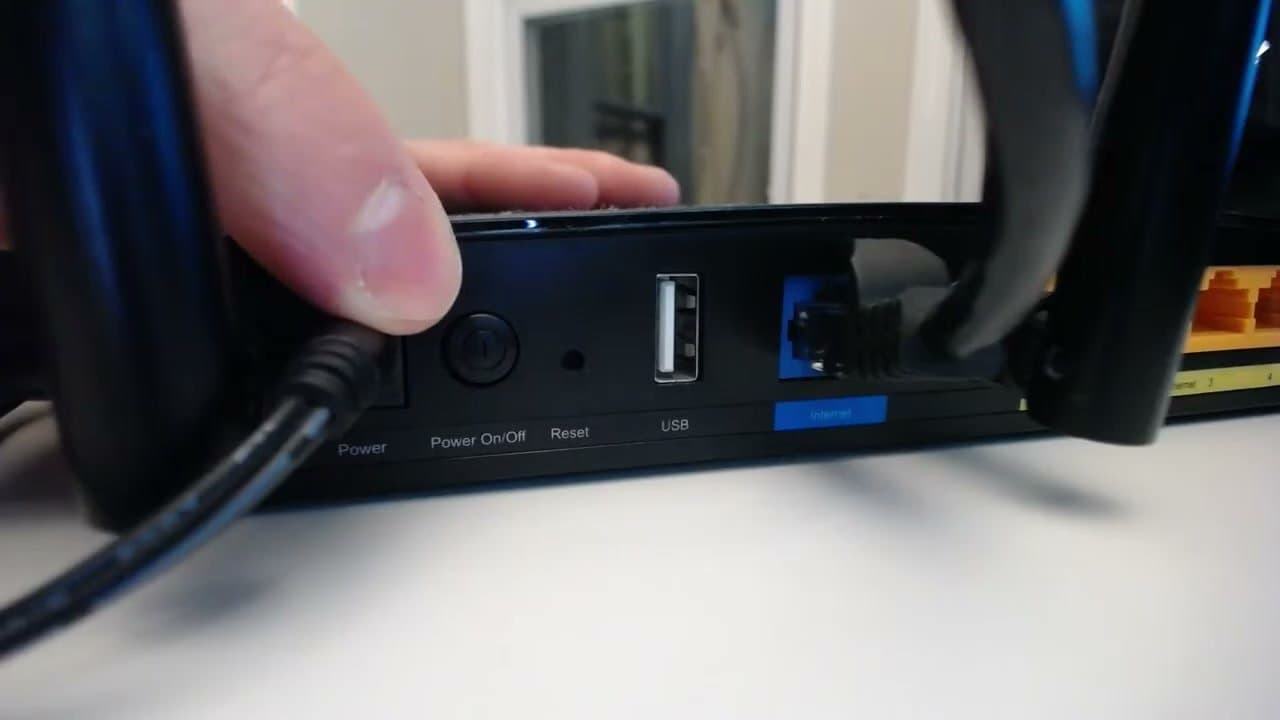
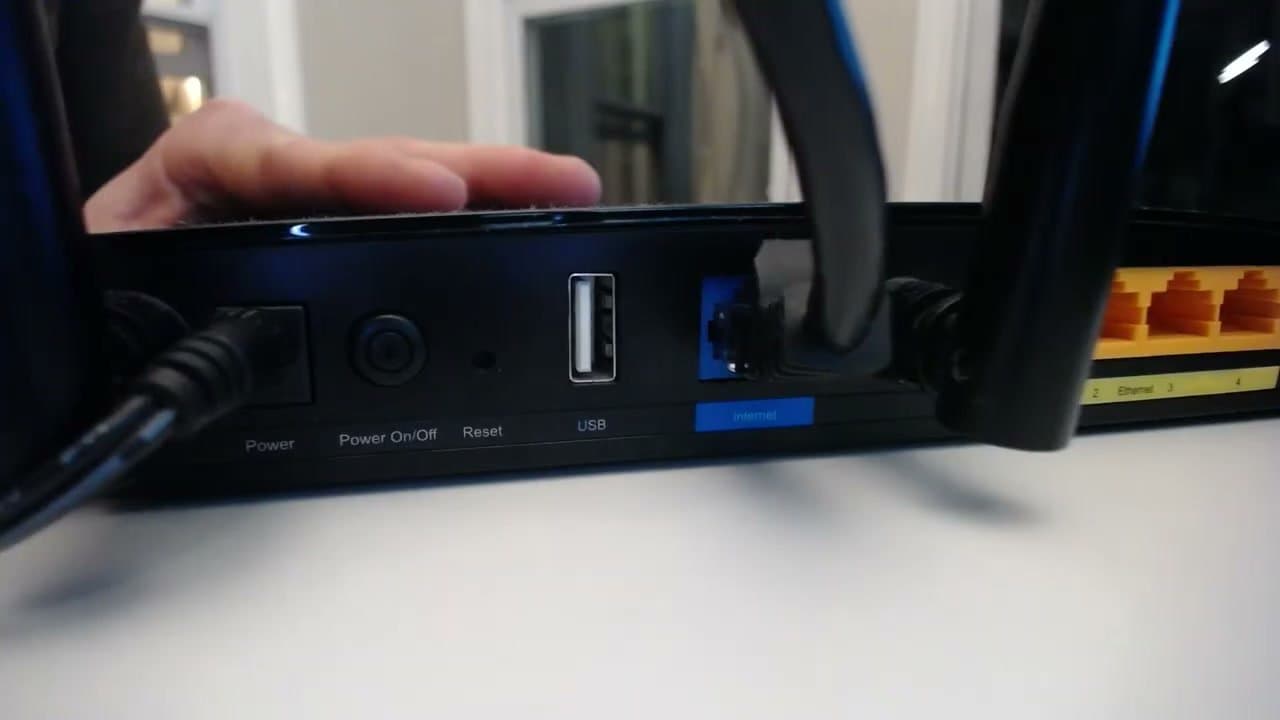
Look at the back or side of your router. Most have a power button labeled 'Power On/Off' or just with a power symbol. Press it once. All the indicator lights on the front of the router should go dark.

If your router has a separate modem that's also powered on, leave that alone for now. The fix usually works just from the router.

Tip

Don't confuse the Power button with the Reset button, which is usually a small recessed hole. Reset wipes all your settings; you don't want that.

3

Wait a Full 30 Seconds

1:25
Step 3: Wait a Full 30 Seconds

Count to 30. This isn't arbitrary. The router has capacitors that hold a small amount of power for several seconds, and it keeps connections open with devices on your network for a bit after shutdown.

Waiting 30 seconds makes sure those capacitors drain completely and all the old connections fully clear. A 5-second wait often doesn't do the job.

Tip

Tempted to just flip it off and on fast? Don't. The 30-second wait is the difference between a restart that works and one that doesn't fix anything.

4

Power It Back On

1:50
Step 4: Power It Back On

Press the power button again. The indicator lights will come back on and cycle through their startup sequence - usually 1 to 2 minutes before everything is stable.

Wait for the Wi-Fi and internet lights to go solid (not blinking) before testing a connection.

Tip

Your devices will auto-reconnect on their own once the Wi-Fi comes back. No need to forget and rejoin networks.

5

No Power Button? Unplug and Replug

2:10
Step 5: No Power Button? Unplug and Replug

Some routers don't have a power button. If yours doesn't, just unplug the power cord from the back of the router. Wait the same 30 seconds. Then plug it back in.

Same effect as the power button, same wait, same startup sequence. Works on any router or modem.

Tip

If you have a combined modem/router, unplugging the power cord is the universal restart - works no matter what brand or model.

6

Restart From the Admin Interface

4:10
Step 6: Restart From the Admin Interface

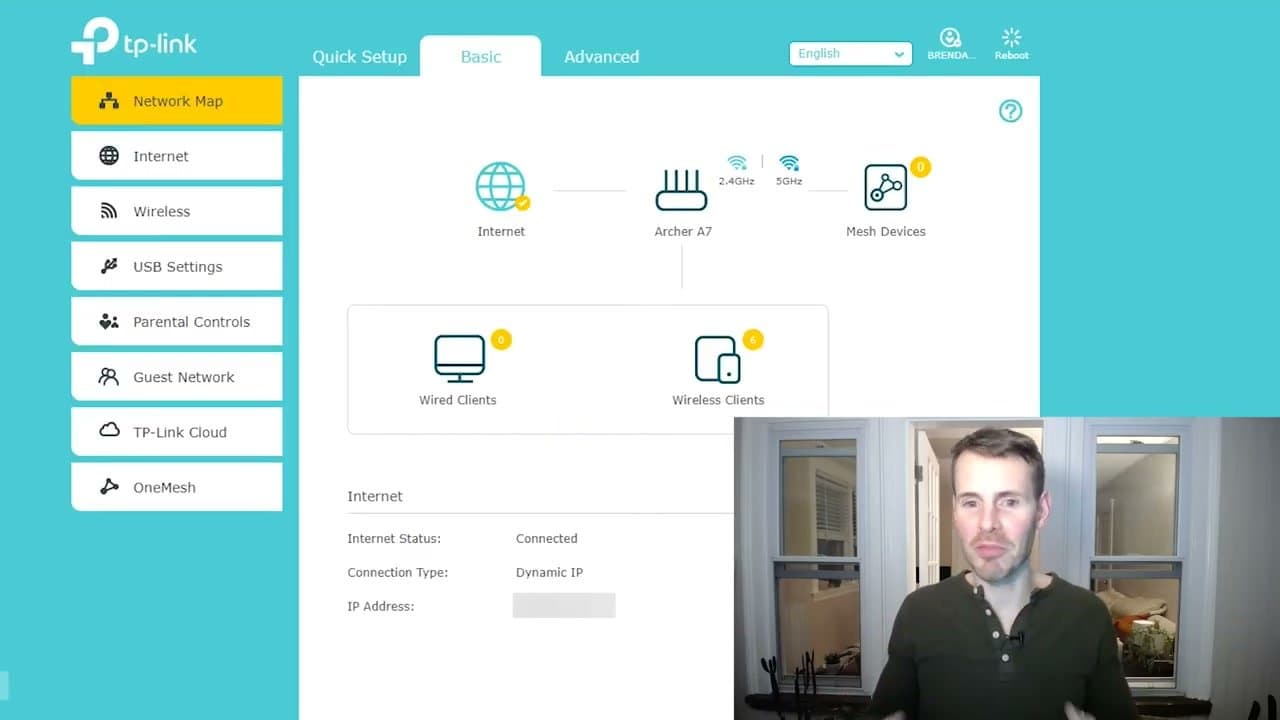
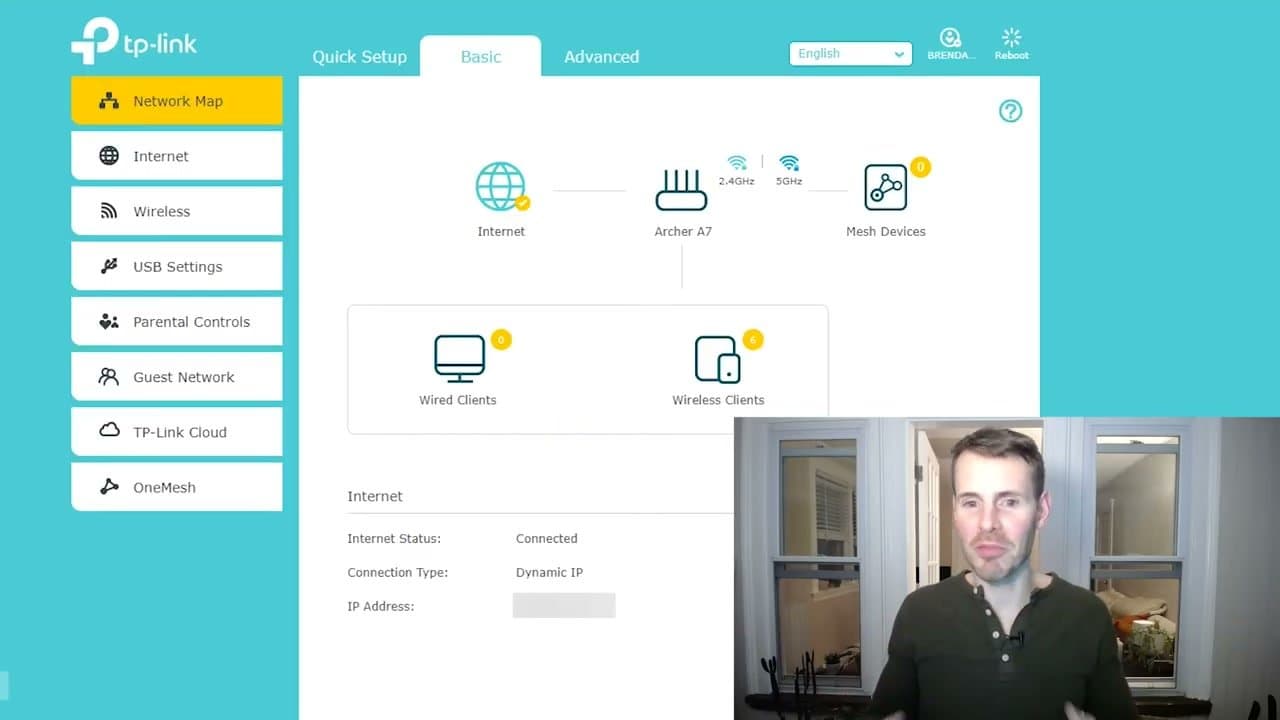
If your router is mounted somewhere inconvenient, you can restart it from any device on the network. Open a browser and go to your router's admin page - usually 192.168.0.1 or 192.168.1.1. Log in with the admin password (often on a sticker on the router itself).

Look for a 'Reboot' button in the settings - it's usually right on the main dashboard. Click it, confirm, and the router will restart itself.

Tip

Most routers also let you schedule automatic reboots (say, once a week at 3 AM). If you deal with frequent issues, that setting is worth turning on.

Your Guide

NetWork From Home

As an Amazon Associate we earn from qualifying purchases. Links on this page may be affiliate links - clicking them and buying doesn't change your price, but helps support ShowMeStepByStep.

Tags

Related Tutorials