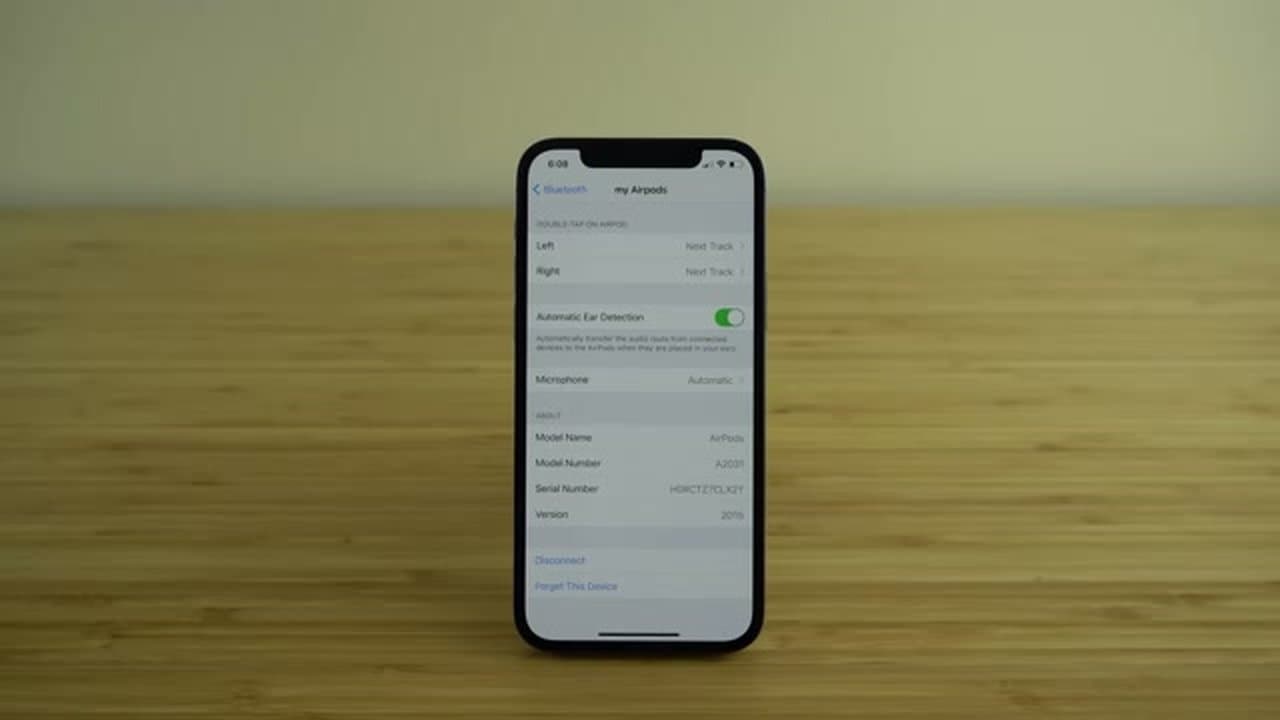
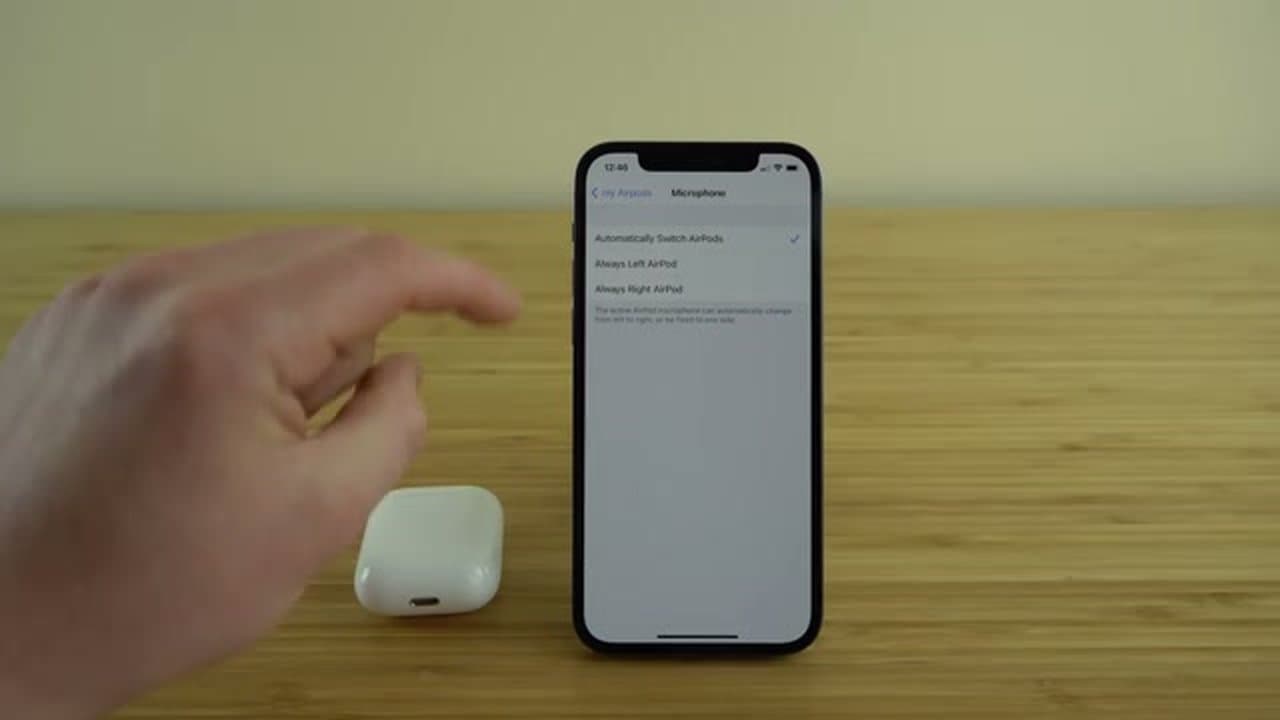
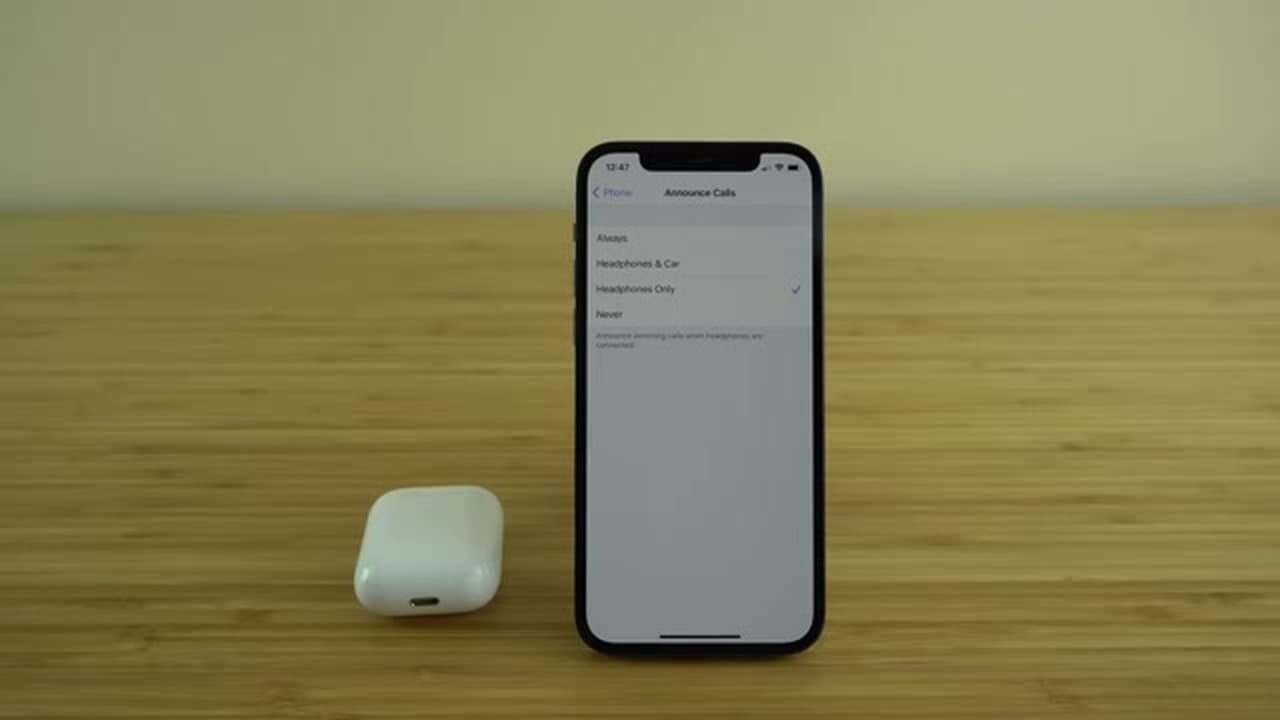
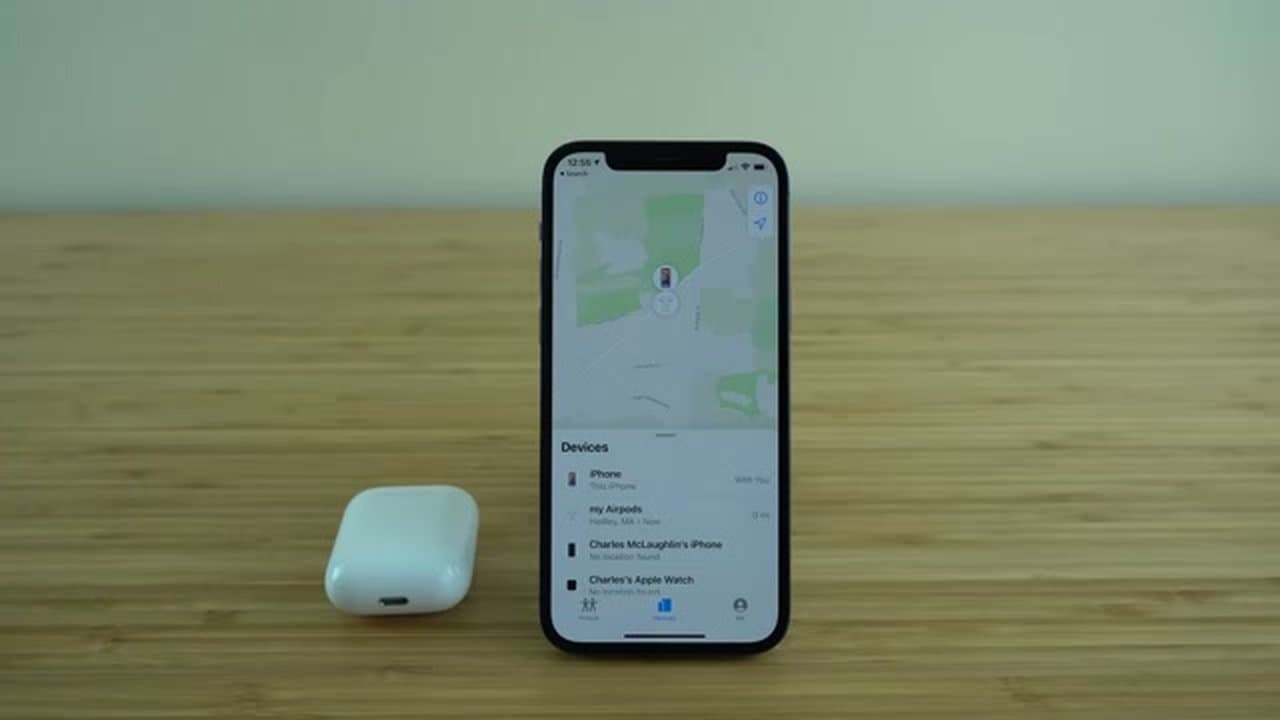
Got new AirPods and not sure what they can really do? This walkthrough from AppFind covers everything from pairing on day one to a couple of features most people never find.
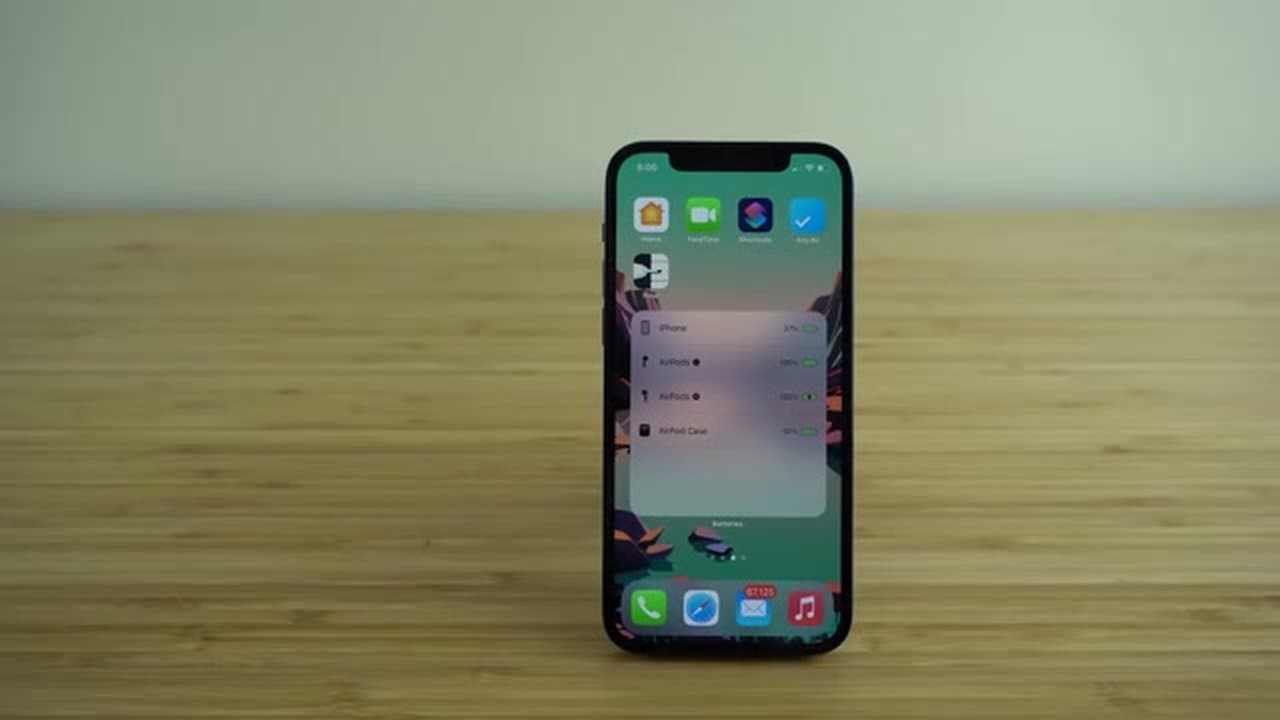
By the end you'll have your AirPods set up the way you want them, with custom controls, a battery widget on your home screen, and a way to find them when they go missing.
What the status light means in pairing mode
The little LED on the charging case is the fastest way to tell what your AirPods are doing, and it trips up a lot of people because the same light means different things depending on whether the lid is open and whether the buds are inside.
- Flashing white - pairing mode. The case is broadcasting and ready for a device to connect. This is the light you want to see when you're setting up.
- Solid green - charged. With the buds in the case, the case has charge to spare. With the buds out, the case itself is full.
- Solid amber - charging, or less than one full charge left in the case.
- Flashing amber - a pairing error. The case has AirPods in it that were paired to a different device and something went wrong. Hold the setup button for 15 seconds until it flashes white, then start over.
- No light at all - the case battery is flat. Put it on a charger for 15 minutes and check again.
On AirPods Pro and the newer AirPods 4, the light sits on the front of the case. On the original AirPods and AirPods 2 it's inside, between the two buds, so you have to open the lid to see it.
Getting to flashing white
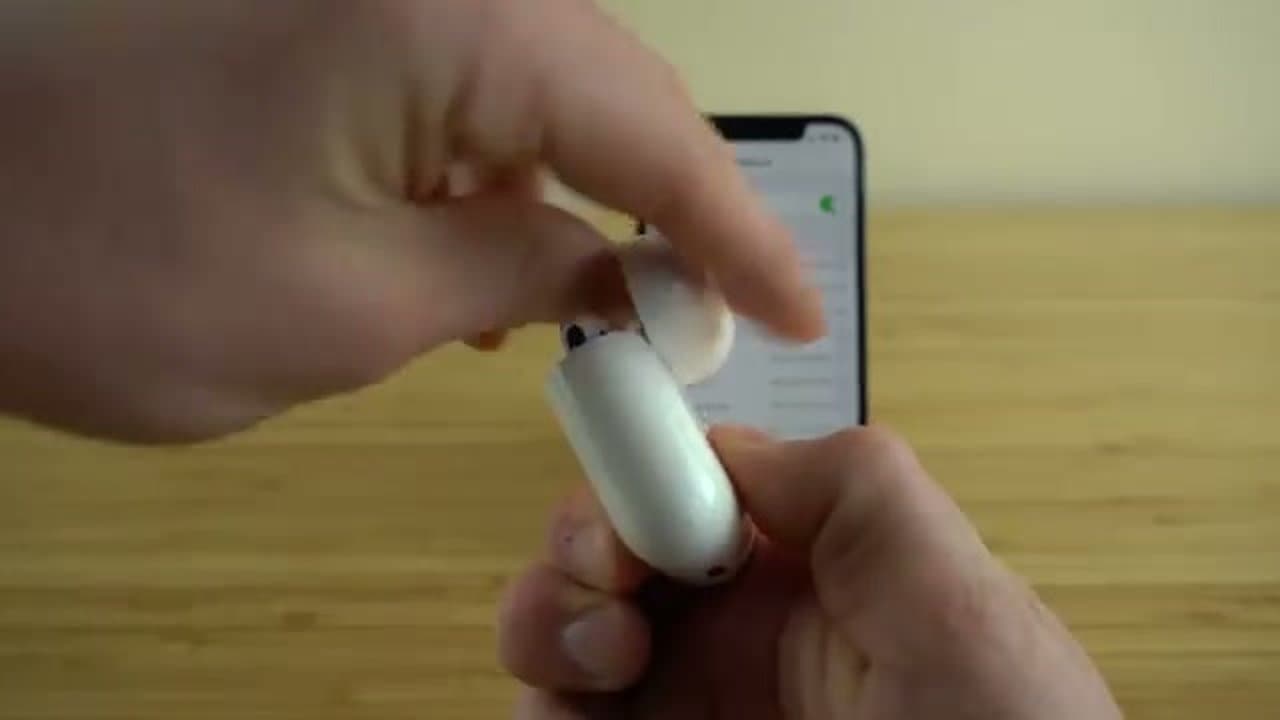
Put both buds in the case and leave the lid open. Press and hold the setup button on the back until the light starts flashing white. On most models that's about five seconds. If it flashes amber instead, keep holding to a full 15 seconds - that's a factory reset, and it's the right move when the buds have been paired to someone else's phone.
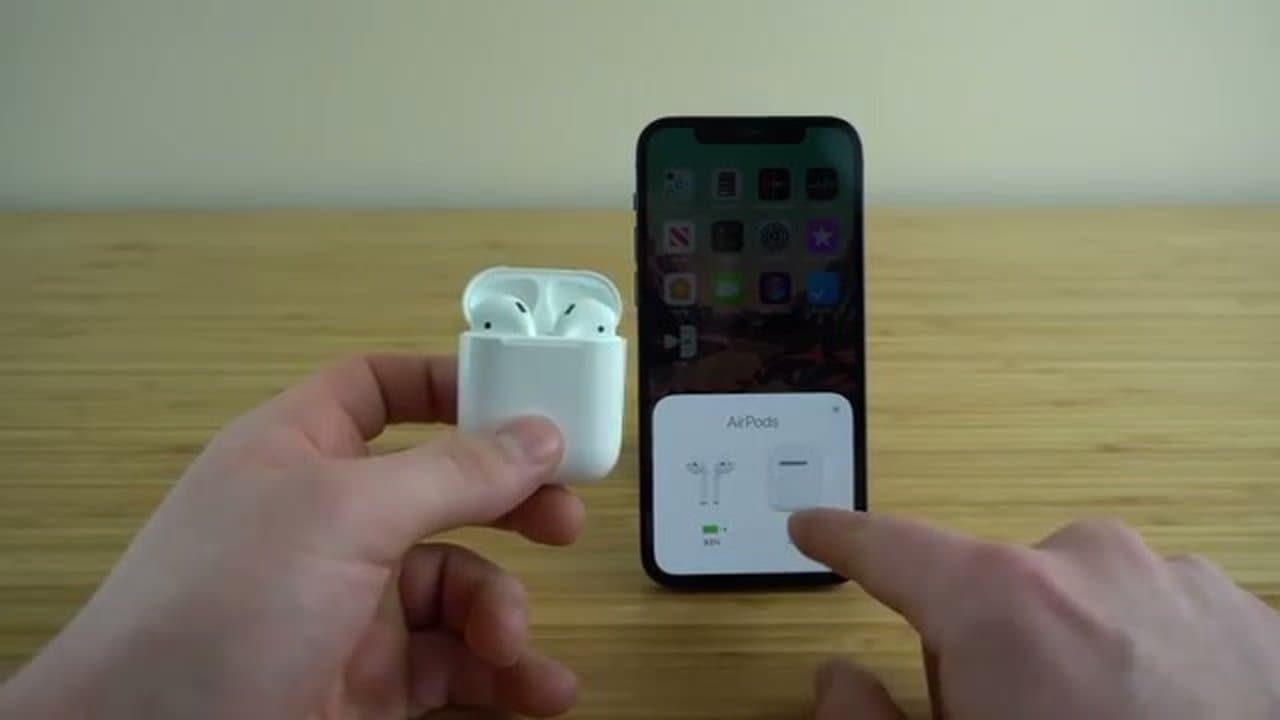
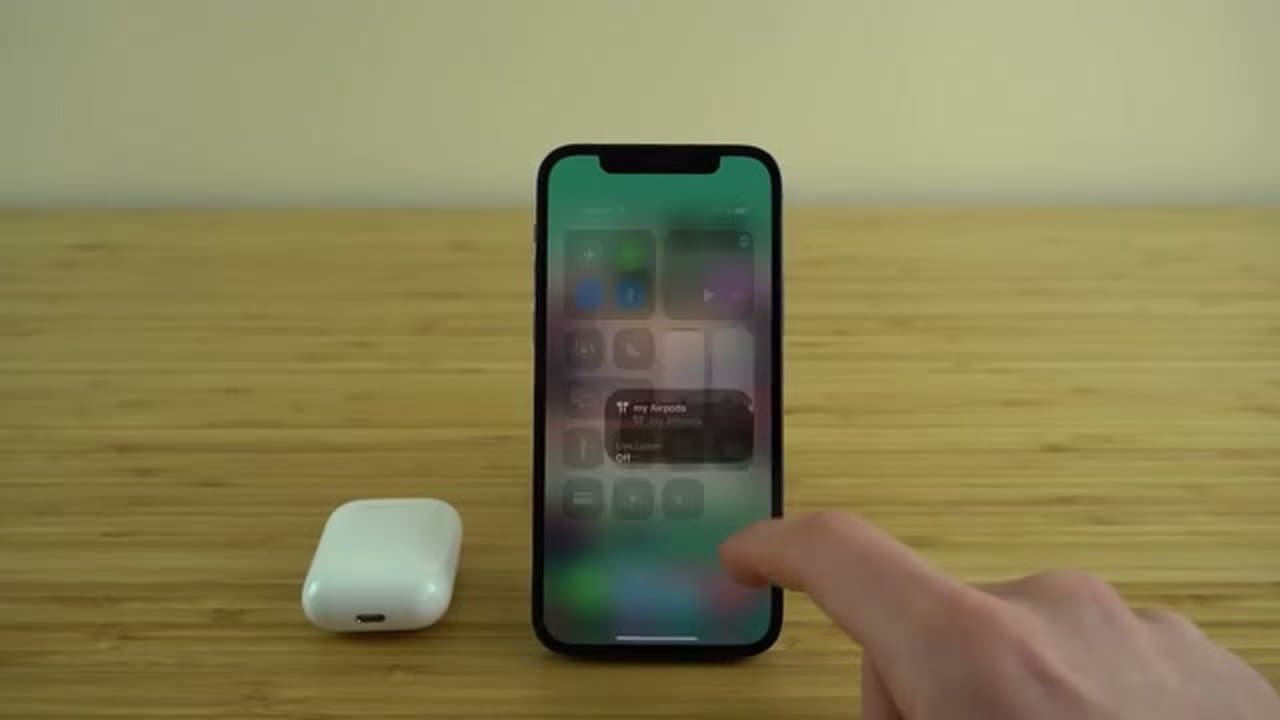
Once it's flashing white, hold the case near an unlocked iPhone. A card slides up from the bottom of the screen with a picture of your AirPods and a Connect button. If the card doesn't appear, check that Bluetooth is on and that the phone isn't already connected to another set of headphones.
Connecting AirPods to a non-Apple device
AirPods are ordinary Bluetooth headphones to everything that isn't an Apple device, so there's no card and no automatic handoff. Get the case flashing white, then open Bluetooth settings on the Android phone, Windows laptop, PlayStation, or smart TV and pick your AirPods out of the list of nearby devices.
You lose a few things this way. Automatic ear detection, Siri, and the battery readout in Control Center are all Apple-only. Audio, the microphone, and the tap controls work fine.
When the pairing card never shows up
Three things cause this most of the time. The case isn't actually in pairing mode, so check the light. Bluetooth is off or the iPhone is already connected to something else. Or the buds are still claimed by a previous pairing, which is what the 15-second hold clears.
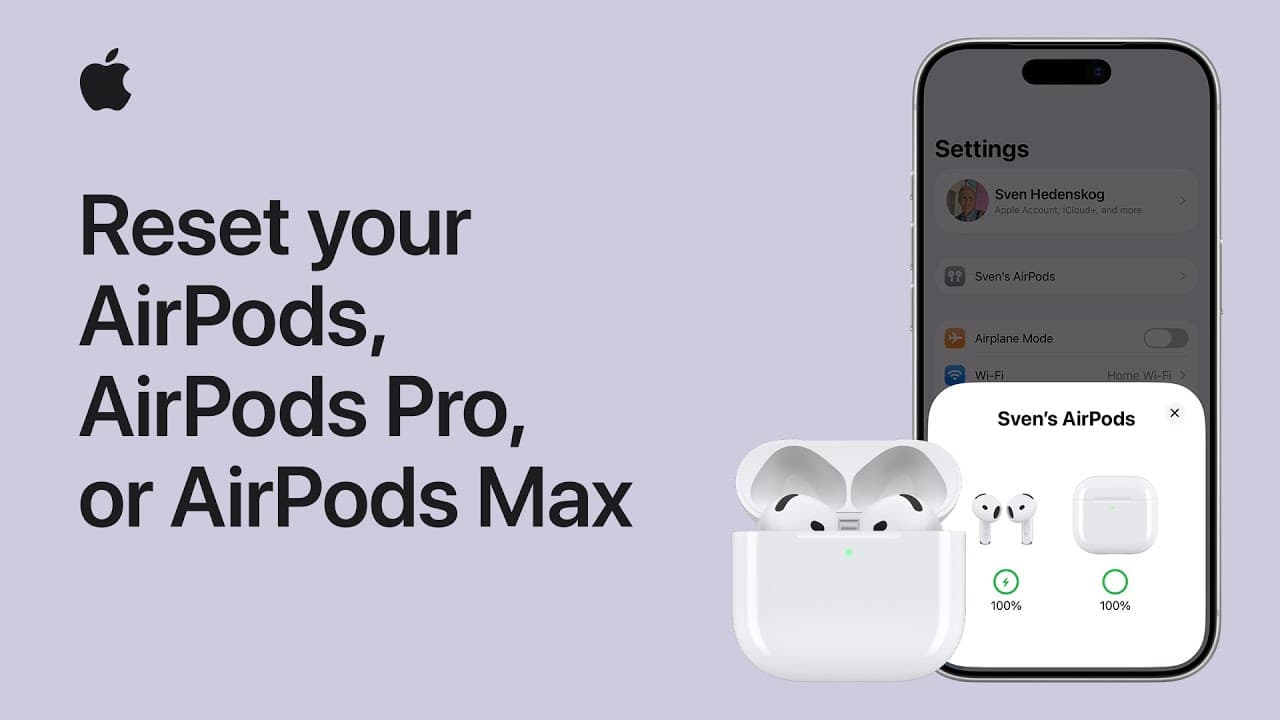
If the card appears and the buds connect but drop again within a few seconds, a reset is the fix. Our guide to resetting AirPods covers the button hold and the per-model differences.