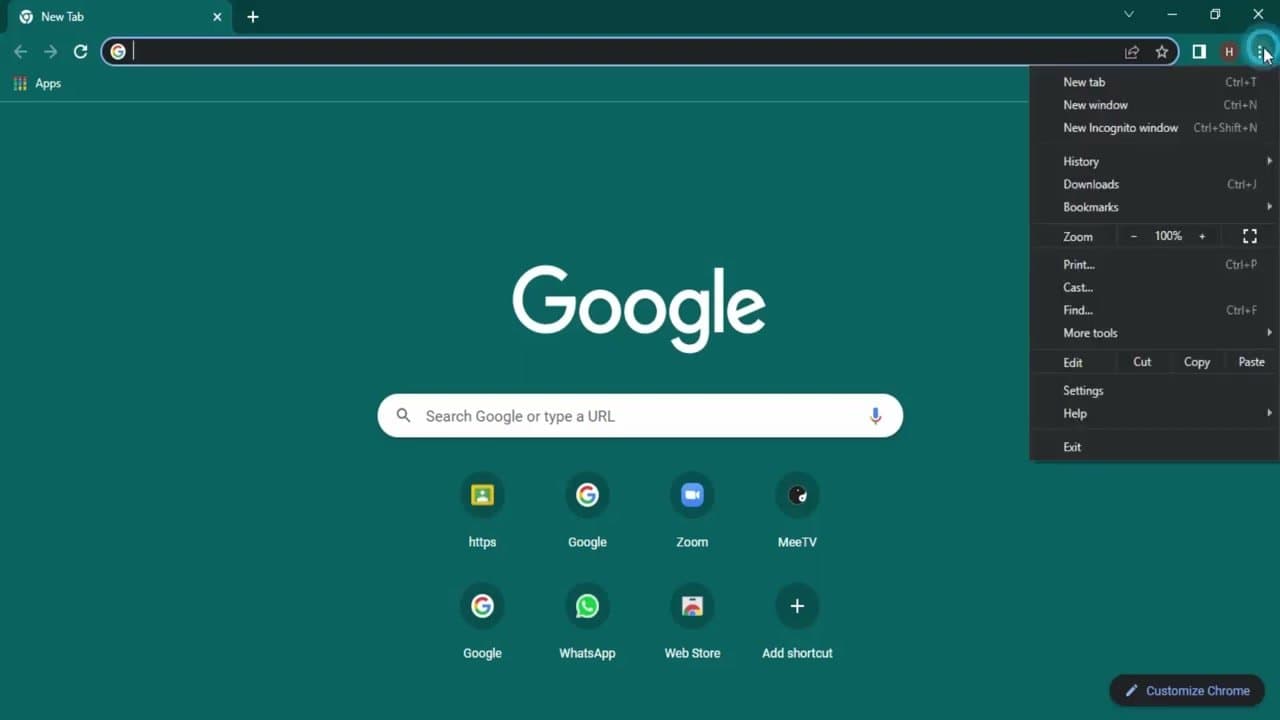
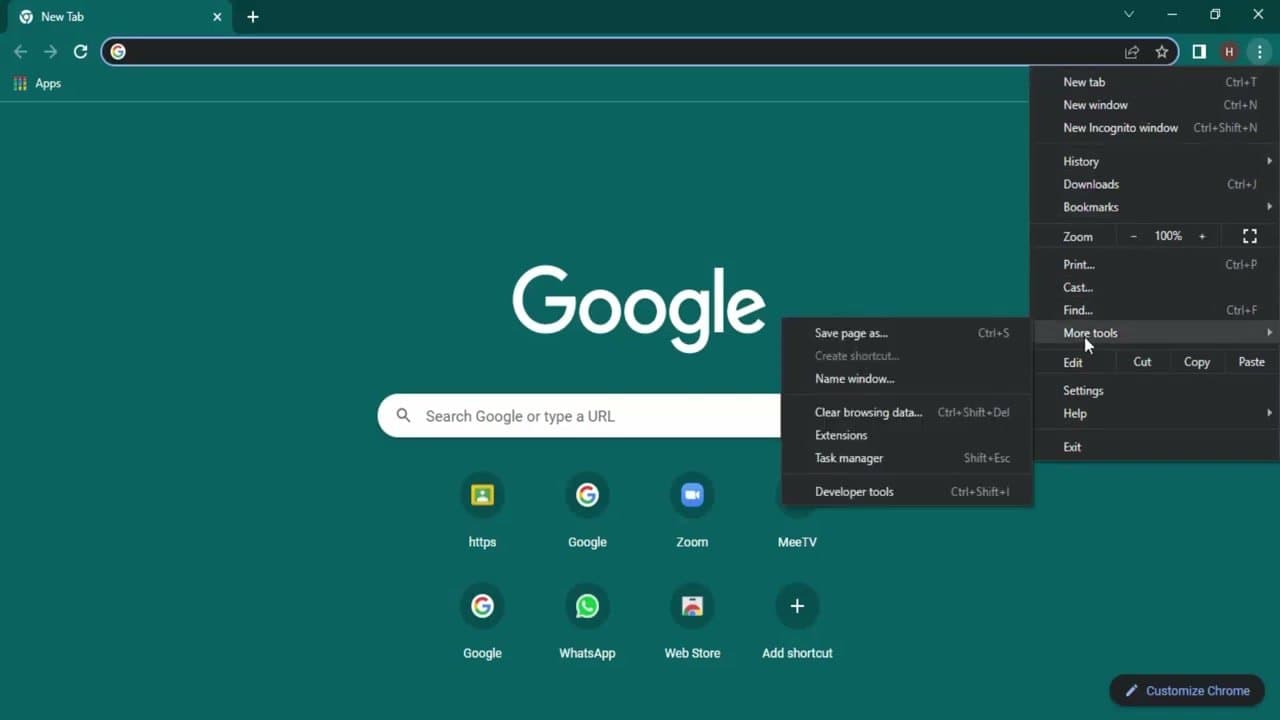
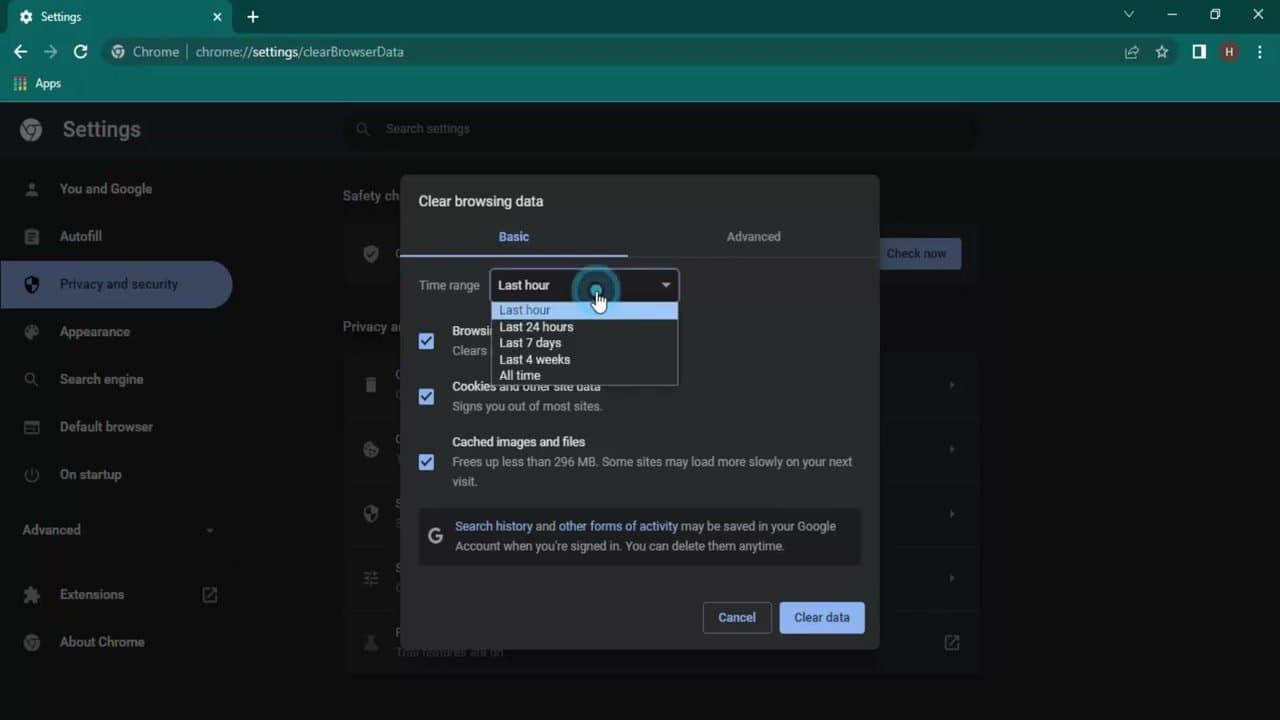
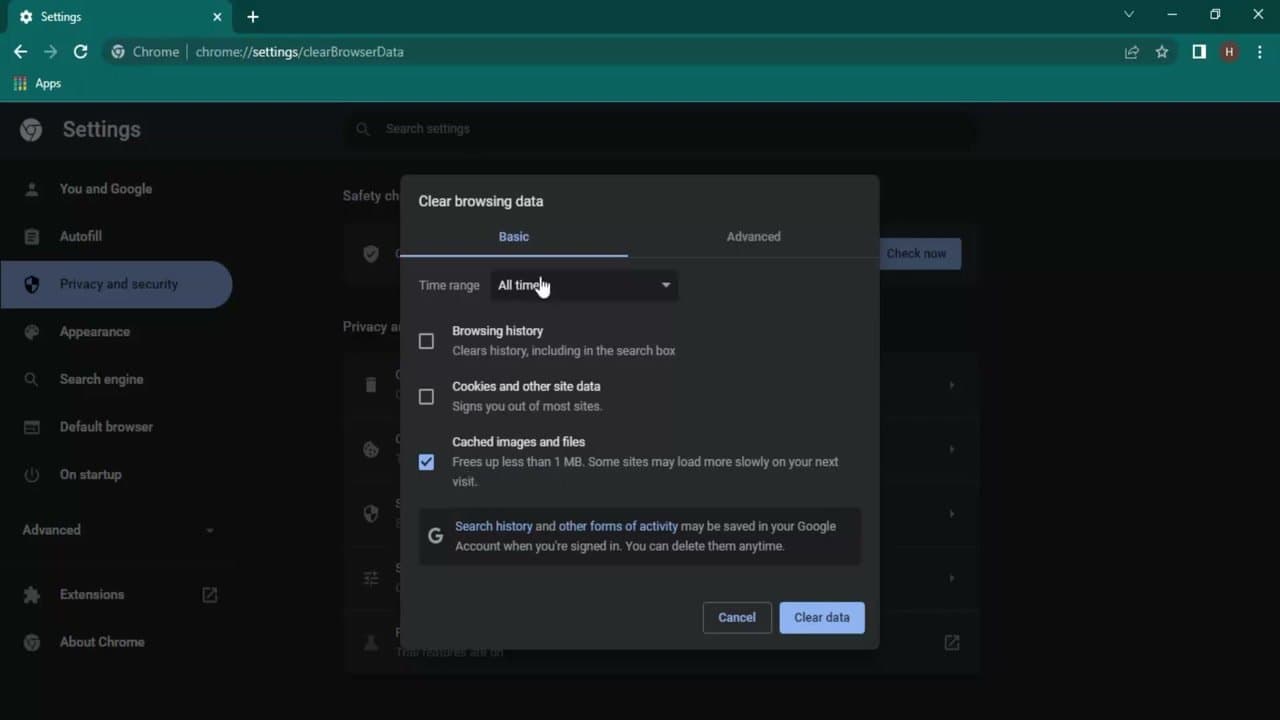
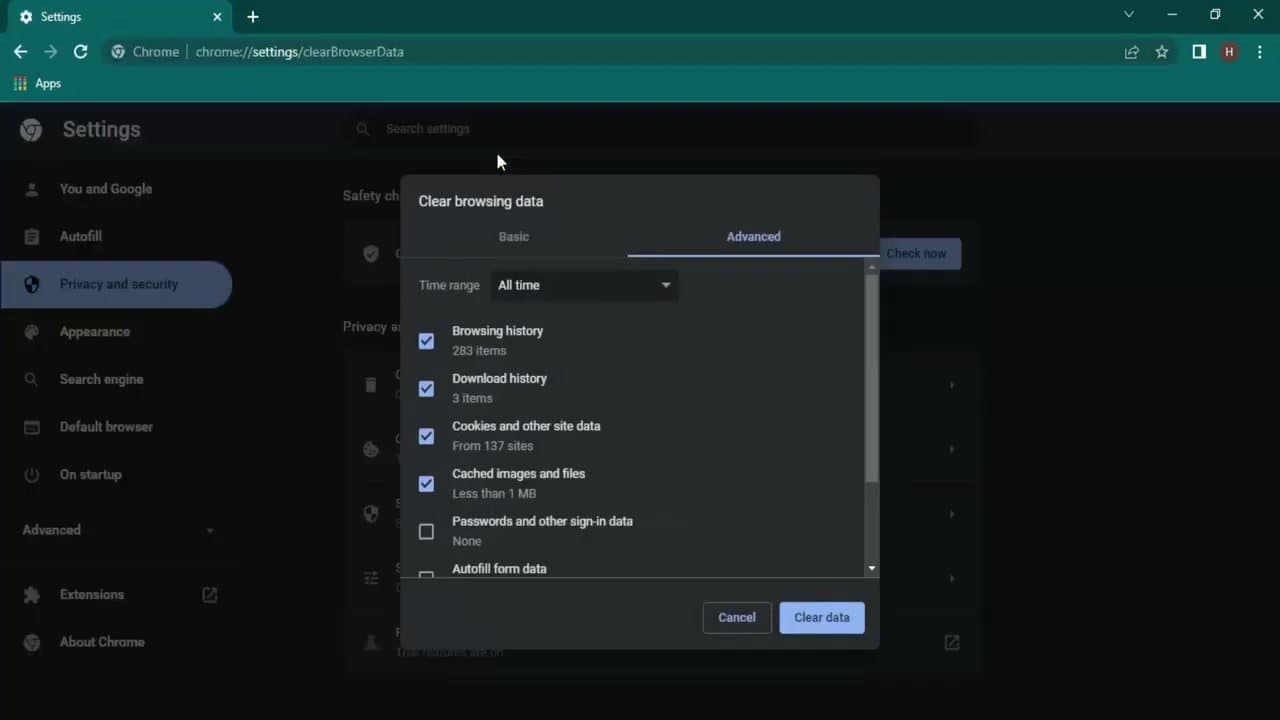
When a website acts weird - blank pages, images that won't load, forms that won't submit, a layout that looks broken - the fix is almost always the same: clear Chrome's cache. It's also the first thing any support line tells you to do.
This walkthrough is based on a tutorial from ProgrammingKnowledge2. Six steps, one minute, and the site will start behaving again.
Variations by device and use case
Chrome on Android. Different menu path: tap the three dots in the top right, History, then "Clear browsing data." The choices are the same (time range + what to clear), and the keyboard shortcut isn't available on mobile.
Chrome on iPhone. Same as Android: three dots, History, Clear Browsing Data. Note that on iPhone, "Clear All Cookies" will sign you out of every site you're logged into, including Gmail and Google Drive. If you only want to fix one misbehaving site, use the next variation instead.
Clear cache for one specific site only. Hold Shift and click Reload in the address bar (or press Ctrl+F5 on Windows / Cmd+Shift+R on Mac). This forces Chrome to bypass cache for the current page only without wiping everything else. The cleaner approach when one site misbehaves but you want to stay logged into the others.
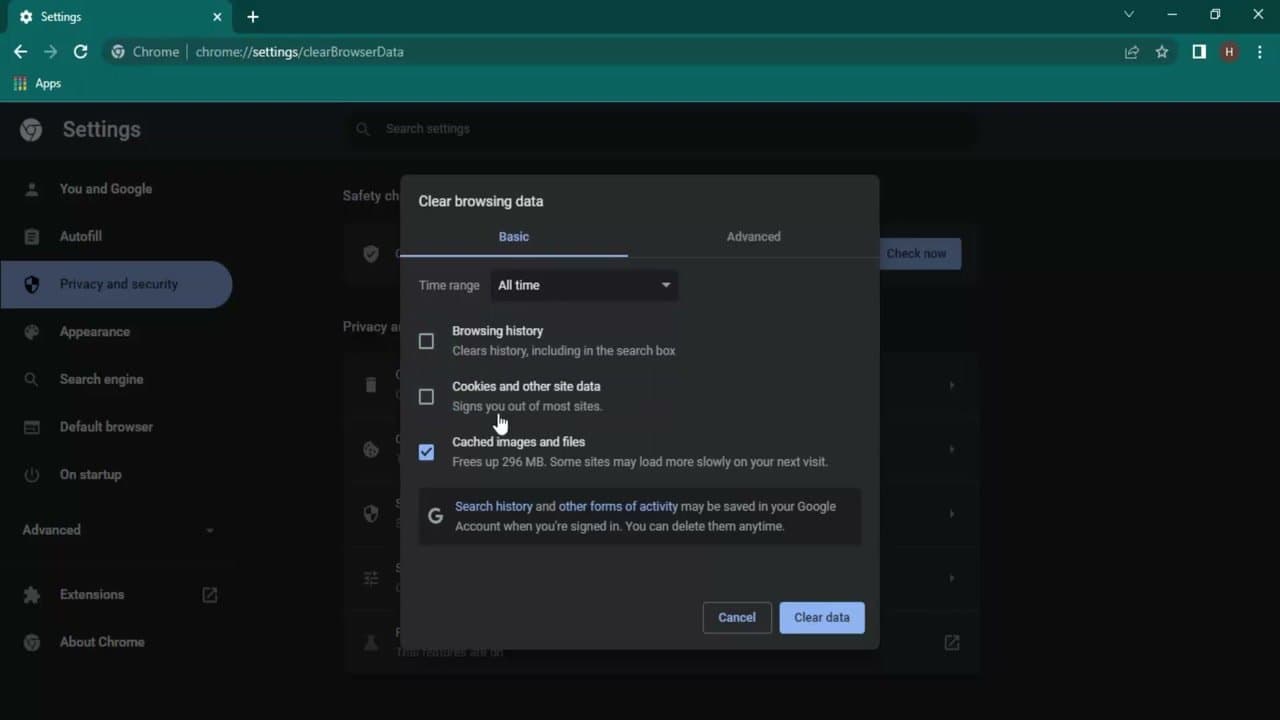
Clear cache but keep cookies (don't lose logins). In the Clear Browsing Data dialog, check "Cached images and files" only and uncheck "Cookies and other site data." You get the cache benefit without losing every saved login. This is the right setting most of the time.
Test in Incognito instead of clearing. Ctrl+Shift+N opens an Incognito window that doesn't use your normal cache or cookies. If a site works fine in Incognito, you've confirmed the problem is cache-related without nuking anything. Then come back and do a targeted Ctrl+F5 reload of just that site.
Common questions about clearing Chrome's cache
Will clearing cache log me out of websites?
Only if you also clear cookies. Cache and cookies are separate categories in the Clear Browsing Data dialog. Uncheck "Cookies and other site data" before clicking Clear Data and your saved logins stay intact. Most people clear both by accident on the first try and then have to log back into everything.
How often should I clear my Chrome cache?
Don't, unless something is broken. The cache exists to make pages load faster - clearing it forces Chrome to re-download images, scripts, and stylesheets you've already seen. Routine "spring cleaning" of the cache slows your browser down. Clear it when a specific site misbehaves (broken layout, stale content, login loops) and not on a schedule.
What's the difference between cache and cookies?
Cache stores copies of website files (images, scripts, CSS) so Chrome doesn't have to re-download them every time you visit. Cookies store small text records about your session: who you're logged in as, your shopping cart, your preferences. Clearing cache makes pages load slower next visit. Clearing cookies logs you out and resets every site's memory of you.
Does clearing cache speed up Chrome?Almost never. A bloated cache doesn't slow Chrome the way people assume - Chrome only reads from cache when you visit a page, and that read is the entire point of the cache. The fix for slow Chrome is usually too many tabs, too many extensions, or too little RAM, not too much cache. If Chrome is sluggish, open Task Manager (Shift+Esc inside Chrome) to see which tab or extension is using memory; that's where the real problem usually is.
Why does Chrome use so much storage?
Most of it is cache, but a lot of it is service-worker storage for "installed" web apps (Gmail, Slack web, YouTube Music) that pre-load content for offline use. You can see the breakdown at chrome://settings/cookies/detail or visit chrome://settings/clearBrowserData and switch to the Advanced tab. If you genuinely need to free space, "Cached images and files" is safe to clear; "Hosted app data" might log you out of installed web apps.