How to Back Up Your iPhone to iCloud or a Computer

TechEasy7:066 steps

Based on a video by CNET.

Losing your iPhone without a backup is the kind of headache no one wants. This walkthrough from CNET covers four ways to back up your phone - iCloud, photos-only via iCloud Photos, Mac via Finder, and PC via iTunes - so you can pick whatever fits your setup.

Pick one method and stick with it. The free 5GB iCloud tier works for many people, but the paid options are cheap and a Mac or PC backup costs nothing if you have the cable.

Step-by-Step Guide

1

Step 1: Check Your iCloud Backup Size

2:10
Step 1: Step 1: Check Your iCloud Backup Size

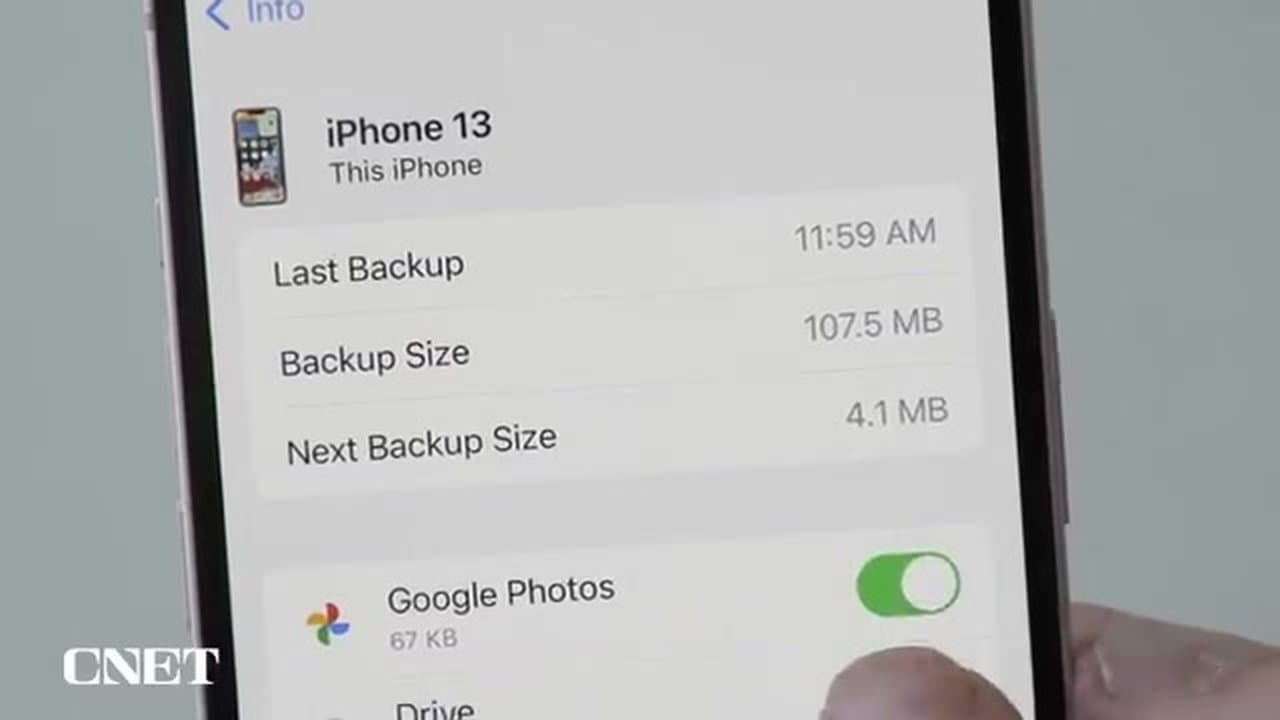
Open Settings, tap your name at the top, then iCloud. From there, tap Manage Storage, then Backups, and select your iPhone.

The top three lines show Last Backup, Backup Size, and Next Backup Size. Focus on Next Backup Size. If it's under 5 GB, you're set with the free iCloud tier. If it's over, you've got a couple of choices to make.

Tip

Backup Size is what's currently stored. Next Backup Size is what the next backup will use. They can be very different if you've added a lot of data since the last backup ran.

2

Step 2: Trim What's in Your Backup

2:35
Step 2: Step 2: Trim What's in Your Backup

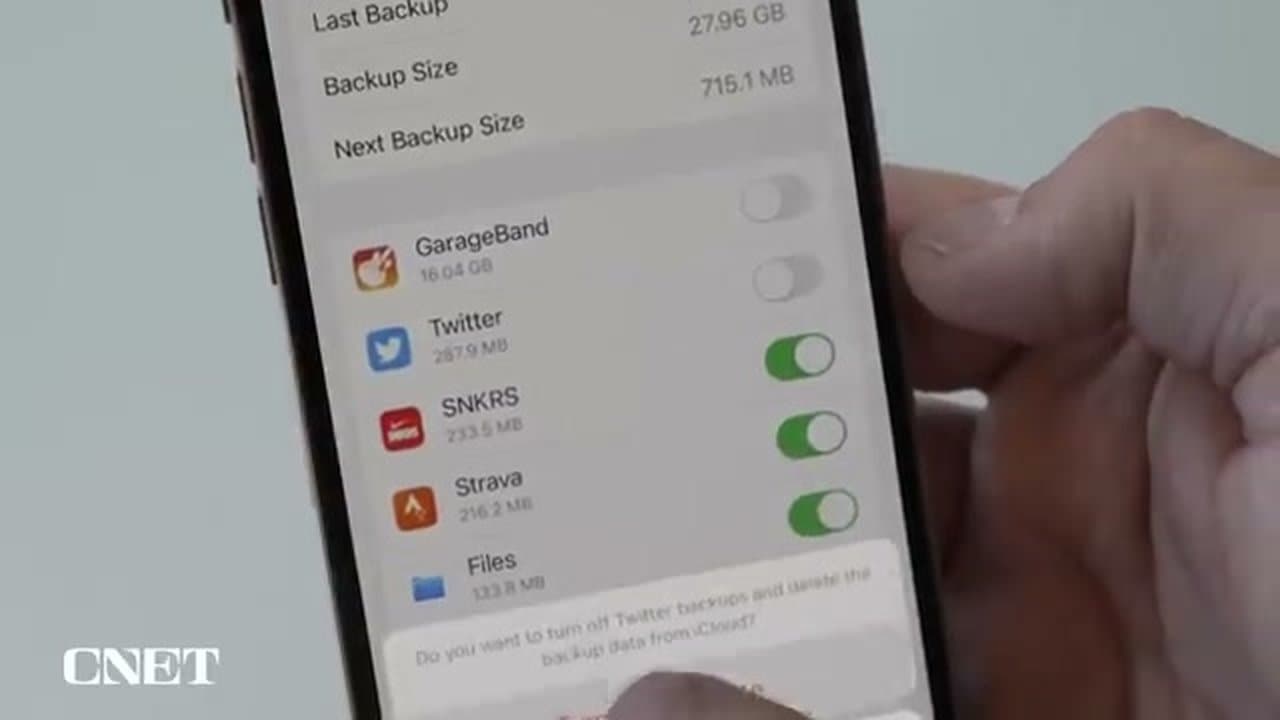
On that same backup details screen, scroll past the size info to the list of apps included in the backup. Each one shows how much space it takes.

Toggle off anything you don't need restored - GarageBand projects, old games, apps you can re-download from the App Store anyway. The phone confirms with a popup before turning off and deleting the backup data for that app, so you can't wipe something by mistake.

3

Step 3: Pay 99 Cents a Month for iCloud+

3:00
Step 3: Step 3: Pay 99 Cents a Month for iCloud+

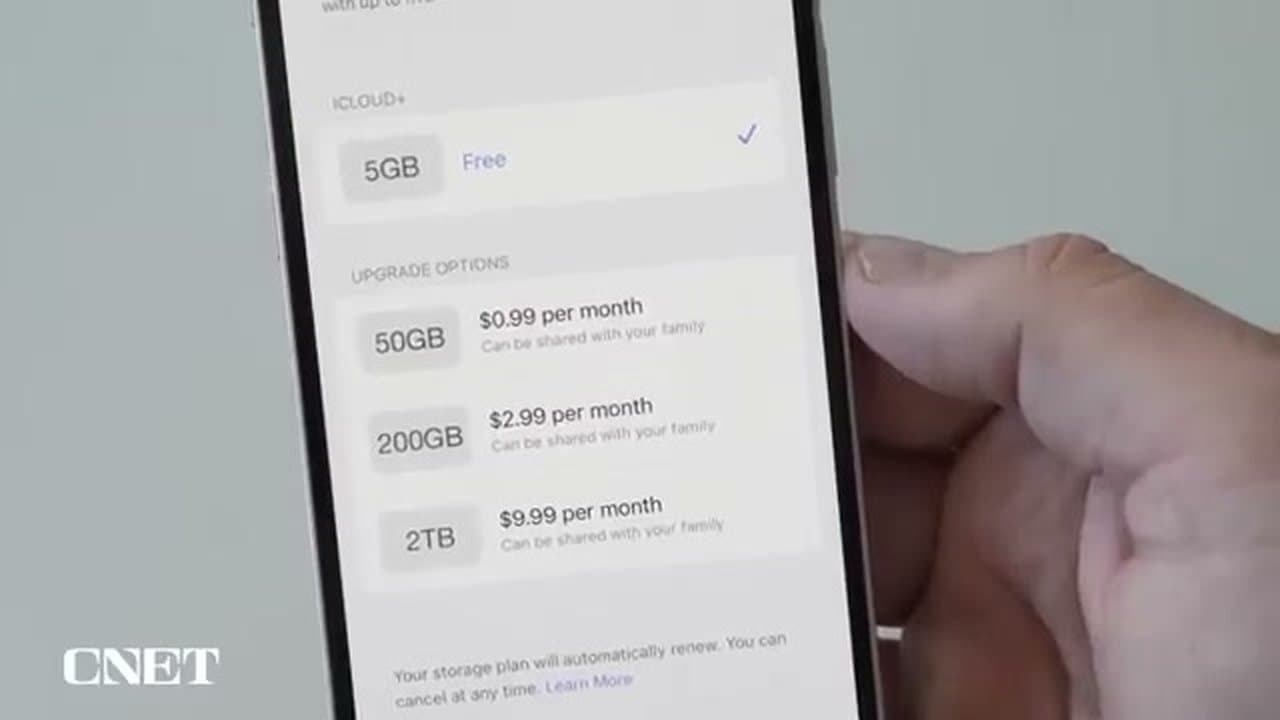
If toggling off apps still leaves you over 5 GB, upgrade. Tap Manage Storage > Change Storage Plan and you'll see the iCloud+ tiers: 50 GB for $0.99 a month, 200 GB for $2.99, and 2 TB for $9.99.

The 50 GB tier covers most people for under twelve dollars a year and skips the toggling hassle entirely. The bigger plans can be shared with family, which spreads the cost across multiple devices in the household.

Tip

iCloud+ also unlocks Hide My Email and Private Relay, so you're not just paying for storage.

4

Step 4: Sync Just Photos with iCloud Photos

3:55
Step 4: Step 4: Sync Just Photos with iCloud Photos

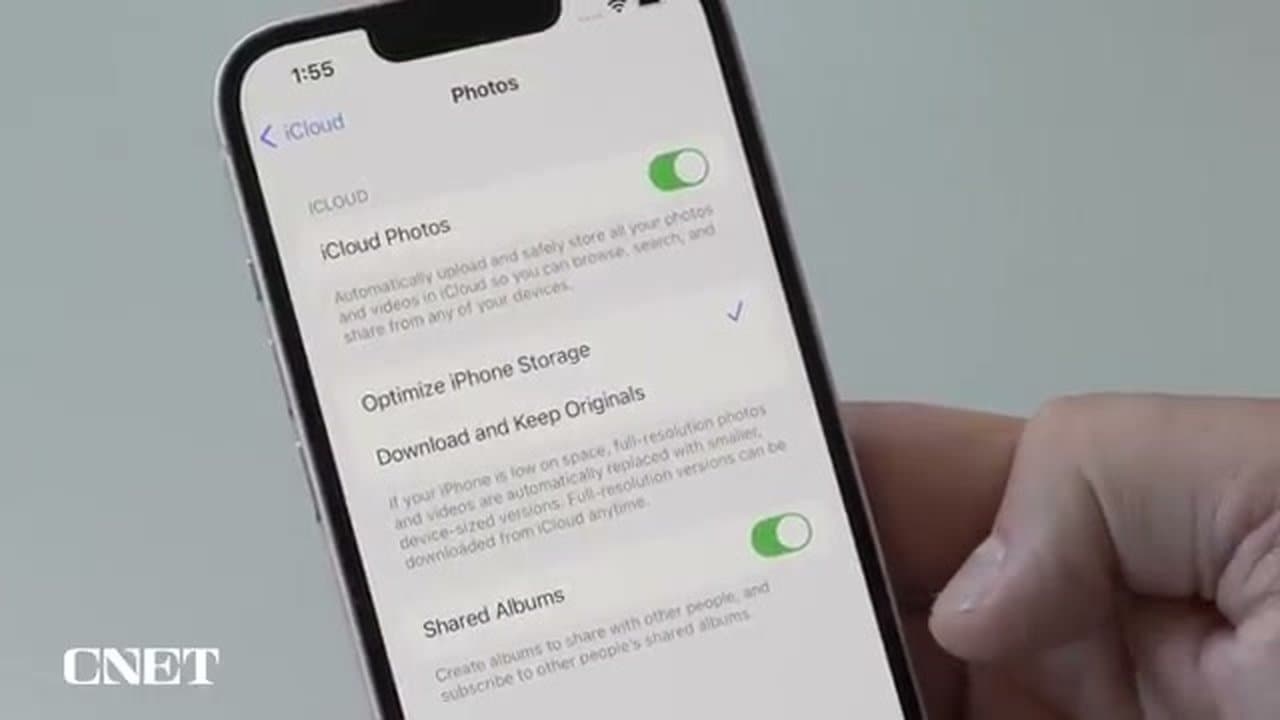
If photos are the only thing you care about, skip the full backup and turn on iCloud Photos. Open Settings > [Your Name] > iCloud > Photos and toggle iCloud Photos on.

Pick Optimize iPhone Storage so smaller versions live on the phone and full-resolution copies sit in iCloud. This still counts against your iCloud quota, but only for photos and videos. Messages, app data, and settings won't be backed up - which is the trade-off for keeping things in the free tier.

5

Step 5: Back Up to a Mac with Finder

4:55
Step 5: Step 5: Back Up to a Mac with Finder

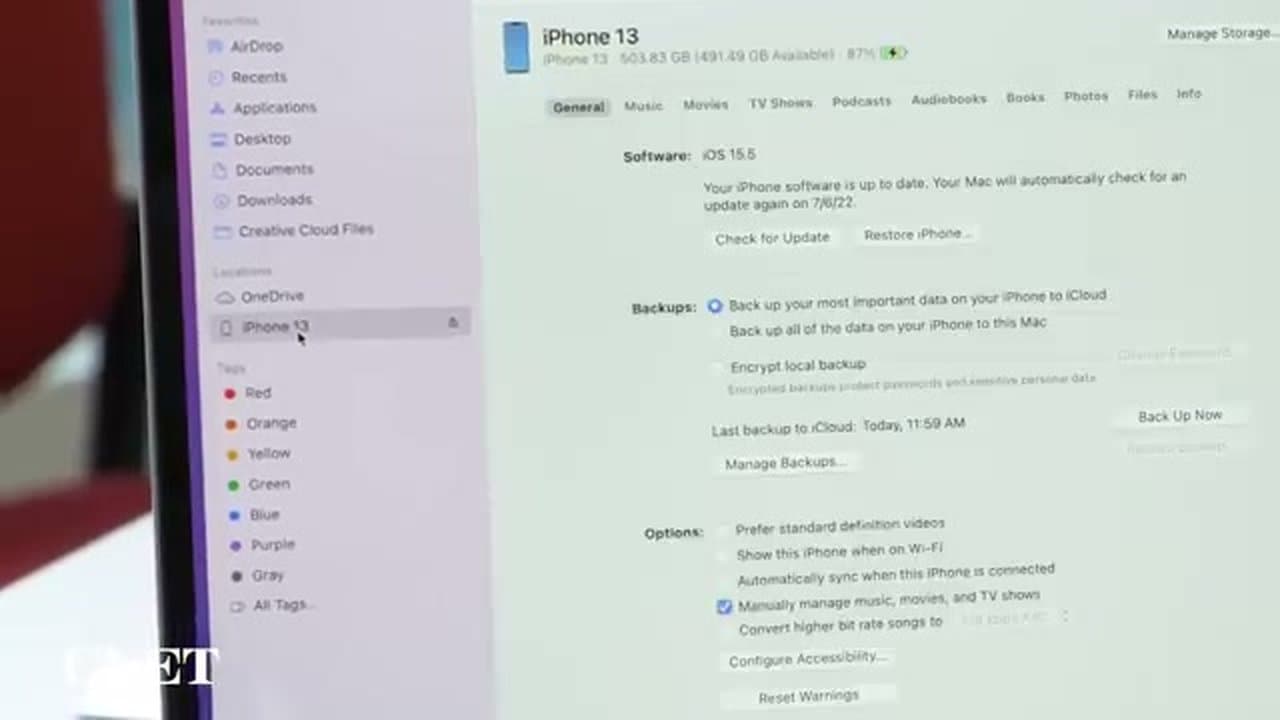
On a Mac running Catalina or newer, plug your iPhone in with a Lightning cable and tap Trust This Computer on the phone if prompted.

Open Finder, click your iPhone in the sidebar under Locations, then click the General tab on the right. Hit Back Up Now. Check Encrypt Local Backup if you want passwords and Health data included - just don't lose the encryption password, or the backup won't restore onto a new phone.

Tip

Backups can take anywhere from a few minutes to half an hour depending on how much data you have. The Mac stays awake during the backup, so don't close the lid.

6

Step 6: Back Up to a PC or Older Mac with iTunes

6:20
Step 6: Step 6: Back Up to a PC or Older Mac with iTunes

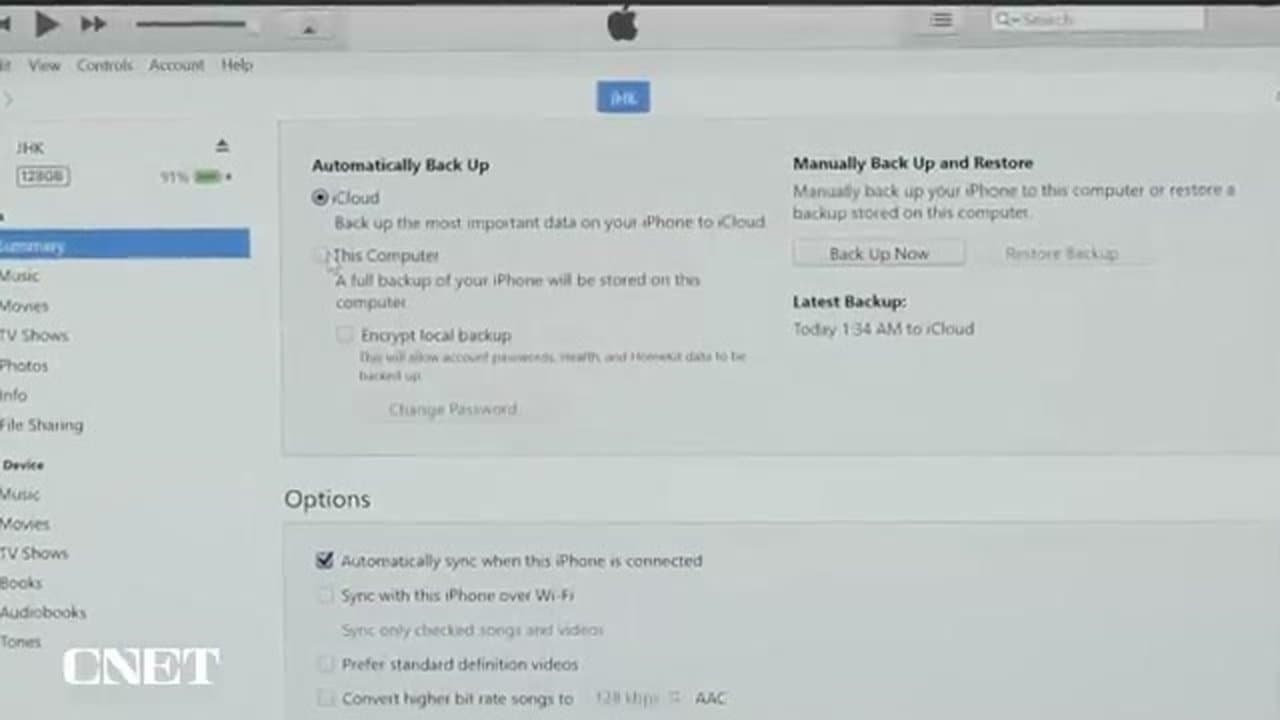
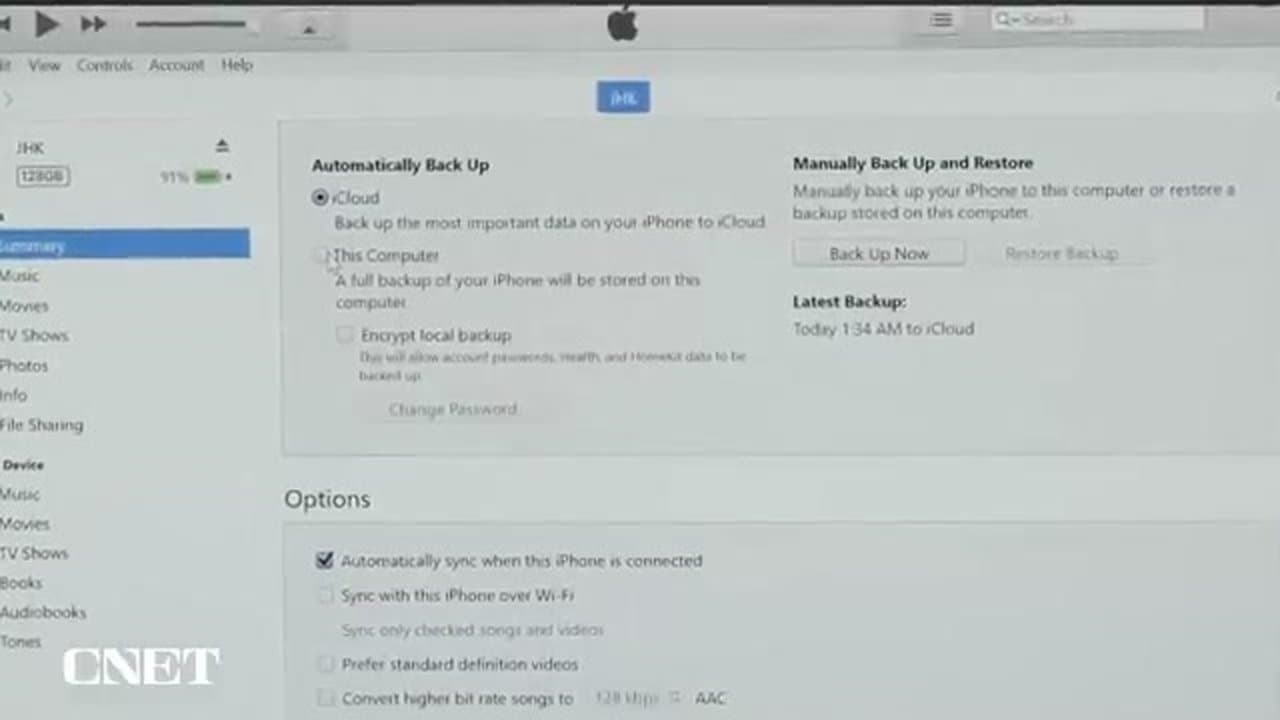
On a PC or any Mac running Mojave or earlier, you'll use iTunes instead. Download iTunes from Apple's site if you don't have it.

Plug in the iPhone, click the small iPhone icon near the top of the iTunes window, then scroll down to the Backups section. Pick Automatically Back Up to This Computer and hit Back Up Now. Same encrypt option lives here too if you want passwords and Health data included.

Tip

Your computer's backup is only as safe as your computer. If the drive dies, the backup goes with it - so consider a separate cloud or external-drive copy.

Products Used

Your Guide

CNET

As an Amazon Associate we earn from qualifying purchases. Links on this page may be affiliate links - clicking them and buying doesn't change your price, but helps support ShowMeStepByStep.

Related Tutorials