How to Transfer Photos from iPhone to Computer

TechEasy6:026 steps

By ShowMeStepByStepPublished Updated

Based on a video by Kevin Stratvert.

Phones run out of storage. Photos pile up. Eventually you need to get them onto a computer for backup, editing, or just to free up space. The good news is you have three solid options on Windows, and a fourth that works on any computer.

Kevin Stratvert walks through all three Windows methods: the built-in Photos app (easiest), File Explorer (more control), and Google Photos cloud sync (works anywhere). Pick whichever matches how you already work.

You'll need a Lightning cable, a USB port on your computer, and your iPhone unlocked. The Photos app method takes about a minute per 50 photos.

Step-by-Step Guide

1

Step 1: Plug your iPhone into the computer

0:55

Step 1: Step 1: Plug your iPhone into the computer

Connect your iPhone to a USB port on the computer with a Lightning cable.

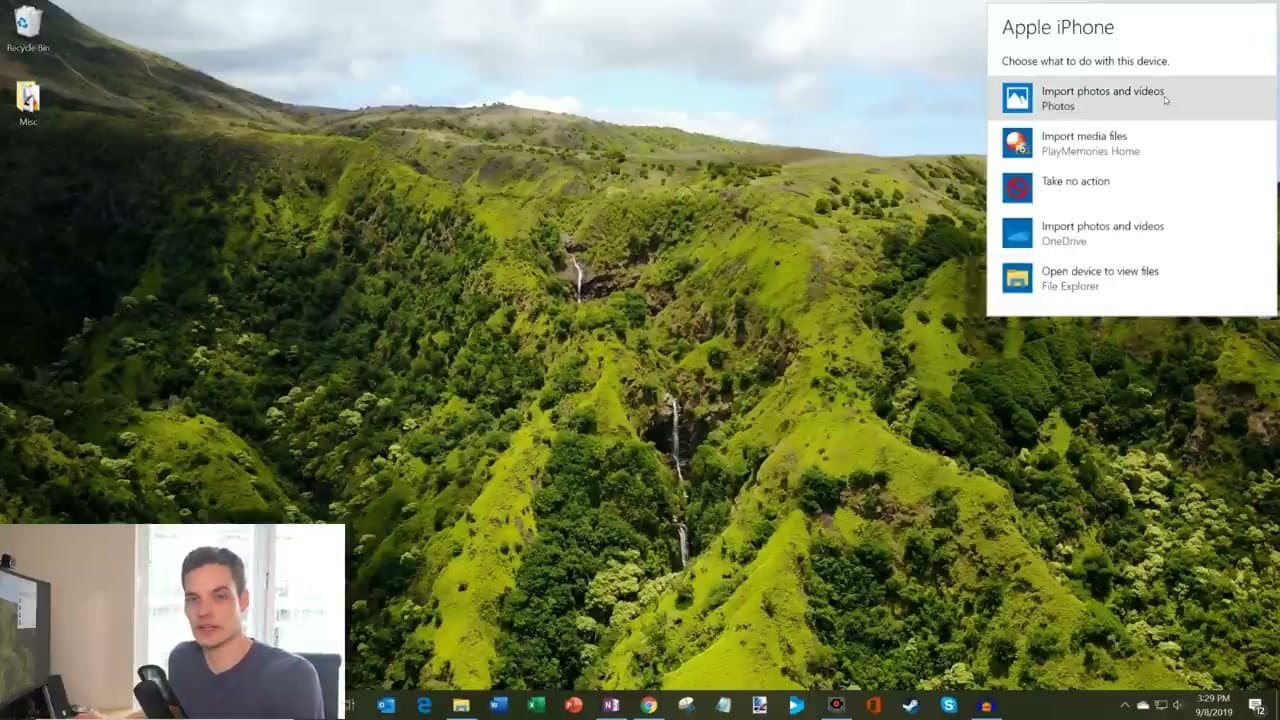
Unlock the phone. If it's the first time connecting to this computer, you'll see a prompt asking to 'Trust this computer' - tap Trust. On Windows, you'll see a notification in the bottom-right corner saying 'Apple iPhone - Select to choose what happens with this device.'

Tip

Use the cable that came with your iPhone if you have it. Cheap third-party cables sometimes only carry power, not data, and the computer won't see the phone.

Products used in this step

2

Step 2: Choose 'Import photos and videos' via Photos app

1:12
Step 2: Step 2: Choose 'Import photos and videos' via Photos app

Click the 'Apple iPhone' notification on your Windows desktop. A dialog appears with several options.

Click 'Import photos and videos - Photos' to use the built-in Windows 10/11 Photos app. The app launches and starts scanning your phone for photos and videos.

3

Step 3: Select which photos to import

1:30
Step 3: Step 3: Select which photos to import

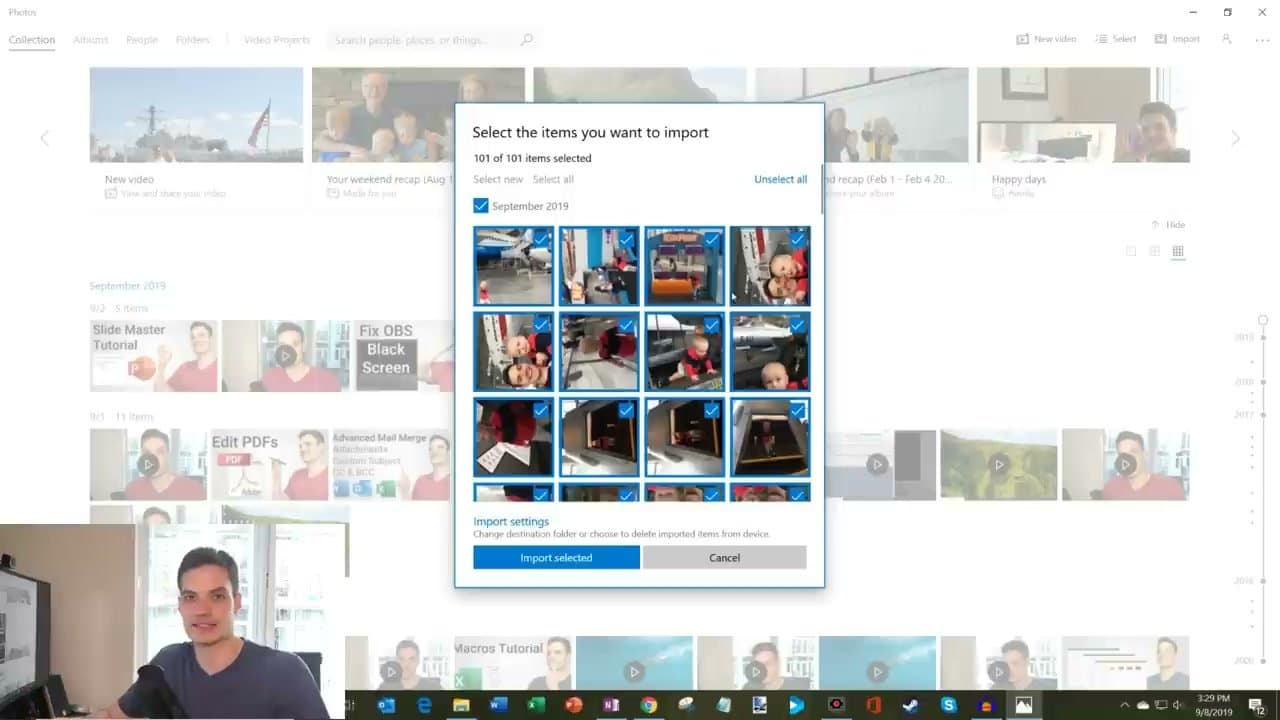
The Photos app shows a grid of every photo and video on the phone, with all of them checked by default.

Click 'Unselect all' in the top-right of the dialog, then check just the photos you want. Group by date if you only want a recent batch - 'September 2019' or 'Yesterday' headers let you select a whole day at once.

Tip

If you want everything, leave it on 'Select all.' Importing is non-destructive - the originals stay on the phone unless you check the 'delete imported items from device' option.

4

Step 4: Click Import selected and wait

1:55
Step 4: Step 4: Click Import selected and wait

Click the blue 'Import selected' button at the bottom of the dialog. The app copies each photo to your Pictures library on the PC.

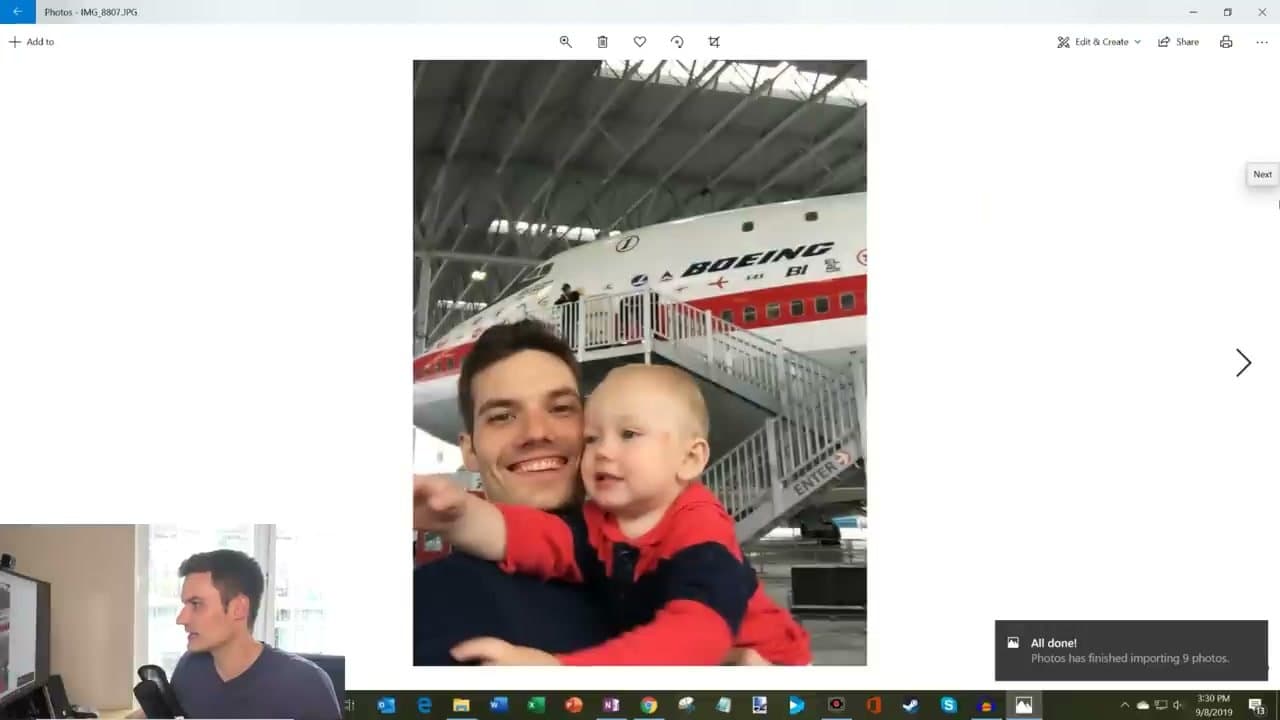
When it's done you'll see an 'All done! Photos has finished importing X photos' notification. Open any photo to view it - you can crop, add filters, share, or print right from the Photos app.

5

Step 5: Alternative - use File Explorer for older Windows

3:00
Step 5: Step 5: Alternative - use File Explorer for older Windows

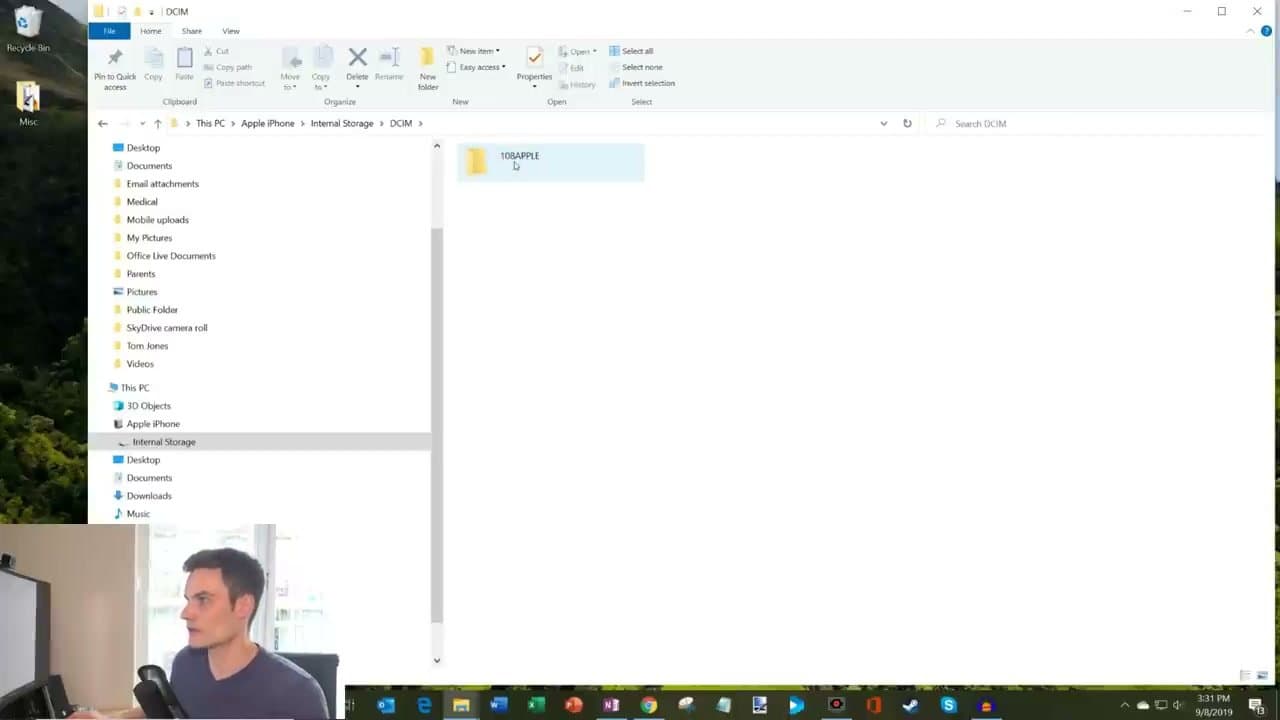
If you don't have the Photos app or you want to choose exactly where photos go, unplug and replug the phone, but this time choose 'Open device to view files' from the dialog.

File Explorer opens with your iPhone shown in the sidebar. Click Internal Storage, then DCIM, then the only folder inside (usually called 100APPLE or similar). Select the photos you want, right-click Copy, and right-click Paste into any folder on your PC.

Tip

This method works on Windows 7 and 8 too, where the Photos app isn't available.

6

Step 6: Cloud option - Google Photos works on any computer

4:30
Step 6: Step 6: Cloud option - Google Photos works on any computer

If you don't want to deal with cables, install the Google Photos app from the App Store on your iPhone. Sign in and let it back up your photos to your Google account in the background.

Once it's done syncing, open photos.google.com on any computer (Windows, Mac, Chromebook). All your photos are there. Select the ones you want and click the download icon to save them locally.

Tip

Google Photos gives you 15 GB free shared with Gmail and Drive. If you have a lot of photos, you may need a Google One subscription or to use Google's high-quality compression option.

Products Used

Your Guide

Kevin Stratvert

As an Amazon Associate we earn from qualifying purchases. Links on this page may be affiliate links - clicking them and buying doesn't change your price, but helps support ShowMeStepByStep.

Tags

Related Tutorials