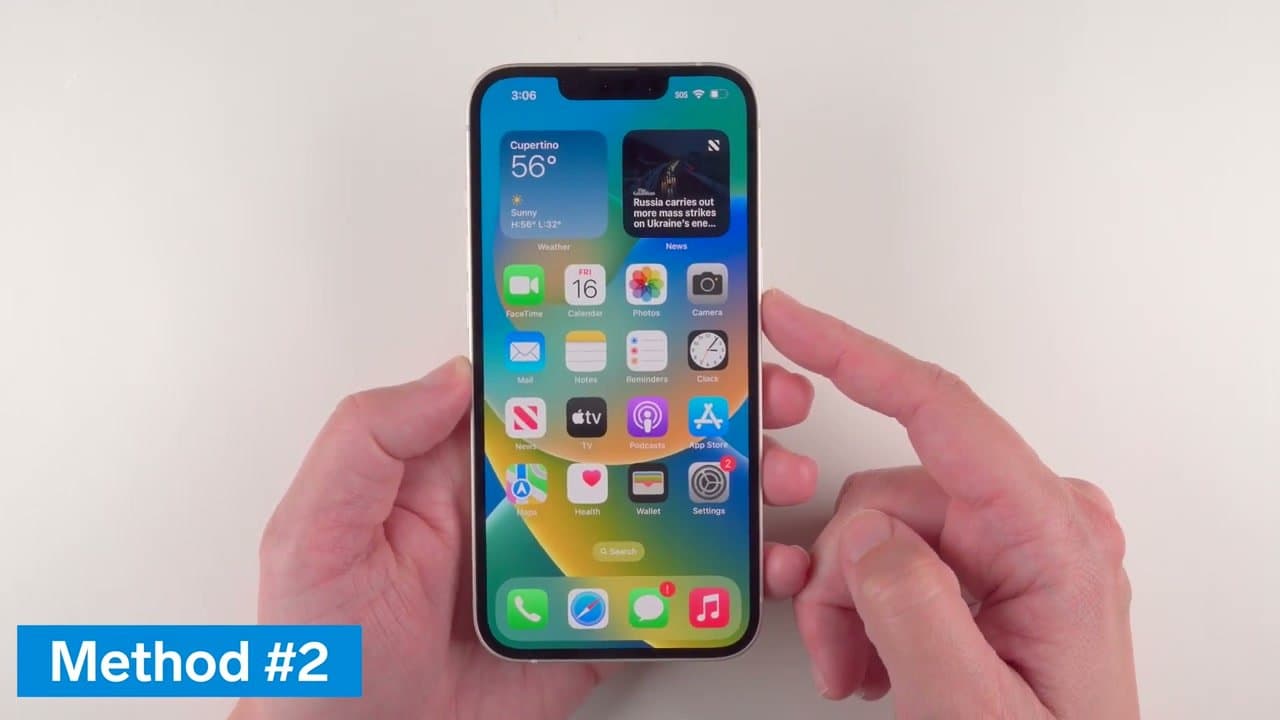
The standard iPhone screenshot is two buttons pressed at the same time, but iOS has three other ways to capture the screen that come in handy when your hands are full or the button combo is awkward to hit. The full-page web screenshot is especially useful - it captures an entire webpage as one tall image instead of scrolling and stitching pieces together.
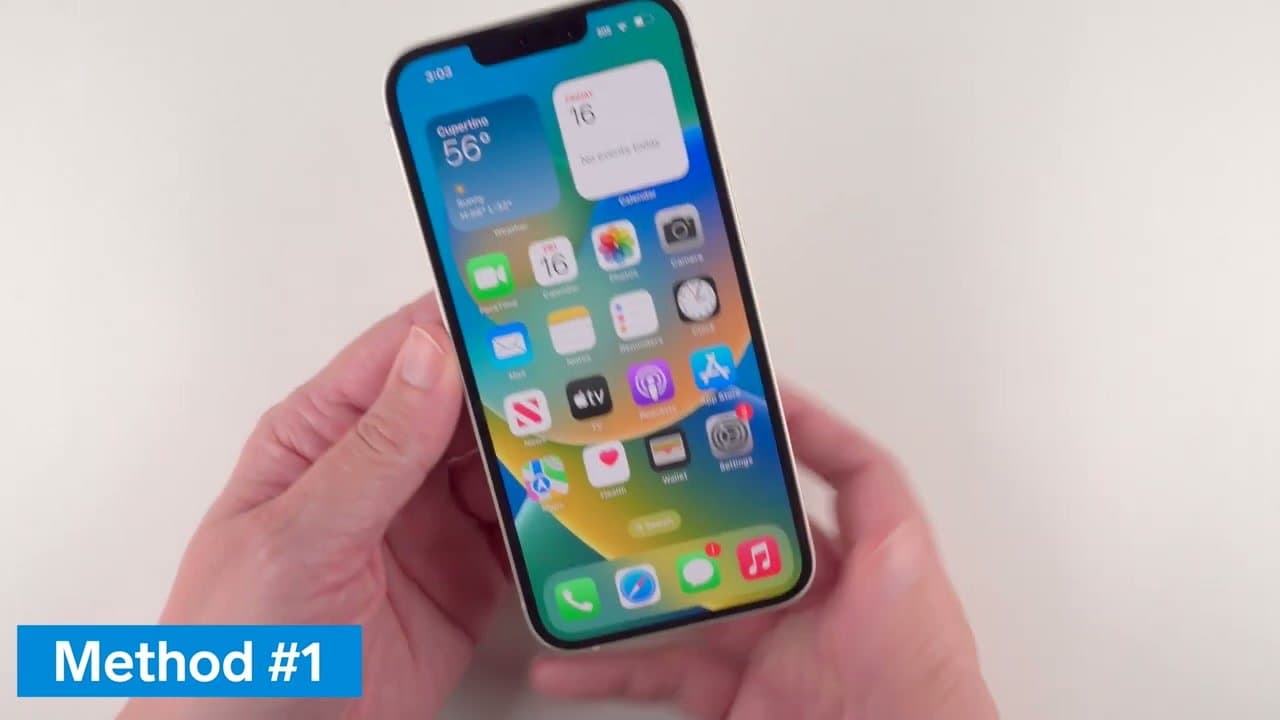
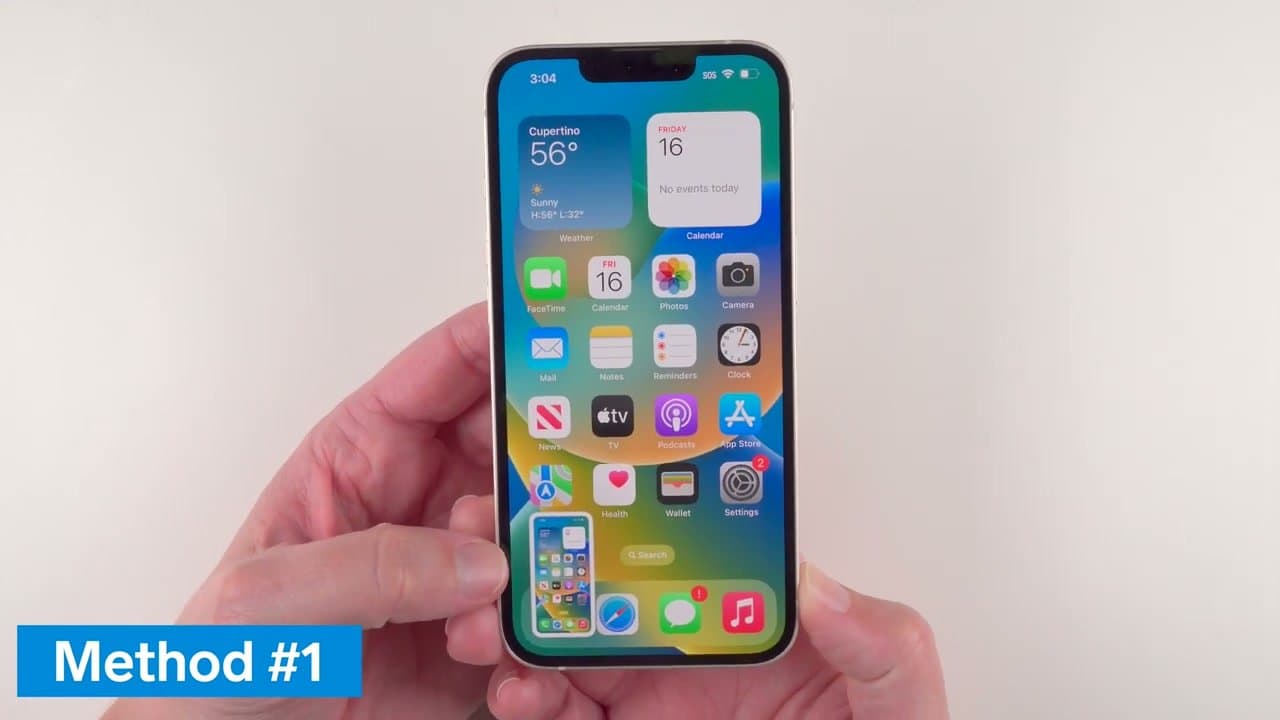
Press the Side button and Volume Up together, then let go right away. That quick release is the whole trick. Hold them a beat too long and you get the Emergency SOS slider, the most common reason a first try fails. Done right the screen flashes and a thumbnail drops into the bottom-left corner.
What you need
- An iPhone - no app, no cable, no account
- Two free fingers, one per edge
- The Photos app, to find the shot afterwards
- Two minutes in Settings for the no-button method
Where do screenshots go on iPhone
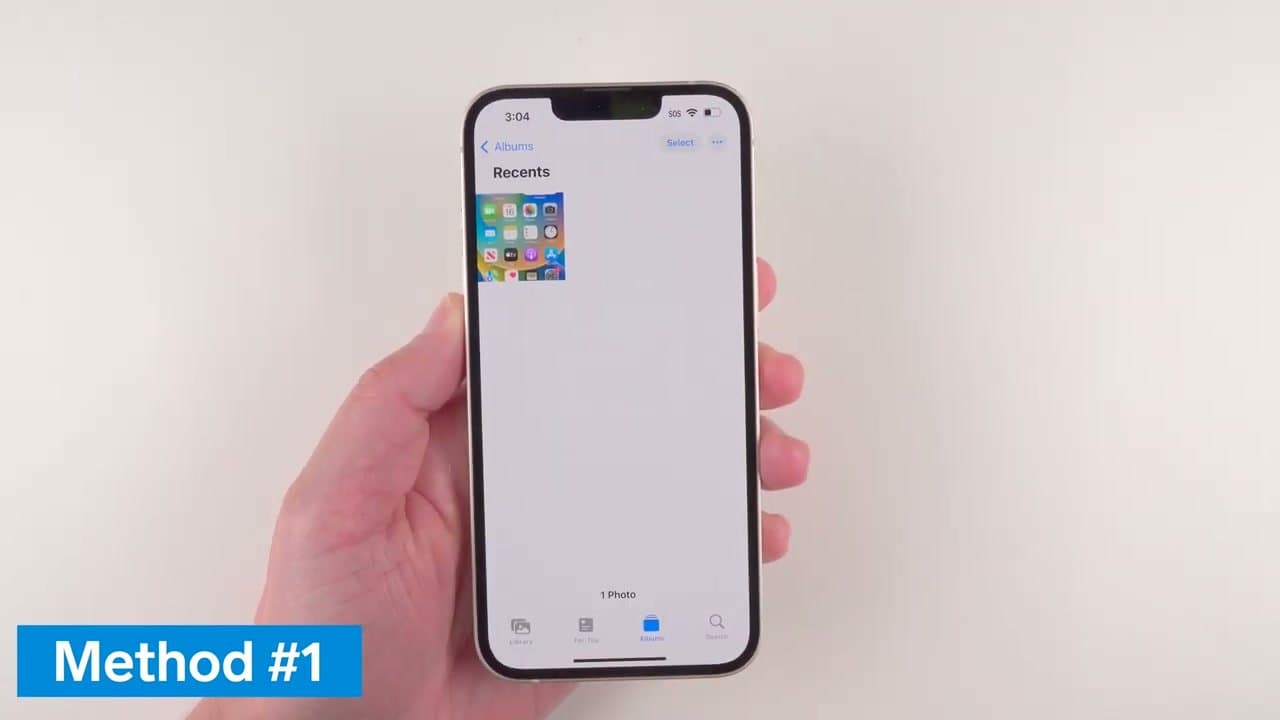
Screenshots are saved to Photos the moment you take one, and iOS files a copy into an album of its own: Photos > Albums > Media Types > Screenshots. That album holds nothing else, so you are not scrolling past a year of camera photos to find one receipt.
The thumbnail in the bottom-left is a shortcut, not the file. Swipe it away and the screenshot is still saved - swiping only dismisses the preview. Tap it and markup opens, where you can crop, draw, or bin the shot with the trash icon before it reaches your camera roll.
Delete one by mistake and it is not gone. Photos holds deleted items in Recently Deleted for 30 days - open Albums, scroll to the bottom, pull it back out.
How to screenshot on iPhone without buttons
A worn Side button or a thick case makes the two-button press miserable. Two settings skip buttons altogether.
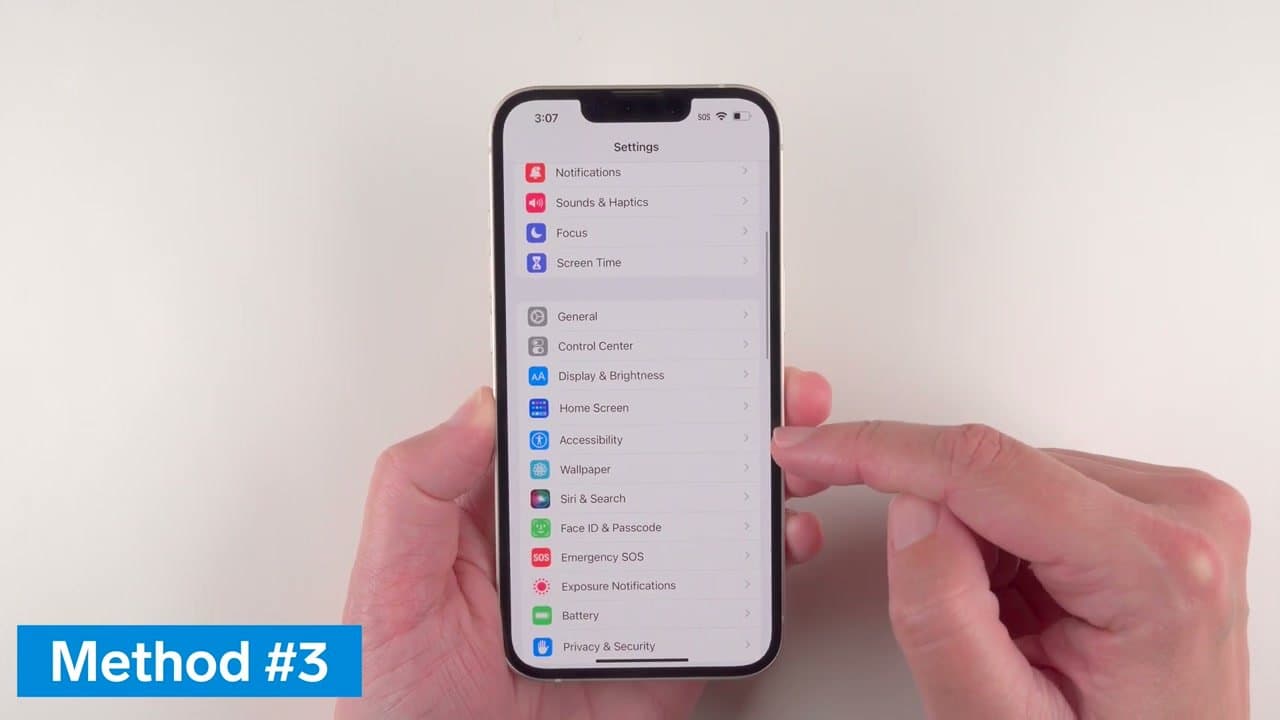
Back Tap lives in Settings > Accessibility > Touch > Back Tap. Assign Screenshot to Double Tap or Triple Tap, then knock the back of the phone with a fingertip. Triple Tap misfires less in a pocket.
AssistiveTouch puts a floating button on the screen: Settings > Accessibility > Touch > AssistiveTouch, then add Screenshot to the top level menu. That is the fallback when a button has died. Siri works hands-free too - ask out loud, and on silent the capture is soundless.
Capturing a whole webpage
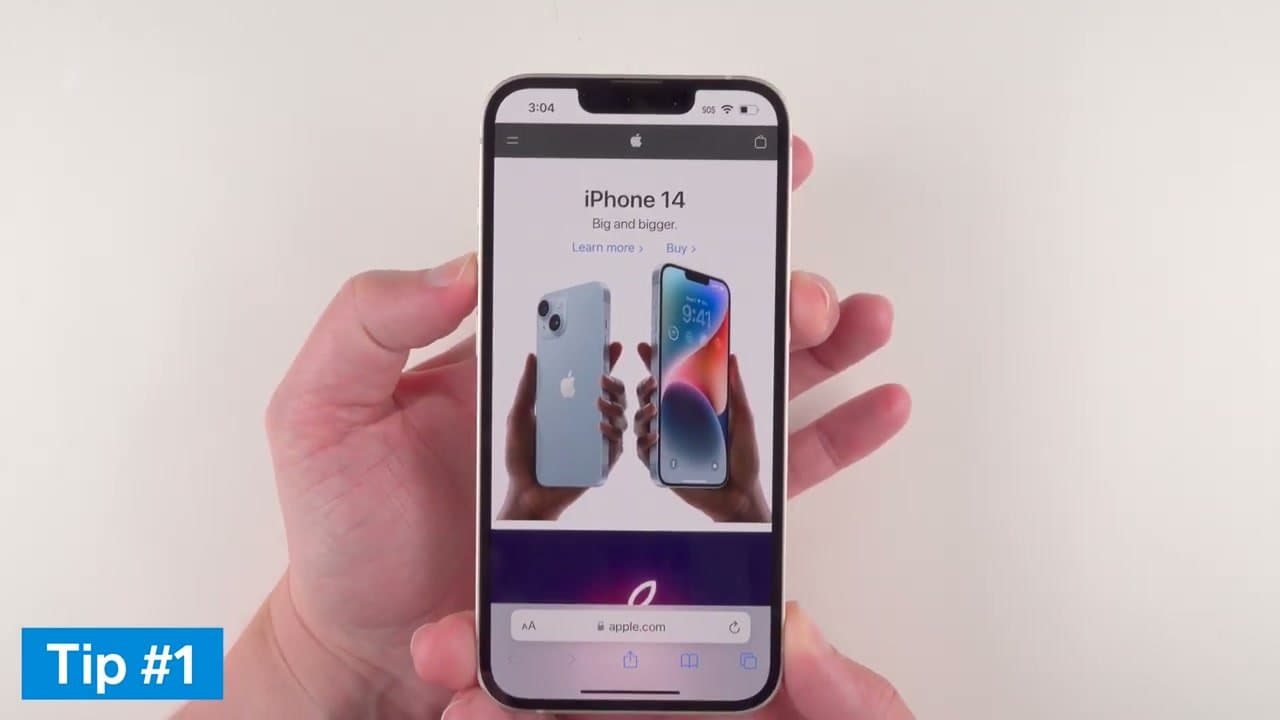
Take an ordinary screenshot in Safari, tap the thumbnail, then tap Full Page at the top of the markup screen. iOS grabs the whole scrollable page as one image.
The catch: a full-page capture does not go to Photos. Tap Done, choose Save PDF to Files, then look in the Files app rather than the Screenshots album. Longer walkthrough: how to take a long screenshot on iPhone.
Which buttons, on which iPhone
Models without a Home button use the Side button plus Volume Up. Models with a Home button use Home plus the Side or Top button, same quick press and release. Same result, same album, different pair. The shortcut moves again on Android and on a Mac.
Why your screenshot did not save
- You got the SOS slider or power-off screen. The buttons were held too long. Press and release fast.
- Nothing happened at all. One button never registered. Press them a hair apart, Volume Up a fraction before the Side button.
- It is not in the Screenshots album. Check the Files app. A Full Page capture saves as a PDF and never shows up in Photos.
- You swiped the thumbnail away. It saved anyway. Go look in Photos.
- Storage is full. There is nowhere to write the file. Clear space - offload photos to a computer - and retry.
- A button is dead. Set up Back Tap and stop fighting the hardware, but try a restart first in case the fault is software.