How to Take a Screenshot on Android

TechEasy6:267 steps
Also in:Tech Setup

By ShowMeStepByStepPublished Updated

Based on a video by ZDNET.

The base Android screenshot shortcut is the same on every brand: hold Power and Volume Down. Where things differ is the bonus methods (scrolling captures, S Pen, palm-swipe, three-finger swipe) and where the file ends up afterward (Photos vs Gallery). Once you know the variants, you'll never need a third-party screenshot app on Android again.

Step-by-Step Guide

1

Press Power + Volume Down

0:30
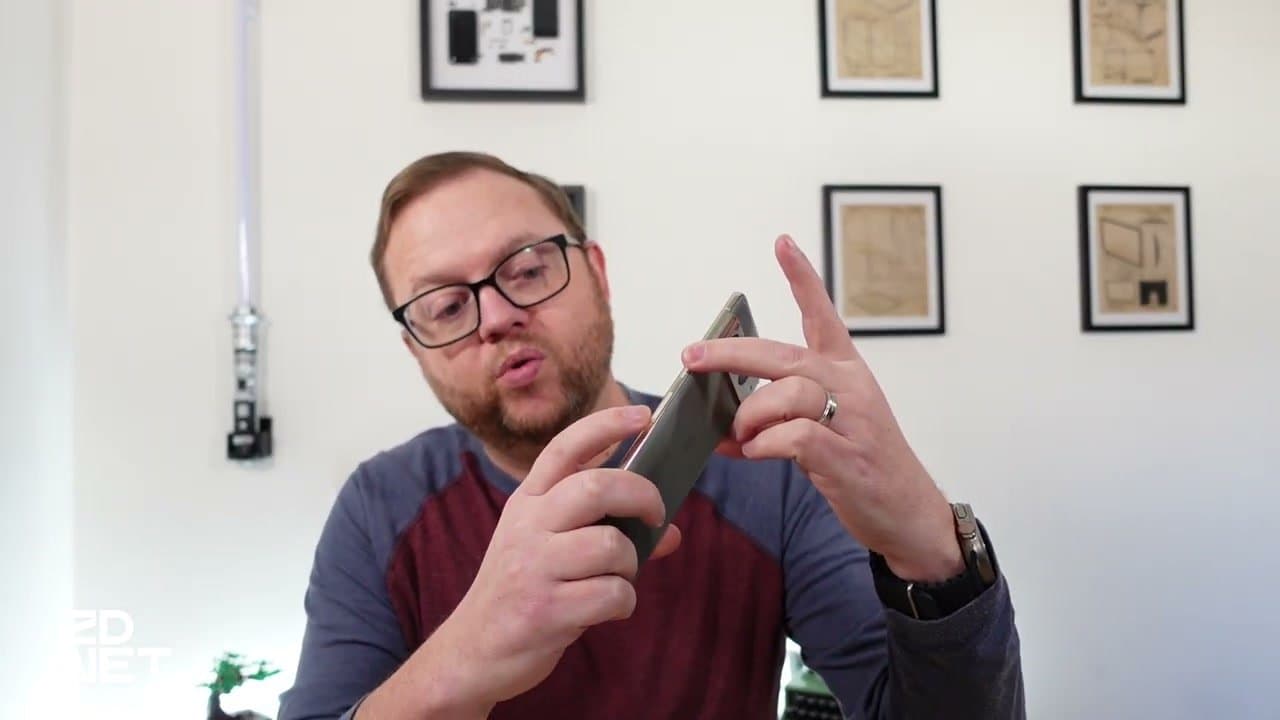
Step 1: Press Power + Volume Down

The universal Android screenshot. Press the Power button and the Volume Down button at the same time. Works on Pixel, Samsung, Motorola, OnePlus, every brand.

One quirk: on Pixel, hold both for a split-second before releasing. On Samsung, do a quick press and release - holding the buttons brings up the power menu instead of taking a screenshot.

2

Use the Thumbnail Toolbar

1:25
Step 2: Use the Thumbnail Toolbar

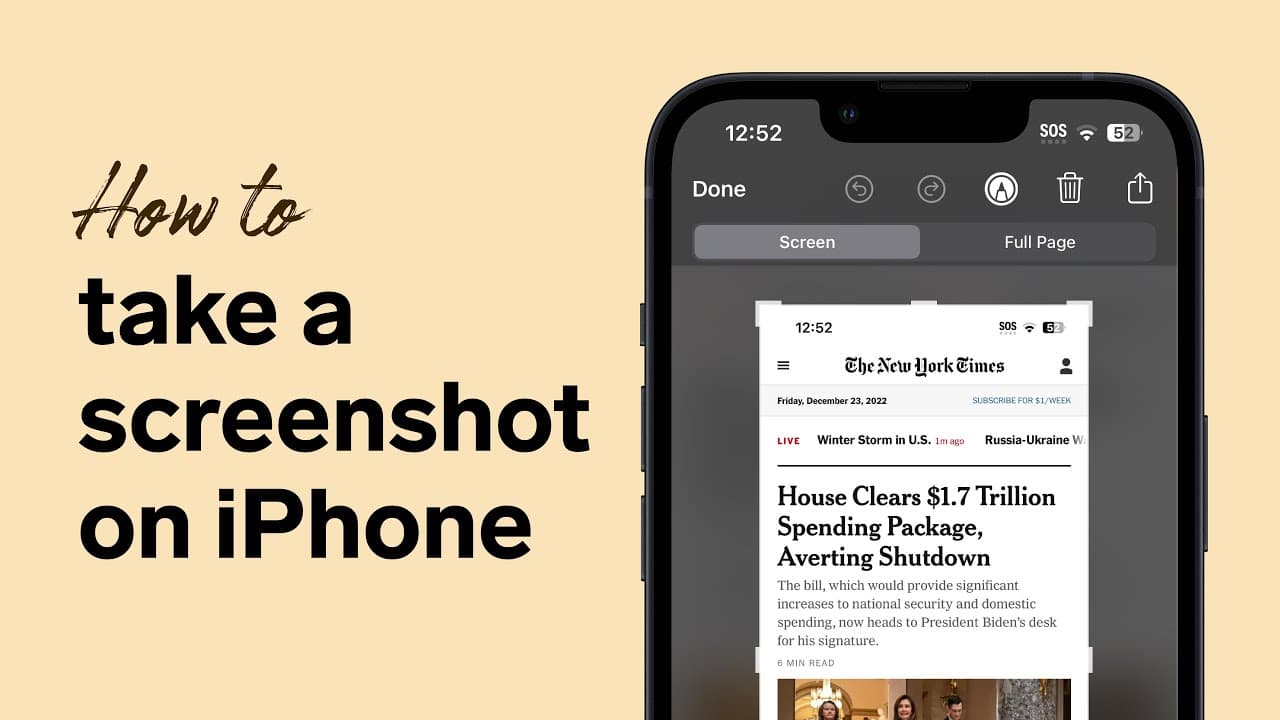
The screen flashes and a thumbnail appears at the bottom corner with a small toolbar - share, edit, markup. Tap to use it. Ignore it and the screenshot saves silently to your gallery within a few seconds.

3

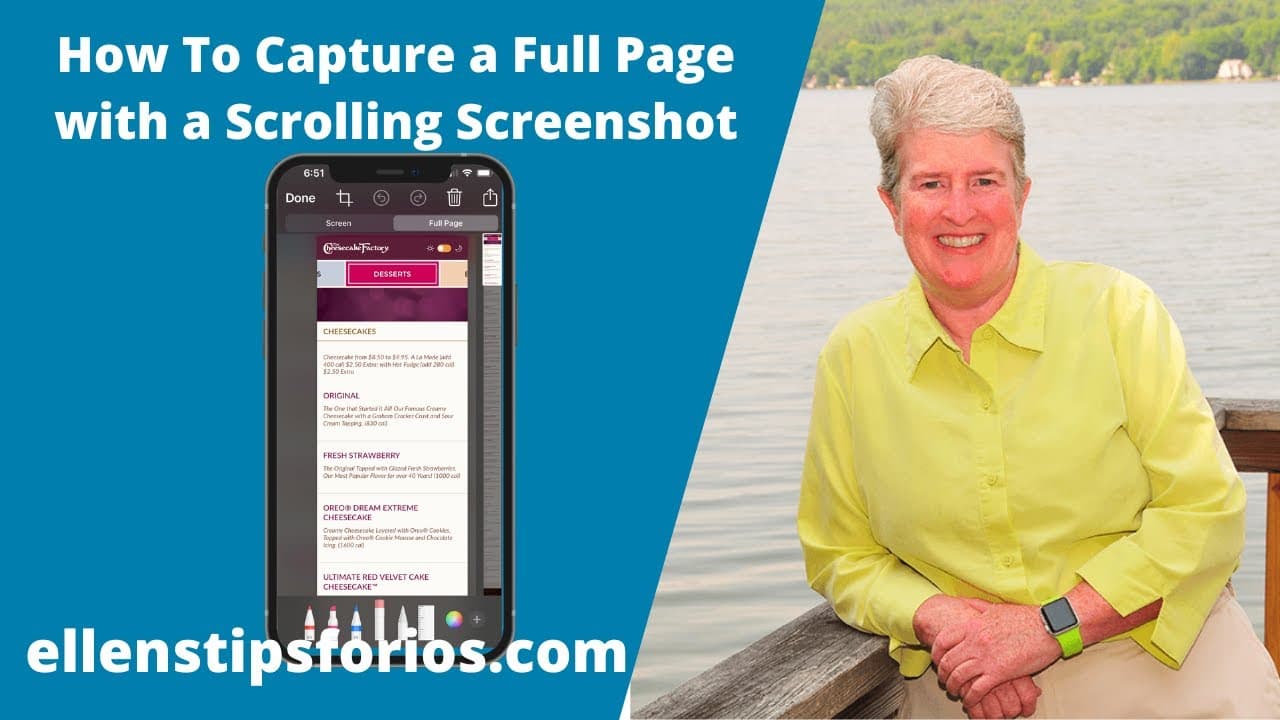
Capture a Scrolling Screenshot

1:50
Step 3: Capture a Scrolling Screenshot

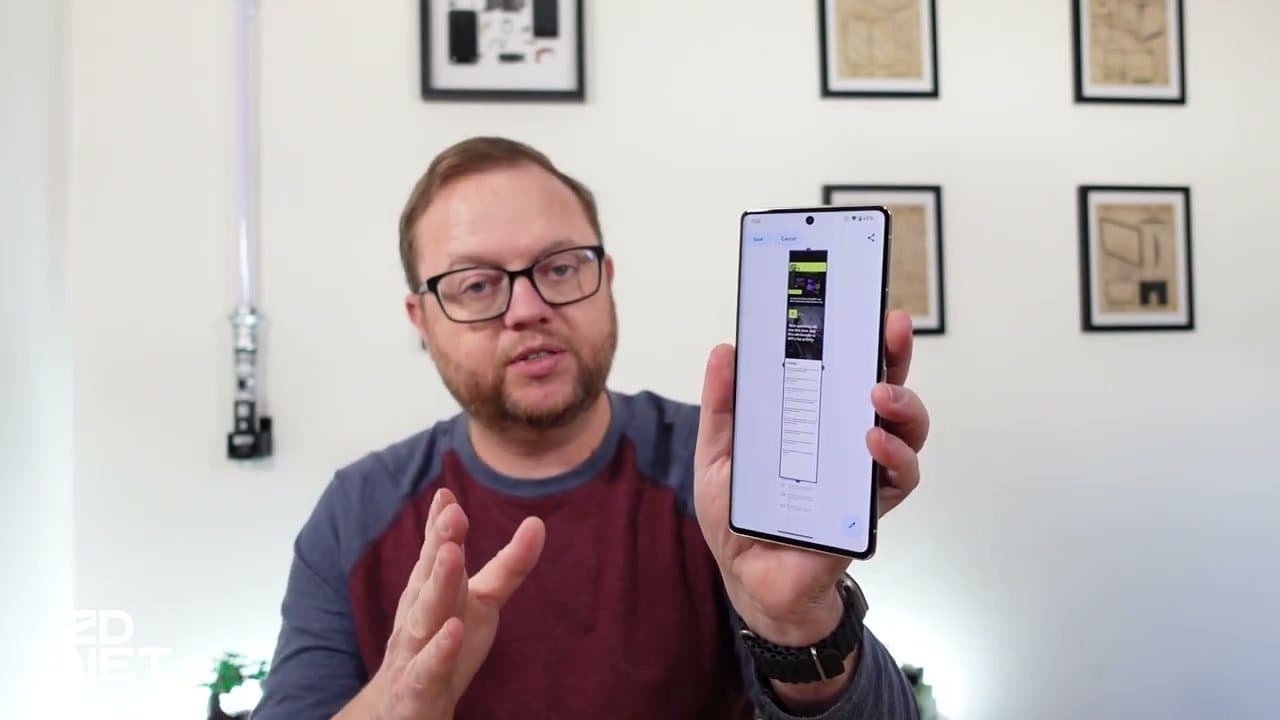
For a long webpage, chat thread, or recipe, take the regular screenshot first. Then look for the scroll option in the toolbar:

  • Pixel: tap 'Capture More'
  • Samsung: tap the down-arrow icon

The phone scrolls and extends the captured area. Most other Android brands offer something similar - look for an arrow or 'capture more' label.

4

Crop the Scrolling Capture

2:10
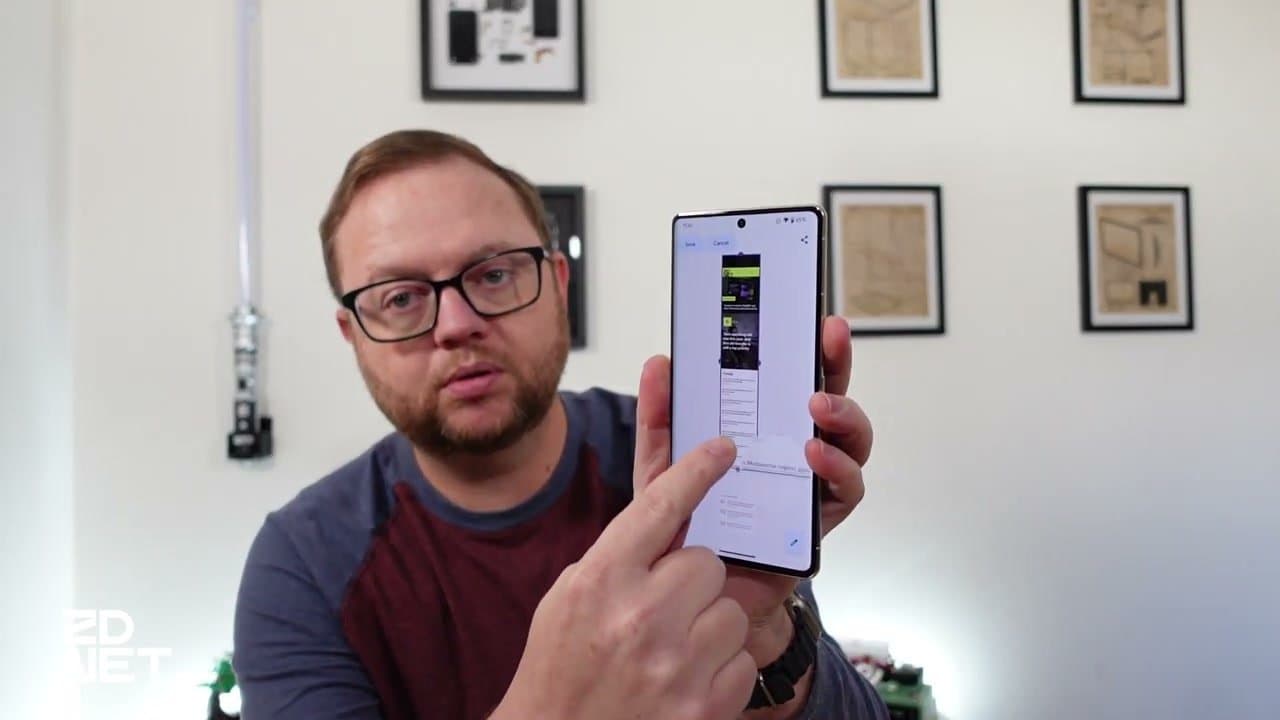
Step 4: Crop the Scrolling Capture

Drag the crop handles to set how much of the page you want included. When the framing looks right, tap Save. The result is one tall image showing the whole conversation or article in a single shot.

5

Samsung S Pen Method

3:15
Step 5: Samsung S Pen Method

If you have a Samsung Galaxy with an S Pen (Note series, S22 Ultra, etc.), pull the S Pen out of the tray. The Air Command menu appears with a Screen Write option that captures the current screen instantly. One tap and you're done.

6

Try a Gesture Shortcut

3:35
Step 6: Try a Gesture Shortcut

Two gesture-based shortcuts are usually on by default:

  • Samsung palm swipe: turn your hand sideways and swipe the edge of your palm horizontally across the screen
  • Motorola three-finger swipe: swipe down on the screen with three fingers held together

Both are toggleable in Settings. Open Settings and search for 'screenshot' to find the toggle - turn it on if it's off, or off if you keep triggering it accidentally.

Tip

The palm swipe in particular is finicky. If it doesn't work the first three times, the gesture is unreliable on your phone - just stick with Power + Volume Down.

7

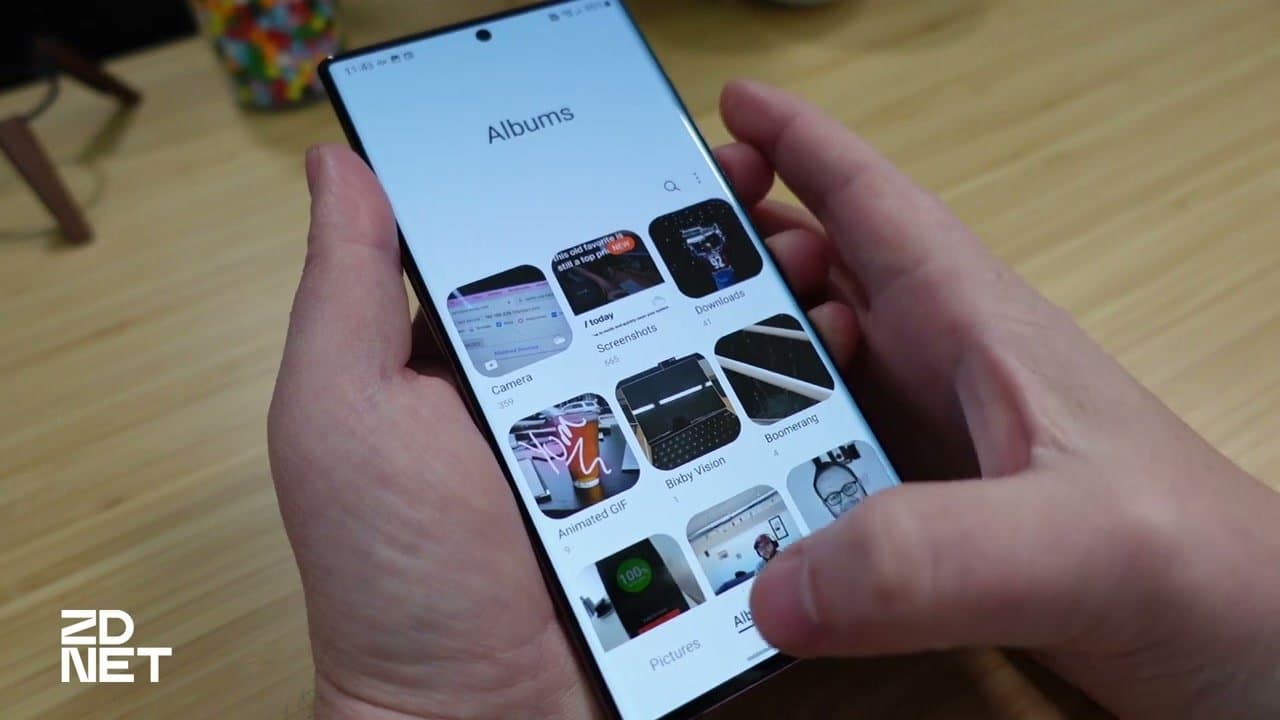
Find Your Saved Screenshots

4:55
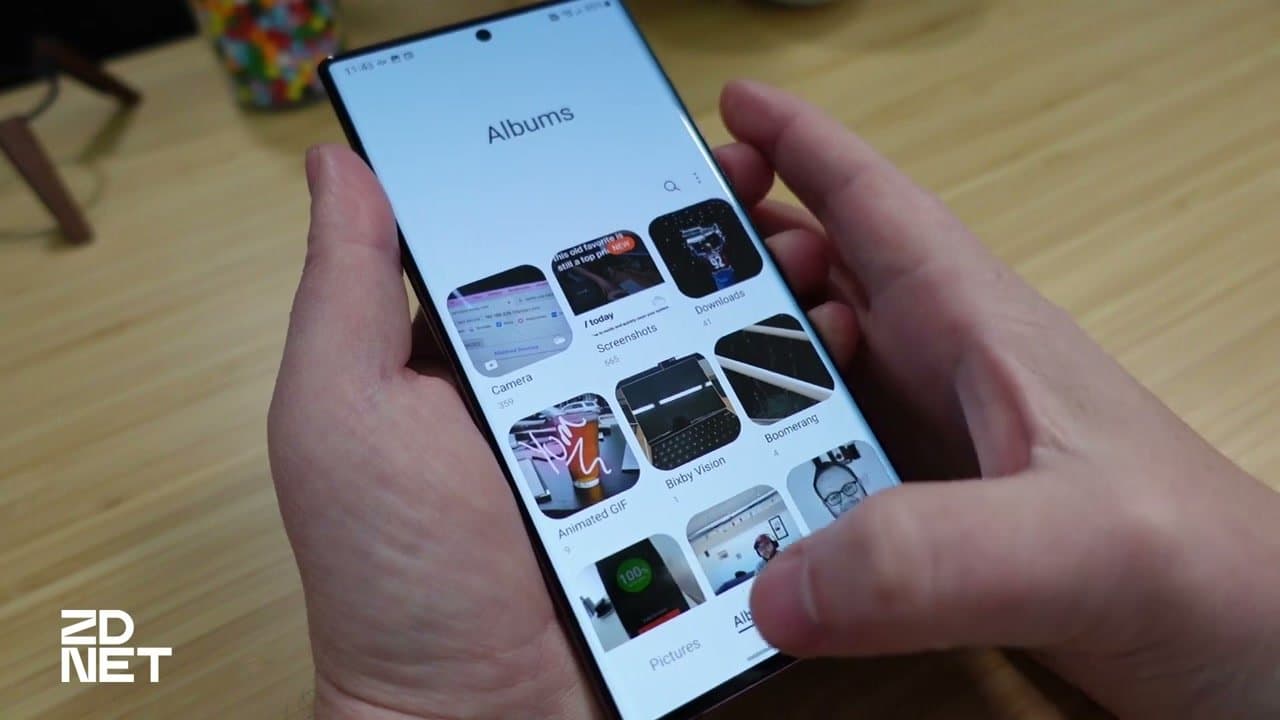
Step 7: Find Your Saved Screenshots

Where they go depends on the phone:

  • Pixel and Motorola (Google Photos as default gallery): open Photos > tap Library > tap Screenshots
  • Samsung (Samsung Gallery as default): open Gallery > tap Albums > tap Screenshots

On Photos, toggle 'Backup' on the Screenshots album and they auto-sync to your Google account so they show up in the main Photos feed too.

Your Guide

ZDNET

As an Amazon Associate we earn from qualifying purchases. Links on this page may be affiliate links - clicking them and buying doesn't change your price, but helps support ShowMeStepByStep.

Tags

Related Tutorials