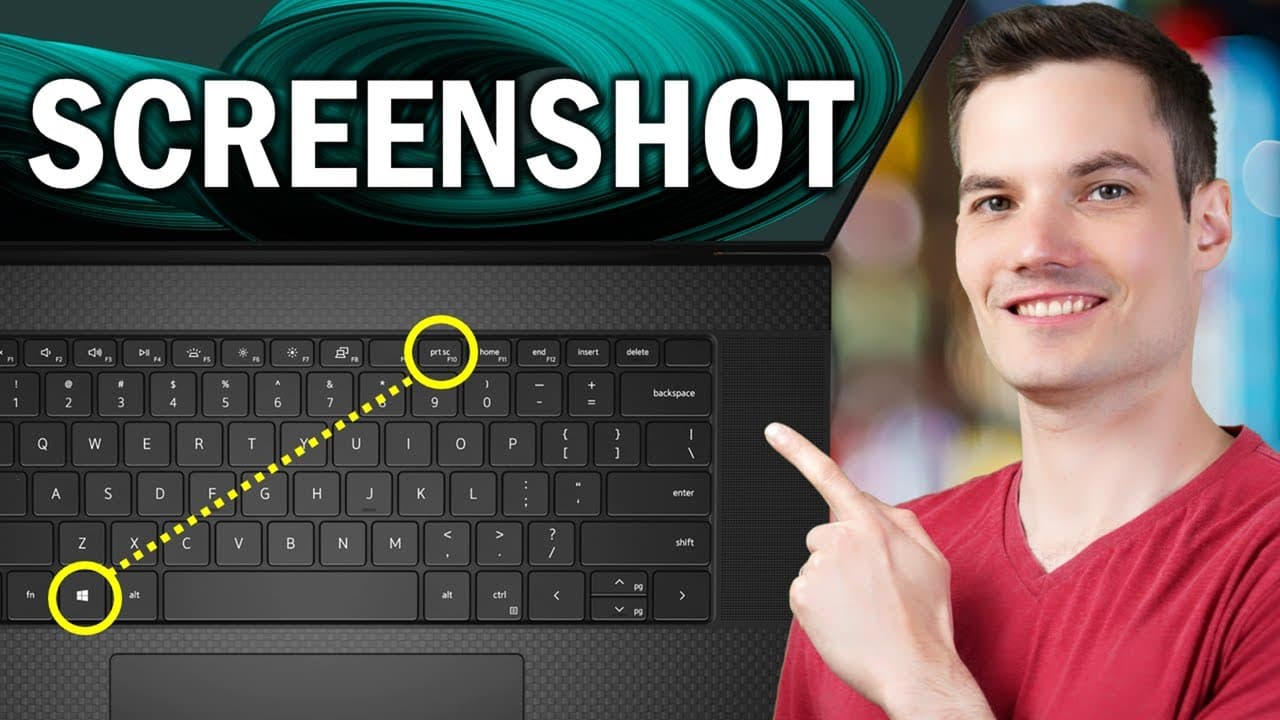
Windows has four different ways to take a screenshot, and most people only ever learn one of them. That is why so many captures end up in Paint, getting cropped by hand. Leila Gharani runs through the full set in the video above, and the shortcut you want comes down to two things: how much of the screen you need, and whether you want a saved file or just the clipboard.
Nothing below needs an install. Every method here ships with Windows 10 and Windows 11, so the only thing to learn is which keys to hold down.
The four shortcuts, and when each one is right
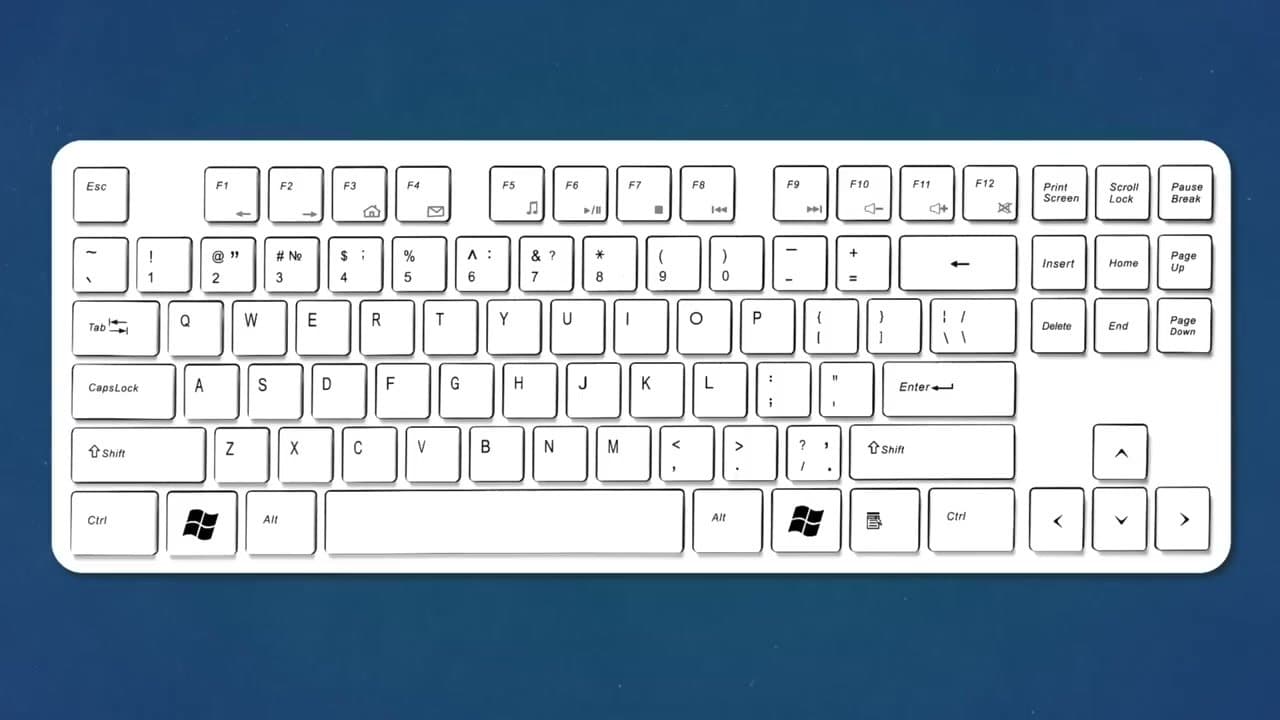
- PrtScn - copies the whole screen to the clipboard. No file. Paste it with Ctrl+V into an email, a chat or a document.
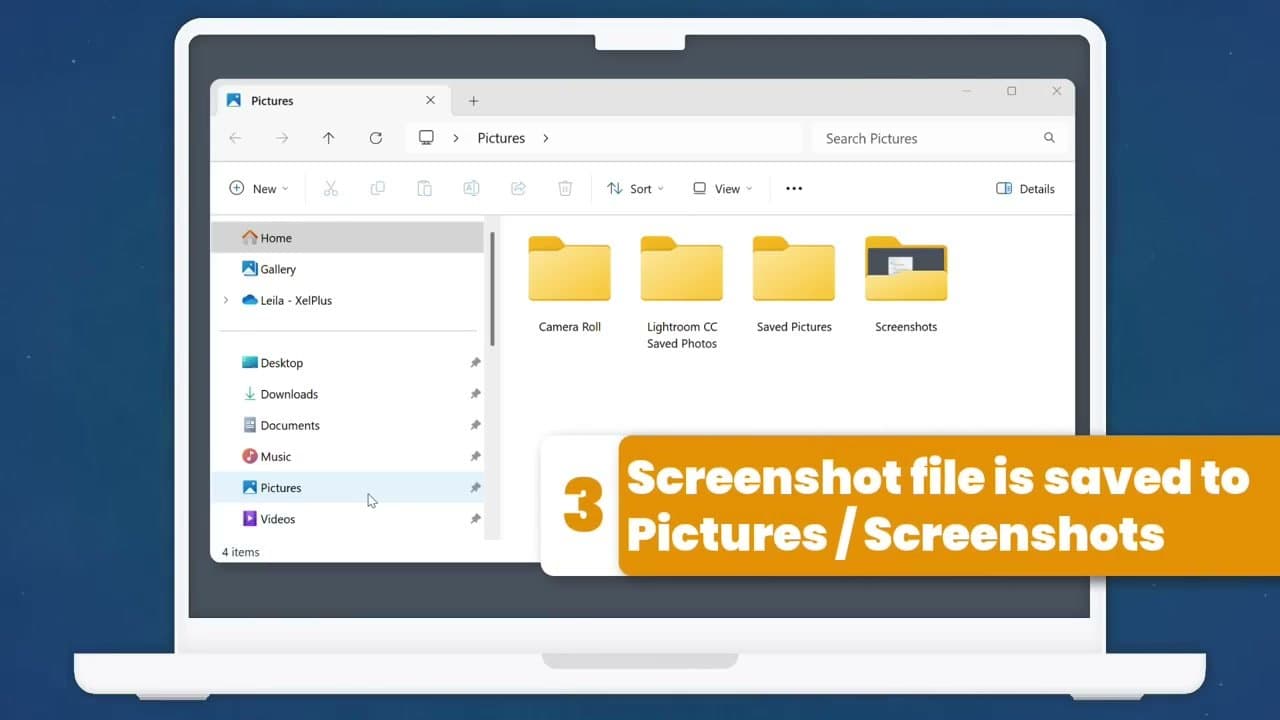
- Windows + PrtScn - same full-screen capture, but it also writes a PNG into your Pictures folder, under Screenshots.
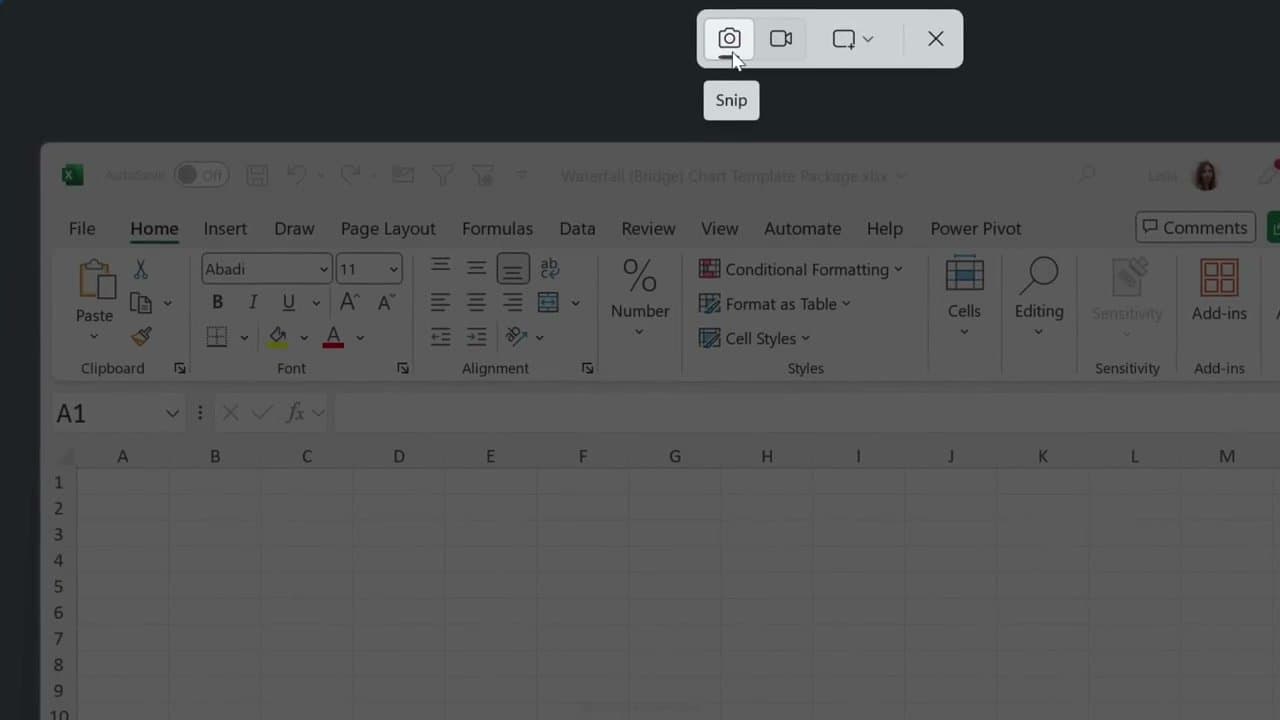
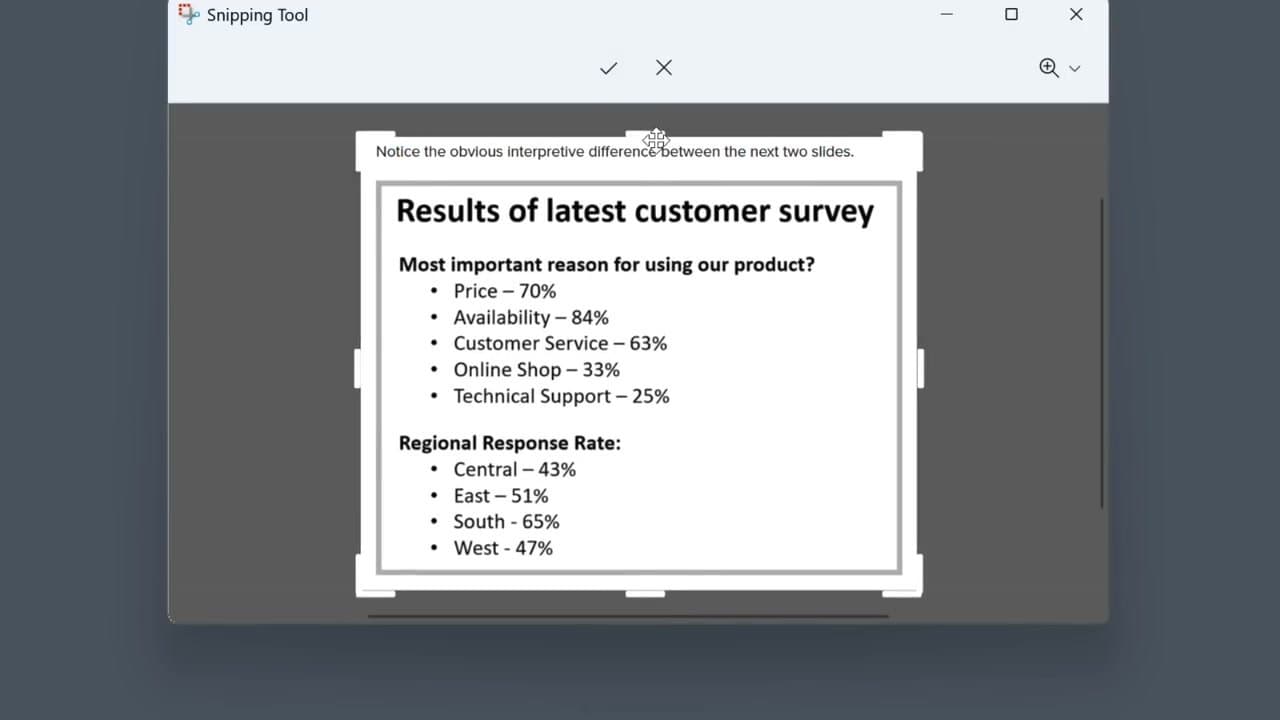
- Windows + Shift + S - dims the screen and lets you drag a box around one region. If you learn a single shortcut, make it this one.
- Alt + PrtScn - grabs the active window on its own, with no desktop or taskbar around the edges. Made for error dialogs.
Rule of thumb: hold the Windows key when you want a file on disk, leave it out when you are pasting straight into a message.
Where Windows actually saves them
Anything taken with the Windows key held down lands in Pictures, then Screenshots, named Screenshot (1), Screenshot (2) and so on. Sort by Date Modified, descending, and the newest sits at the top.
PrtScn on its own and Alt + PrtScn save nothing at all. Those captures sit on the clipboard until you paste, and the next thing you copy wipes them out. A screenshot you took an hour ago and never pasted is gone.
One thing that catches people out: with OneDrive backup on, OneDrive can claim the Screenshots folder, so files land under OneDrive rather than local Pictures. Look there before you decide the shortcut failed.
No Print Screen key on your keyboard
Compact laptop keyboards often drop the dedicated key or bury it behind Fn, printed in tiny letters on the F-row or squeezed onto Insert or End. Try Fn + PrtScn if tapping it alone does nothing.
The clean way around it is Windows + Shift + S, which does not touch PrtScn and works on every Windows keyboard. On a Surface or a Windows tablet, hold the power button and volume down together. Dell keyboards place the key differently again, and taking a screenshot on a Dell covers those layouts.
Crop, annotate and redact before you send it
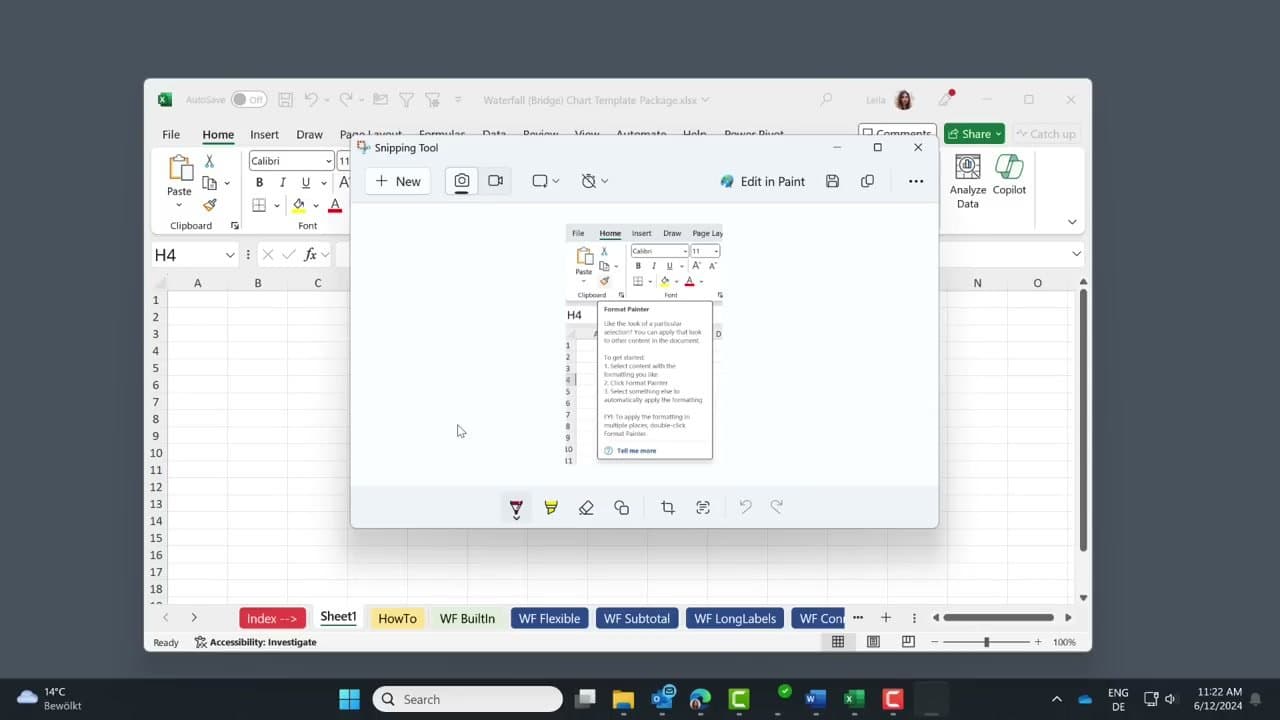
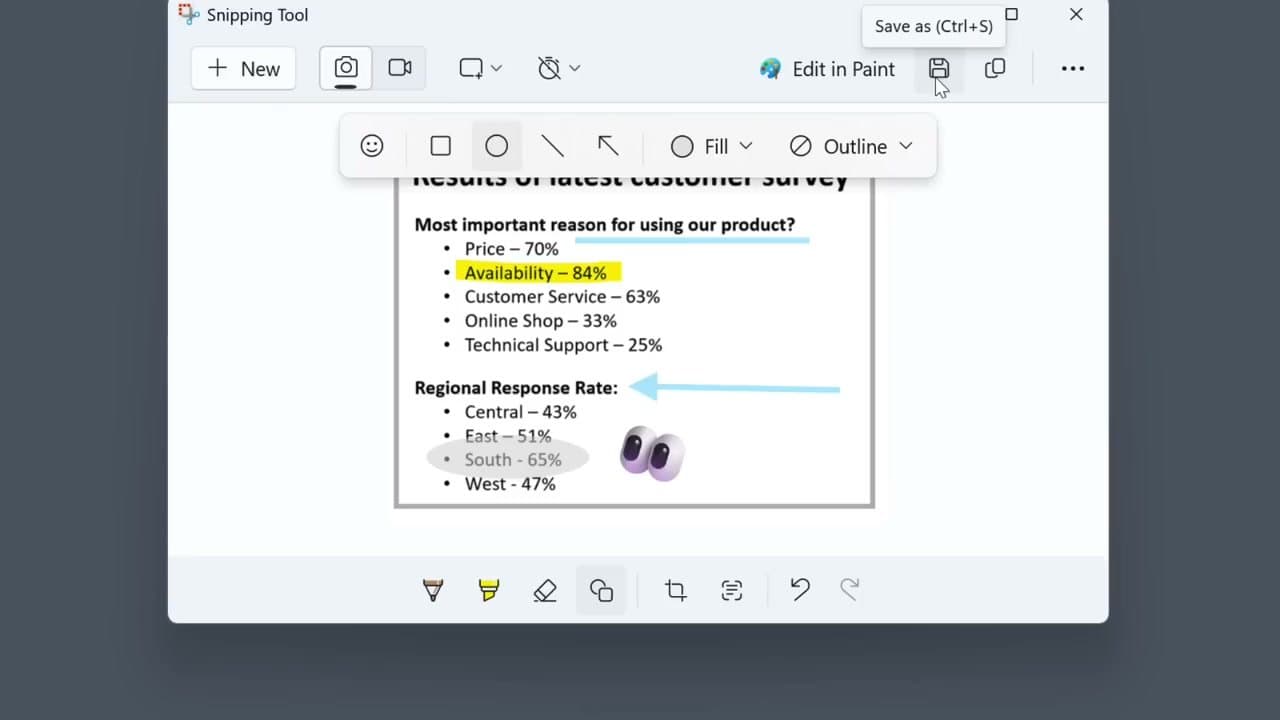
A small preview appears in the bottom-right corner after a Windows + Shift + S capture. Click it and the Snipping Tool editor opens with crop handles, a pen with adjustable color and thickness, a highlighter, arrows and boxes, and an eraser. Hold Shift while you draw to keep a line straight.
Do the redacting here, not in the app you are pasting into. Screenshots of settings pages, invoices and account screens carry more than you notice: an email address in the corner, an order number, the tabs you had open. Black out anything you would not read aloud, then paste.
Windows 10 versus Windows 11
The key combinations are the same on both. The app behind them is not. Windows 10 opens Snip and Sketch; Windows 11 replaced that with a rebuilt Snipping Tool that adds a delay timer, screen recording on Windows + Shift + R, text extraction, and QR code reading.
On current Windows 11 builds, tapping PrtScn on its own opens the region overlay rather than copying the full screen, which throws anyone with Windows 10 muscle memory. You can switch it back under Settings, Accessibility, Keyboard. If PrtScn still copies the whole screen on your machine, your build is behind: update Windows and the change arrives with it.
Same job on other hardware: on a Mac, on a Chromebook and on Android.