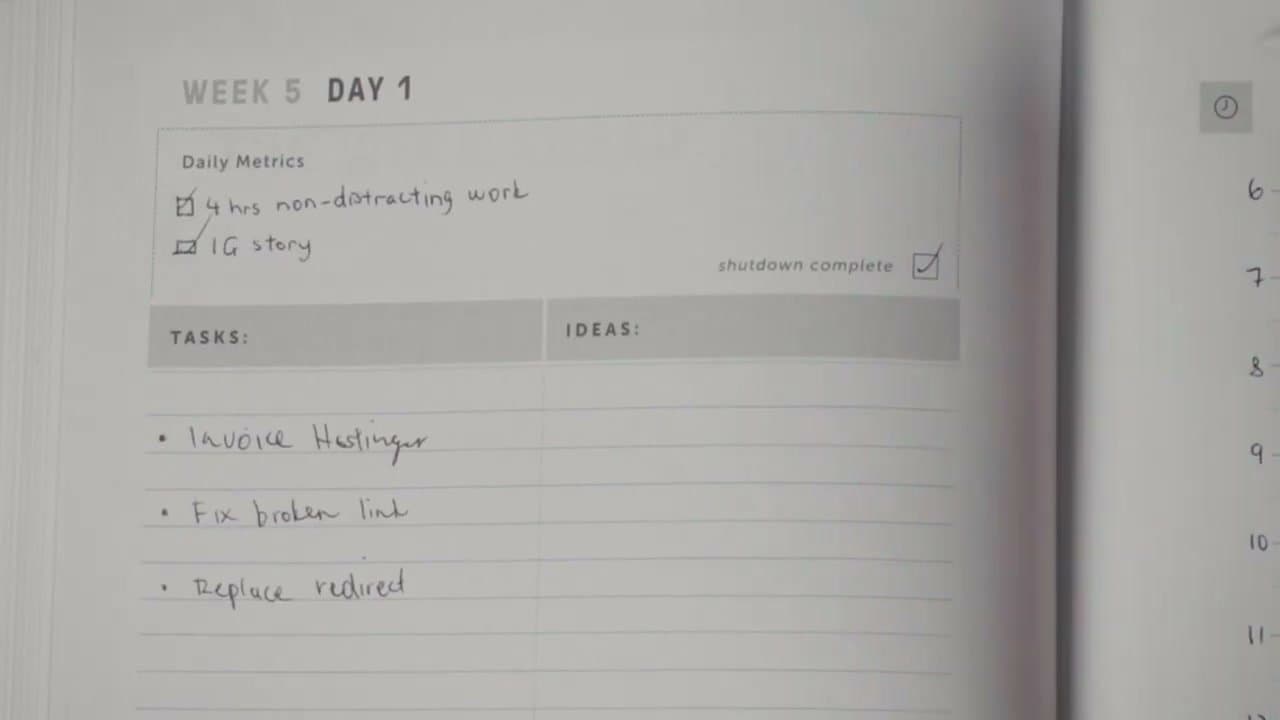
To time block your day, write down your top 3 weekly goals, then on a daily page divide the workday into hour-long blocks and assign one task to each. Add a 20-to-30 percent buffer so unexpected work doesn't derail the schedule. End each day by reviewing what got done and planning the next.
- Write down your top 3 goals for the week. Three forces focus. More than three and the day spreads too thin to make progress on any of them.
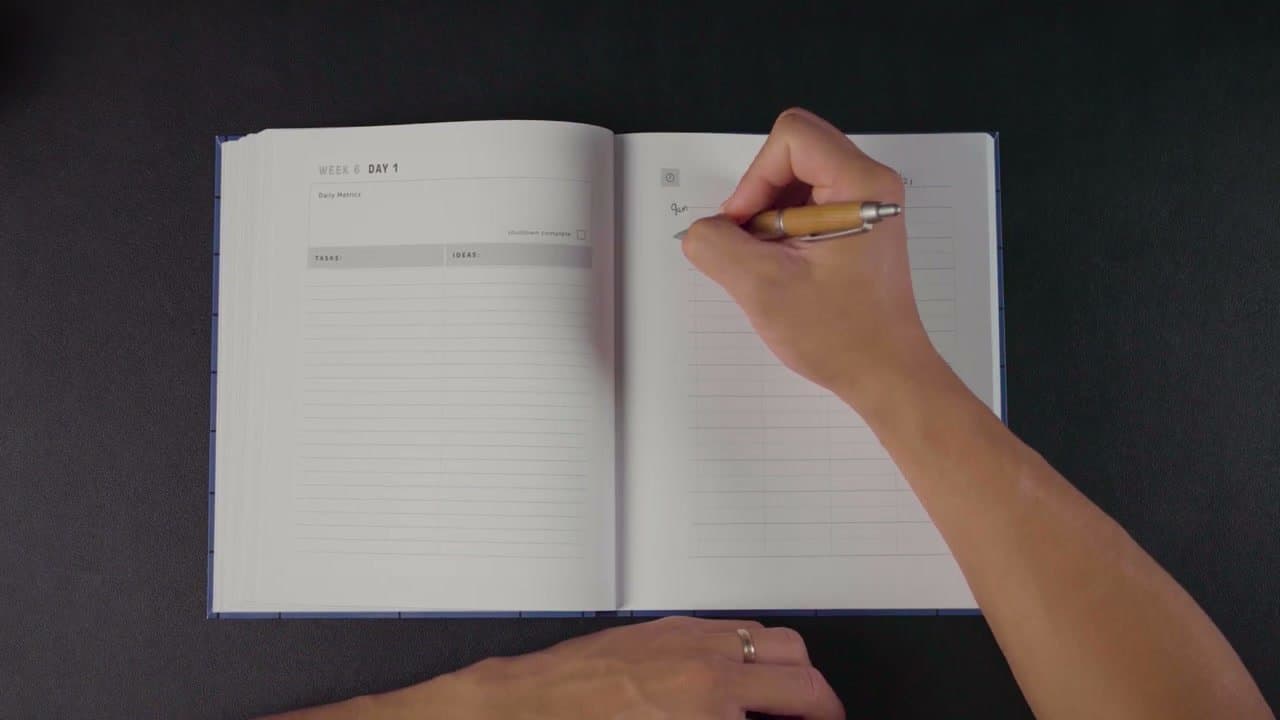
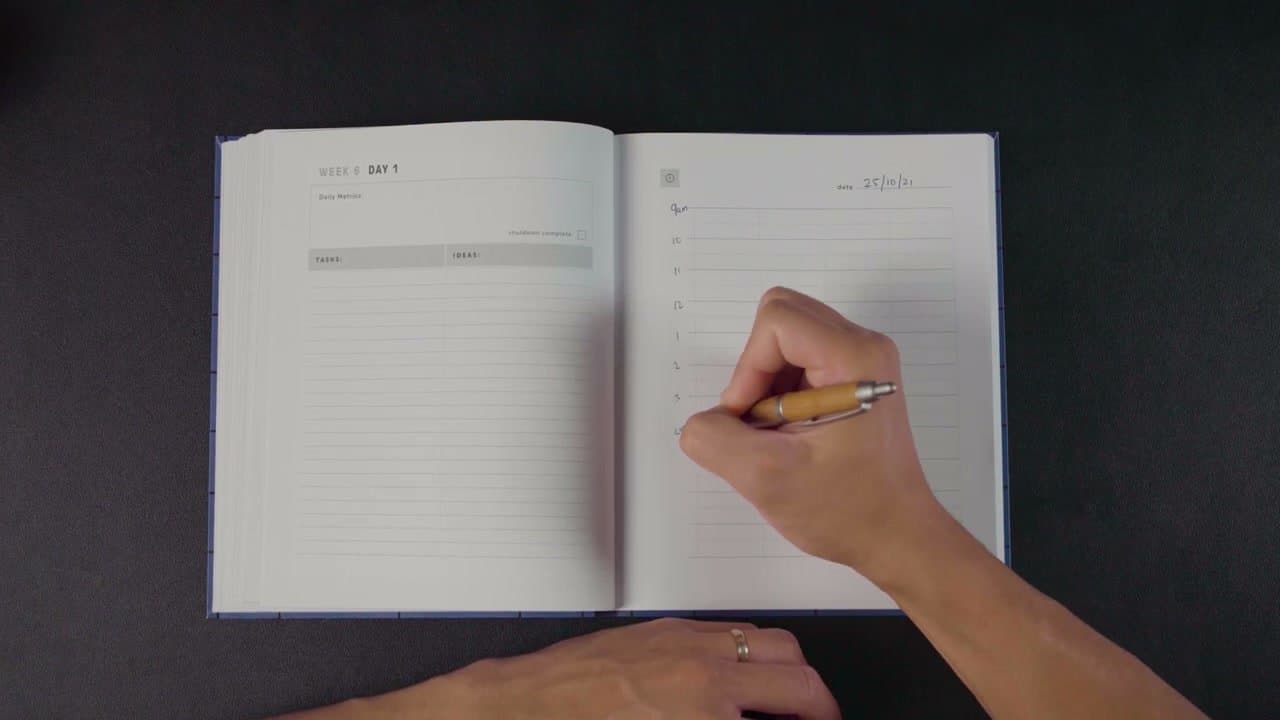
- Set up a daily page with the date at the top and an hour-by-hour grid down the left side, plus columns for tasks and ideas that come up mid-block.
- Block tasks into the grid with a 20 to 30 percent buffer. Real days run long. Build the slack in up front instead of borrowing it from the next block.
- Define a daily metric that measures the work that matters: deep-work hours, words written, code reviews completed. One number per day, marked at the close.
- Run a shutdown routine. Five minutes at the end of the day to mark the metric, scan tomorrow's commitments, and check the box. Without the close, the day bleeds into the evening.
Most people start their workday by reading email and reacting to whatever shows up. Cal Newport's time-blocking method flips that. You decide in advance how every hour gets spent, then defend those decisions when the day tries to pull you elsewhere. The result is feeling done at the end of the workday, instead of feeling busy all day with nothing to show for it.
This walkthrough follows Aurelius Tjin's daily use of the Time Block Planner. The 7 steps work whether you use Cal Newport's printed planner, a notebook, or a digital tool like Notion. The system sits on top of your calendar and to-do app, it doesn't replace them.
Tools and templates
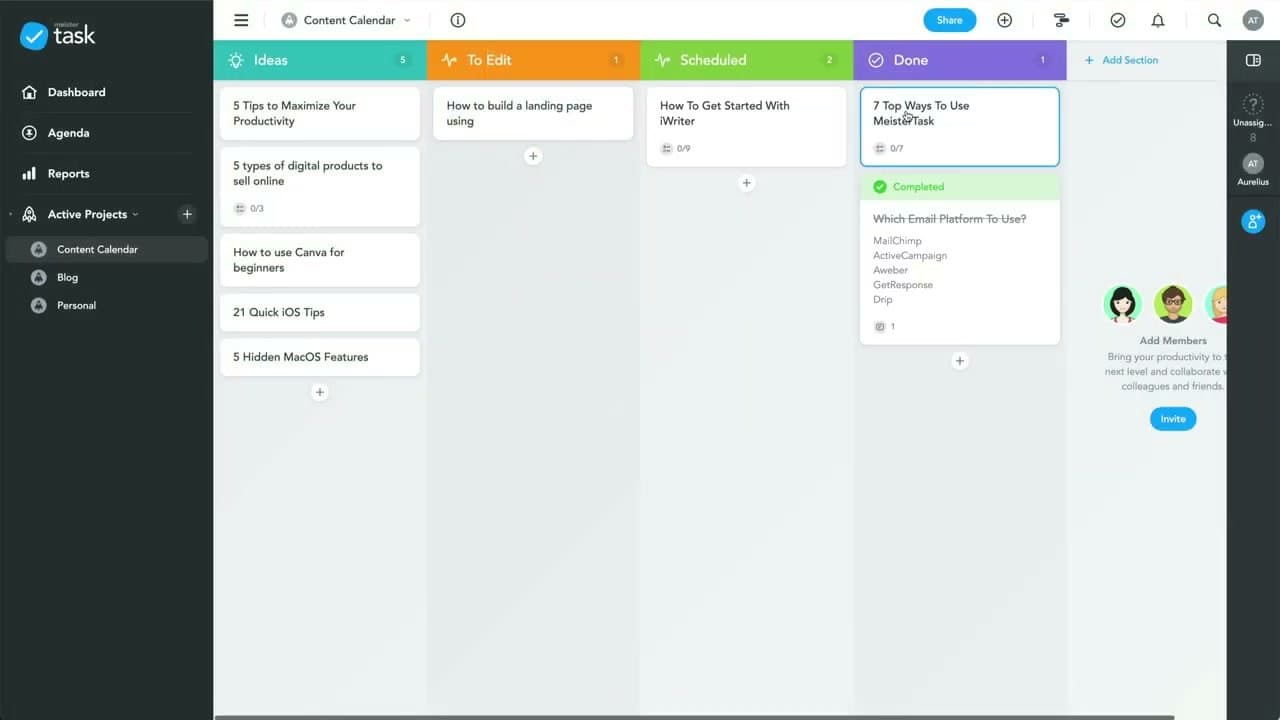
The printed Time Block Planner from Cal Newport's site is the closest thing to a default. Any 8.5x11 notebook with a left margin works just as well: draw a vertical line a third of the way across each page for the time grid, leave the rest for tasks and ideas. Digital alternatives that mirror the layout: Sunsama, Akiflow, and Motion build the time-grid view natively. Notion and Google Calendar can do it with a recurring template. The tool matters less than the discipline of writing the day down before it starts.
Common questions about time blocking
The questions people ask most often after they start blocking time: whether it actually works for jobs with constant interruptions, how long each block should be, and what to do when the plan and reality diverge.
What is time blocking?
Time blocking means dividing your day into labeled chunks and giving each one a single task ahead of time, instead of working from an open to-do list. You decide when each thing happens, not just what needs doing.
Does time blocking actually work?
Yes, with one caveat. Studies on planning and scheduling consistently show that people who plan their days in advance complete more meaningful work than those who don't, and Newport's variant (with the 20-30% buffer) holds up well in jobs where calendars stay stable. The caveat: if your role is genuinely reactive (front-line support, ER nursing, on-call ops), full hour blocks crash into reality and breed frustration. Roles like that benefit from blocking the first 90 minutes for deep work and leaving the rest of the day flexible.
How long should each time block be?
One hour is the default for a reason: it matches calendar conventions, leaves room for transitions, and isn't so long that the block fights for attention near its tail. Deep-work blocks can run 90 to 120 minutes if your work is heads-down with no input from others. Anything shorter than 30 minutes is a task, not a block, and belongs in the tasks column. Block administrative and email work in 30-minute slots clustered together rather than scattered.
What is the difference between time blocking and time boxing?
Time blocking commits a span of time to a category of work (writing, coding, meetings) without limiting how long the work takes. Time boxing commits a span of time to a specific task and stops when the time runs out, regardless of progress. Time blocking is better for creative and deep work where finishing matters. Time boxing is better for tasks that expand to fill time (research rabbit holes, polishing slides, email triage). Most schedules use both: blocks for deep work, boxes for everything else.
How do you handle interruptions during a time block?
Newport's two-column system on the daily page solves this directly. When someone knocks on your door or pings you with a non-urgent ask, capture it in the Tasks column and respond after your current block ends. If the request is genuinely urgent, switch to it but draw a line through the rest of the block in your planner so you can see at a glance how much was lost to the interruption. Over time those lines become data: which days, which people, which kinds of work get derailed most.
What apps are best for time blocking?
For a digital-first workflow, Sunsama and Akiflow are the most opinionated and closest to Newport's printed approach. Motion adds AI rescheduling for missed blocks. For a lighter touch, Google Calendar with color-coded categories handles 80 percent of the system: blue for deep work, gray for meetings, green for admin, red for personal. Notion works well as the daily-page replacement (tasks plus ideas plus a daily metric) for people who already live in it. The simplest stack is paper plus a calendar app.