How to Take a Screenshot on Mac

TechEasy10:238 steps
Also in:Tech Setup

By ShowMeStepByStepPublished Updated

Based on a video by macmostvideo.

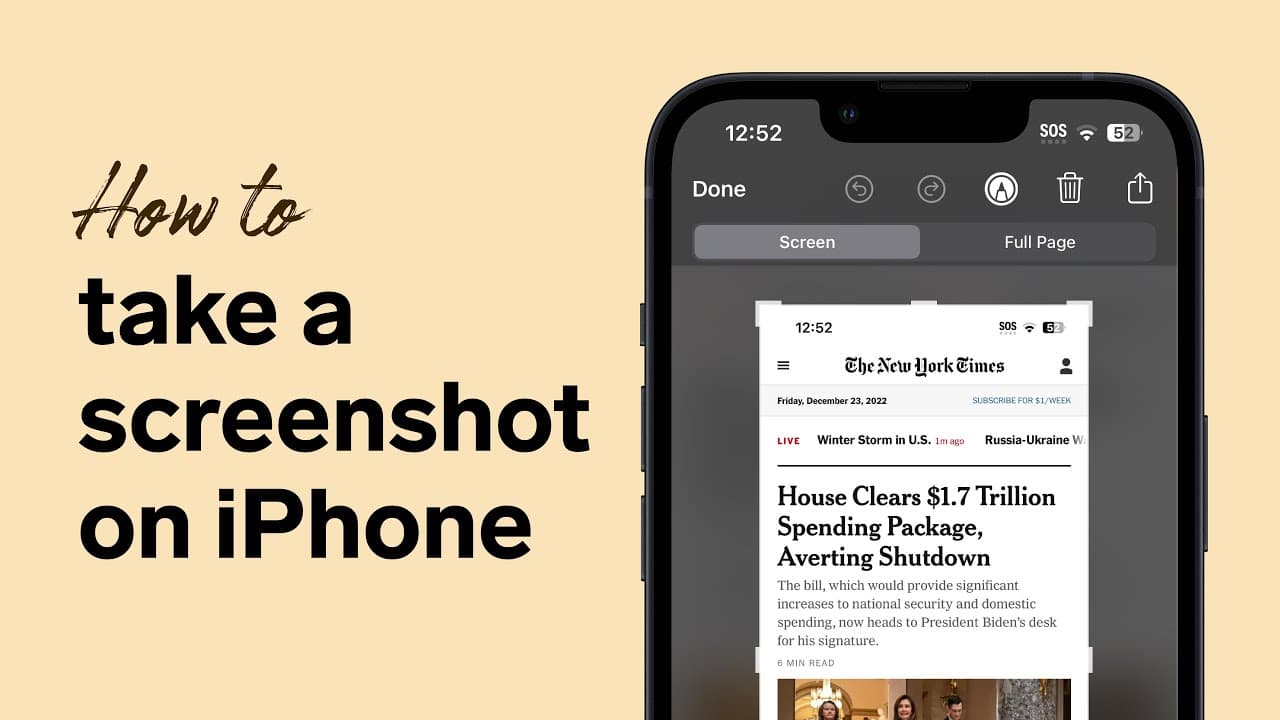
Most Mac users only know Shift+Command+3 and end up with a desktop full of screenshot files. The screenshot tool that ships with macOS is much more capable than that. Once you set it up, you can grab full-screen captures, exact selections, drop-down menus, and timed shots, then send them anywhere - clipboard, custom folder, Photos, or straight into the trash before they ever save. Spend two minutes setting it up and you'll save yourself hours over the next year. The companion Apple guides: screenshots on iPhone for the small screen, and backing up your iPhone before a major iOS update.

Step-by-Step Guide

1

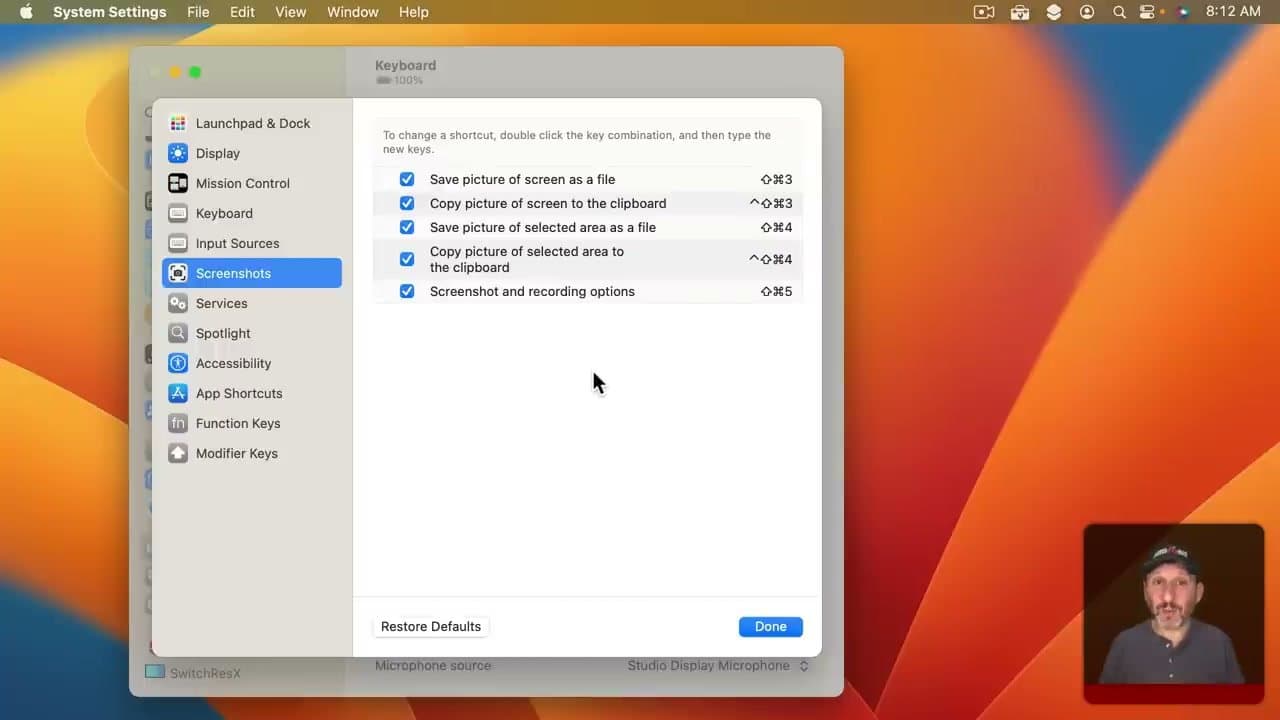
Capture the Whole Screen with Shift+Command+3

0:27
Step 1: Capture the Whole Screen with Shift+Command+3

Press Shift, Command, and 3 at the same time to grab everything that's currently on your display. A small floating thumbnail appears in the bottom-right corner. If you ignore it, the screenshot saves to your Desktop as a PNG file a few seconds later.

This is the workhorse shortcut and the one you'll use most. Memorize it first.

Tip

If you have multiple monitors, Shift+Command+3 captures every screen at once. You'll get one PNG per display.

2

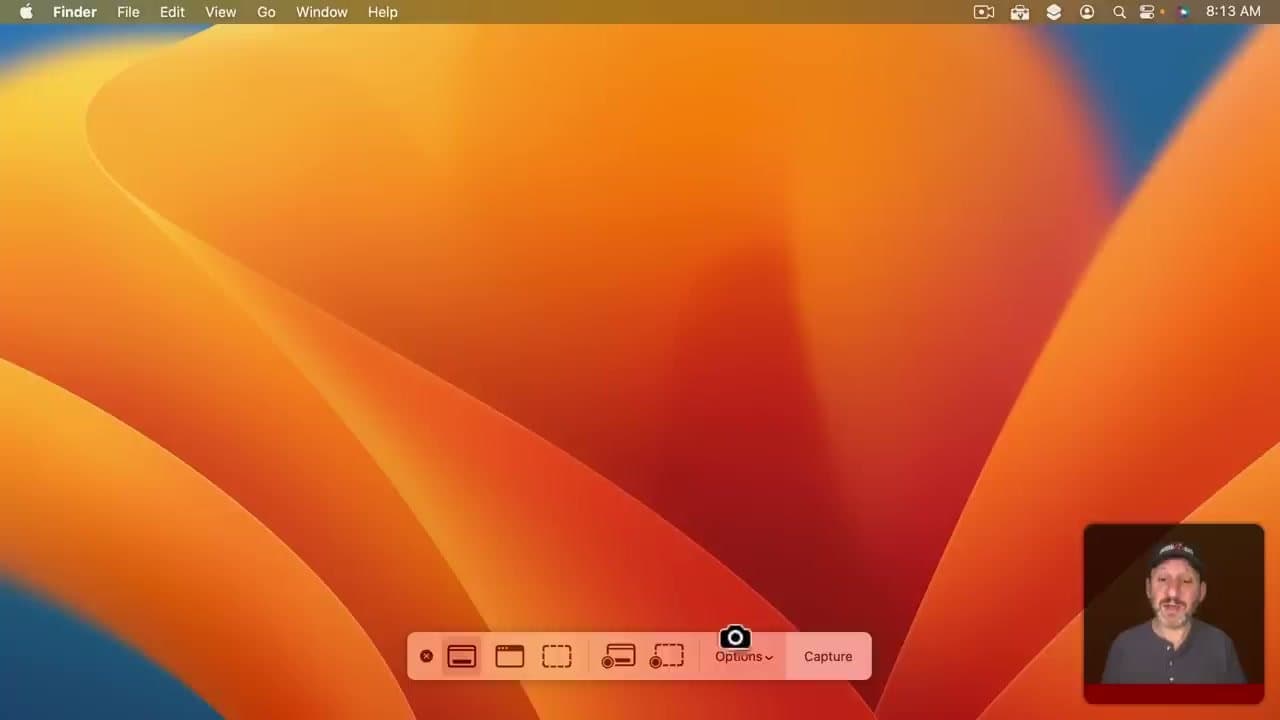
Open the Screenshot Toolbar with Shift+Command+5

1:25
Step 2: Open the Screenshot Toolbar with Shift+Command+5

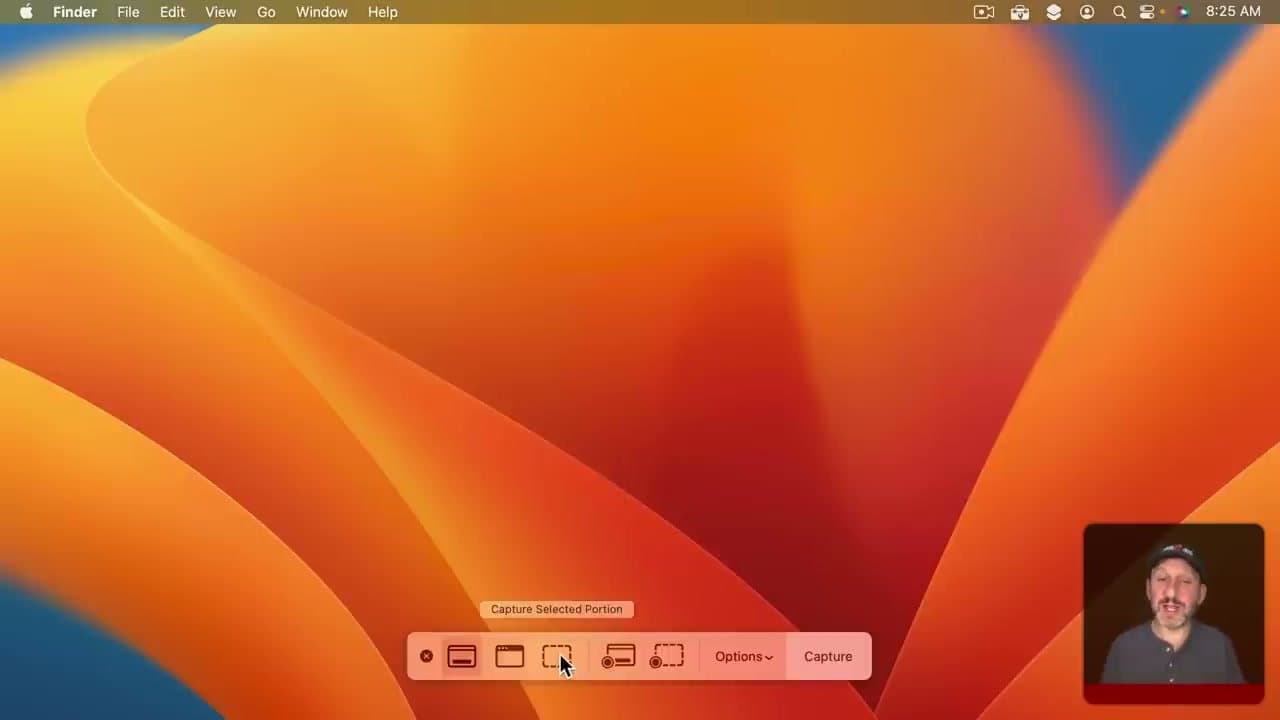
Shift+Command+5 brings up a small toolbar at the bottom of the screen. From here you can capture the full screen, just one window, a selected area, or even record video. It's the single keyboard shortcut to remember if you don't take screenshots often - it gives you every option in one place.

3

Open Options to Customize Your Workflow

1:45
Step 3: Open Options to Customize Your Workflow

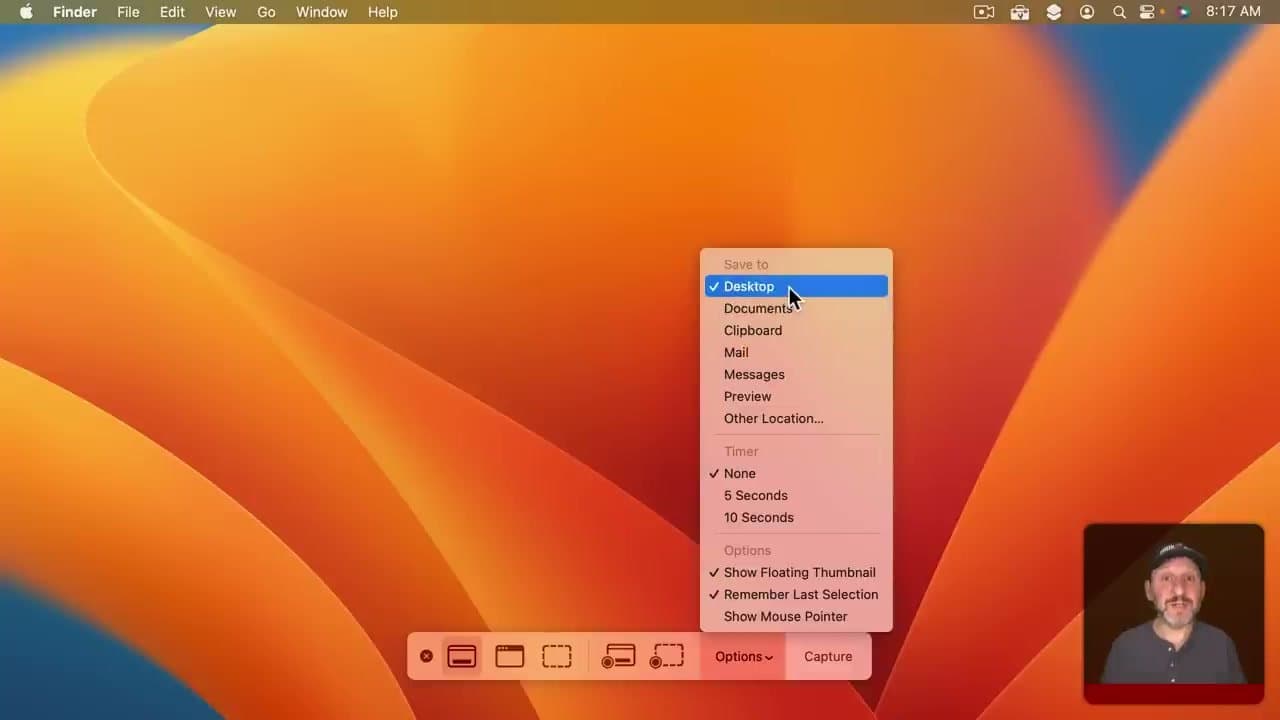
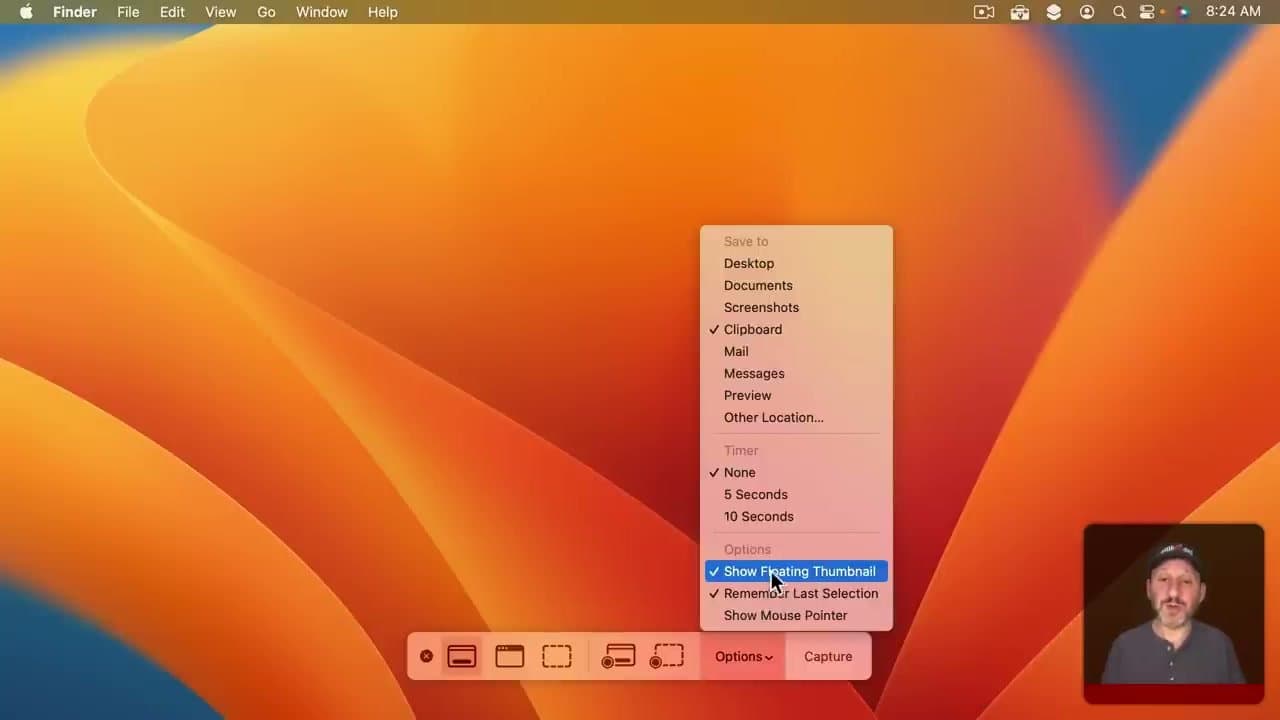
With the Shift+Command+5 toolbar visible, click Options. This menu controls every screenshot setting on your Mac - where files save, whether the floating thumbnail appears, the delay timer, and whether the mouse pointer shows up in the capture.

4

Use the Floating Thumbnail to Mark Up or Trash

2:36
Step 4: Use the Floating Thumbnail to Mark Up or Trash

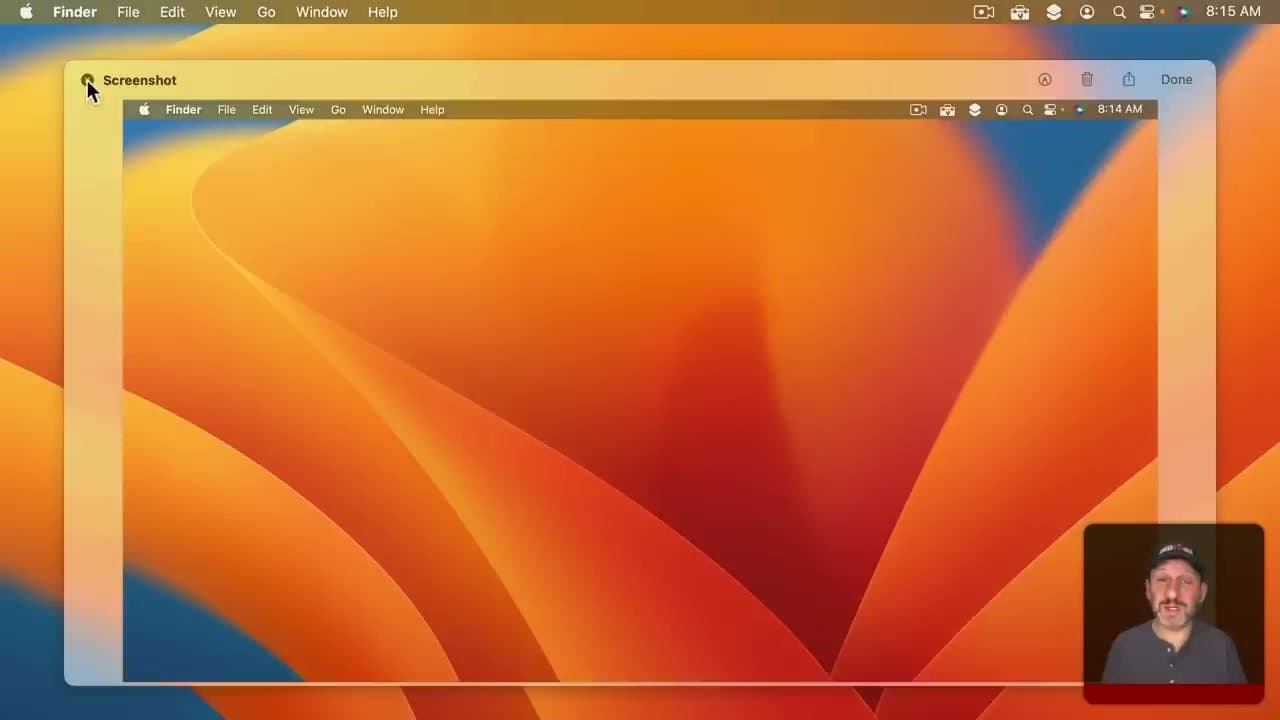
Right after a capture, click the floating thumbnail in the bottom-right corner before it disappears. A preview window opens with markup tools, a share button, and a trash can.

The trash can is the underrated one. If the screenshot didn't come out right, hit it - the file never saves to disk and you can take another one. Way faster than tracking down a bad file on the Desktop later.

Tip

The markup tools include arrows, text, shapes, and a signature option. For most quick annotations, you don't need a separate app like Skitch.

5

Change Where Screenshots Save

4:00
Step 5: Change Where Screenshots Save

In the Options menu, look for Save to. The default is Desktop. Switch it to Documents, or pick Other Location and choose any folder you want - a Pictures > Screenshots folder is a good setup.

Doing this once stops the Desktop clutter problem permanently. Every screenshot from now on lands in the folder you picked.

6

Send Screenshots Straight to the Clipboard

5:46
Step 6: Send Screenshots Straight to the Clipboard

If you mostly take screenshots to paste them into chats, emails, or docs, set Save to > Clipboard in the Options menu. Now Shift+Command+3 copies the capture instead of saving a file. Press Command+V wherever you want it.

You can also press Control+Shift+Command+3 from any setting to do this on a one-off basis without changing the default.

7

Capture an Exact Selection

6:10
Step 7: Capture an Exact Selection

Open Shift+Command+5 and click the icon for Capture Selected Portion. A resizable rectangle appears. Drag the corners to frame exactly what you want, then click Capture or press Return.

If Remember Last Selection is on in Options, the rectangle stays the same size and position next time, so grabbing the same chart or window over and over is a one-key job.

Tip

Press Command+C while the selection is active to send it to the clipboard instead of saving as a file - useful for one-off pastes.

8

Add a Delay for Menus and Tooltips

7:12
Step 8: Add a Delay for Menus and Tooltips

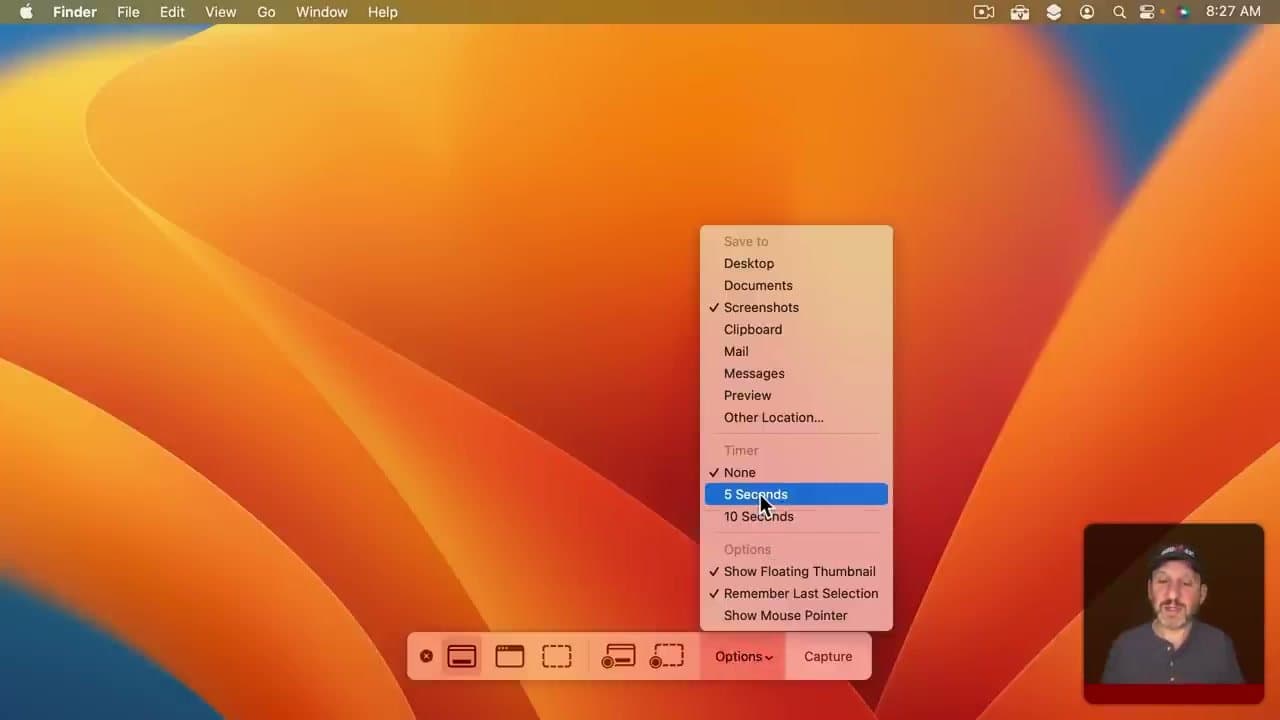
Some things vanish when you press a key. Drop-down menus, hover states, tooltips - all of them disappear the second your mouse leaves the spot. Set Options > Timer to 5 or 10 seconds, then click Capture, then have those 5 to 10 seconds to open the menu or hover over the element you want to grab. The delay catches what a regular screenshot can't.

Tip

10 seconds feels long but is the right setting if you need to navigate two or three clicks deep before the capture fires.

Your Guide

macmostvideo

As an Amazon Associate we earn from qualifying purchases. Links on this page may be affiliate links - clicking them and buying doesn't change your price, but helps support ShowMeStepByStep.

Tags

Related Tutorials