How to Factory Reset HP Laptop: Restore Windows 11 to Factory Settings

Also in:Adulting

By ShowMeStepByStepPublished Updated

Based on a video by PC Monkey.

Learning how to factory reset an HP laptop is the fix when Windows 11 is slow, full of junk apps, or about to change owners. The built-in Reset this PC tool wipes the system back to a clean state - same condition it was in the day you opened the box. No recovery discs, no reinstall media, no trip to the repair shop.

This walkthrough covers both paths: the normal route from the Windows desktop (when your laptop still boots) and the F11 startup recovery route (when it does not). You will pick between Keep my files (saves your personal data, wipes apps and settings) and Remove everything (full wipe). You will also choose how Windows reinstalls itself - Cloud download for a fresh copy from Microsoft or Local reinstall using the recovery files already on the drive.

Back up first. A factory reset is destructive. Copy anything irreplaceable to an external drive or cloud storage before you start. If you only need to clear out a few problem apps, try our general Windows 11 factory reset guide first - it covers the same Reset this PC flow without the HP-specific F11 recovery option. Got a Mac instead? See how to factory reset a Mac. After the reset finishes, you will want to update Windows right away to pull the latest security patches, and the HP screenshot keyboard shortcuts are worth a bookmark for documenting any setup steps along the way.

Step-by-Step Guide

1

Step 1: Back Up Your Files Before You Reset

0:08
Step 1: Step 1: Back Up Your Files Before You Reset

A factory reset can erase everything on your HP laptop, so copy your important files somewhere safe before you start. Drag documents, photos, and anything irreplaceable to an external SSD, USB drive, or cloud storage like OneDrive or Google Drive. The Reset this PC tool offers a 'Keep my files' option, but it has been known to fail on the rare bad sector or corrupt profile. A real backup is the only true safety net.

Tip

If you have a lot to move, an external SSD is faster than a USB stick and worth keeping around as your permanent backup drive.
2

Step 2: Open Reset this PC From the Start Menu

1:07
Step 2: Step 2: Open Reset this PC From the Start Menu

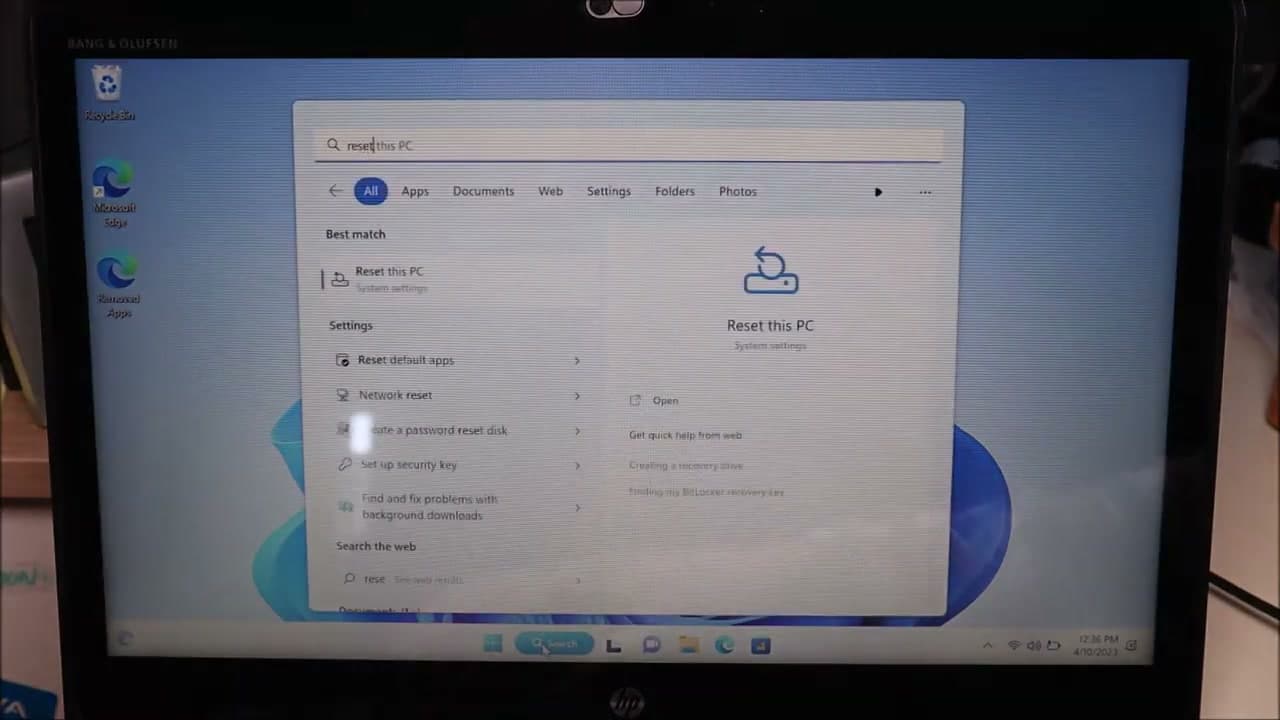
From your HP laptop desktop, click the search bar at the bottom of the screen and type 'reset'. Windows will pull up 'Reset this PC - System settings' as the top Best match result. Click it to jump straight into the recovery options without digging through Settings menus. This is the quickest way in when your laptop is still booting normally into Windows 11.

Tip

You can also press the Windows key and start typing - the search bar will pop up automatically.

Products used in this step

3

Step 3: Click Reset PC in the Recovery Options

1:30
Step 3: Step 3: Click Reset PC in the Recovery Options

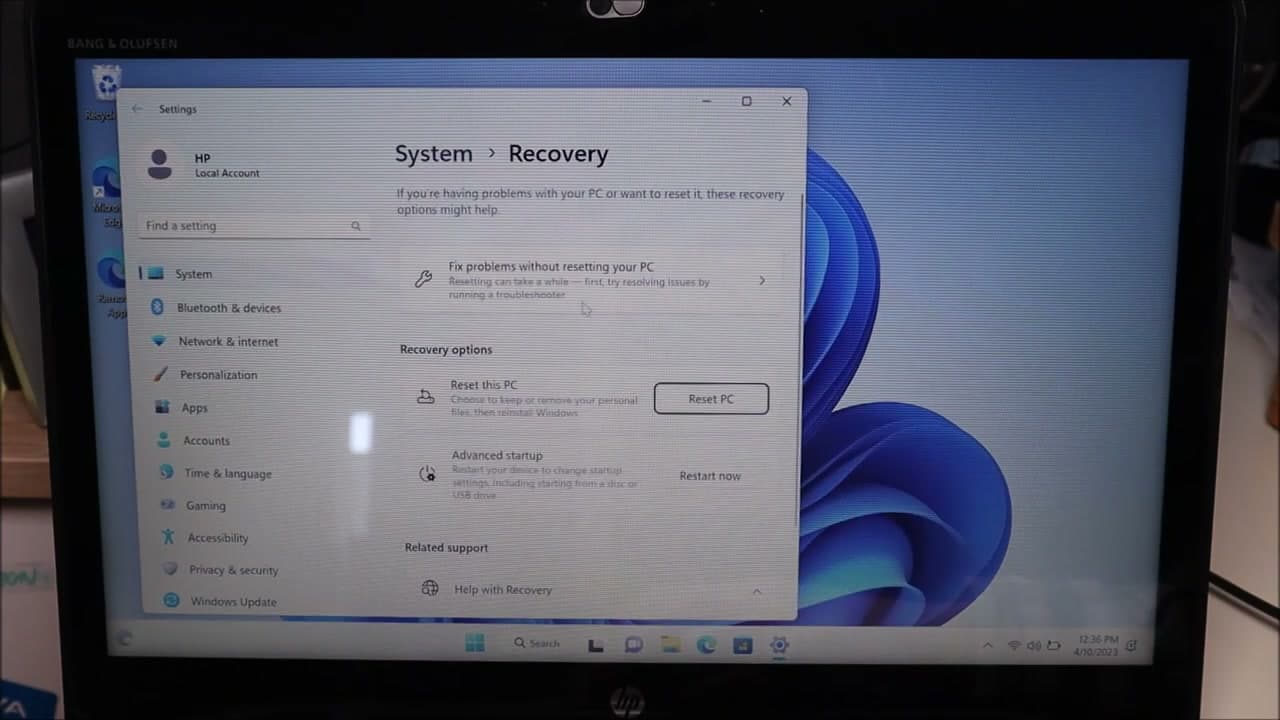
The Settings window opens to System then Recovery. Under the Recovery options heading you will see a Reset this PC row with a Reset PC button on the right. Click that button. This opens the reset wizard that walks you through picking what to keep and how Windows should reinstall itself. Take a breath here - the next two screens are where the real decisions happen.

Products used in this step

4

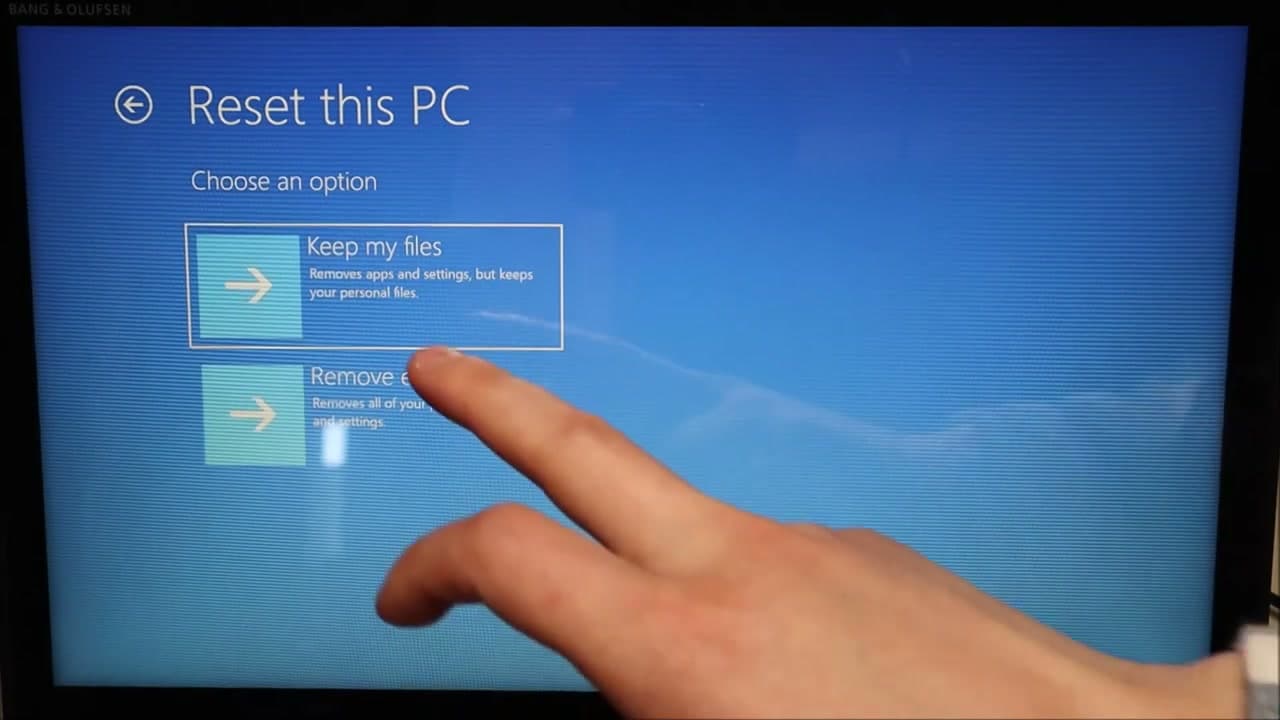
Step 4: Pick Keep My Files or Remove Everything

1:40
Step 4: Step 4: Pick Keep My Files or Remove Everything

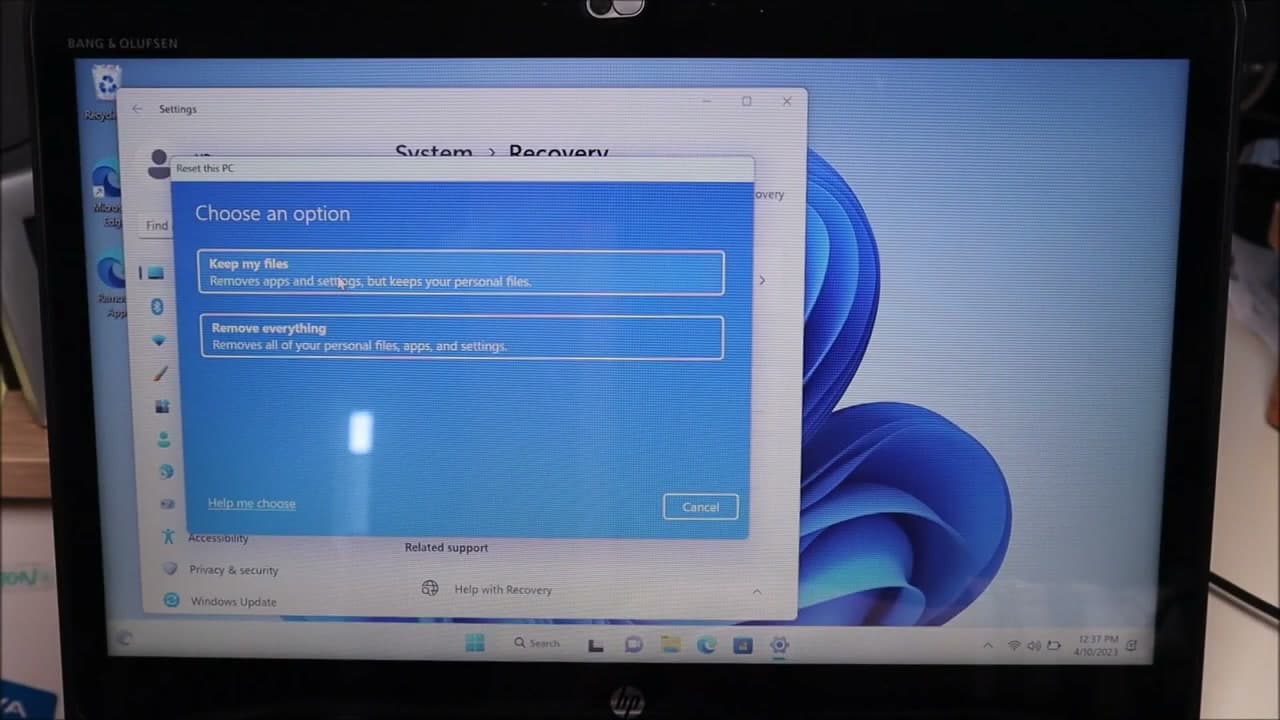
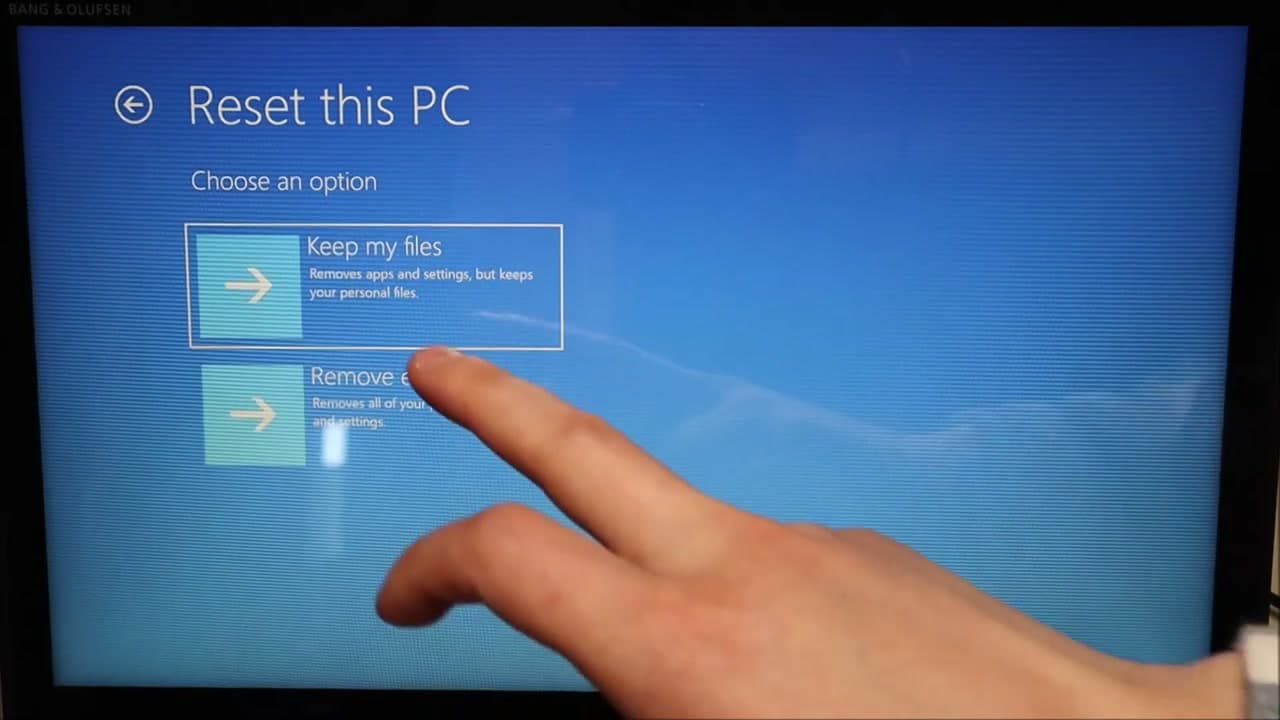
Now you choose what gets wiped. Keep my files removes apps and settings but leaves your personal data in place - great for fixing a slow or misbehaving Windows install while keeping your photos and documents. Remove everything wipes the drive completely - use this before you sell, give away, or hand down the laptop. Click the option that fits your situation.

Tip

Even with 'Keep my files', some apps and license keys will not come back. Make a list of programs you need to reinstall later.

Products used in this step

5

Step 5: Use F11 if Your HP Will Not Boot to Windows

2:22
Step 5: Step 5: Use F11 if Your HP Will Not Boot to Windows

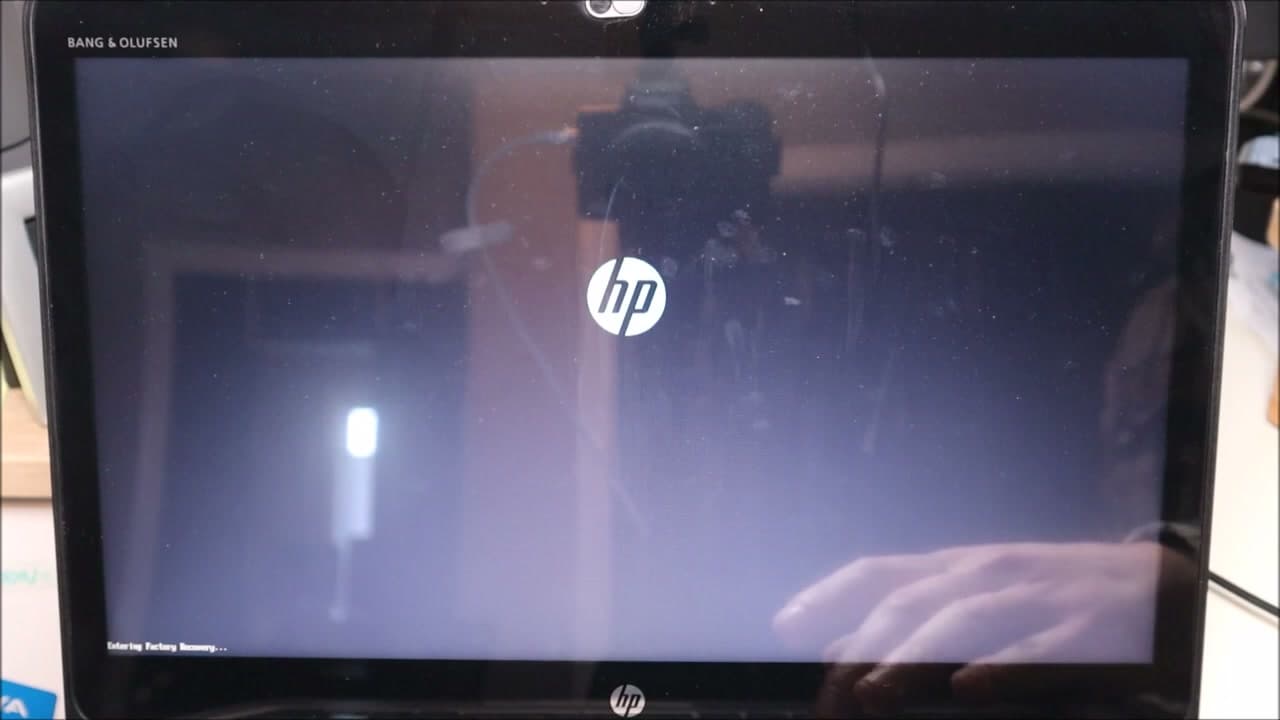
If your HP laptop will not load Windows at all, you can still reach the same reset menu through HP's recovery environment. Shut the laptop down, press the power button, and immediately start tapping F11 - keep tapping until you see 'Entering Factory Recovery' at the bottom-left of the screen. From there pick Troubleshoot, then Reset this PC. The Keep my files and Remove everything options look the same as inside Windows.

Tip

Some HP models use F9 or Esc instead of F11. If F11 does not work, try those next.

6

Step 6: Choose Cloud Download or Local Reinstall

3:22
Step 6: Step 6: Choose Cloud Download or Local Reinstall

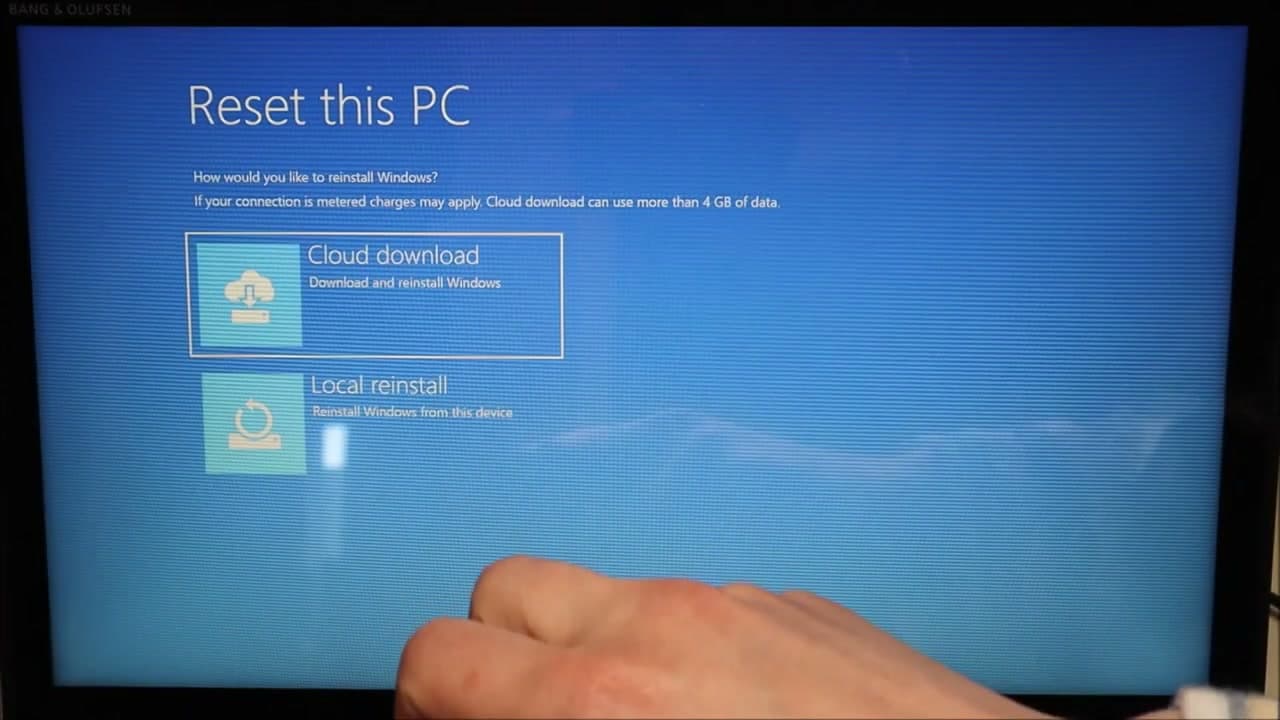
Windows asks how it should reinstall itself. Cloud download pulls a fresh copy of Windows 11 straight from Microsoft - good if your local install is corrupted or you want the latest build, but it uses 4+ GB of data. Local reinstall uses the recovery files already stored on your HP laptop - faster, no internet needed, and works fine for most resets. Local is the safe default when you are not sure.

Tip

Pick Cloud download if you have a fast connection and your laptop has been acting strange - a clean Microsoft image rules out file corruption.

Products used in this step

7

Step 7: Plug In Power and Read the Final Warning

3:40
Step 7: Step 7: Plug In Power and Read the Final Warning

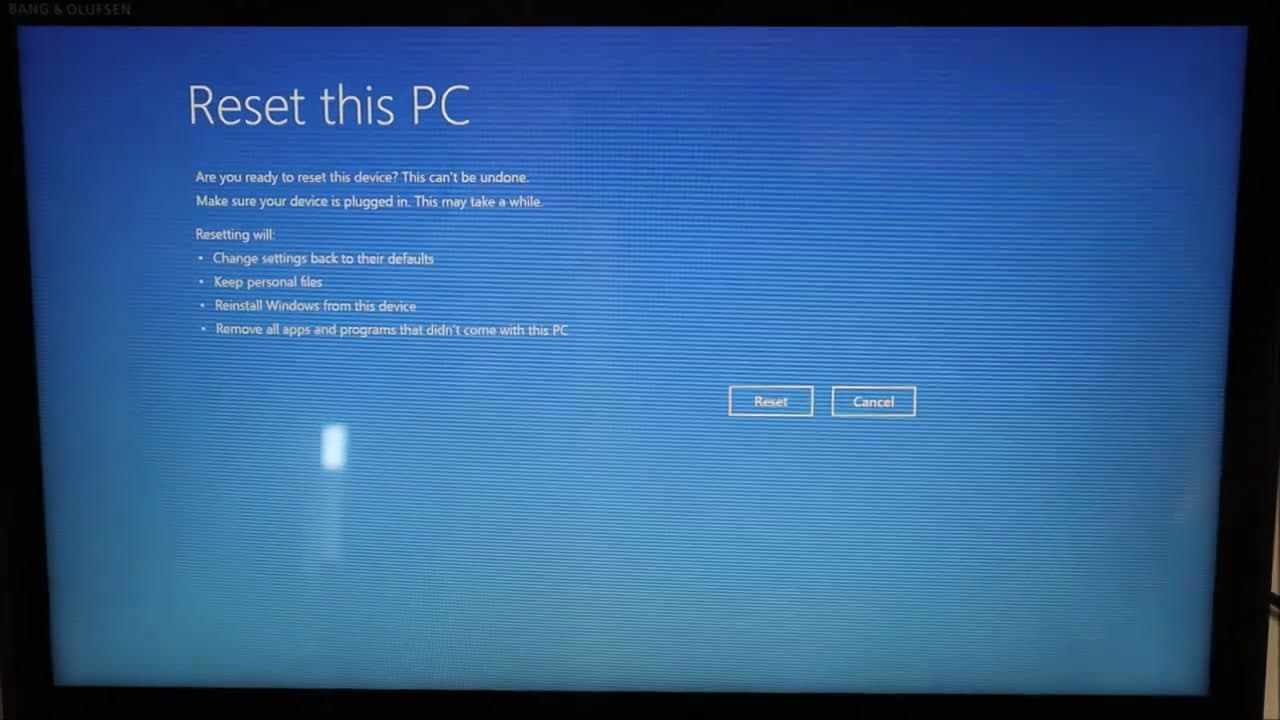
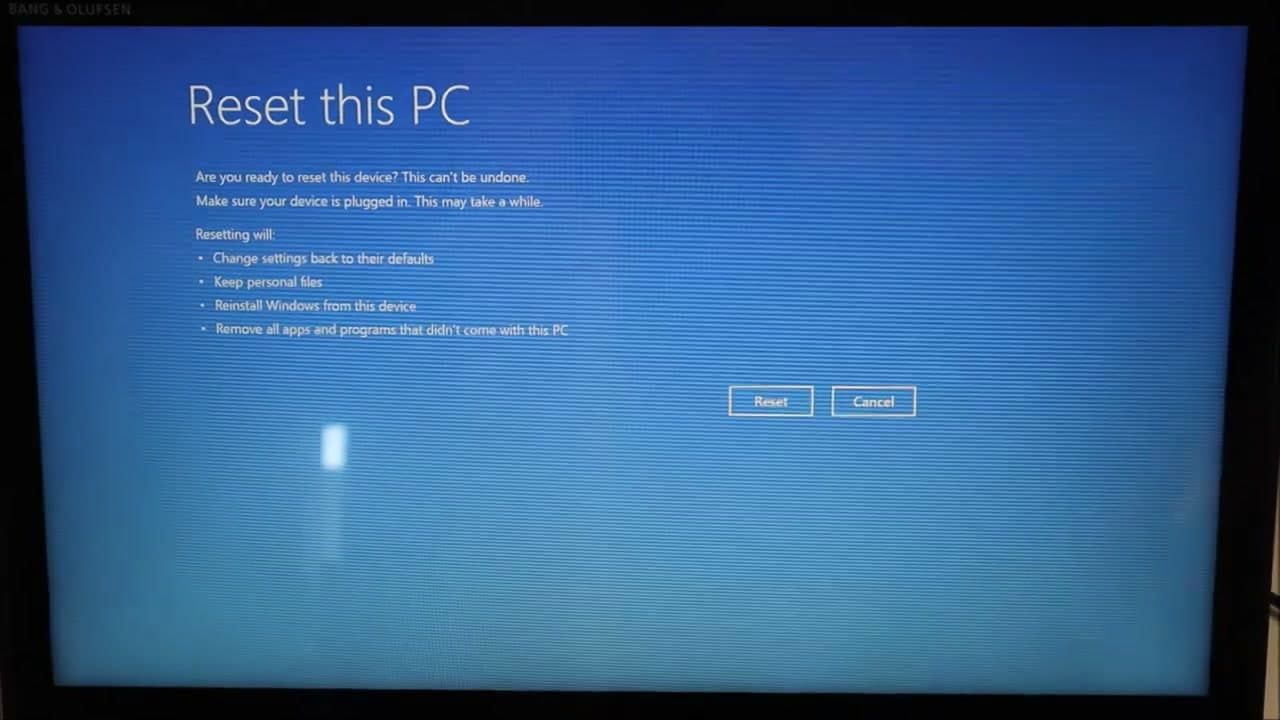
Before you commit, plug the HP laptop into AC power. The reset can run for half an hour or longer, and if the battery dies mid-process Windows can end up so corrupted that even a second reset will not save it. The final screen lists exactly what is about to happen: settings reset to defaults, personal files kept (if you chose that), Windows reinstalled, and any apps that did not ship with the laptop removed.

Tip

If the warning screen shows something you did not expect (like 'remove personal files' when you wanted Keep my files), hit Cancel and start over.

8

Step 8: Click Reset and Let It Finish

4:12
Step 8: Step 8: Click Reset and Let It Finish

Click the Reset button. Your HP laptop will reboot several times as Windows reinstalls itself - that is normal. Do not unplug it, do not close the lid, do not touch any keys until you see the initial Windows 11 setup screen asking for your language and region. Once you reach that screen, walk through the standard setup (account login, Wi-Fi, privacy settings). After setup finishes, run Windows Update right away to pull the latest patches.

Tip

The reset typically takes 30-60 minutes. Walk away and let it work - interrupting it can leave Windows in a half-installed state.

Products Used

Your Guide

PC Monkey

As an Amazon Associate we earn from qualifying purchases. Links on this page may be affiliate links - clicking them and buying doesn't change your price, but helps support ShowMeStepByStep.

Tags

Test your knowledge

Did the lesson stick? Find out in 2 minutes.

5 quick questions covering what you just read. No signup, no score saved — just a gut check.

Quick reference

Key takeaways from How to Factory Reset HP Laptop: Restore Windows 11 to Factory Settings

5 questions, answers, and one-line explanations. Tap to expand.

  1. 1.What's the fastest way to reach Reset this PC from a working HP desktop?

    Answer: Type 'reset' in the search bar; 'Reset this PC - System settings' is the top match

    Search jumps you straight into recovery options without digging through Settings menus.

  2. 2.If your HP laptop won't boot to Windows, which key gets you to HP's recovery environment?

    Answer: F11 - tap repeatedly right after pressing power

    F11 launches HP's Factory Recovery; from there pick Troubleshoot then Reset this PC.

  3. 3.Why must you plug into AC power BEFORE starting the reset?

    Answer: If the battery dies mid-reset, Windows can become so corrupted even a second reset won't save it

    Reset can run 30+ minutes; battery death mid-process risks unrecoverable corruption.

  4. 4.What's the difference between Cloud download and Local reinstall?

    Answer: Cloud uses Microsoft's servers (~4GB download); Local uses on-disk recovery files (faster, no internet)

    Cloud is guaranteed-fresh; Local is faster and works offline but uses on-disk recovery files.

  5. 5.After the reset finishes and you set up Windows, what should you do immediately?

    Answer: Run Windows Update to pull the latest security patches

    A fresh install is behind on patches; Windows Update closes known security holes first.

What's next

Related collections

Curated theme pages that include this tutorial.

Weekly Digest

Liked this tech tutorial?

Pick the categories you want to hear about. Weekly digest of new step-by-step tutorials. No spam, easy unsubscribe.

Send me tutorials about

We only email about new tutorials. Easy unsubscribe anytime.