How to Factory Reset Windows 11 (7 Easy Steps)

TechEasy6:027 stepsBrowse more →
Also in:Adulting

By ShowMeStepByStepPublished

Based on a video by SoulOfTech.

A factory reset is the nuclear option for a sluggish Windows 11 machine, and sometimes it is exactly what the doctor ordered. If your PC takes five minutes to boot, crashes for no reason, or you are about to hand it down to a kid or sell it on Marketplace, wiping it back to factory settings clears out years of half-installed apps, bloated startup programs, and corrupted system files in one shot.

Windows 11 makes the whole thing fairly painless. The reset lives right inside Settings, you do not need a recovery USB, and you do not need to call a tech-savvy nephew. The catch: a factory reset is destructive. Anything not backed up goes away when you click that final Reset button. Documents, photos, downloads, saved game progress, browser bookmarks - all of it.

Warning before you start. Back up every file you care about before you touch the Reset button. Copy folders to an external SSD, sync the whole Documents tree to OneDrive or Google Drive, or both. Once the reset starts, there is no undo. Even the Keep my files option preserves your documents but removes every installed app and every custom setting.

How long it takes. Plan on 30 to 90 minutes once you hit Reset, plus another 20 minutes to walk through first-time setup at the end. Plug the laptop into power. The PC will restart itself several times - do not panic when the screen goes black between progress bars.

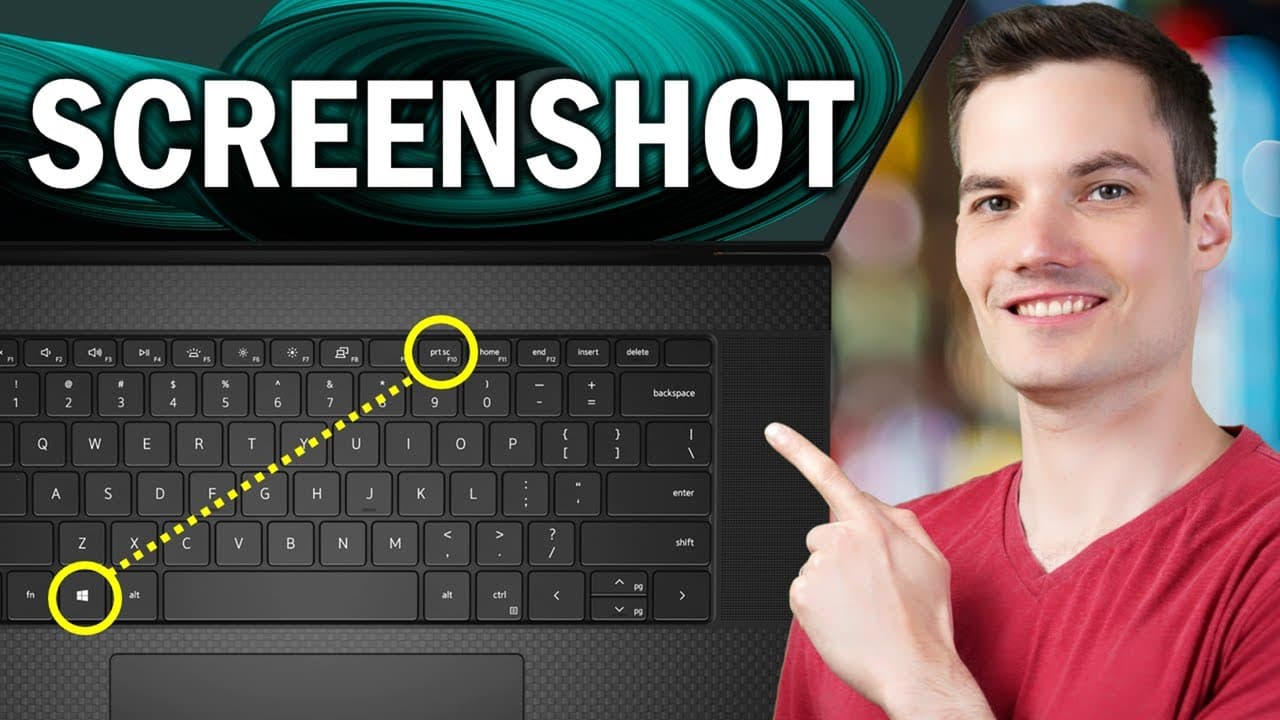
While you are in tech-cleanup mode, also worth knowing: how to update Windows, how to factory reset a Mac, and how to take a screenshot on Windows.

Step-by-Step Guide

1

Step 1: Back Up Your Files Before You Touch Anything

1:45
Step 1: Step 1: Back Up Your Files Before You Touch Anything

This is the most important step in the entire tutorial. A factory reset wipes everything: documents, photos, downloads, saved passwords in non-cloud browsers, installed apps, and every custom setting. There is no undo button once the reset starts.

Plug in an external SSD or USB drive and drag your important folders over - Documents, Pictures, Videos, Downloads, and your Desktop at minimum. If you use OneDrive, Google Drive, or Dropbox, open the app and confirm every folder you care about shows the green checkmark or 'Up to date' status before you go any further. Cloud sync that has been paused for six months is not a backup.

Also export browser bookmarks (Edge, Chrome, Firefox all have a built-in export to HTML file) and write down any software license keys you will need to reinstall after the reset.

Tip

If you are giving the PC to someone else, sign out of OneDrive, Microsoft account, browsers, Steam, and any other accounts BEFORE you start. The reset removes the data but signing out first is a clean handoff that breaks the device-account link cleanly.

2

Step 2: Right-Click the Start Button and Open Settings

0:50
Step 2: Step 2: Right-Click the Start Button and Open Settings

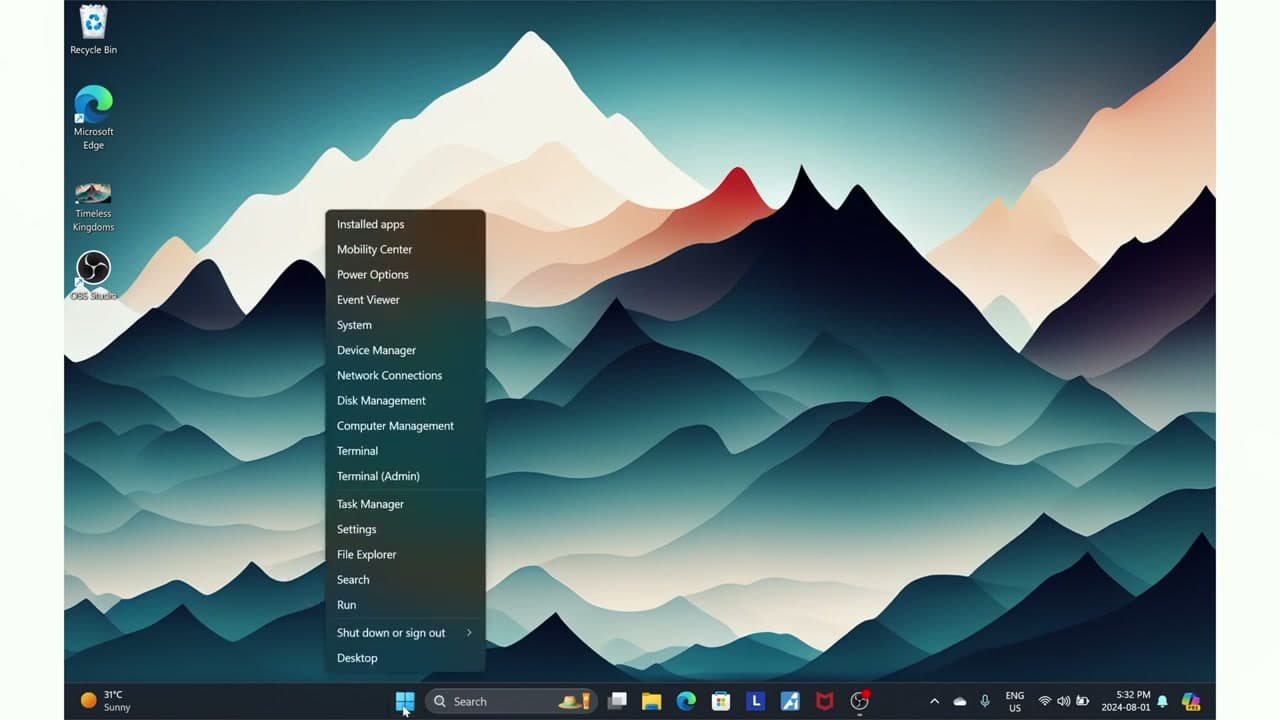
Look at the taskbar at the bottom of your screen and find the Start button - the Windows logo icon. Right-click it (not left-click, which opens the regular Start menu).

A long menu pops up with options like Installed apps, Power Options, Device Manager, and Task Manager. About two thirds of the way down you will see Settings. Click Settings and the Windows 11 Settings window opens in a new window.

Tip

Faster shortcut: press the Windows key and I at the same time (Win + I). That opens Settings instantly, no clicking required. Worth memorizing - you will use it constantly for everything from sound to Bluetooth.

Products used in this step

3

Step 3: Click System, Then Scroll Down to Recovery

1:10
Step 3: Step 3: Click System, Then Scroll Down to Recovery

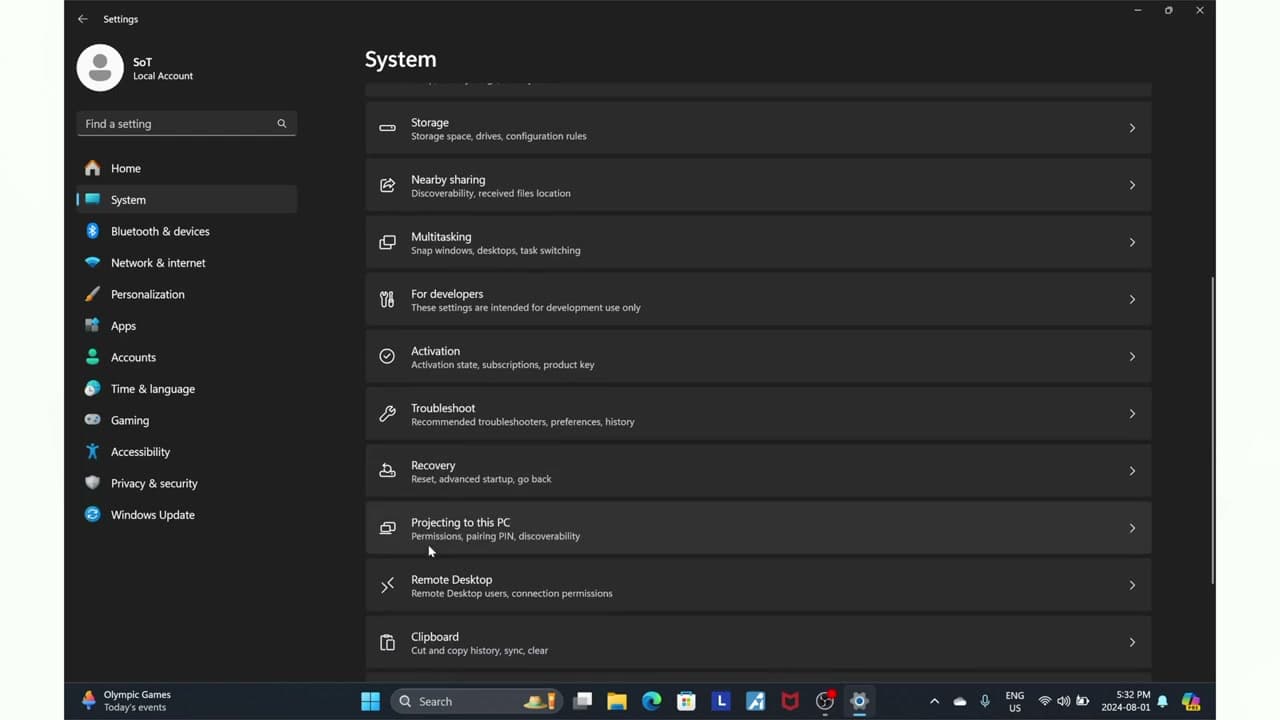
In the Settings window, look at the sidebar on the left. You will see Home at the top, then System, Bluetooth and devices, Network and internet, and so on. Click System (usually the second item from the top).

The right side of the window now shows all the System sub-pages: Display, Sound, Notifications, Power and battery, Storage, and more. Scroll down past Multitasking, For developers, Activation, and Troubleshoot. About two-thirds of the way down you will see Recovery with the description 'Reset, advanced startup, go back.' Click Recovery.

Tip

If you cannot find Recovery, type 'recovery' into the search bar at the top of Settings. It jumps straight there with no scrolling.

4

Step 4: Click the Reset PC Button

1:35
Step 4: Step 4: Click the Reset PC Button

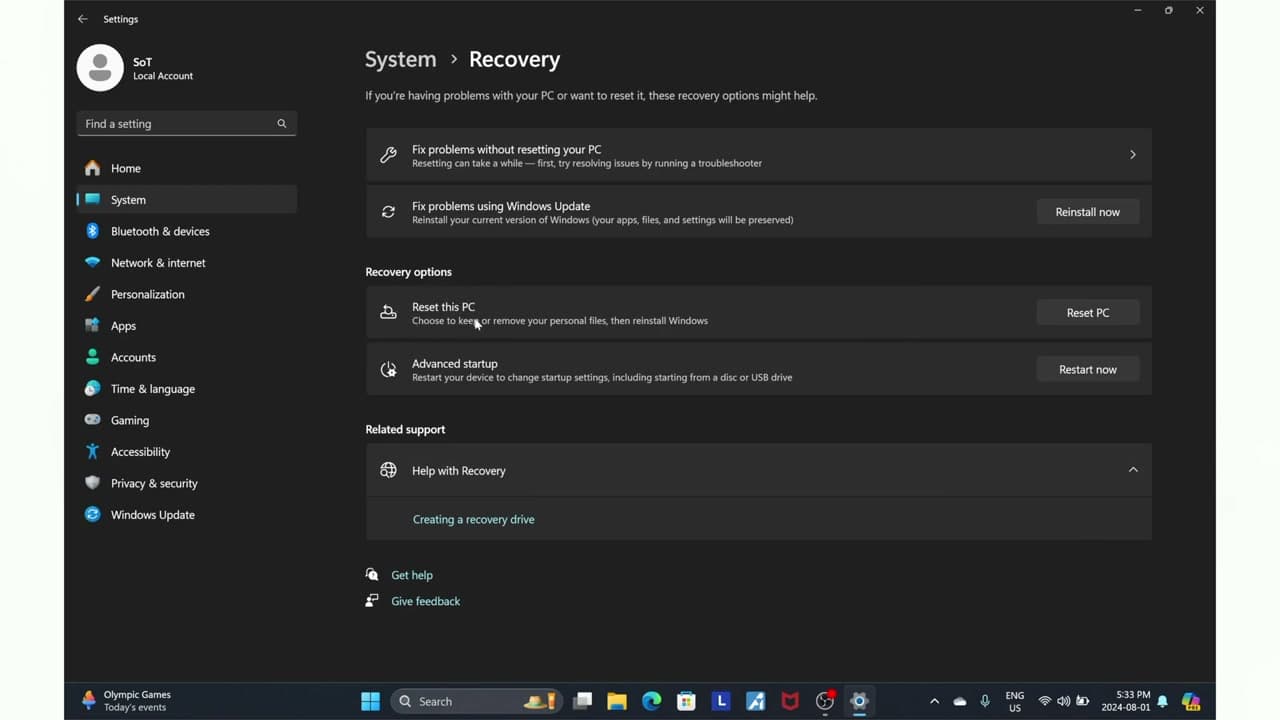
The Recovery page shows a few options. The one you want sits under the Recovery options header and is labeled Reset this PC with the description 'Choose to keep or remove your personal files, then reinstall Windows.' On the right side of that row is a blue or grey Reset PC button.

Click Reset PC. A separate prompt window opens on top of Settings and walks you through the rest of the choices. From here on, you are in the reset wizard.

Tip

Right above Reset this PC you will see 'Fix problems using Windows Update.' If your machine is just acting weird and you have not done a full Windows update lately, try that first. A reset is overkill if a pending update is the real problem.

5

Step 5: Choose Keep My Files or Remove Everything

1:55
Step 5: Step 5: Choose Keep My Files or Remove Everything

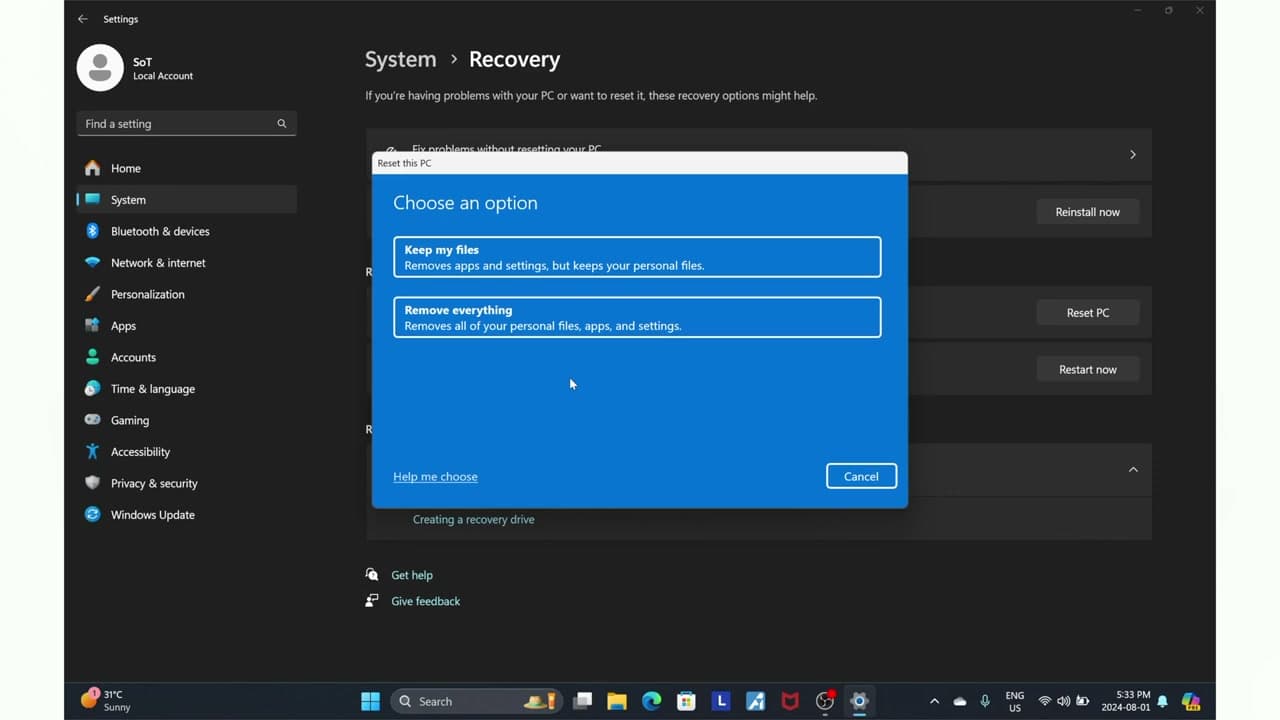
The first reset prompt asks you to Choose an option. Two big buttons appear:

Keep my files - removes apps and settings but preserves your personal files in Documents, Pictures, Videos, and Downloads. Use this if your PC is slow or buggy but you cannot back everything up for some reason. Apps still get wiped, so you will reinstall Chrome, Steam, Office, and the rest from scratch.

Remove everything - wipes the entire drive. Apps, settings, files, accounts - all of it. Use this if you are giving the PC away, selling it, or you want a true clean install for yourself. This is the proper factory reset.

Click whichever fits your situation. The wizard moves to the next screen.

Tip

Even with Keep my files selected, your apps go away. Make a list of the apps you actually use before resetting so you remember what to reinstall - it is easy to forget the small utilities like 7-Zip, Notepad++, or that one PDF viewer until you need them.

6

Step 6: Pick Cloud Download or Local Reinstall

2:15
Step 6: Step 6: Pick Cloud Download or Local Reinstall

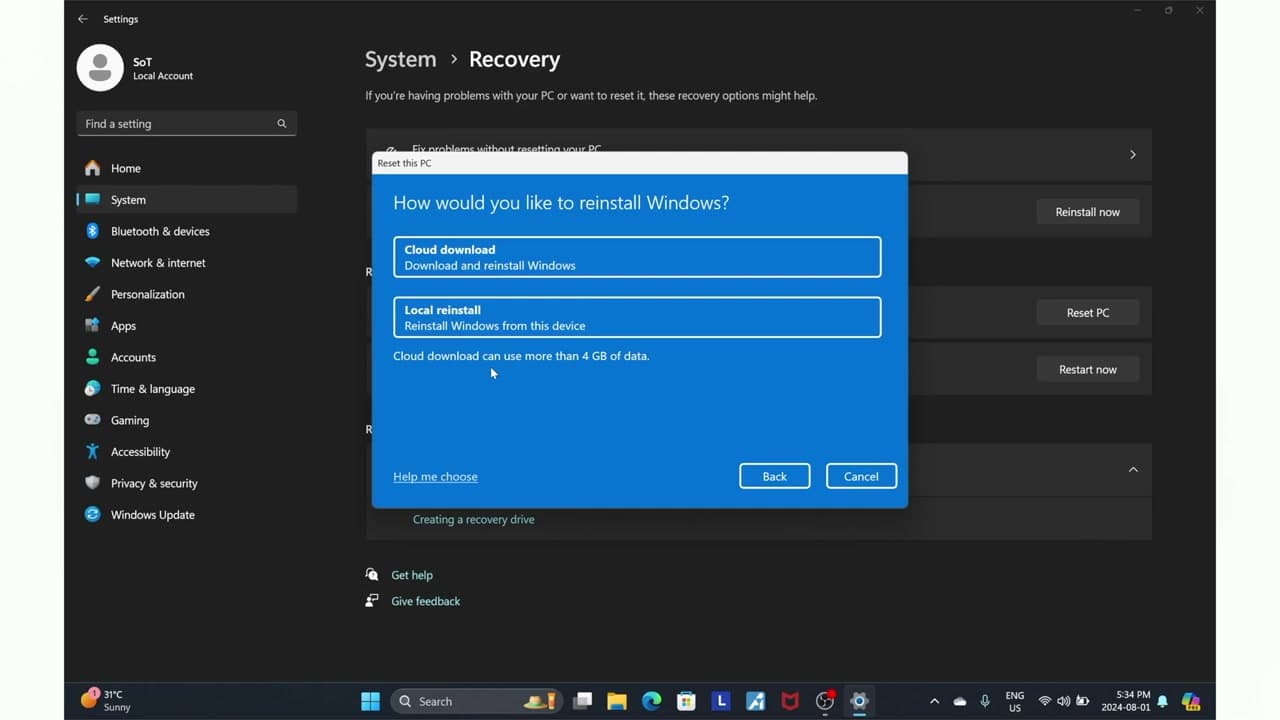
The next prompt is How would you like to reinstall Windows? You get two choices:

Cloud download - downloads a fresh, current copy of Windows 11 from Microsoft's servers. Uses about 4 GB of data and needs a stable internet connection for the whole download. Best choice if your current Windows install is corrupted, full of malware, or just plain broken. The fresh copy is guaranteed clean.

Local reinstall - rebuilds Windows from the recovery files already stored on your PC. Faster (no download), no internet required, and ideal if your PC is mostly healthy and you just want a fresh start. The downside: if those local files are corrupted too, the reinstall inherits the corruption.

If you are unsure, pick Cloud download. Slower, but you get a guaranteed-clean copy.

Tip

If you pick Cloud download, plug into ethernet if you can. Wi-Fi works but a dropped connection mid-download makes the reset fail and you have to start over. An ethernet cable is the cheapest insurance you can buy here.

Products used in this step

7

Step 7: Review the Summary, Hit Reset, Then Wait

2:40
Step 7: Step 7: Review the Summary, Hit Reset, Then Wait

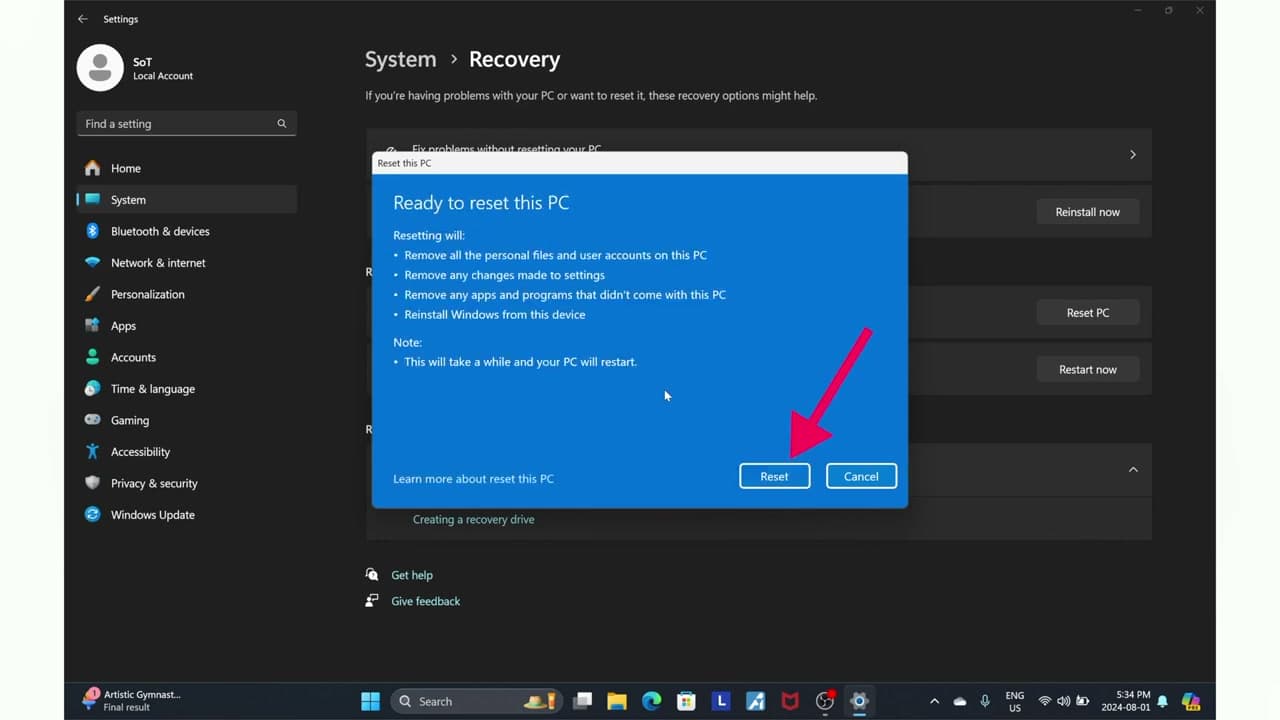
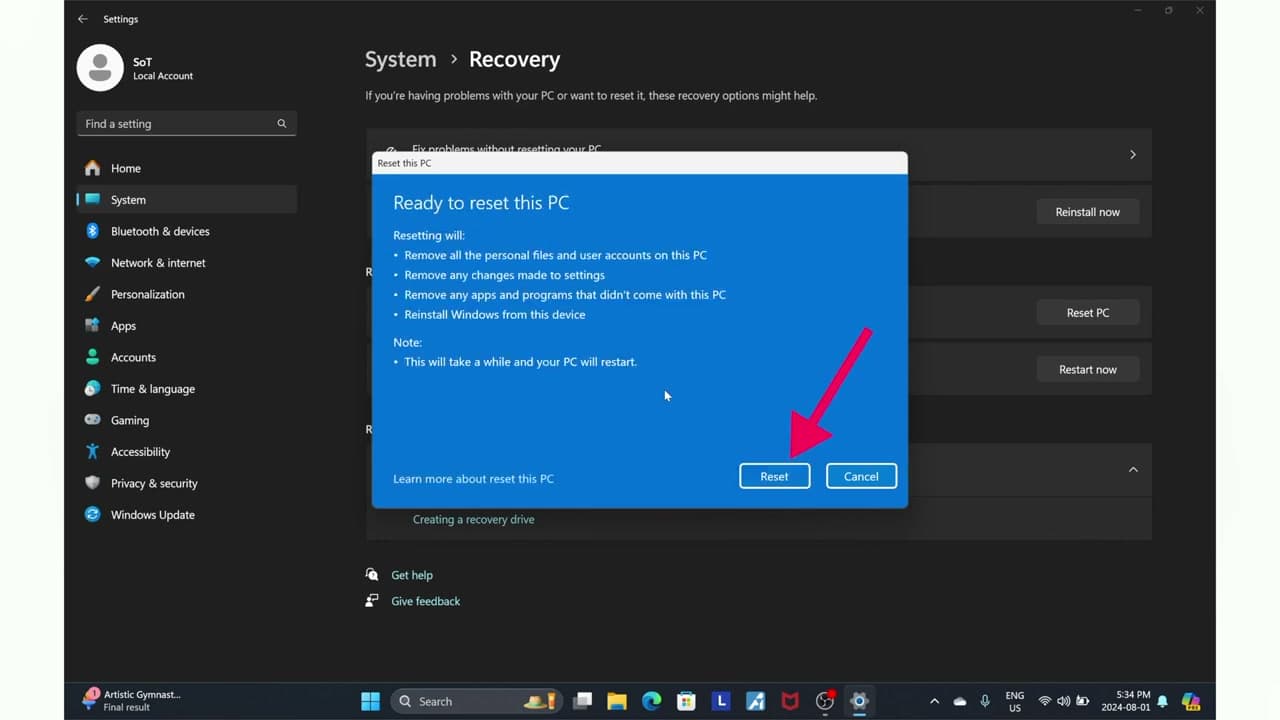
The wizard shows a summary screen titled Ready to reset this PC. It lists exactly what is about to happen: 'Remove all personal files and user accounts on this PC,' 'Remove any changes made to settings,' 'Remove any apps and programs that didn't come with this PC,' and 'Reinstall Windows from this device.' Read it once to make sure it matches what you actually want.

Click Reset to start. From here you are committed - your PC will restart and begin wiping itself. A progress bar appears showing percentage complete. The PC will restart several times on its own. Do not unplug it, do not close the lid, do not turn it off. Plug a laptop into the charger and walk away.

Total time runs 30 to 90 minutes depending on your hardware and which reset options you chose (cloud download adds time, removing everything with full drive clean adds the most). When the reset finishes, you land on the Windows 11 first-time setup screen - the same one a brand new laptop shows out of the box. Pick your region, sign in to your Microsoft account, and reinstall your apps. You are done.

Tip

If the laptop is older or has a weak battery, an unexpected shutdown during the reset can leave Windows in an unbootable state. Plug into wall power BEFORE you click Reset, even if the battery shows 100%. Worth the 30 seconds of cable hunting.

Products Used

☐ The Checklist

How to Factory Reset Windows 11 (7 Easy Steps)

Tools
3
Steps
7
Video
6 min

Your Guide

SoulOfTech

As an Amazon Associate we earn from qualifying purchases. Links on this page may be affiliate links - clicking them and buying doesn't change your price, but helps support ShowMeStepByStep.

Tags

What's next

Related collections

Curated theme pages that include this tutorial.

Weekly Digest

Liked this tech tutorial?

Pick the categories you want to hear about. Weekly digest of new step-by-step tutorials. No spam, easy unsubscribe.

Send me tutorials about

We only email about new tutorials. Easy unsubscribe anytime.