How to Factory Reset an iPad

TechEasy6:247 stepsBrowse more →
Also in:Adulting

By ShowMeStepByStepPublished

Based on a video by Apple Support.

There are two reasons most people factory reset an iPad. The first is selling it or handing it down - you don't want the next owner to see your photos or sign into your apps. The second is a forgotten passcode that's locked you out. The same process fixes both: erase the iPad, then either set it up fresh or restore from a backup.

Apple's recommended method uses recovery mode and a computer. You connect the iPad to a Mac or PC with a USB cable, force the iPad into a special restore state with a quick button sequence, and let the computer download a fresh copy of iPadOS. The whole thing takes about 20 minutes once the download starts.

If you can still get into the iPad, back it up to iCloud or to your computer first. The reset is a one-way trip - there's no undo button. If you've forgotten the passcode and iPadOS 17 or later is installed, the iPad will offer a Forgot Passcode option right on the lock screen that does the same erase without needing a computer at all.

If you're setting up a different device after this, our guide on how to set up an iPad walks through the Hello screen and Apple ID restore. Switching from an Android tablet? How to transfer data from Android to iPhone covers the same idea on the iPad side.

Step-by-Step Guide

1

Gather a Computer, Cable, and Your Apple Account Password

0:07

Step 1: Gather a Computer, Cable, and Your Apple Account Password

Before you start, grab a Mac or PC, the cable you charge your iPad with (USB-C or Lightning depending on the model), and your Apple Account email and password. Find My is on by default, so the iPad will ask for that password during the reset. Skip this step and you can't finish the wipe.

If you can still unlock the iPad, back it up first. Open Settings, tap your name, then iCloud, then iCloud Backup, and tap Back Up Now. Or plug into a computer and back up to Finder, Apple Devices, or iTunes. The backup is what you'll restore from after the reset if you want your apps and photos back.

Tip

Don't know your Apple Account password? Reset it at iforgot.apple.com before you start the wipe, not during it. Doing it midway means the iPad sits in recovery mode while you figure it out.


2

Try the Forgot Passcode Shortcut First (iPadOS 17 or Later)

0:45
Step 2: Try the Forgot Passcode Shortcut First (iPadOS 17 or Later)

If your iPad is running iPadOS 17 or later and you've entered the wrong passcode enough times to see the iPad Unavailable screen, look at the bottom right corner. There's a Forgot Passcode button. Tap it. The iPad walks you through erasing itself without ever connecting to a computer.

You'll need your Apple Account password and a Wi-Fi or cellular connection. The iPad downloads what it needs over the air, wipes everything, and boots back to the Hello screen. Fastest path when it's available - skip the rest of this guide and head to setup if it works for you.

Tip

No Forgot Passcode button? That means either the iPad is on iPadOS 16 or older, or the lock screen hasn't entered the Unavailable state yet. Keep entering the wrong passcode until iPad Unavailable shows, or move to recovery mode in the next step.

3

Turn the iPad All the Way Off

1:15
Step 3: Turn the iPad All the Way Off

Hold the top button to bring up the power-off slider. On iPads without a Home button, you need the top button plus either volume button held together. Drag the slider to the right and the screen goes black.

Wait a full minute. The iPad needs to fully power down or the next button sequence won't trigger recovery mode - it'll just turn the iPad back on. If you hear or see any sign of life from the screen, give it longer.

Tip

If holding the buttons brings up the Emergency SOS screen instead of the power-off slider, you're holding the wrong volume button or holding too long. Let go and try again with a shorter press.

Products used in this step

4

Connect the iPad to Your Computer

1:32
Step 4: Connect the iPad to Your Computer

Plug one end of your cable into the iPad (it's still off, leave it that way) and the other into a USB port on your Mac or PC. Use the cable you charge with - any USB-C or Lightning cable that fits should work. Cheap data-only cables sometimes don't, so the charging cable is the safe bet.

If your computer pops up a Trust This Computer prompt, click Trust. You won't see the iPad show up in Finder or iTunes yet - that's normal. The next step is what gets the computer to notice it.

Tip

Use a USB port on your computer directly, not a USB hub or extension. Hubs sometimes drop the connection mid-restore and you have to start over.

5

Put the iPad Into Recovery Mode

1:50
Step 5: Put the iPad Into Recovery Mode

The button sequence depends on your iPad. Without a Home button: press and release volume up, press and release volume down, then press and hold the top button. Keep holding the top button - past the Apple logo, past everything - until you see a cable pointing at a computer icon. That's the recovery-mode screen.

With a Home button: press and hold both the Home button and the top button at the same time. Keep holding past the Apple logo until the same recovery-mode screen appears.

If the lock screen shows up instead of the recovery-mode screen, you let go too early. Turn the iPad off again and redo the sequence. Speed matters on the volume-button presses - quick clicks, not slow holds.

Tip

The recovery-mode screen looks different on older iPadOS versions - it might say Connect to iTunes instead of showing the cable graphic. Either is the right screen.

6

Open Finder, Apple Devices, or iTunes on Your Computer

2:12
Step 6: Open Finder, Apple Devices, or iTunes on Your Computer

What you open depends on the computer. On a Mac running macOS Catalina or later, open Finder. The iPad shows up in the Finder sidebar under Locations - click it. On a Windows PC, open the Apple Devices app from the Microsoft Store (free download if you don't have it).

On older Macs running Mojave or earlier, or any PC without the Apple Devices app, open iTunes instead. iTunes still handles iPad restores on those systems and treats them exactly the same way.

Tip

If Apple Devices isn't in your Start menu, grab it from apps.microsoft.com/detail/apple-devices. The app replaced iTunes on Windows in 2024 and handles iPad and iPhone restores for current iPadOS versions.

7

Click Restore and Let the Computer Wipe the iPad

2:35
Step 7: Click Restore and Let the Computer Wipe the iPad

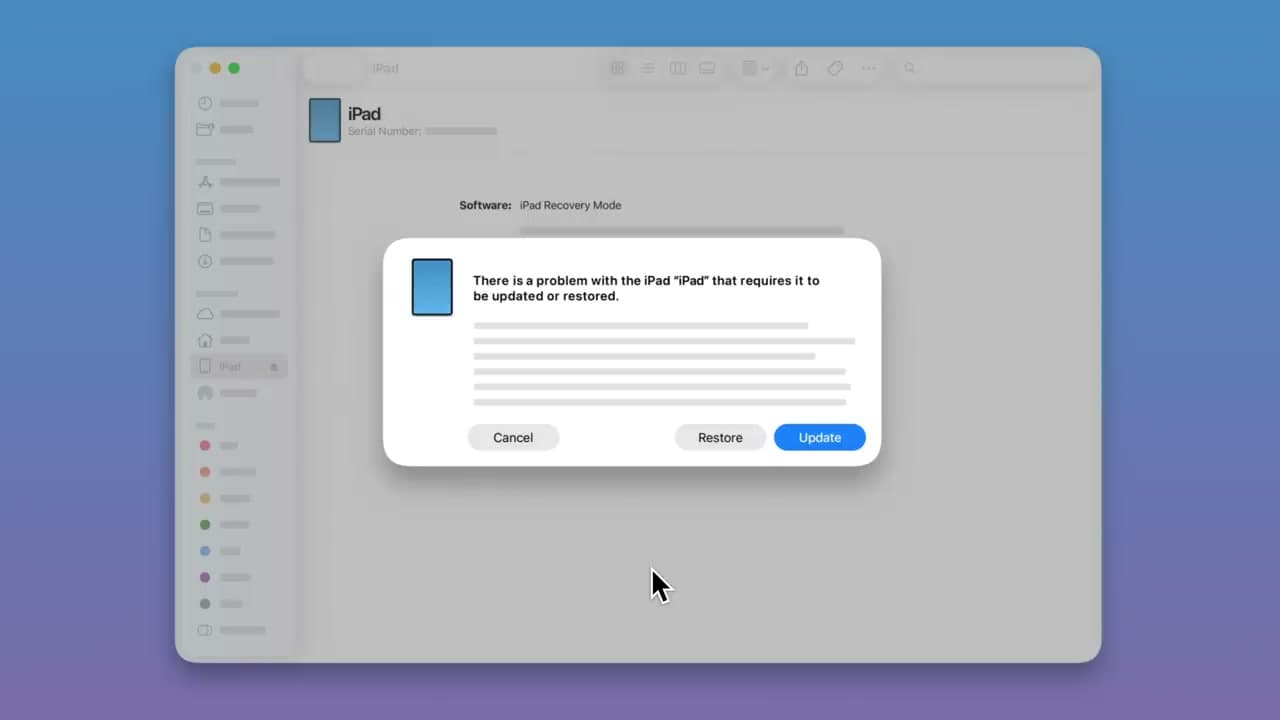
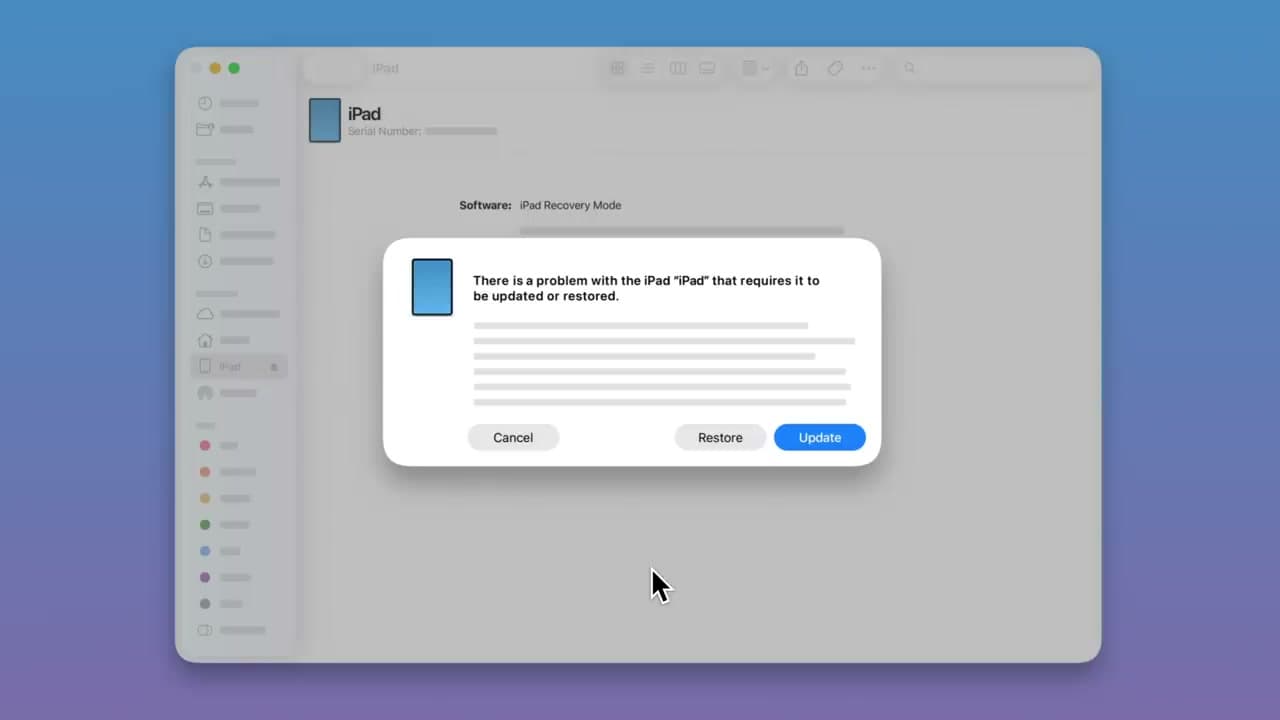
A dialog pops up saying something like "There is a problem with the iPad that requires it to be updated or restored." Click Restore. Don't click Update - that tries to keep your data, which doesn't work in this situation. Restore is the one that wipes everything and installs a fresh copy of iPadOS.

Confirm with Restore and Update, then click Next, agree to the terms, and let it run. The computer downloads the latest iPadOS - this takes 10 to 30 minutes depending on your internet. If the download runs past 15 minutes the iPad drops out of recovery mode. That's expected. Let the download finish, then turn the iPad off and redo the recovery-mode sequence to pick up where it left off.

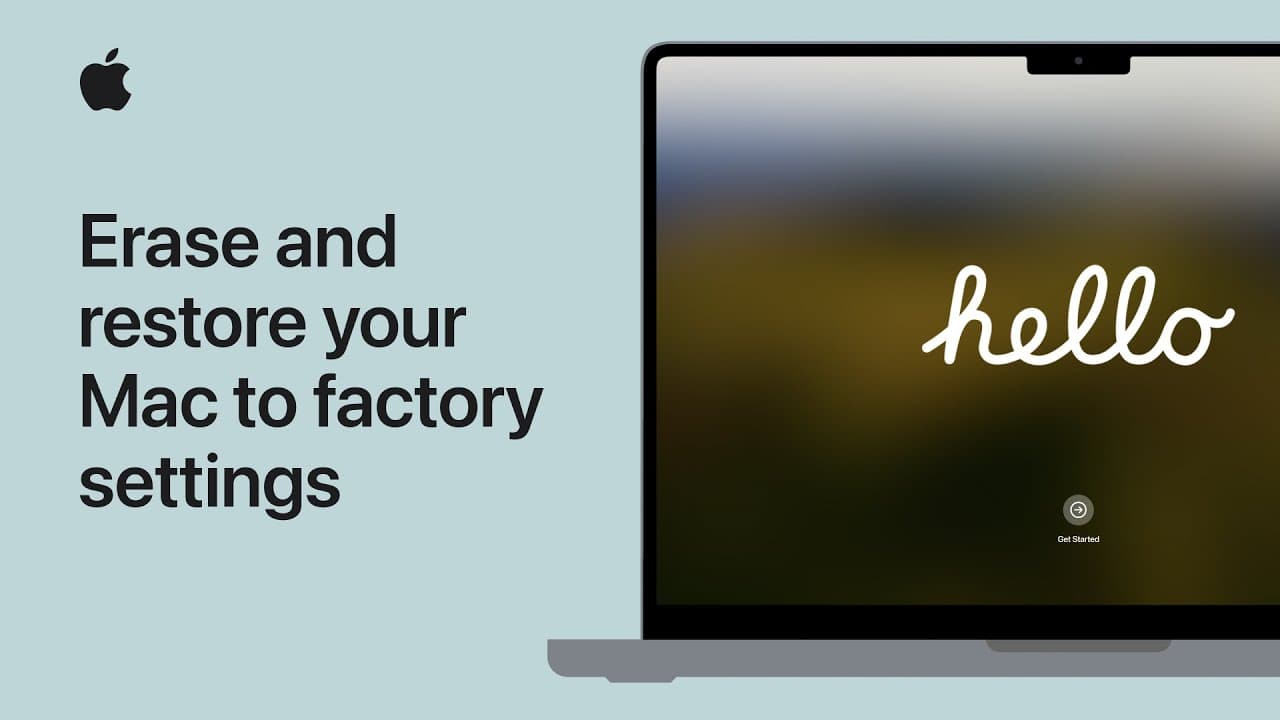
When you see the Hello screen on the iPad, the reset is done. Disconnect the cable. You can set the iPad up fresh or restore from your iCloud or computer backup during setup.

Tip

If the restore fails partway through with an error code, plug the iPad into a different USB port and try again. Cable and port issues cause most restore failures - the iPad itself is almost never the problem.

Products Used

Your Guide

Apple Support

As an Amazon Associate we earn from qualifying purchases. Links on this page may be affiliate links - clicking them and buying doesn't change your price, but helps support ShowMeStepByStep.

Tags

What's next

Weekly Digest

Liked this tech tutorial?

Pick the categories you want to hear about. Weekly digest of new step-by-step tutorials. No spam, easy unsubscribe.

Send me tutorials about

We only email about new tutorials. Easy unsubscribe anytime.