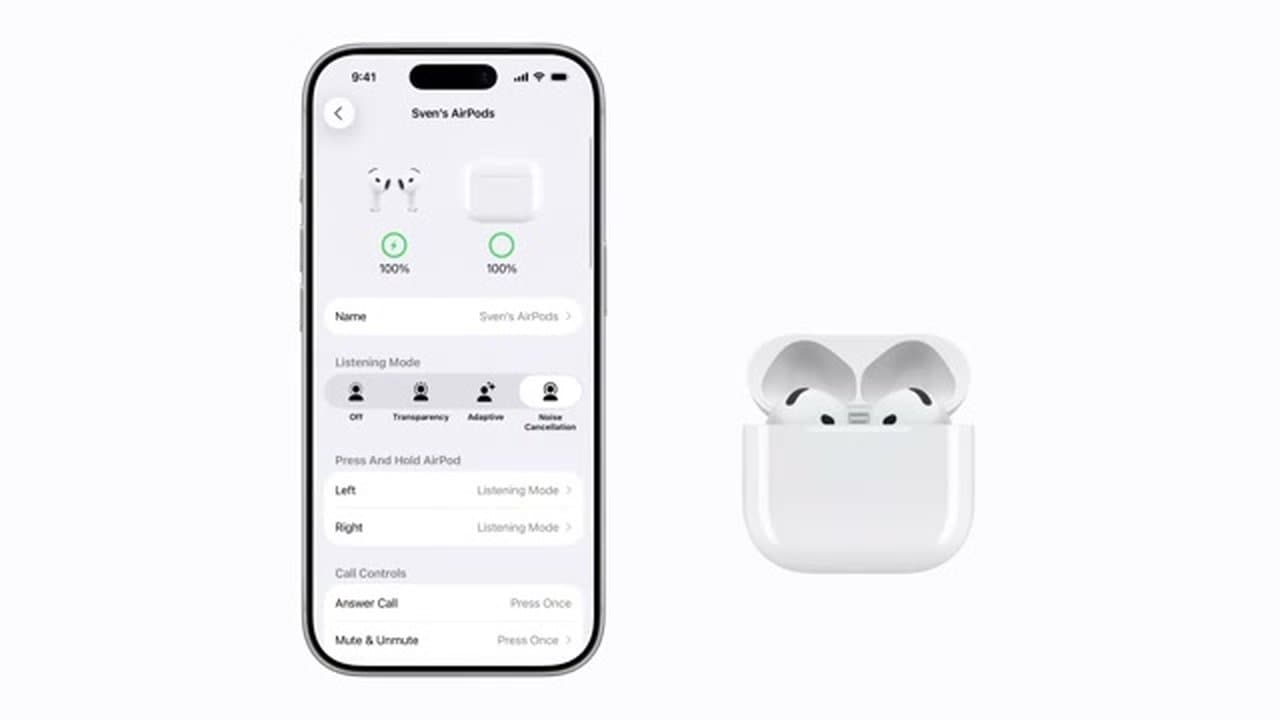
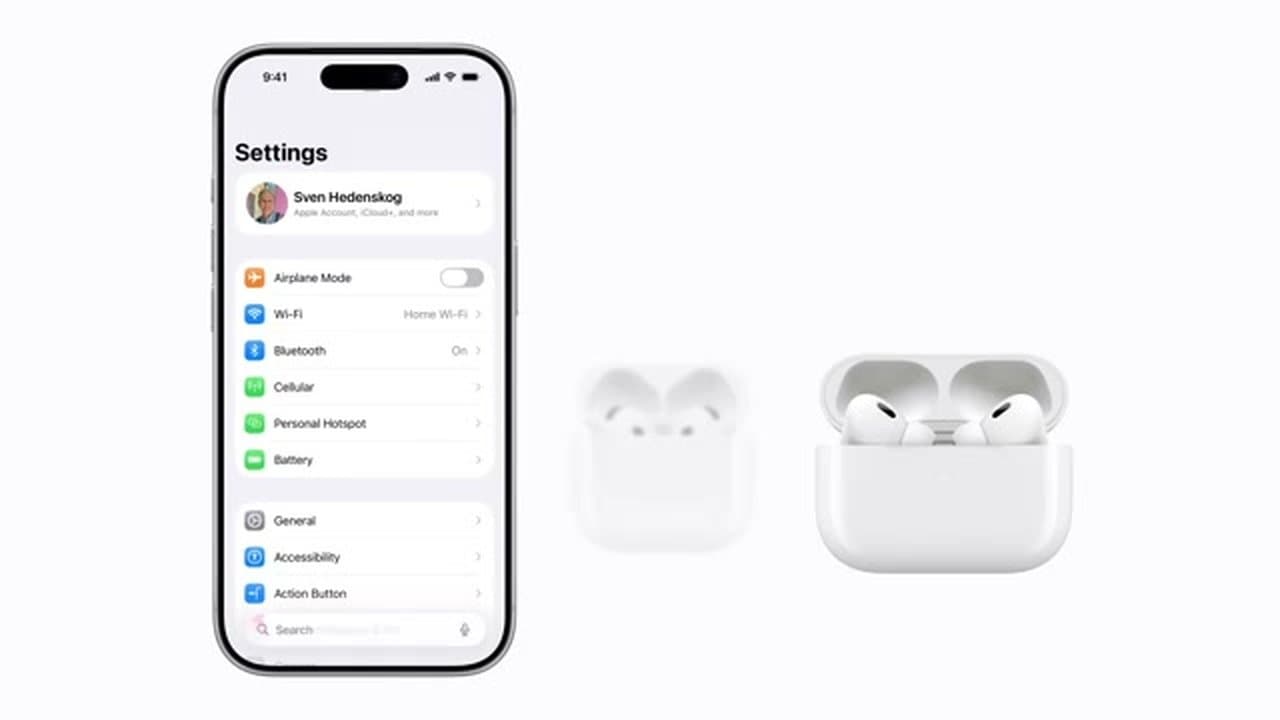
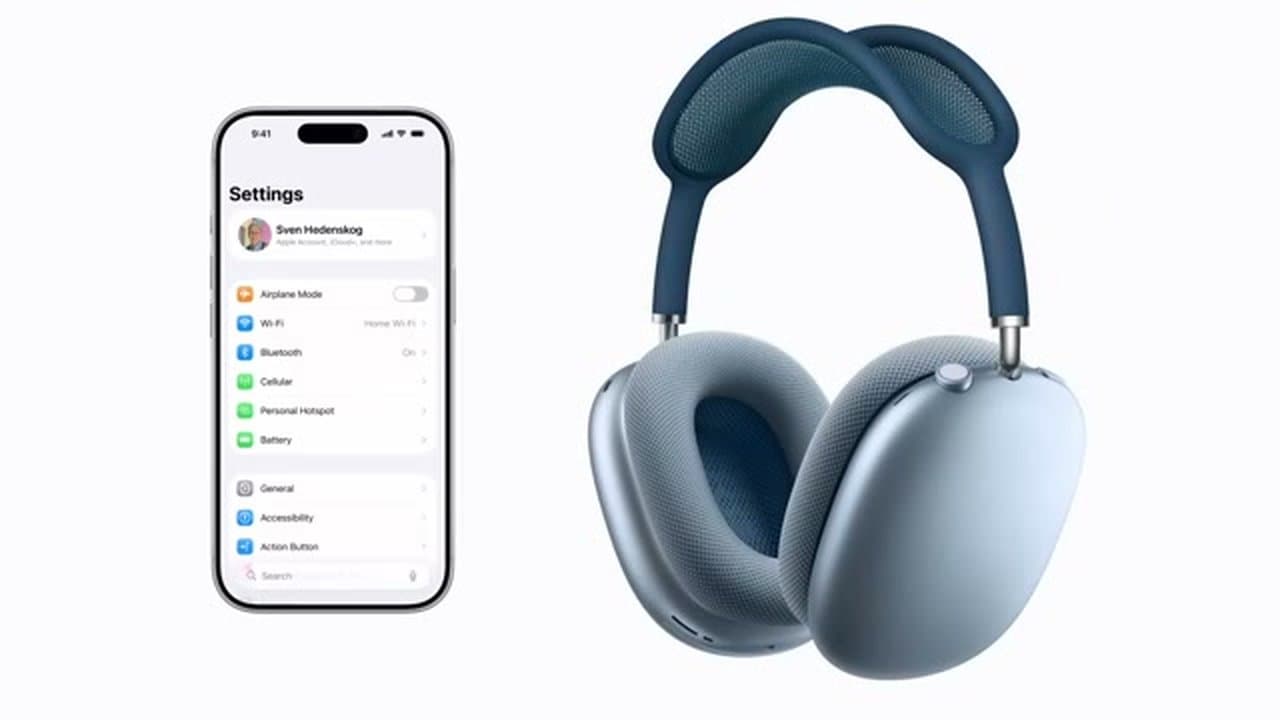
If your AirPods stopped pairing, sound funny, or you're handing them down to someone else, a factory reset is the cleanest fix. The process unpairs them from your Apple ID, wipes the settings, and gets them ready to set up fresh.
This walkthrough from Apple Support covers all three current AirPods models. The steps are mostly identical - the only difference is the specific button or buttons you hold to trigger the reset. Once they're reset, follow our guide to pairing AirPods to set them up with a new device, and our screenshot guide if you're documenting the process.
How to Reset AirPods Pro
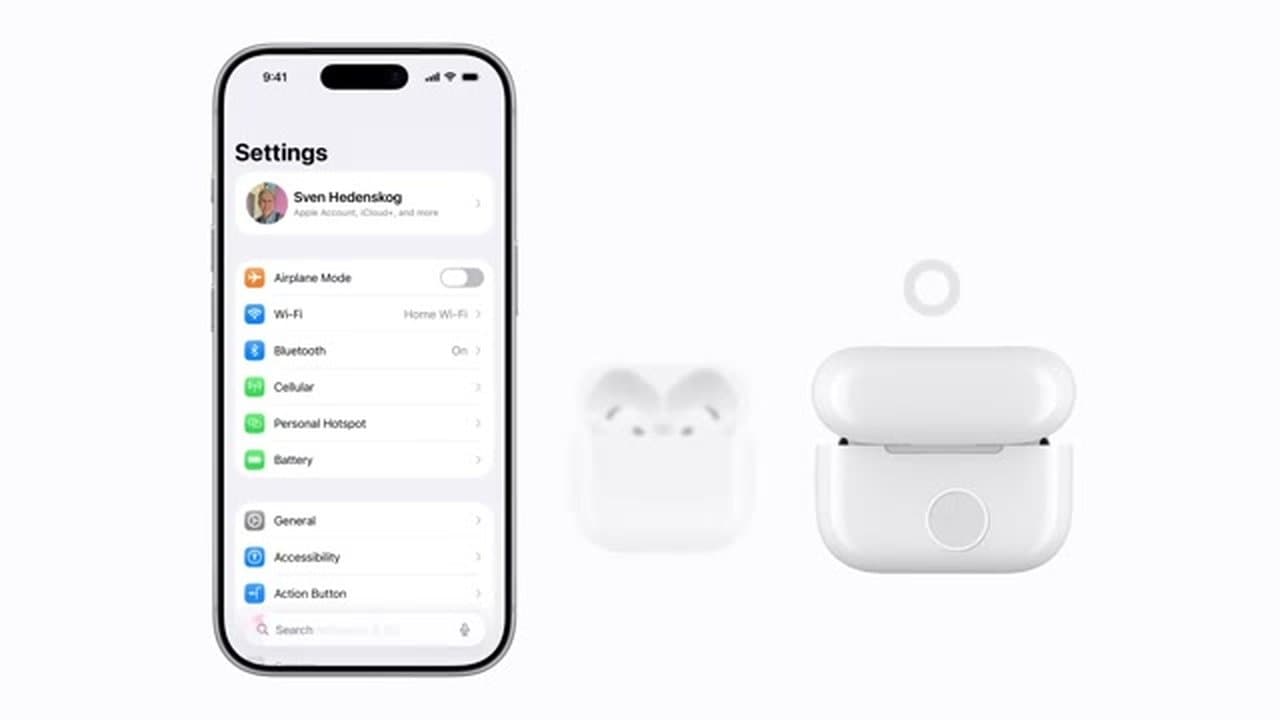
AirPods Pro reset the same way as the standard model. With both earbuds in the case and the lid open, press and hold the setup button on the back of the case for about 15 seconds. The status light flashes amber, then white. That white flash confirms the Pros are wiped and ready to pair again.
When to Reset Your AirPods
A reset clears up most of the problems people run into:
- They will not connect to your iPhone or keep dropping the connection
- One earbud is silent or much quieter than the other
- You are switching them to a new iPhone, an iPad, or an Android phone
- Audio stutters or cuts out during calls
If a reset does not fix a connection issue, the problem may be on the phone side. Our guide to clearing your iPhone cache walks through the next things to try.
Common questions about resetting AirPods
How do I force my AirPods to reset?
Put both earbuds in the case and open the lid. Press and hold the setup button on the back of the case for about 15 seconds until the status light flashes amber and then white. That white flash means the AirPods are wiped and ready to pair again.
Why won't my AirPods reset?
The usual cause is letting go of the setup button too soon, so hold it for a full 15 seconds. Check that both earbuds are seated in the case with some charge and the lid stays open the whole time. If the light never changes, charge the case for 15 minutes and try once more.
Should I reset my AirPods before selling or giving them away?
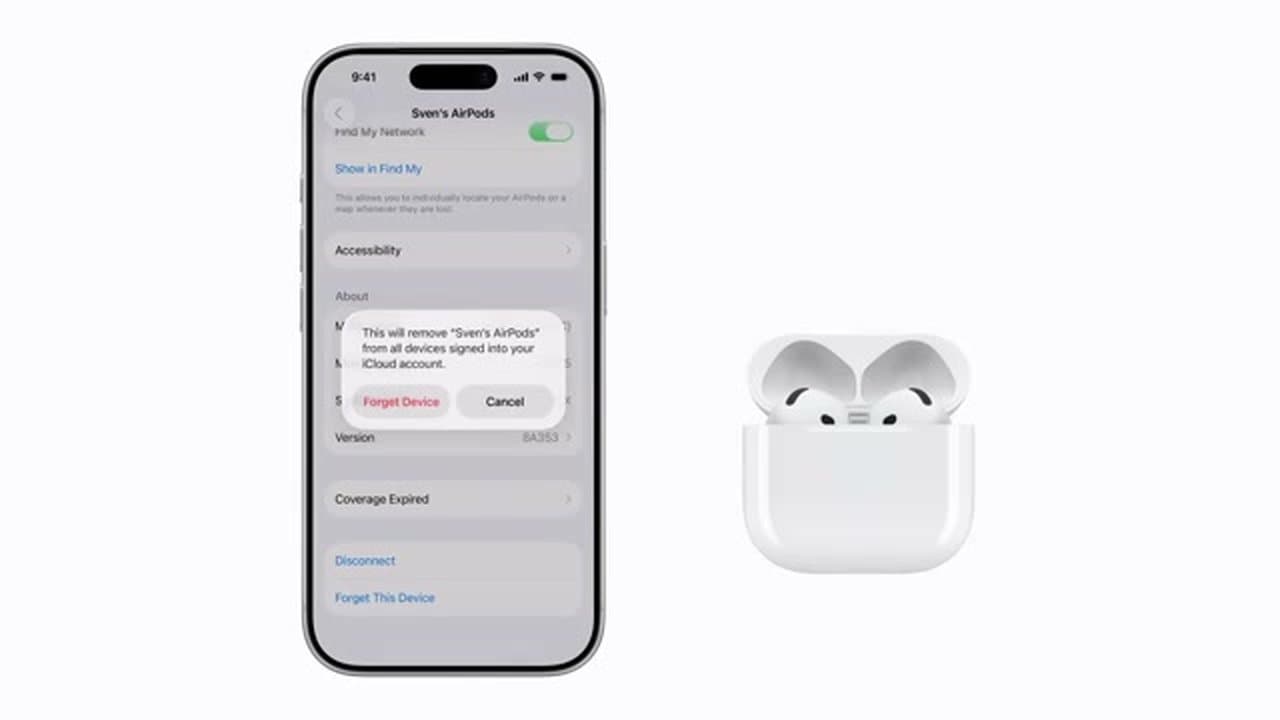
Yes. A reset unpairs them from your Apple ID and clears your settings, so the next person can set them up clean. Remove them from your device list under Bluetooth first, then do the button reset on the case.
How do I reconnect my AirPods after a reset?
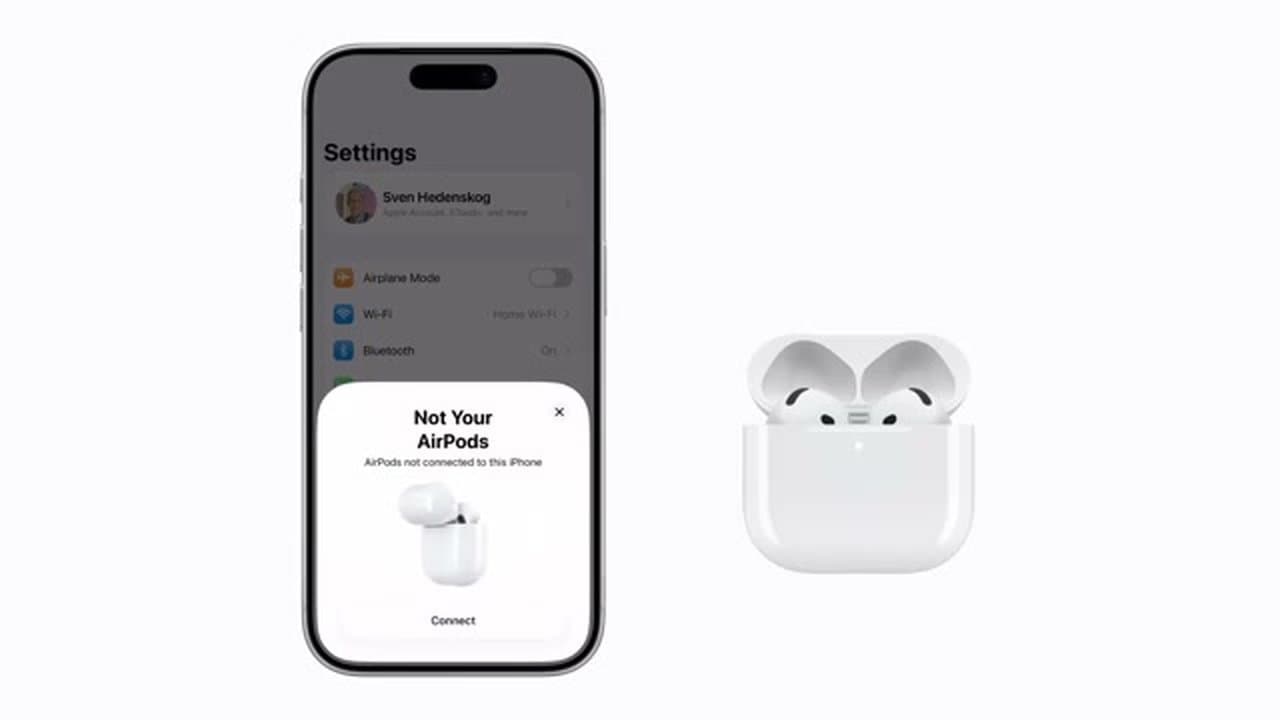
Once they are wiped, open the case next to your phone and follow the setup prompt, or use our guide to pairing AirPods. On an Android phone, hold the setup button until the light blinks white, then pair from the Bluetooth menu.
Where is the setup button on AirPods Max?
There is no case button. Hold the noise control button and the Digital Crown together for about 15 seconds until the light flashes amber, then let go.
Do you need to forget the AirPods on your iPhone first?
You should. Go to Settings, Bluetooth, tap the i next to your AirPods and choose Forget This Device. Skipping this leaves the old pairing on your Apple ID and the same connection problem often comes straight back.
Will resetting AirPods delete anything?
Only the AirPods settings. It clears the pairing, the custom double-tap controls and the names you gave them. Nothing on your iPhone, iPad or Mac is touched.
My AirPods still will not connect after a reset. What now?
Charge the case above 20 percent, clean the charging contacts inside it, then restart your iPhone before pairing again. A case that cannot hold charge is the usual culprit when a reset does not stick.
Reset Any AirPods Model
The button you hold changes with the model. Everything else about the reset is identical.
- AirPods (1st, 2nd, 3rd and 4th generation): the setup button on the back of the charging case. Lid open, both buds inside, hold 15 seconds.
- AirPods Pro (all generations): the same setup button on the back of the case, same 15-second hold. On the newer Pro cases there is a speaker grille on the underside, so make sure you are pressing the round button on the back rather than the case edge.
- AirPods Max: no case button exists. Hold the noise control button and the Digital Crown together instead.
Some very early cases do not respond to a long press. On those, leave the lid open and double-tap the front of the case while the status light is lit.
Hard Reset, Factory Reset, Full Reset
People search for all three and they all describe the same procedure. Holding the setup button until the light flashes amber and then white is the only reset AirPods have. There is no separate hardware reset hidden behind another button combination.
What does differ is whether you unpair first. The button hold on its own wipes the earbuds. Removing them from your Apple ID under Settings, Bluetooth, Forget This Device is the part that stops the old pairing coming straight back. Do both and you have the clean slate people mean when they say full reset.
Resetting AirPods You Found or Bought Used
Second-hand AirPods carry the previous owner's pairing until it is released, and this is the one situation where the button reset on its own might not be enough.
Hold the setup button for 15 seconds and try to pair. If they connect, you are finished. If your phone refuses them, or the light cycles amber and never settles on white, the earbuds are still tied to someone else's Apple ID. Only that person can release them, by removing the AirPods from their device list at appleid.apple.com. Ask a seller to do it before any money changes hands.
A quick check before you buy: open the case next to an iPhone and watch for the pairing card. A set that is still locked to another account usually shows nothing at all.