How to Mirror Your iPhone (Step by Step Screen Mirroring)

TechEasy5:037 stepsBrowse more →
Also in:Adulting

By ShowMeStepByStepPublished Updated

Based on a video by Apple Support.

Screen mirroring is the iPhone trick that turns the small phone in your hand into something everyone in the room can see. Photos from last summer's trip, a video the grandkids sent, a recipe you're trying to follow - it all jumps from the phone to the big screen with two taps.

Apple calls the technology behind it AirPlay. As long as your iPhone and your receiver - Apple TV, AirPlay-compatible smart TV, or a Mac - are on the same Wi-Fi network, the two devices can find each other. There are no cables, no adapters, and nothing extra to install.

One small note before you start. If you have a newer Mac running macOS Sonoma or later, there's a separate feature called iPhone Mirroring that lets you control your iPhone from your Mac, not just display it. Apple covers that one in its own video. The steps below are about the classic AirPlay screen mirroring that has worked the same way for years and runs on any iPhone with iOS 12 or newer.

This tutorial follows Apple Support's official walkthrough. By the end you'll be able to mirror your screen, pick the right receiver, deal with an AirPlay passcode if one pops up, and turn mirroring off when you're done.

Step-by-Step Guide

1

Confirm Your Wi-Fi and AirPlay-Compatible Receiver

1:40
Step 1: Confirm Your Wi-Fi and AirPlay-Compatible Receiver

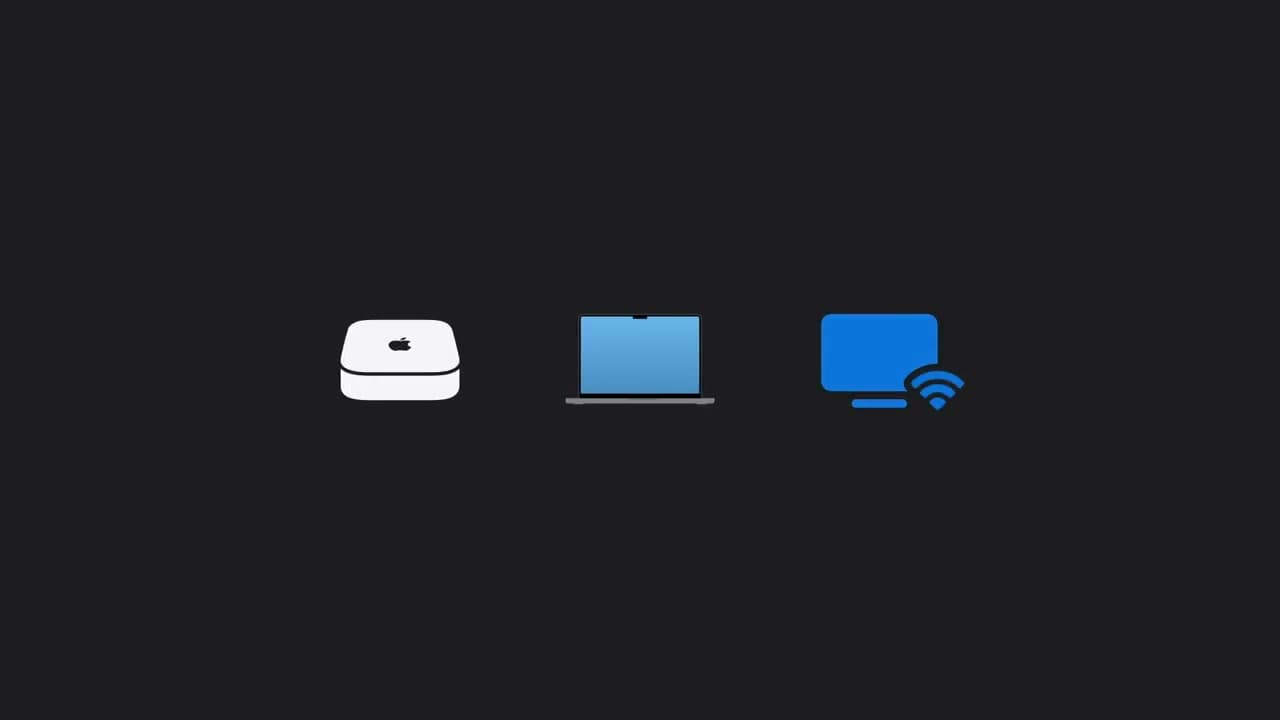
Before you tap a single button, take ten seconds to confirm the basics. Your iPhone needs to be on the same Wi-Fi network as the device you want to mirror to. That receiver has to be AirPlay-compatible, which covers Apple TV, most newer smart TVs (look for an AirPlay logo on the box or in the settings menu), and any Mac running macOS Monterey or later.

If you have a related Apple device project on your list, our guides to AirDrop between Apple devices and backing up your iPhone are good companions.

Tip

If your smart TV isn't on the list of AirPlay-compatible models, an Apple TV 4K plugs into any TV with HDMI and adds mirroring (plus a lot more) instantly.
2

Open Control Center

3:54
Step 2: Open Control Center

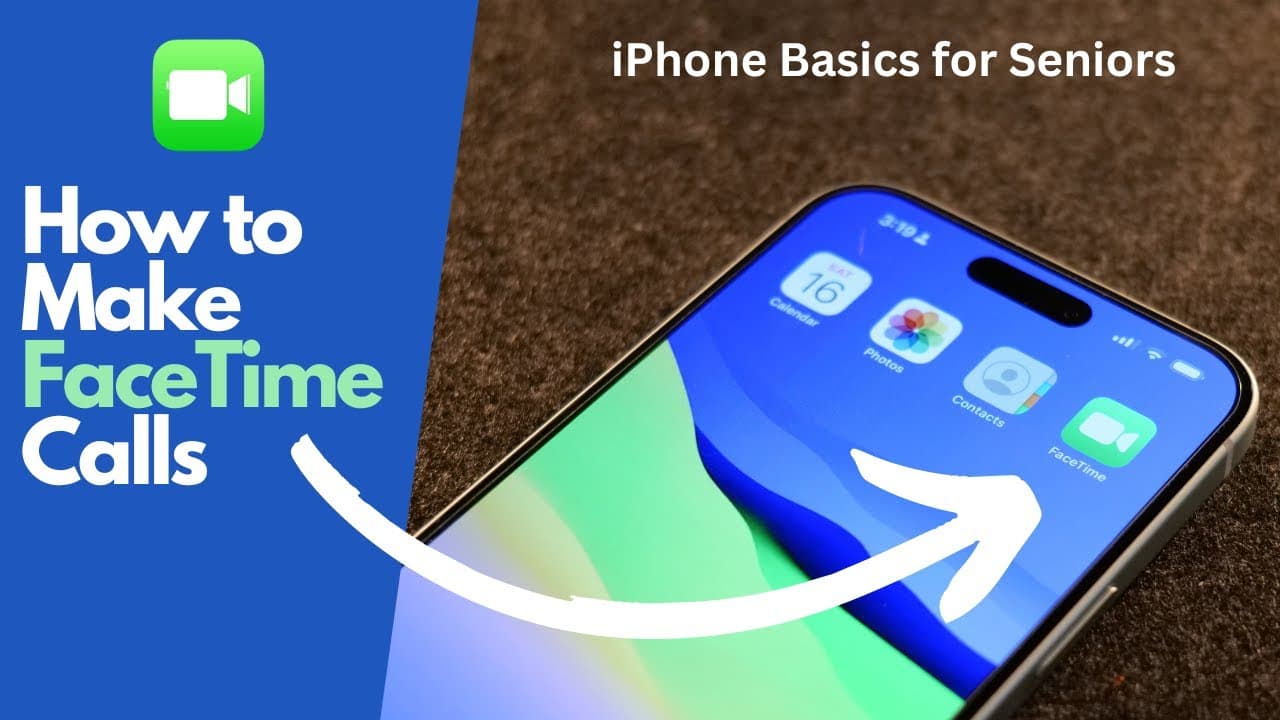
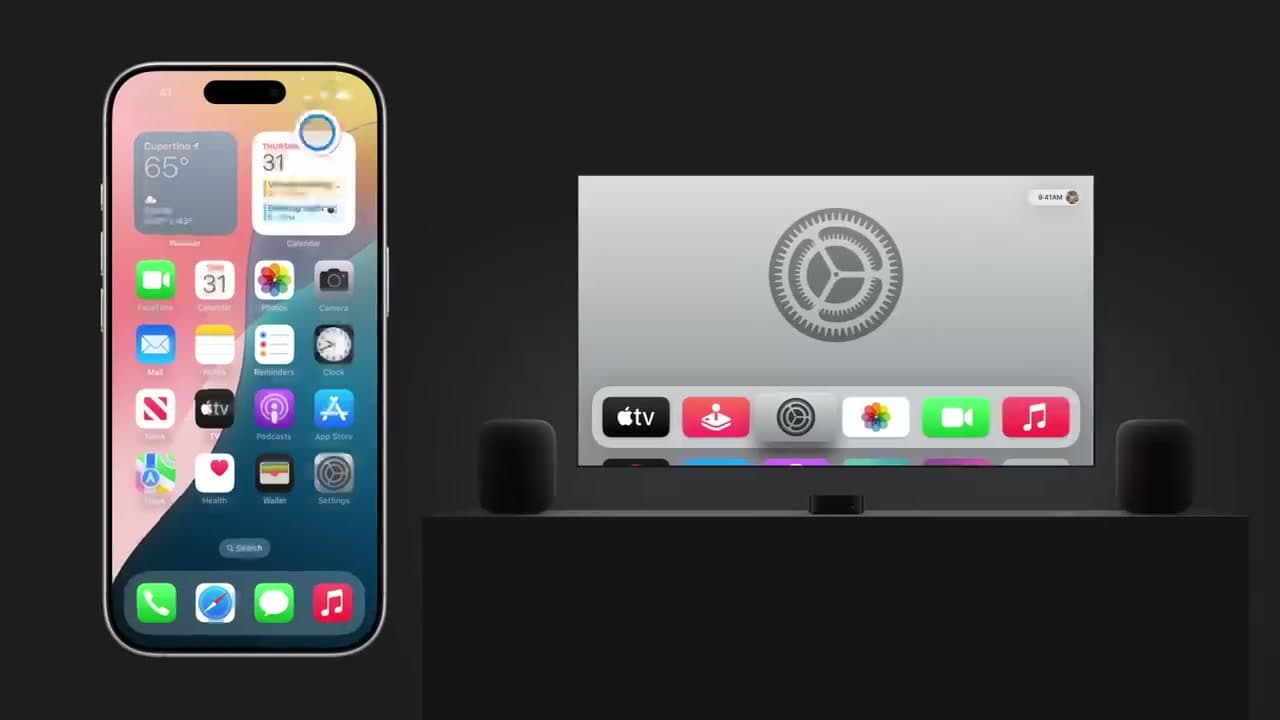
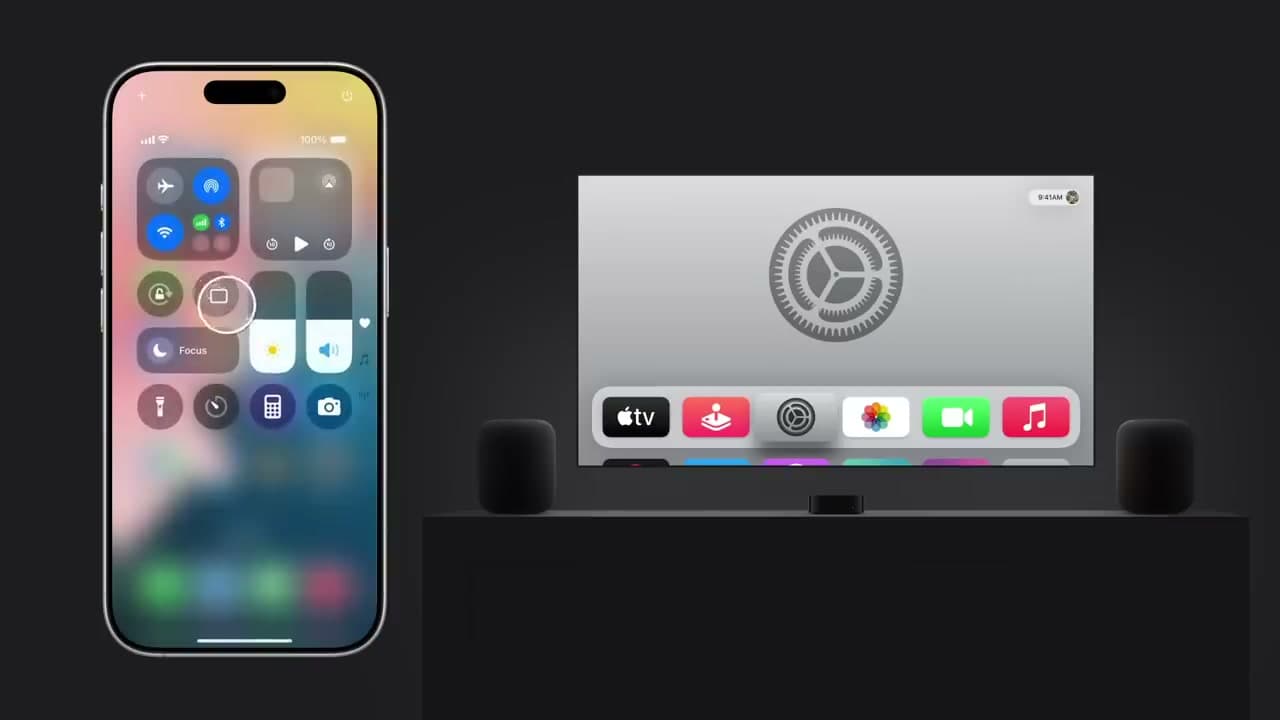
Pick up your iPhone and swipe down from the top-right corner of the screen. That gesture opens Control Center, the panel of round toggles and shortcuts that holds Wi-Fi, brightness, the flashlight, and a stack of other quick controls.

On older iPhones with a Home button, swipe up from the bottom of the screen instead. The panel looks the same once it's open.

Tip

Got a recent Apple Watch nearby? You can also trigger Control Center from the watch in a pinch. Our Apple Watch setup guide walks through the pairing if you haven't yet.

3

Tap the Screen Mirroring Control

3:57
Step 3: Tap the Screen Mirroring Control

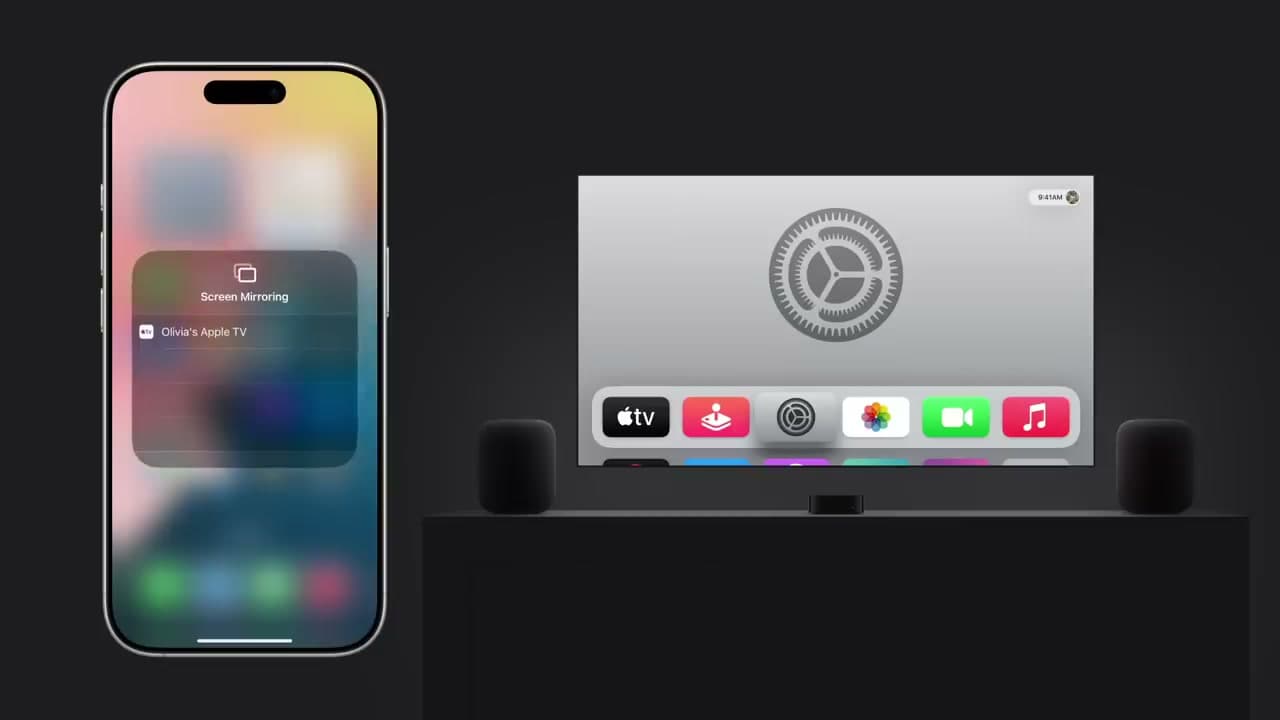
In Control Center, find the Screen Mirroring icon. It looks like two small rectangles overlapping each other, and it usually sits below the Wi-Fi and Bluetooth toggles in the top-left area of the panel.

Tap it once. A new panel slides up titled Screen Mirroring with a list of any AirPlay-compatible devices on the same Wi-Fi network.

Tip

If the icon is missing, open Settings, tap Control Center, and add Screen Mirroring to your active controls. It should be on by default on every modern iPhone.

Products used in this step

4

Pick Your Target Receiver

4:00
Step 4: Pick Your Target Receiver

Look at the list of receivers and tap the one you want. The list usually shows the name of the room or the device - "Living Room Apple TV," "Olivia's Apple TV," "Samsung Living Room," or your Mac's name.

The receiver name turns blue or shows a check mark once it's selected, and the screen on the other device starts waking up. If it's an Apple TV that's already on, you'll see your iPhone screen appear within a second or two.

Tip

Don't see your TV in the list? Make sure it's powered on, on the same Wi-Fi network, and that AirPlay is turned on in its settings. Some smart TVs ship with AirPlay off by default.

5

Enter the AirPlay Passcode if One Appears

4:12
Step 5: Enter the AirPlay Passcode if One Appears

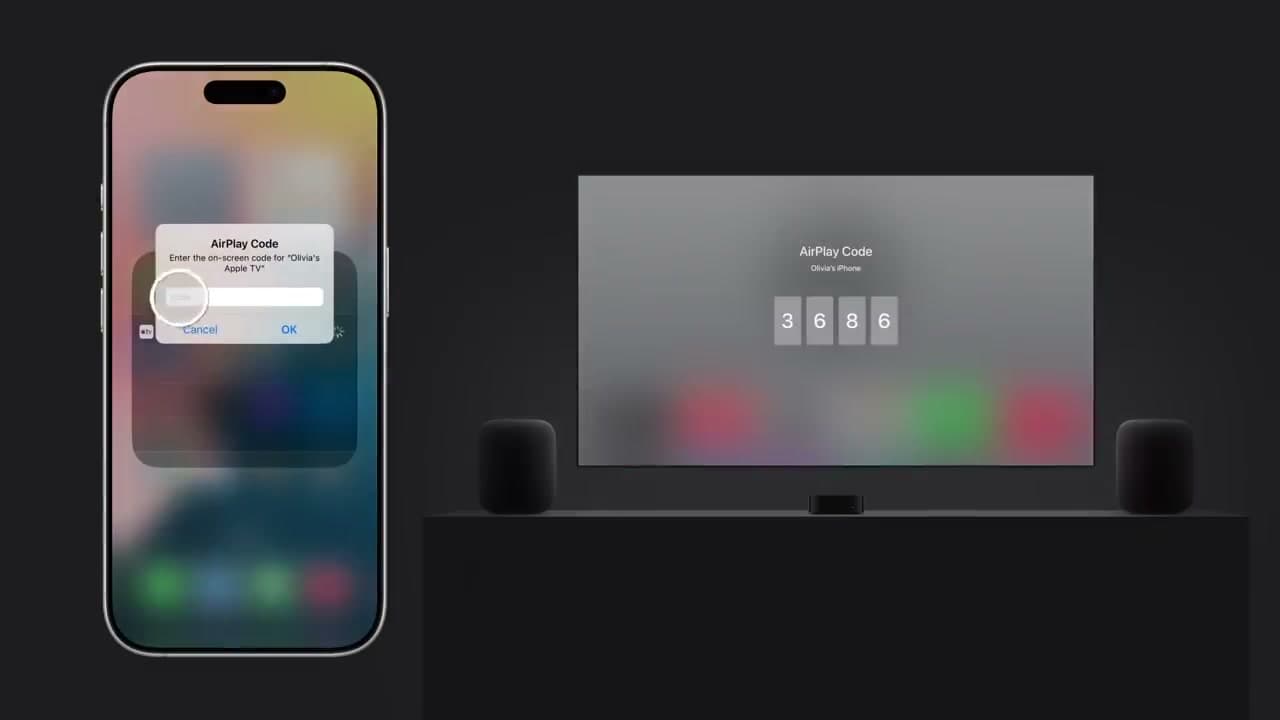
If the receiver you picked isn't signed into your Apple account, the TV or Mac shows a four-digit AirPlay code on its screen. Your iPhone pops up a matching dialog asking you to type the code.

Tap the four digits on your iPhone and tap OK. The two devices pair, the code disappears, and your iPhone screen takes over the other display.

Tip

This passcode step only happens the first time. iPhones you sign into with the same Apple ID, or receivers you've used before, connect with no code.

Products used in this step

6

Use Your iPhone Normally - Everything Mirrors Live

4:28
Step 6: Use Your iPhone Normally - Everything Mirrors Live

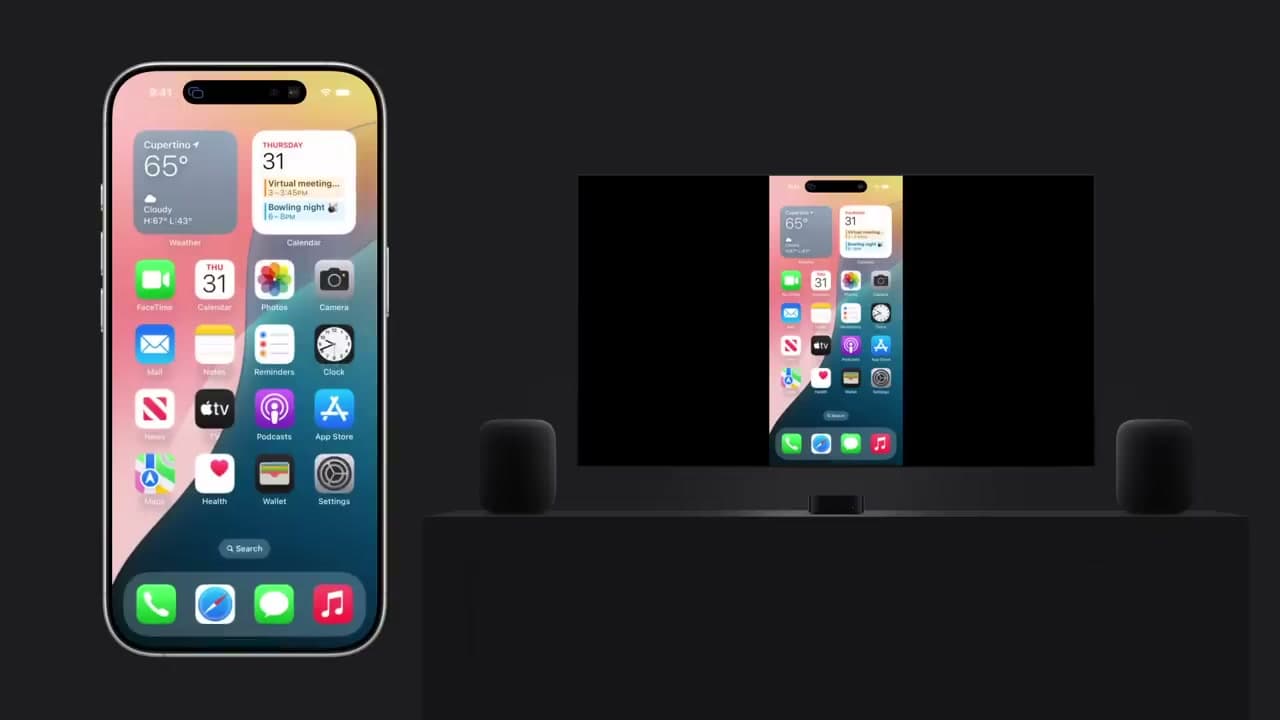
Now everything you do on the iPhone shows up on the other screen at the same time. Open the home screen, swipe between pages, launch an app, scroll through the Photos app - whatever appears on your phone appears on the TV.

The other display also shows notifications, banners, and even the keyboard when you tap a text field. Keep that in mind if you're mirroring to a TV with company over.

Tip

Sound follows the picture. If you mirror a video to an Apple TV or AirPlay speaker, the audio plays through the TV speakers or your sound system instead of the iPhone.

7

Mirror Photos Full-Screen and Stop When Done

4:43
Step 7: Mirror Photos Full-Screen and Stop When Done

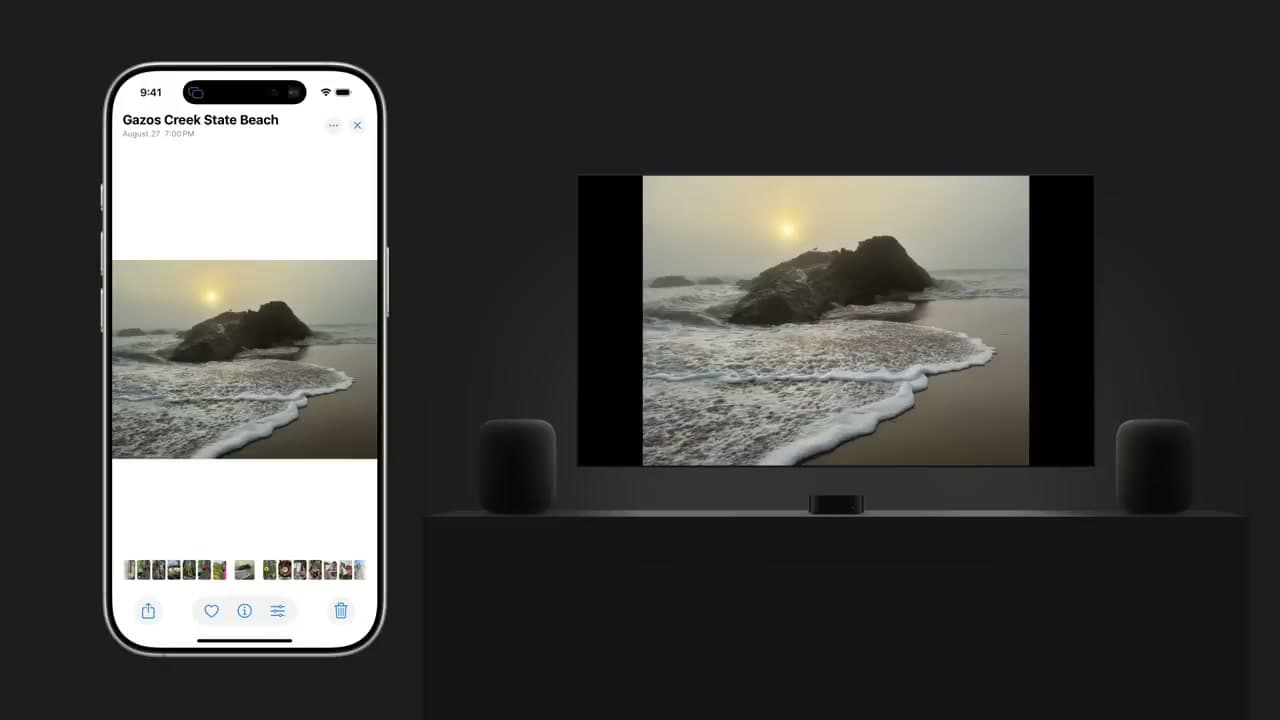
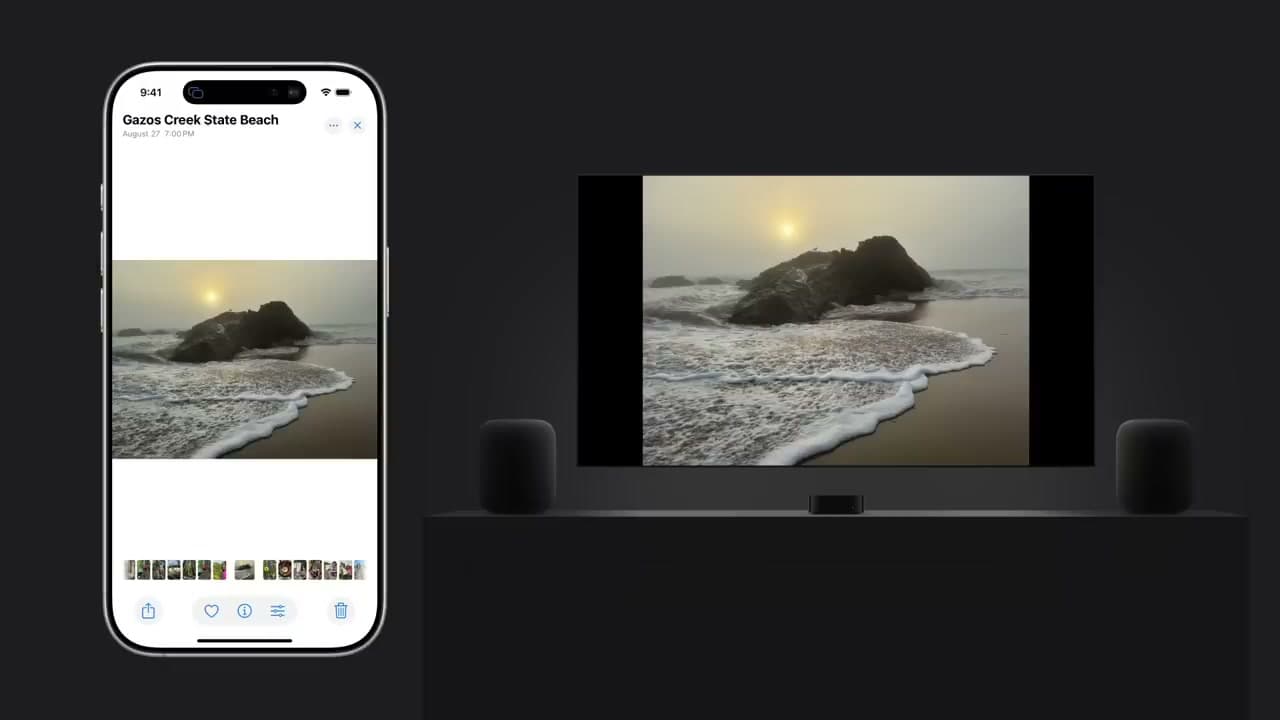
Open the Photos app on your iPhone and tap a photo or video. It jumps to full screen on the other display, even though the iPhone still shows the photo inside the app frame. For other apps, rotate the iPhone sideways to fill the TV.

When you're done, open Control Center one more time, tap Screen Mirroring, and tap Stop Mirroring at the top of the panel. The iPhone disconnects from the receiver and the TV or Mac goes back to whatever was on before.

Tip

If you forget and walk away, mirroring stops on its own when your iPhone falls asleep or you leave the Wi-Fi network. No harm done.

Products Used

☐ The Checklist

How to Mirror Your iPhone (Step by Step Screen Mirroring)

Tools
2
Steps
7
Video
5 min

Your Guide

Apple Support

As an Amazon Associate we earn from qualifying purchases. Links on this page may be affiliate links - clicking them and buying doesn't change your price, but helps support ShowMeStepByStep.

Tags

What's next

Related collections

Curated theme pages that include this tutorial.

Weekly Digest

Liked this tech tutorial?

Pick the categories you want to hear about. Weekly digest of new step-by-step tutorials. No spam, easy unsubscribe.

Send me tutorials about

We only email about new tutorials. Easy unsubscribe anytime.