How to AirDrop in 7 Steps

Also in:Adulting

By ShowMeStepByStepPublished Updated

Based on a video by Apple Support.

AirDrop is one of those iPhone features you forget exists until you need to hand off a stack of photos and don't want to text every single one. It moves files between nearby Apple devices over Wi-Fi and Bluetooth, no cables and no cloud upload. Once you've used it twice, you'll wonder how you survived without it.

This walkthrough follows the official Apple Support video and covers both sides of the transfer. You'll see how to share with someone already in your contacts, how to share with someone who isn't, and how the newer AirDrop code prompt works on iOS 26.2 and later. If you're still setting things up, our guide to setting up an iPhone covers the basics. AirPods owners: pairing AirPods uses the same Bluetooth handshake AirDrop relies on.

Plan on five minutes. The hardest part is remembering to turn off Personal Hotspot.

Step-by-Step Guide

1

Step 1: Turn On Wi-Fi and Bluetooth

0:16
Step 1: Step 1: Turn On Wi-Fi and Bluetooth

AirDrop rides on top of Wi-Fi and Bluetooth, so both need to be on. Swipe down from the top-right corner of your iPhone to open Control Center and tap the Wi-Fi and Bluetooth icons until both glow blue. Watch from 0:10 for the prerequisites Apple walks through. The other person needs the same two switches flipped on, otherwise their iPhone won't show up under People when you go to share.

Products used in this step

2

Step 2: Confirm Both Devices Are Ready

0:20
Step 2: Step 2: Confirm Both Devices Are Ready

Before you can AirDrop anything, the receiving device has to be ready too. Both iPhones (or iPad / Mac) need Wi-Fi and Bluetooth turned on, and they need to be within about 30 feet of each other. Watch at 0:18 for the prerequisite checklist Apple walks through on screen.

One gotcha to know: if Personal Hotspot is switched on, AirDrop will hang at "Waiting" because both features compete for Wi-Fi. If your transfer never connects, open Control Center and toggle Personal Hotspot off on whichever device has it on. You only need to do this if you actually use the hotspot feature.

Tip

If you don't see Personal Hotspot in your Control Center, it's already off and you're fine. The toggle only appears when your carrier supports it.

Products used in this step

3

Step 3: Open Photos and Tap Select

1:15
Step 3: Step 3: Open Photos and Tap Select

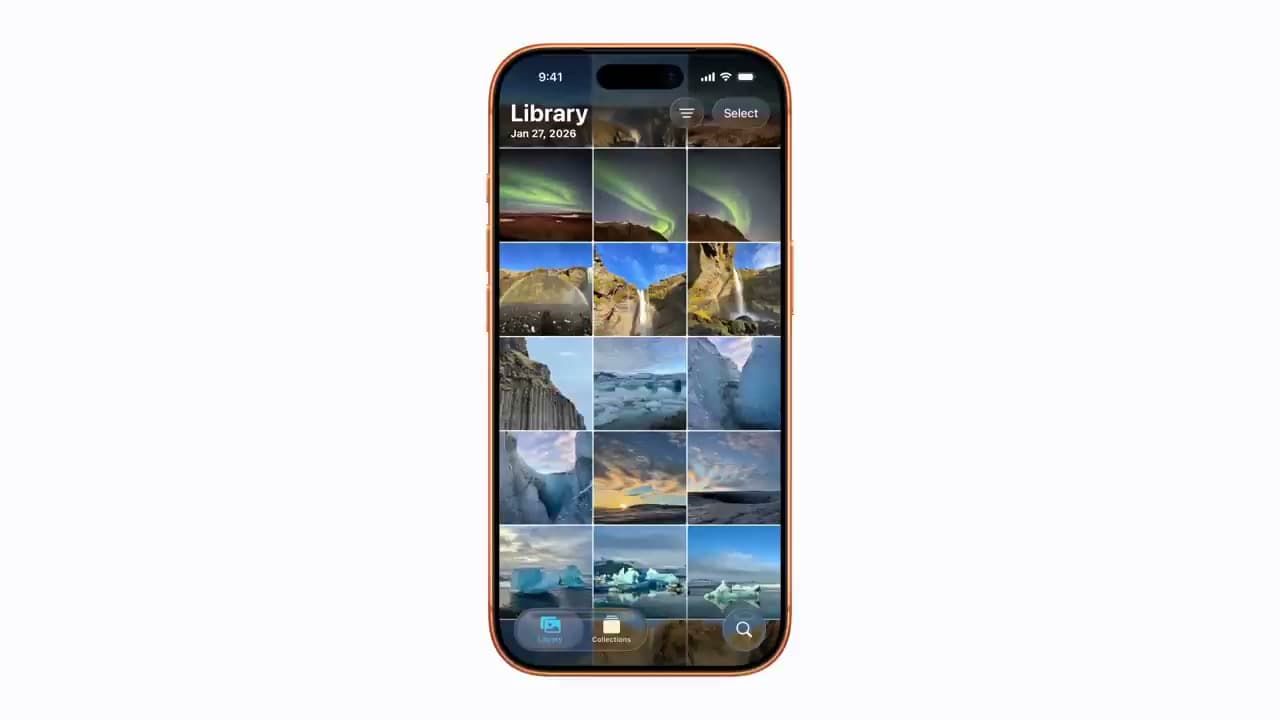
Open the Photos app and find the photos you want to send. Tap Select in the top right, then tap each photo you want to share. A blue checkmark appears on every selection. You can pick one or twenty - AirDrop handles big batches without compressing the originals, which is the whole reason to use it instead of Messages. The same flow works in the Files app for documents.

4

Step 4: Tap Share, Then AirDrop

1:30
Step 4: Step 4: Tap Share, Then AirDrop

Tap the Share button (the square with the arrow pointing up) at the bottom of the screen, then tap AirDrop on the share sheet. Any nearby Apple device that has AirDrop turned on and is in your contacts shows up under the People row. If you don't see the recipient yet, hold the top of your iPhone close to theirs - Apple uses that proximity to surface devices that don't have you saved as a contact.

Products used in this step

5

Step 5: Tap the Recipient and Wait

1:50
Step 5: Step 5: Tap the Recipient and Wait

Tap the name of the person you want to send to. Their device gets a notification asking them to Accept the transfer. Have them tap Accept and watch the file move - photos and videos go straight into their Photos app, documents land in Files. When the send finishes, the word Sent shows up under the recipient on your screen. You can keep sending more to the same person without redoing any of the setup.

6

Step 6: Switch AirDrop to Everyone for 10 Minutes

2:50
Step 6: Step 6: Switch AirDrop to Everyone for 10 Minutes

If the person you're sending to isn't in your contacts, they need to open their AirDrop receiving setting first. On their iPhone, have them open Control Center, press and hold the connectivity panel (the box with Wi-Fi and Bluetooth in it), then tap AirDrop. Pick Everyone for 10 Minutes. The setting reverts automatically when the timer expires, so they don't have to remember to turn it back off. The video shows this at 2:38.

Tip

The 10-minute window is a privacy feature. It exists so randos in a coffee shop can't AirDrop spam to your phone. Don't leave Everyone on full-time.

7

Step 7: Enter the AirDrop Code (iOS 26.2+)

3:25
Step 7: Step 7: Enter the AirDrop Code (iOS 26.2+)

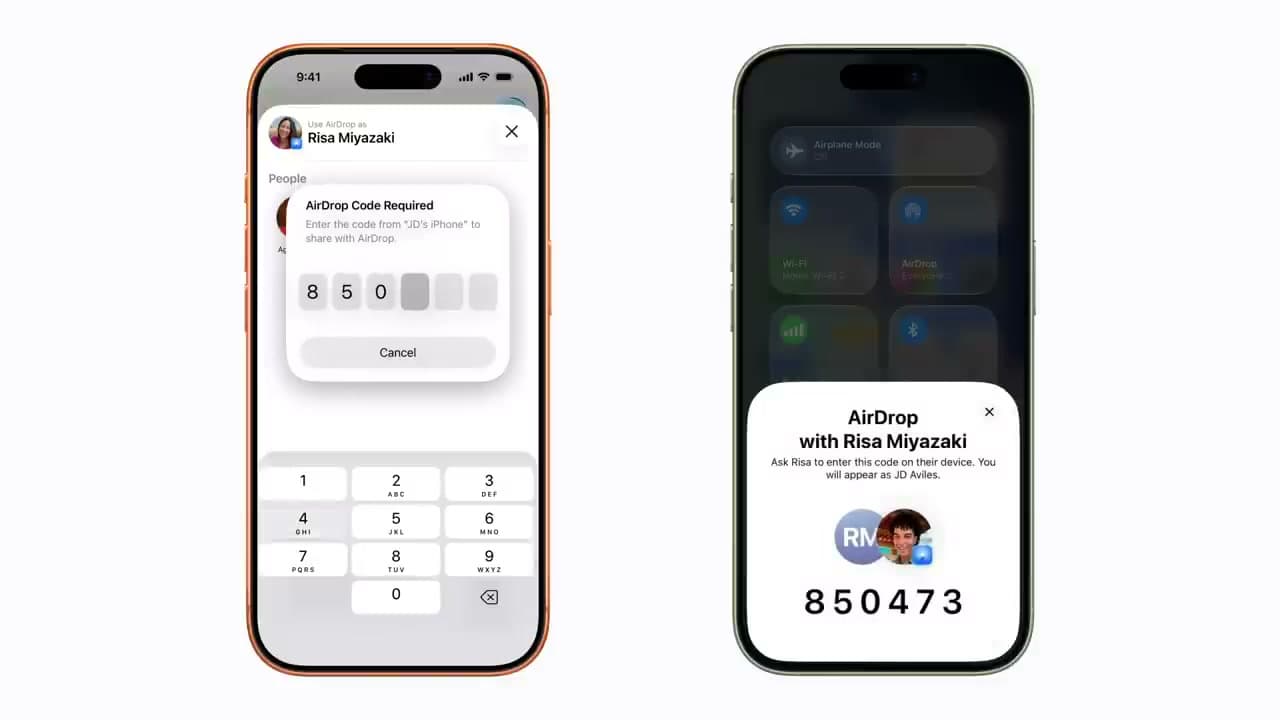
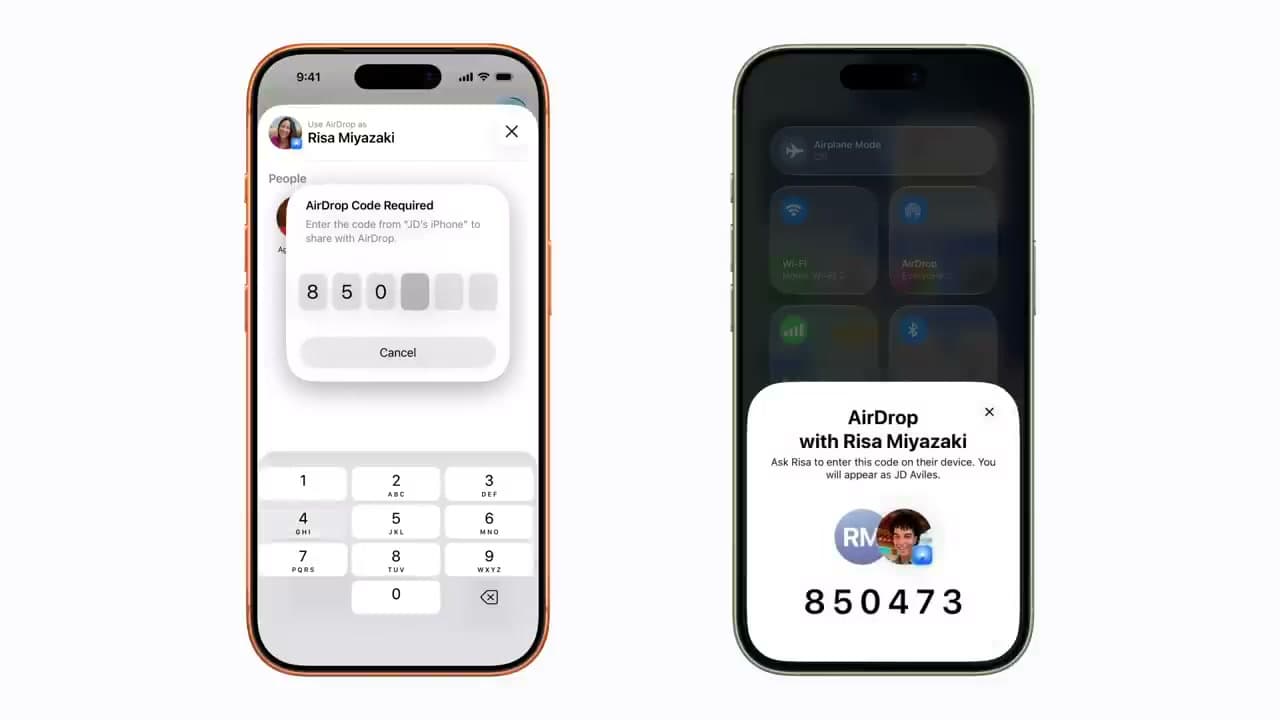
On iOS 26.2 or later, sending to someone who isn't in your contacts triggers an extra confirmation. The recipient's phone shows a six-digit AirDrop code on screen. They read it to you, you type it into your iPhone, and the transfer goes through. After the send completes, that person lands in your Other Known contacts list for 30 days so the next swap is one tap. You can clear them out manually in the Contacts app if you don't want to keep the link.

Products Used

Your Guide

Apple Support

As an Amazon Associate we earn from qualifying purchases. Links on this page may be affiliate links - clicking them and buying doesn't change your price, but helps support ShowMeStepByStep.

Tags

Test your knowledge

Did the lesson stick? Find out in 2 minutes.

5 quick questions covering what you just read. No signup, no score saved — just a gut check.

Quick reference

Key takeaways from How to AirDrop in 7 Steps

5 questions, answers, and one-line explanations. Tap to expand.

  1. 1.AirDrop requires both devices to have...

    Answer: WiFi + Bluetooth on

    AirDrop rides on top of WiFi + Bluetooth. Both must be on; cellular data isn't used and devices must be within ~30 feet.

  2. 2.Transfer hangs at 'Waiting'. Likely cause?

    Answer: Personal Hotspot on

    Personal Hotspot competes for WiFi. Toggle it off in Control Center on whichever device has it on, then retry.

  3. 3.Recipient isn't in your contacts. They must set AirDrop to...

    Answer: Everyone for 10 min

    Everyone for 10 Minutes reverts automatically when the timer expires - the privacy default prevents stranger spam in public.

  4. 4.iOS 26.2+ adds what extra step for non-contacts?

    Answer: Six-digit code

    Recipient's phone shows a 6-digit code. They read it to you, you type it in, transfer goes through. They land in Other Known for 30 days.

  5. 5.Roughly how close do devices need to be?

    Answer: About 30 feet

    Within about 30 feet. Both WiFi + Bluetooth on, no Personal Hotspot blocking the connection.

What's next

Related collections

Curated theme pages that include this tutorial.

Weekly Digest

Liked this tech tutorial?

Pick the categories you want to hear about. Weekly digest of new step-by-step tutorials. No spam, easy unsubscribe.

Send me tutorials about

We only email about new tutorials. Easy unsubscribe anytime.