How to Use Excel VLOOKUP for Beginners

TechEasy5:437 steps5-question quiz at endBrowse more →

By ShowMeStepByStepPublished Updated

Based on a video by Kevin Stratvert.

VLOOKUP stands for vertical lookup. You give it something to search for, point it at a table, and tell it which column holds the answer you want back. Instead of scrolling a long list and typing prices by hand, Excel finds each one for you.

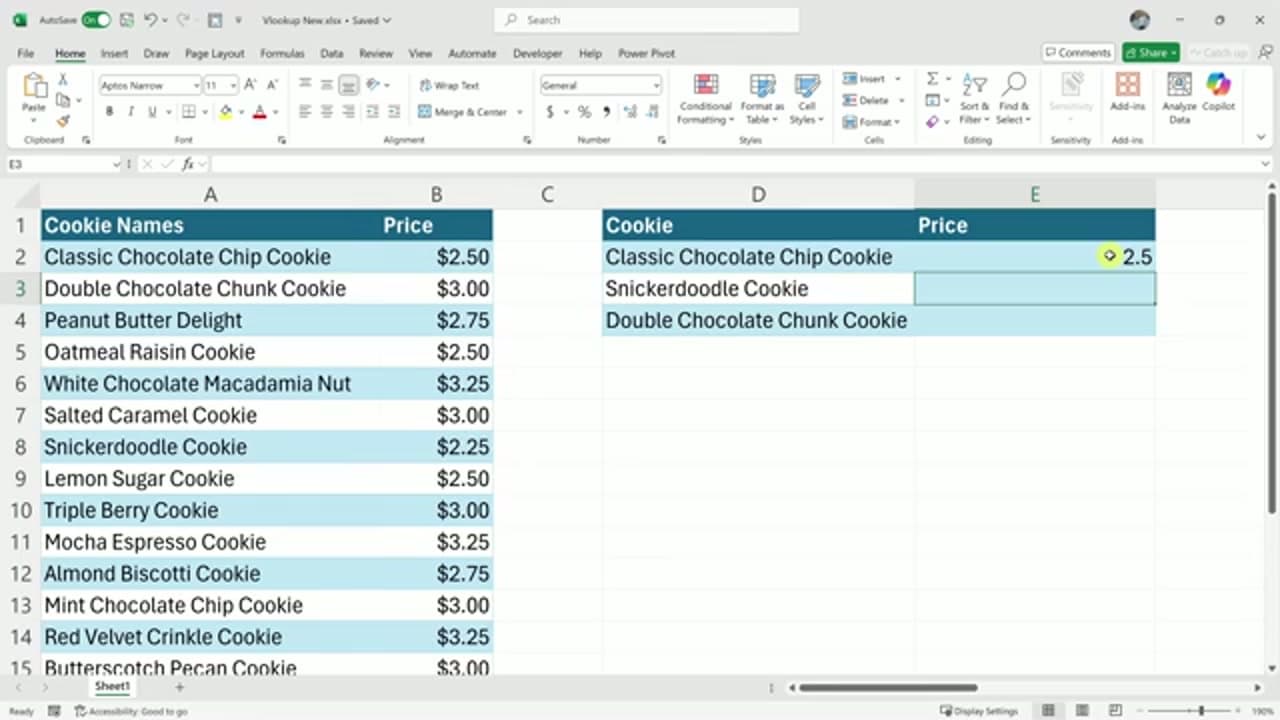
The example here is a bakery price sheet. On the left is a full table of cookie names and prices. On the right is a short list of cookies that needs prices filled in. Rather than hunt for each price, you write one VLOOKUP formula and let Excel do the matching.

Build it slowly the first time. Once you have written it once and watched it work, the same four-part pattern covers almost every lookup you will ever need in a spreadsheet.

Step-by-Step Guide

1

Start the Formula With =VLOOKUP(

0:50
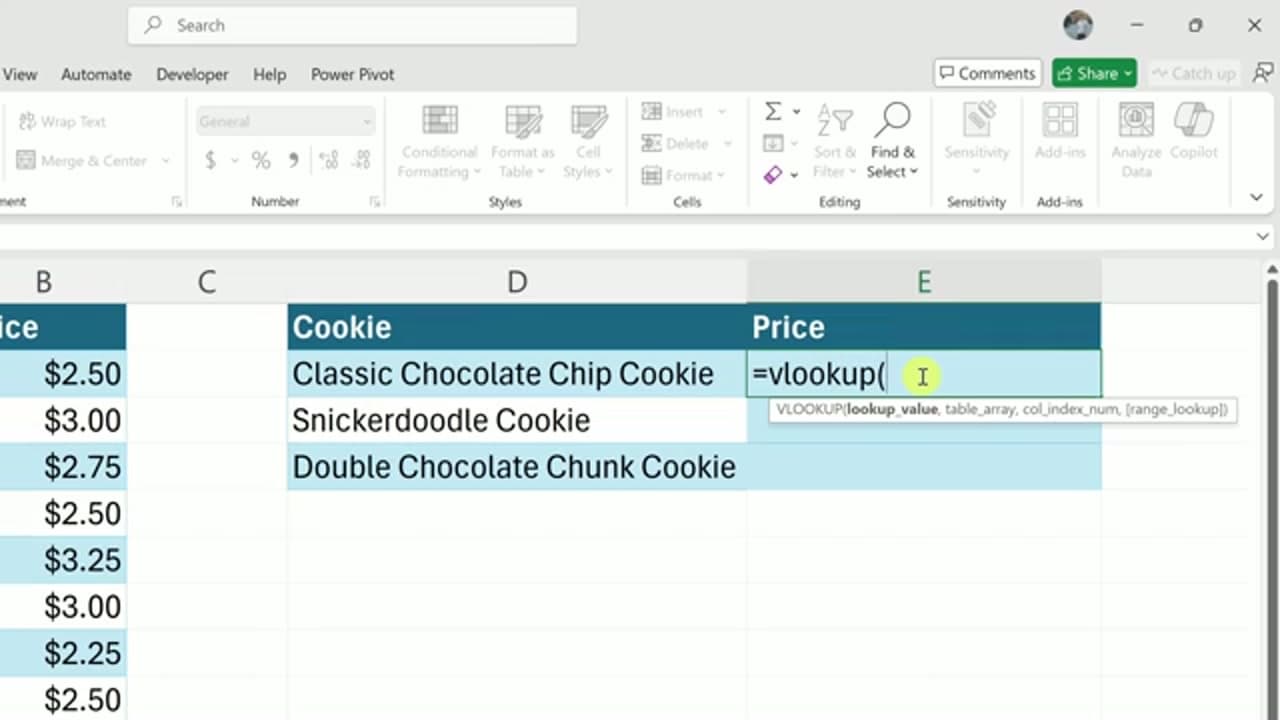
Step 1: Start the Formula With =VLOOKUP(

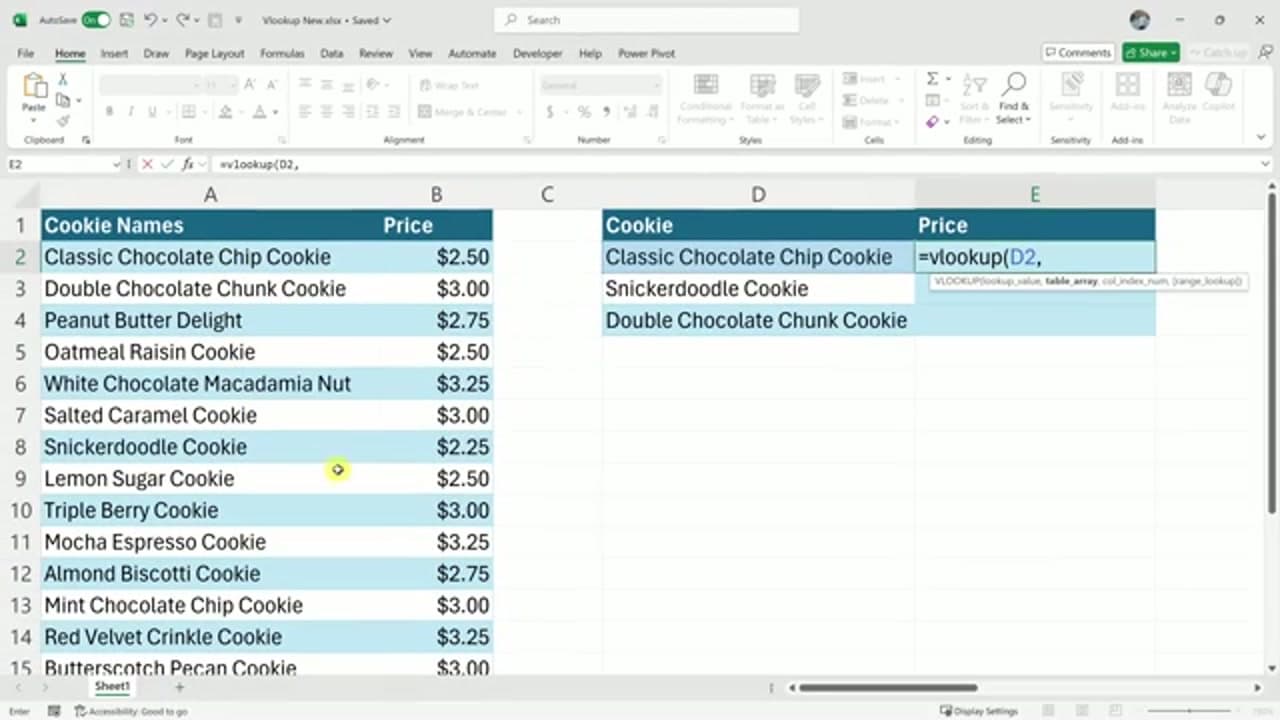
Click the cell where you want the answer to land. Type an equals sign so Excel knows a formula is coming, then type VLOOKUP and an open parenthesis.

The moment you type that parenthesis, Excel shows a little hint underneath: lookup_value, table_array, col_index_num, [range_lookup]. Those are the four things the function wants, in order. You will fill them in one at a time, separated by commas.

Tip

Excel is not case sensitive here. Typing vlookup, VLOOKUP, or VLookUp all work the same way.

2

Pick the Value You Want to Look Up

1:25
Step 2: Pick the Value You Want to Look Up

The first argument is the lookup value, meaning the thing you are searching for. Here that is the cookie name you need a price for.

Click that cell and Excel drops its reference straight into the formula. In the example it becomes D2, which holds Classic Chocolate Chip Cookie. Type a comma to move on to the next part.

3

Select the Table to Search

1:46
Step 3: Select the Table to Search

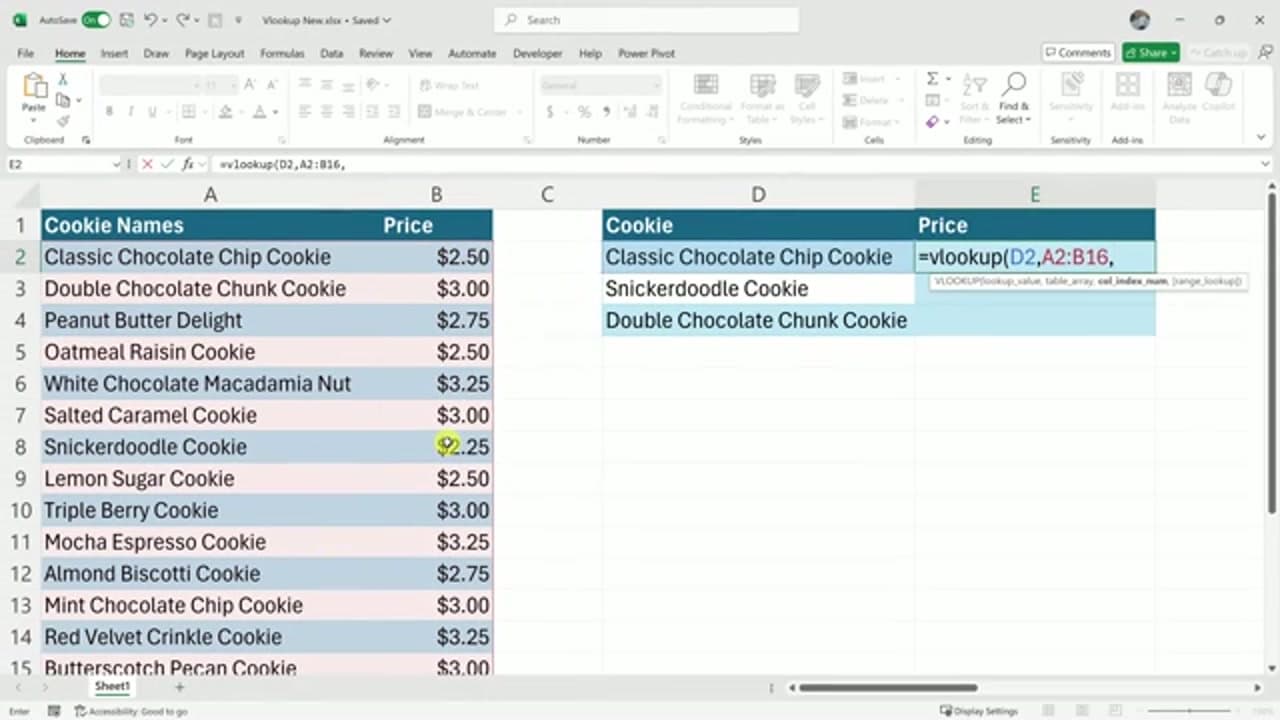
Next comes the table array, the block of cells Excel should search through. Highlight the whole price table, both the names column and the prices column.

One rule matters here: the value you are looking up has to sit in the leftmost column of whatever you select. VLOOKUP always searches that first column, then returns a value from a column to its right. Type a comma when the table is selected.

4

Tell Excel Which Column Holds the Answer

1:58
Step 4: Tell Excel Which Column Holds the Answer

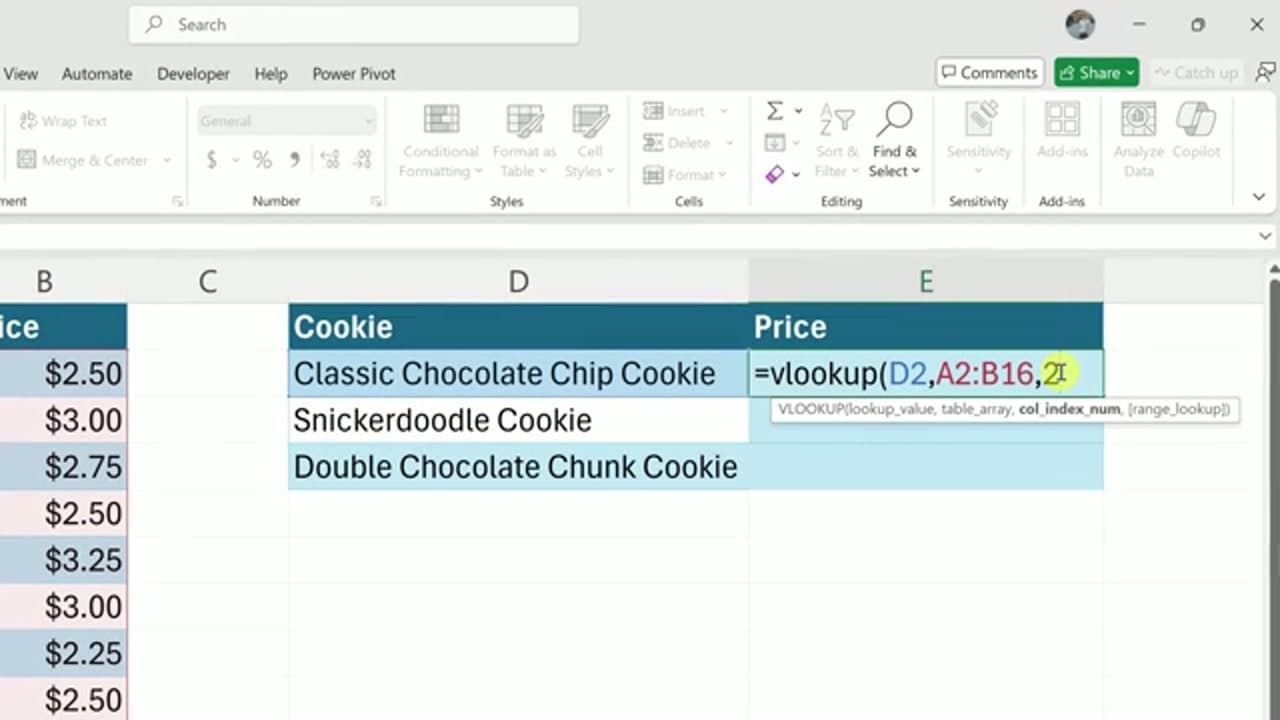
The column index number is where beginners pause. It is simply the column, counting from the left of your selected table, that contains the answer you want back.

In this table the names are column 1 and the prices are column 2. You want the price, so type a 2. Then add a comma.

Tip

Count the columns inside your selection, not the letters at the top of the sheet. The leftmost column of your table is always 1, whatever letter it happens to be.

5

Choose an Exact Match (FALSE)

2:17
Step 5: Choose an Exact Match (FALSE)

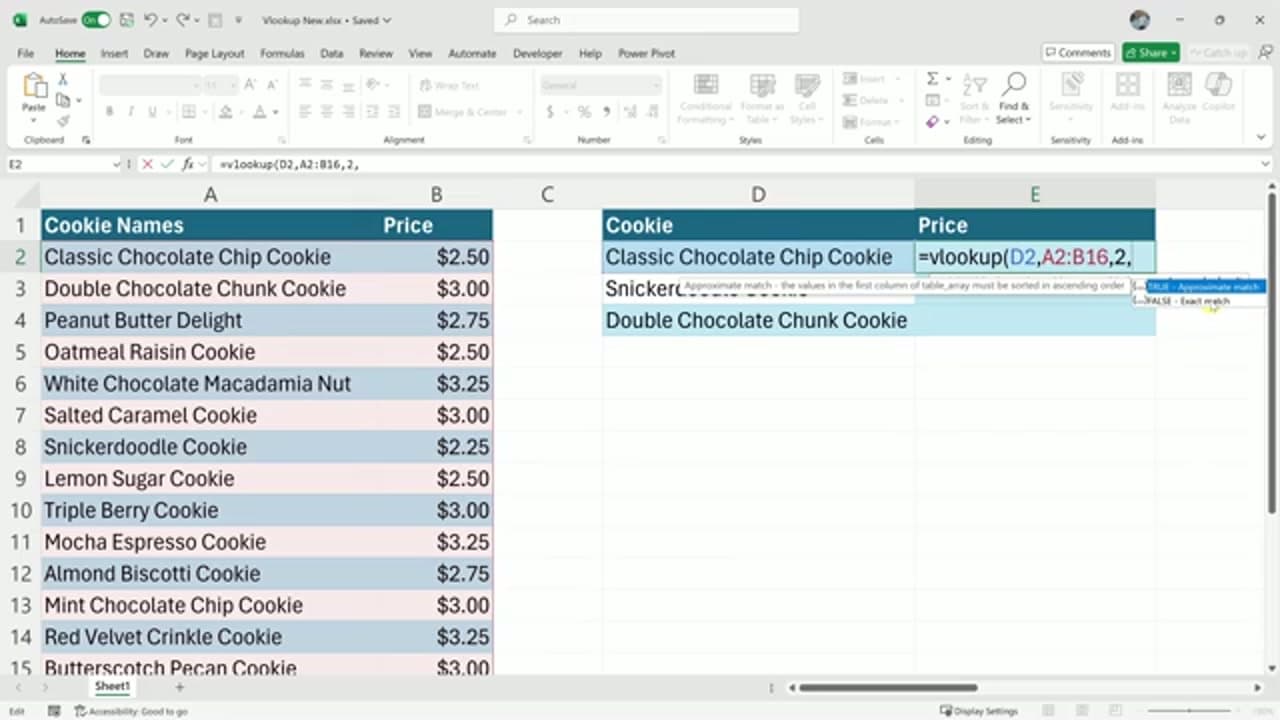
The last argument decides how picky Excel is. A dropdown appears with two choices: TRUE for an approximate match and FALSE for an exact match.

For names, prices, IDs, and almost anything you are matching by hand, pick FALSE. That tells Excel to return a price only when it finds that exact cookie name, which is what you almost always want.

Tip

TRUE is only for sorted number ranges, like matching a score to a grade band. When in doubt, use FALSE.

6

Close the Parenthesis and Press Enter

2:30
Step 6: Close the Parenthesis and Press Enter

Type a closing parenthesis and hit Enter. Excel searches the table and drops the matching price into your cell. The classic chocolate chip comes back at 2.50.

That is a complete VLOOKUP. Four arguments, one answer, no scrolling.

7

Lock the Table so You Can Fill the Rest

4:19
Step 7: Lock the Table so You Can Fill the Rest

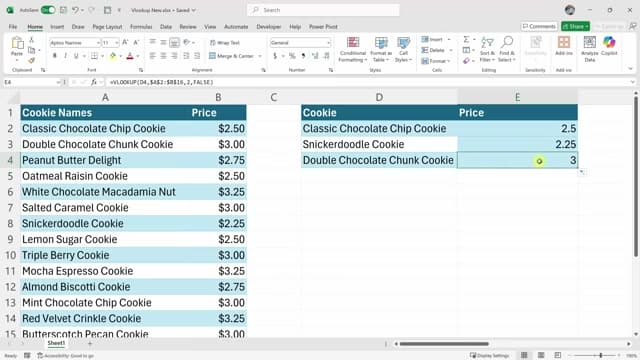
Now you want the same formula for every other cookie. If you just copy it down, some cells throw a #N/A error. That happens because the table reference shifts down along with the formula and slides off your data.

The fix is to lock the table. Click into the formula, put your cursor on the table reference, and press F4. Excel adds dollar signs so it reads something like $A$2:$B$16. That anchors the table in place. Now copy the formula down and every price fills in correctly.

Tip

F4 is the shortcut for an absolute reference. Dollar signs in front of both the column letter and the row number mean that part will not move when you copy the formula.

Products Used

Your Guide

Kevin Stratvert

As an Amazon Associate we earn from qualifying purchases. Links on this page may be affiliate links - clicking them and buying doesn't change your price, but helps support ShowMeStepByStep.

Tags

Test your knowledge

Did the lesson stick? Find out in 2 minutes.

5 quick questions covering what you just read. No signup, no score saved — just a gut check.

Quick reference

Key takeaways from How to Use Excel VLOOKUP for Beginners

5 questions, answers, and one-line explanations. Tap to expand.

  1. 1.What does VLOOKUP do?

    Answer: Looks up a value and returns matching data

    VLOOKUP searches for a value in one column and pulls back a matching piece of data.

  2. 2.VLOOKUP takes four arguments. Which order is correct?

    Answer: lookup_value, table_array, col_index_num, range_lookup

    The order is lookup_value, table_array, col_index_num, then the optional range_lookup.

  3. 3.For the table array, where must the value you look up sit?

    Answer: In the leftmost column of your selection

    VLOOKUP always searches the leftmost column of the table, then returns a value to its right.

  4. 4.Matching a cookie name to its price, do you use TRUE or FALSE?

    Answer: FALSE, for an exact match

    FALSE returns a value only on an exact match, which is what you want for names and IDs.

  5. 5.You copy the formula down and some cells show #N/A. Why, and what fixes it?

    Answer: The table reference shifts down; lock it with F4

    Without locking, the table reference slides down as you copy, so press F4 to anchor it.

Did this work for you?

What's next

Related collections

Curated theme pages that include this tutorial.

Weekly Digest

Liked this tech tutorial?

Pick the categories you want to hear about. Weekly digest of new step-by-step tutorials. No spam, easy unsubscribe.

Send me tutorials about

We only email about new tutorials. Easy unsubscribe anytime.