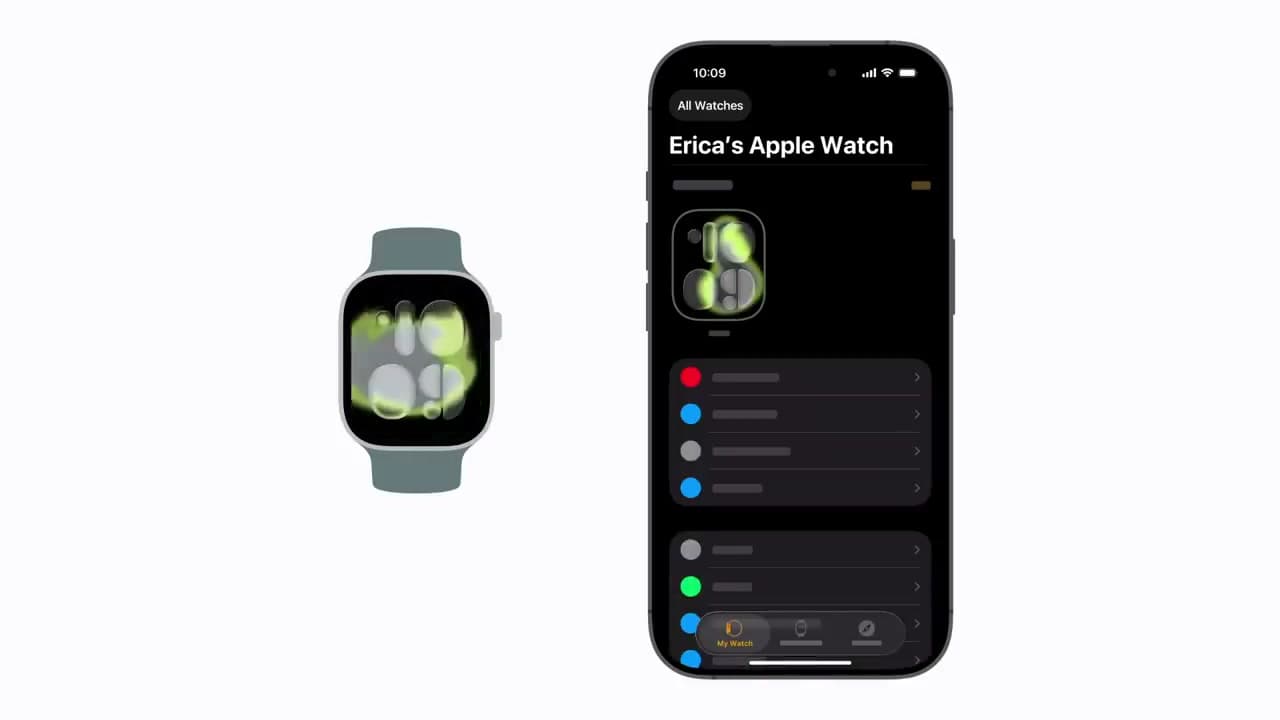
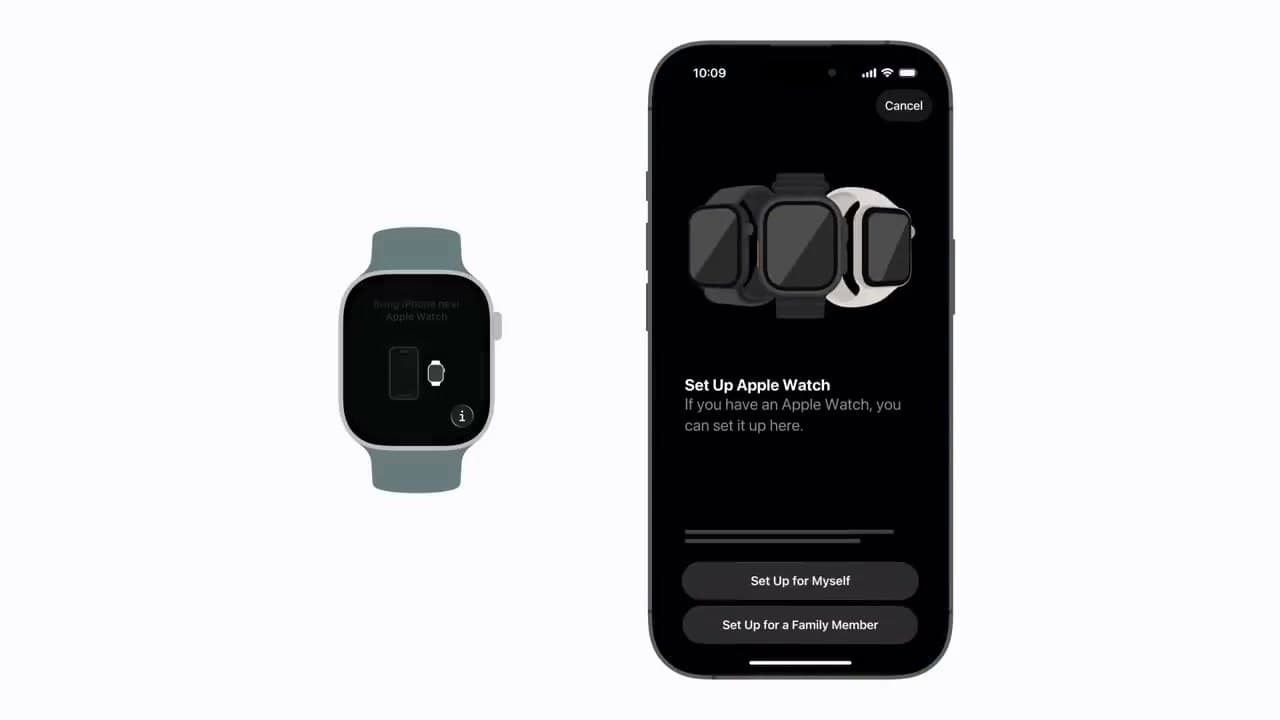
An Apple Watch does almost nothing until it is paired to an iPhone. The phone holds your Apple ID, your apps and your health data, and the watch borrows all of it over Bluetooth. Pairing opens that door, and it takes about five minutes.
The steps below follow the official Apple Support walkthrough, so the screens on your iPhone will match. Most of it is tap and wait. The two choices worth reading twice are set up as new versus restore from a backup, and whose Apple ID the watch signs in with.
What You Need Before You Pair
A watch will not pair with an iPad, a Mac or an Android phone. It needs an iPhone, and on current watchOS releases that means an iPhone XS or newer on a recent iOS. If the phone has been sitting in a drawer, update the iPhone before you unbox the watch. A phone two versions behind stalls the pairing screen with a vague error.
Then sort these four things:
- Bluetooth on and Wi-Fi on. Pairing leans on both.
- The watch on its magnetic charger for 15 minutes. New ones ship close to empty.
- Your Apple ID password in your head, not in a manager on a third device.
- Both devices in arm's reach the whole time, not only for the scan.
New iPhone as well? Do the phone first. Our guide to setting up an iPhone covers that side.
Camera Pairing vs Typing the Code
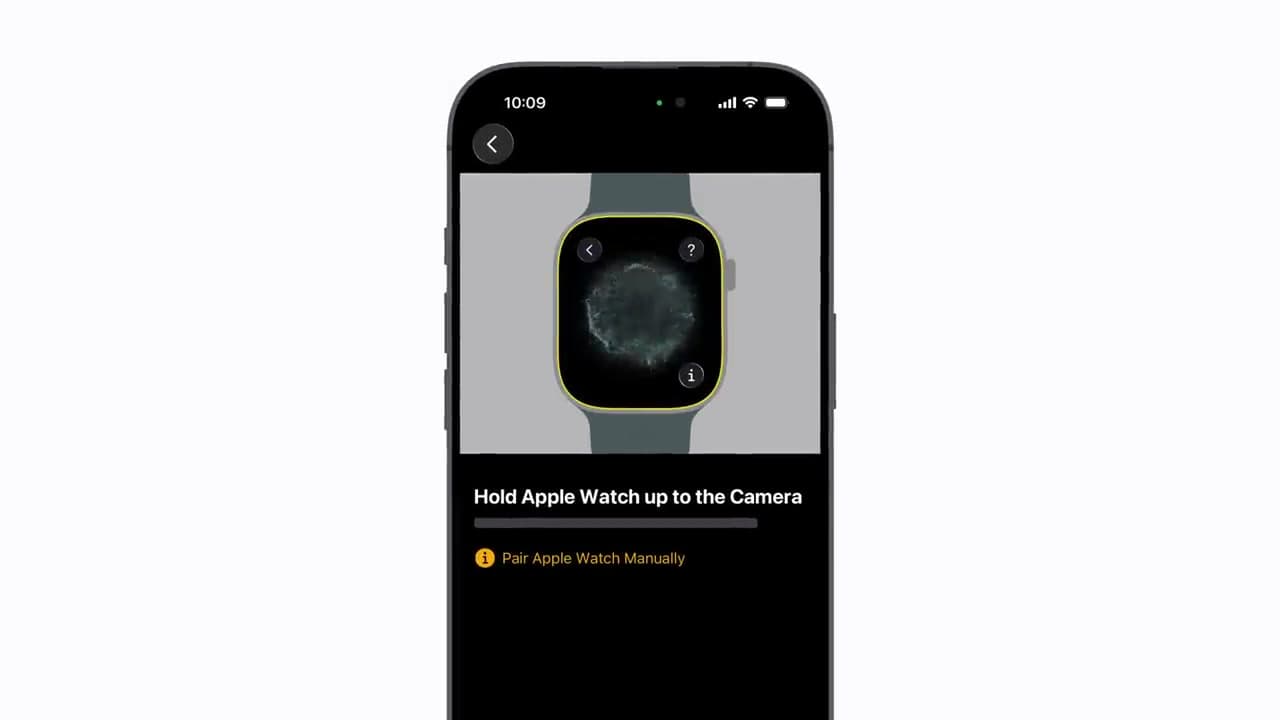
The iPhone opens its camera, the watch shows a swirling cloud of blue particles, and the phone reads it the way it reads a QR code. Hold the watch about six inches from the lens. Closer and the animation blurs; much farther and the phone cannot resolve it.
Glare is the usual reason the scan fails. A lamp overhead, a sunny window, shipping film still on the watch screen - any of those wash out the pattern. Tap Pair Apple Watch Manually instead, then type the code the watch shows into the phone. Slower, and it works every time.
Set Up as New or Restore From a Backup
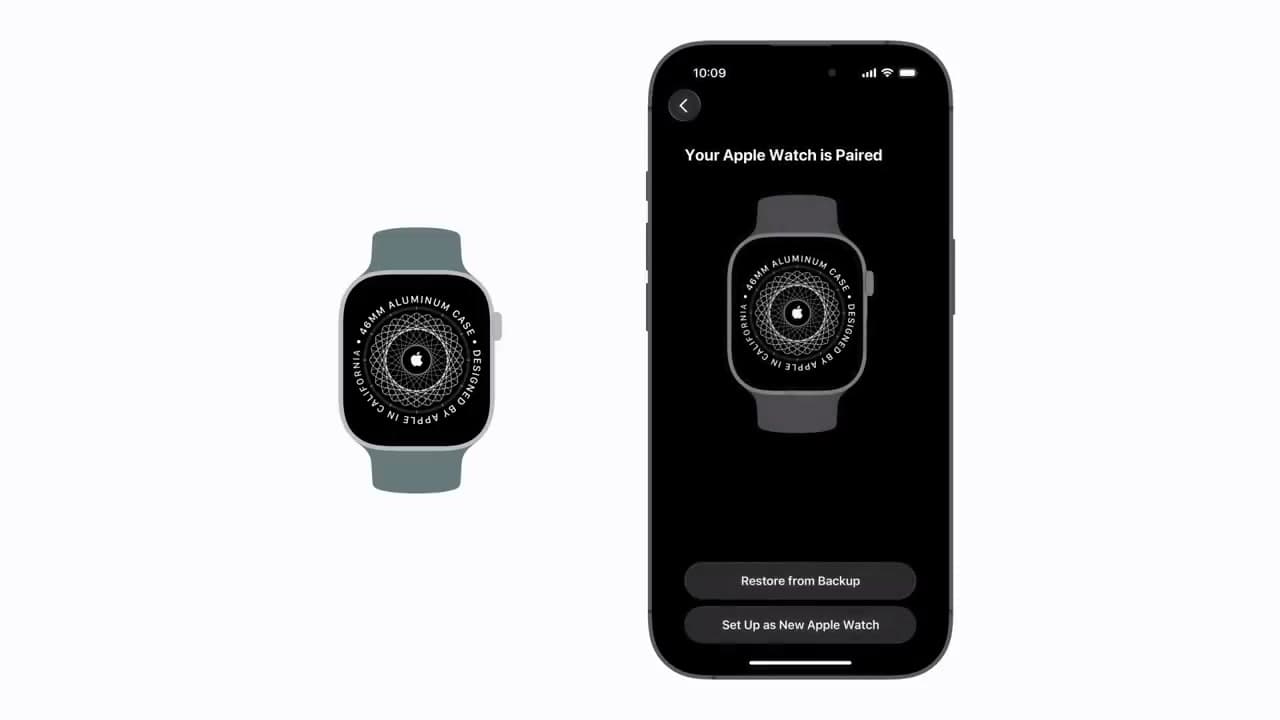
Your first Apple Watch? Set Up as New. Upgrading from an older one? Restore From Backup brings back your watch faces, app layout and workout history instead of rebuilding it by hand.
For a gift this choice matters more than it looks. The backup list only shows watches already paired to that same iPhone, and a watch backup rides inside the iPhone's own backup. Back up the iPhone before you unpair the old watch and the history survives. A gifted watch headed to someone else's phone should be Set Up as New, on their Apple ID.
When Pairing Fails or the Watch Belongs to Someone Else
Three things cause most failures: the watch is still linked to another Apple ID, the iPhone is behind on iOS, or the two half-finished a handshake and are now confused about where they left off.
The linked-Apple-ID case is the one that stops people cold, and it is common with a secondhand watch. Activation Lock means the previous owner has to remove the watch from their account at iCloud.com. No reset on the watch clears it. Ask the seller to do it before money changes hands.
For a stuck handshake, hold the side button until the power slider appears and switch the watch off, then restart the iPhone too. Start again with both freshly awake. That fixes it more often than repeating the scan.
Cellular, and the Settings Worth Changing on Day One
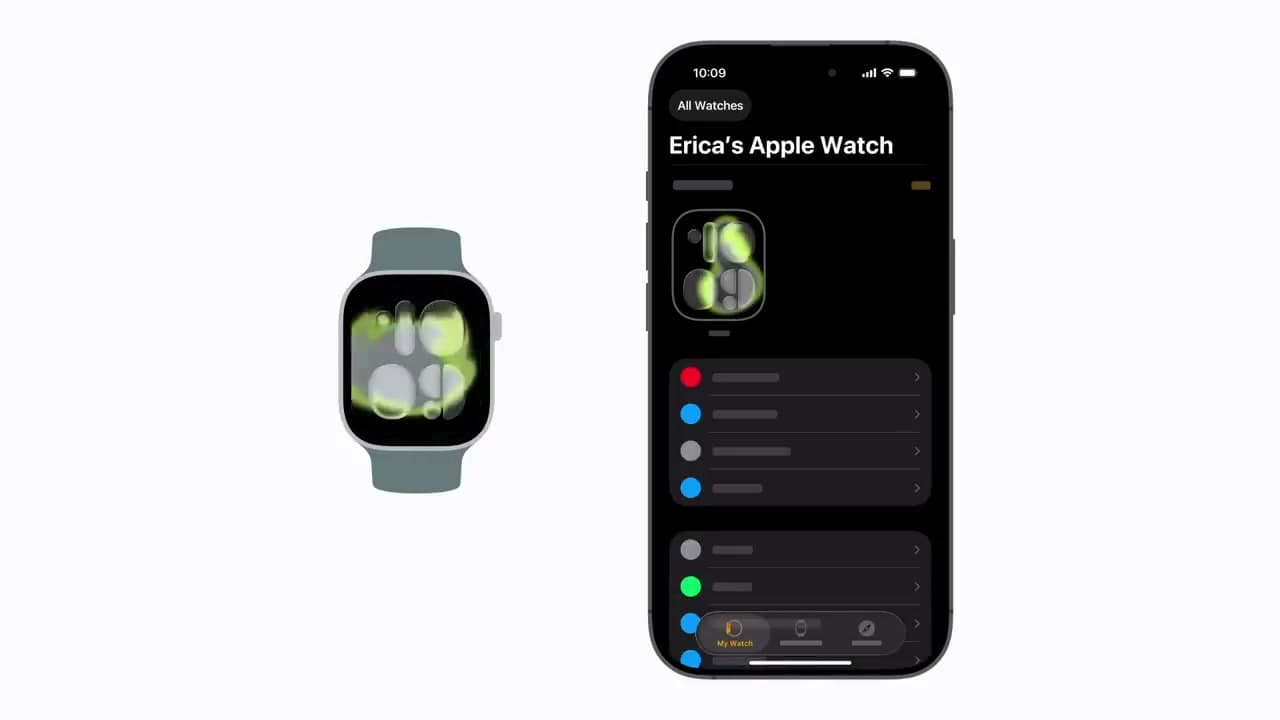
A GPS plus Cellular model asks you to add a plan during setup. That screen wants your carrier login, and the watch shares your existing number rather than getting its own, usually for around ten dollars a month. Skip it and add it later in the Watch app. Nothing breaks by waiting.
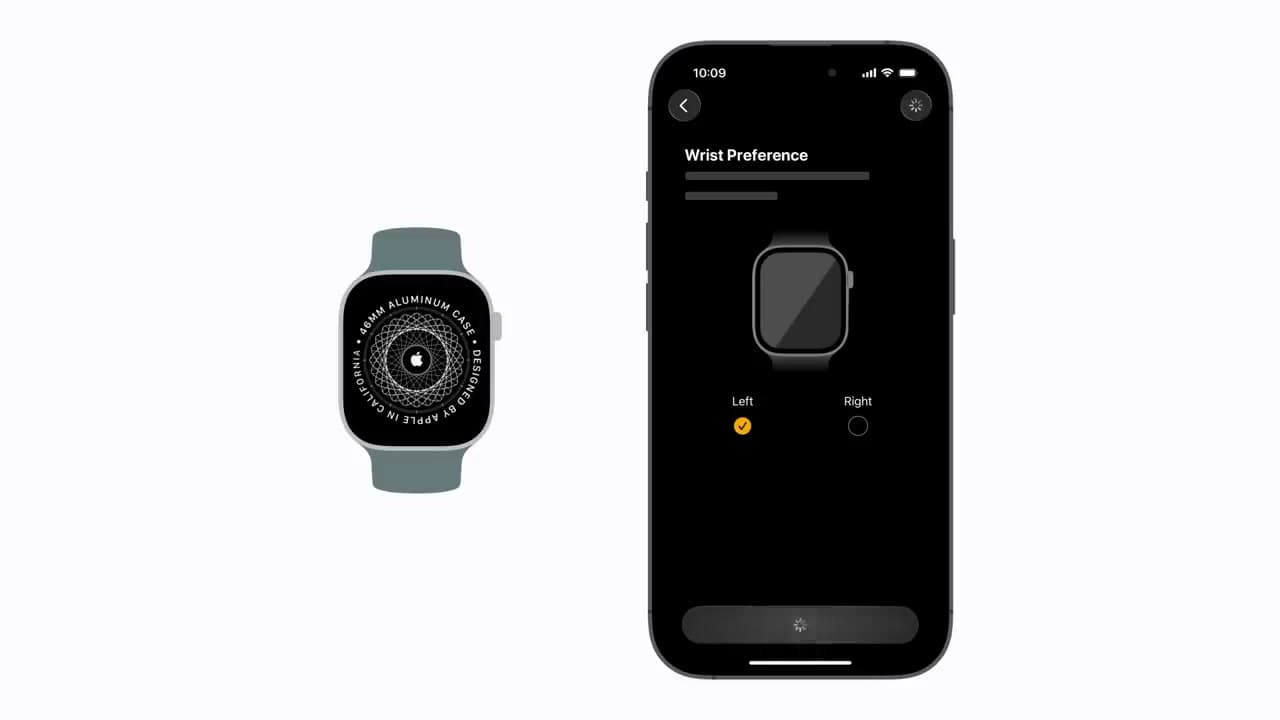
Once the watch face lands on your wrist, three settings earn a minute each. Switch off notifications from apps you will never read on a small screen. Choose a passcode you will remember, because the watch asks every time it loses contact with your skin. And load your cards into Wallet if you plan to use Apple Pay from your wrist.