How to Block a Number on iPhone (and Unblock It Later)

Also in:Adulting

By ShowMeStepByStepPublished Updated

Based on a video by DHTV.

Spam and scam calls are relentless, and the same number often calls back again and again. The good news: once you block a number on your iPhone, you stop getting calls, texts, and FaceTime from it. This guide, based on a clear walkthrough from DHTV, shows you the fast way to block right from your call history, plus where Apple keeps your blocked list so you can manage it.

The screens here are from an iPhone 12, but the steps are the same on every recent iPhone. You will also see how to add a contact to the block list on purpose and how to unblock someone if you change your mind, so nothing is permanent.

Step-by-Step Guide

1

Step 1: Open the Phone App and Go to Recents

0:42
Step 1: Step 1: Open the Phone App and Go to Recents

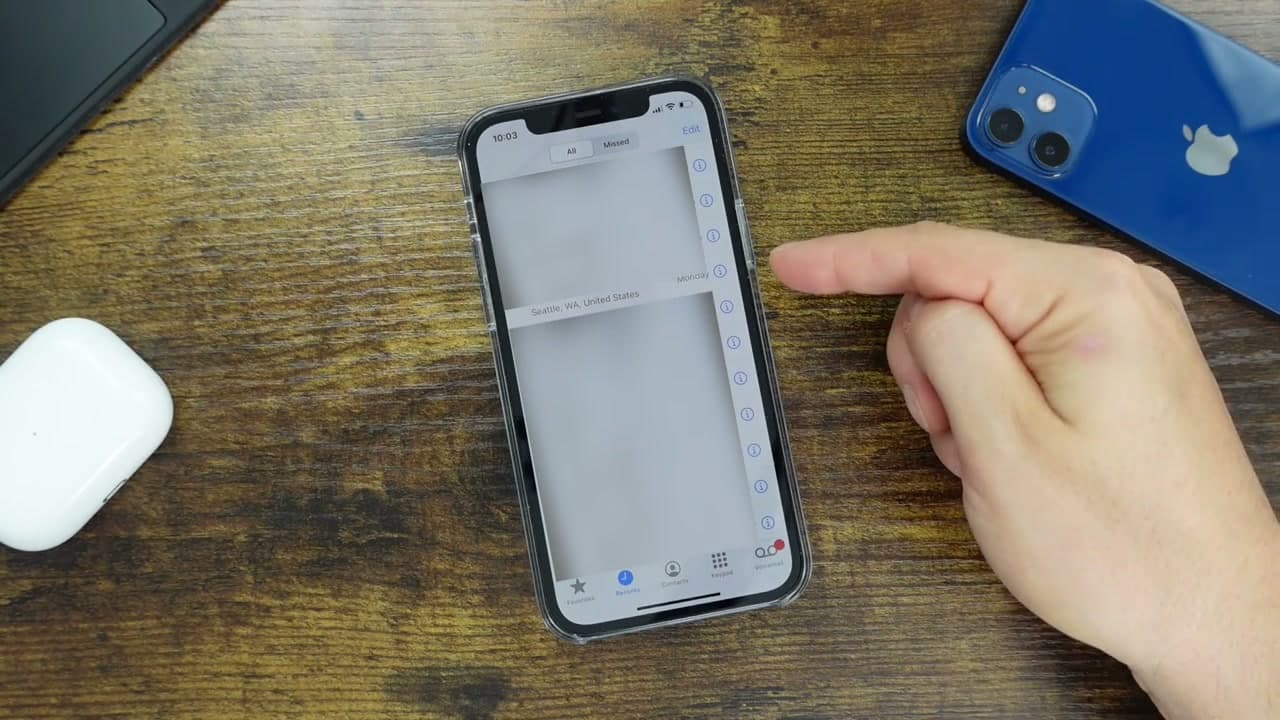
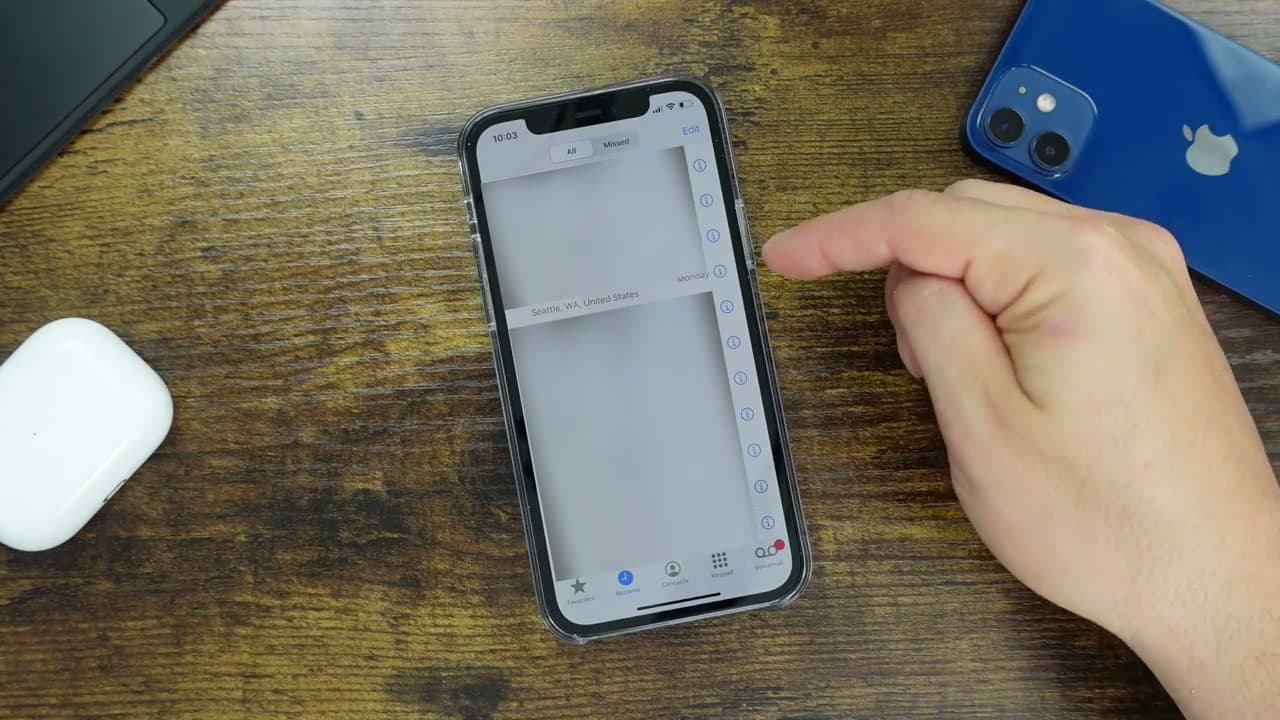
Open the green Phone app from your home screen and tap Recents at the bottom. This is your call history, where every recent caller is listed.

Scroll until you find the number you want to block. It works the same whether the caller is saved as a contact or shows up as just a phone number.

2

Step 2: Tap the Info (i) Button

0:50
Step 2: Step 2: Tap the Info (i) Button

To the right of the number, tap the blue circled 'i' info button. That opens a details page for that caller with their number up top and a list of options below.

This is the same info screen you would use to save a contact or share a number, so do not worry if you have never opened it before.

3

Step 3: Tap 'Block this Caller'

1:04
Step 3: Step 3: Tap 'Block this Caller'

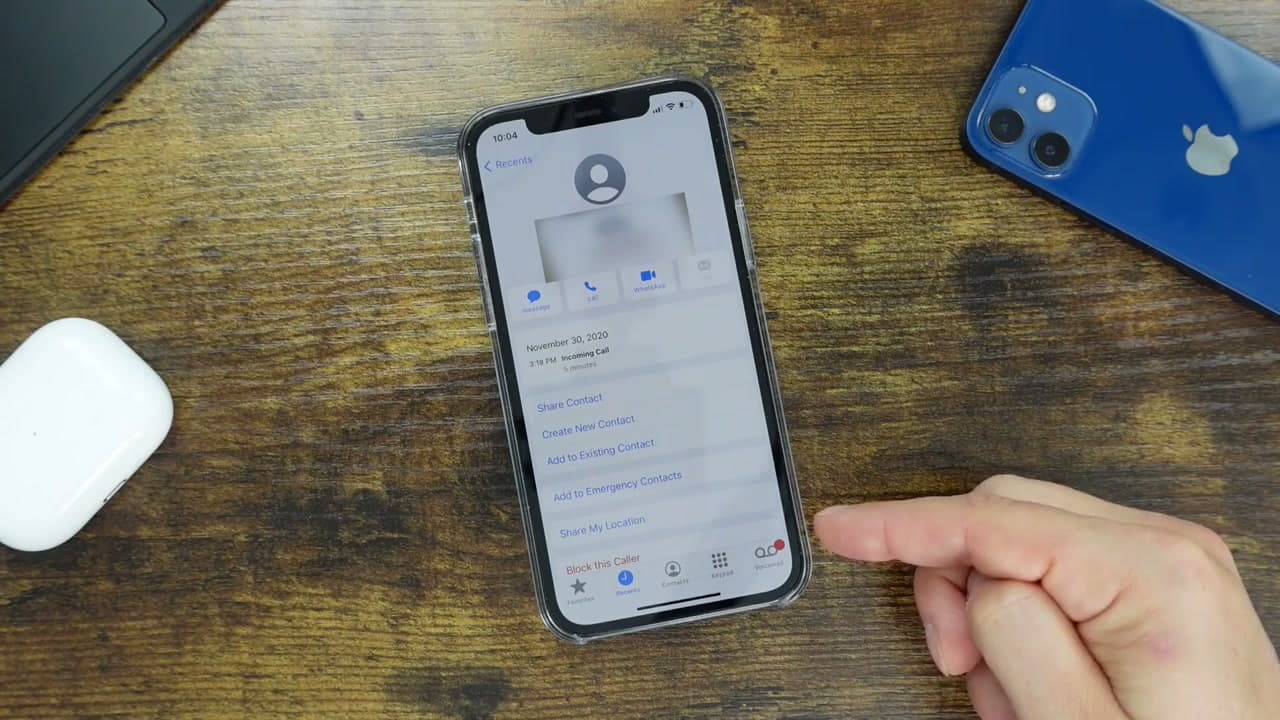
Scroll to the bottom of that page and tap 'Block this Caller,' shown in red. A prompt warns that you will not receive phone calls, messages, or FaceTime from anyone on your block list. Tap 'Block Contact' to confirm.

That is it, the number is blocked. Calls from it now go straight to voicemail and you will not see their texts.

Products used in this step

4

Step 4: View Your Blocked List in Settings

1:28
Step 4: Step 4: View Your Blocked List in Settings

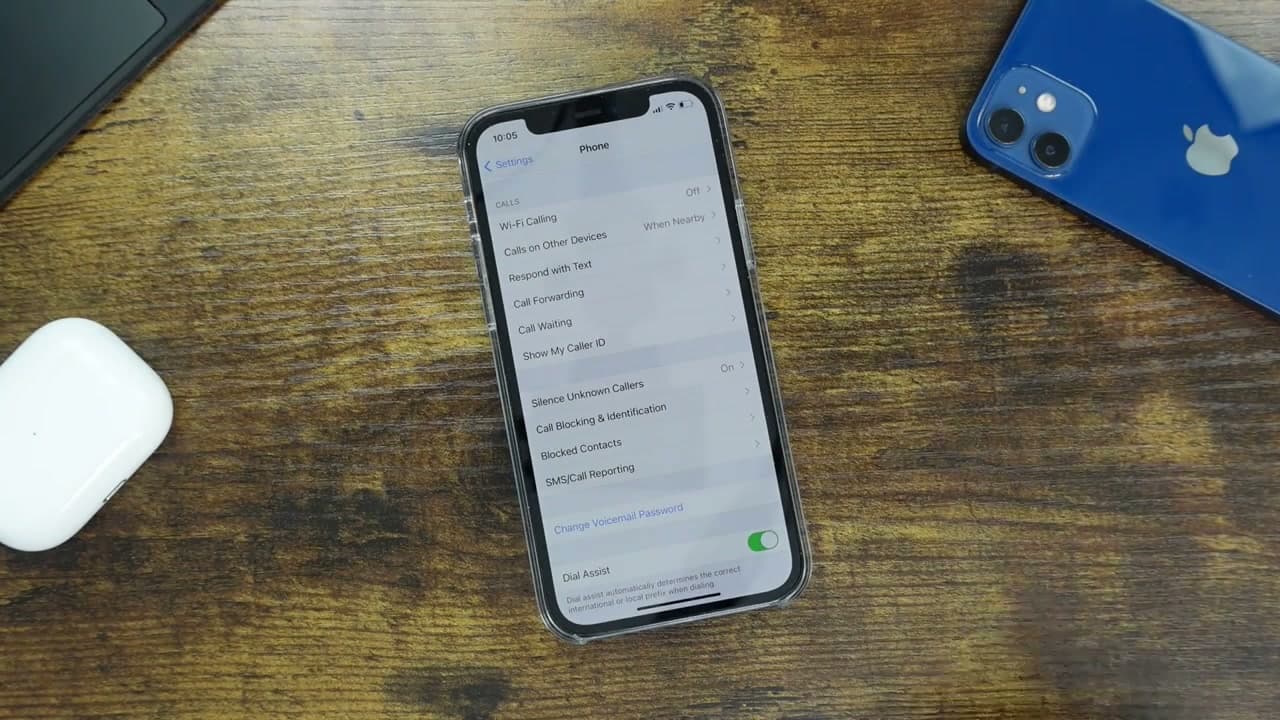
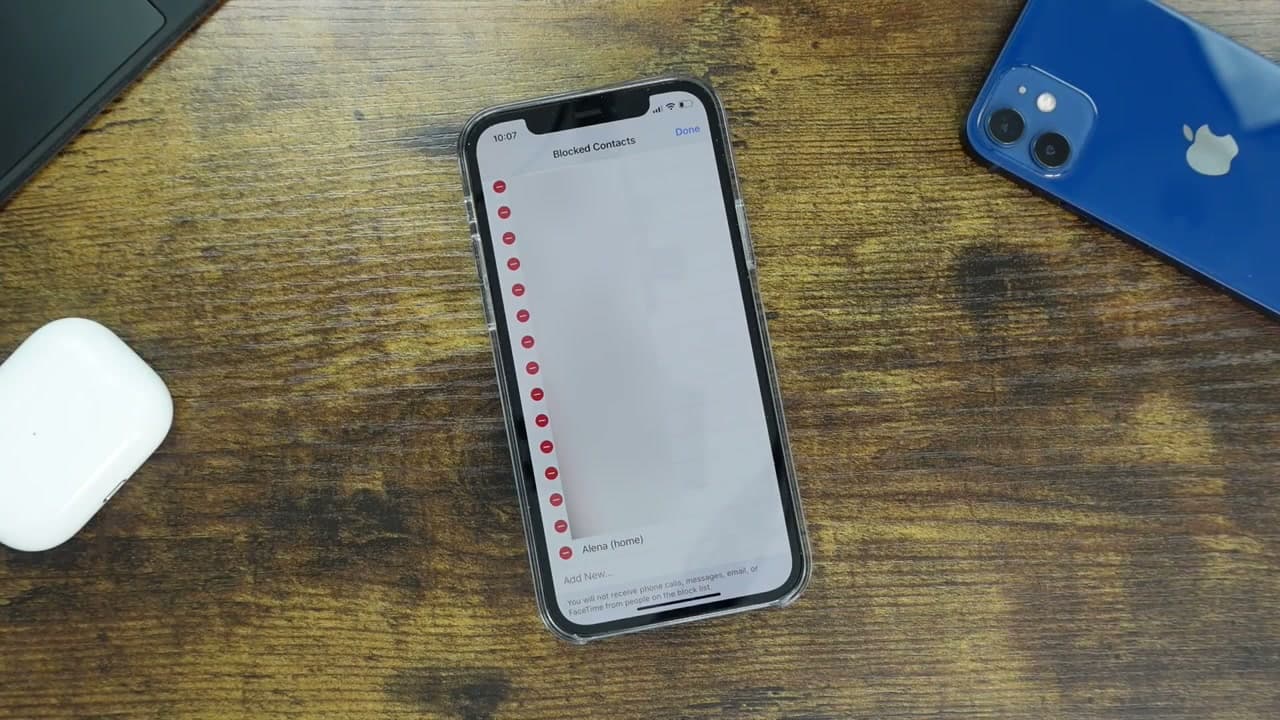
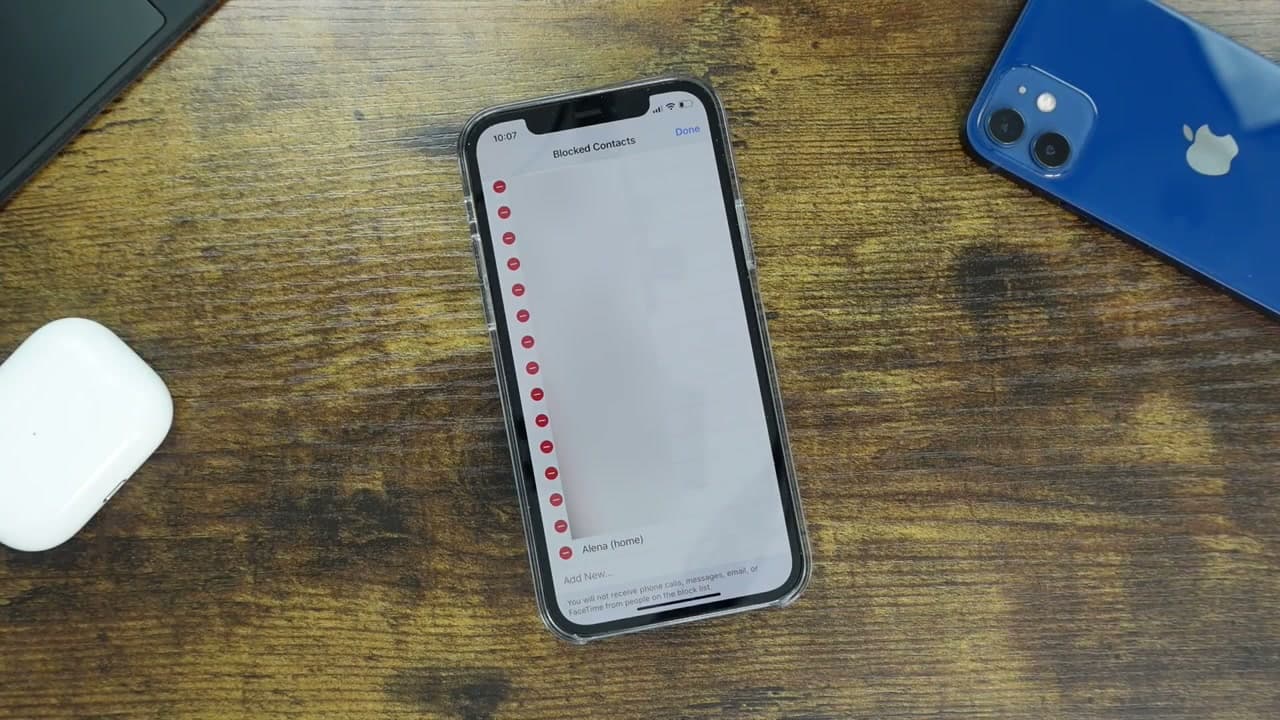
To see everyone you have blocked, open Settings and scroll down to Phone. Tap it, then scroll down and tap 'Blocked Contacts.'

This is the master list of every number and contact blocked on this iPhone. It is worth checking now and then so you remember who is on it.

5

Step 5: Add a Contact to the Block List

1:50
Step 5: Step 5: Add a Contact to the Block List

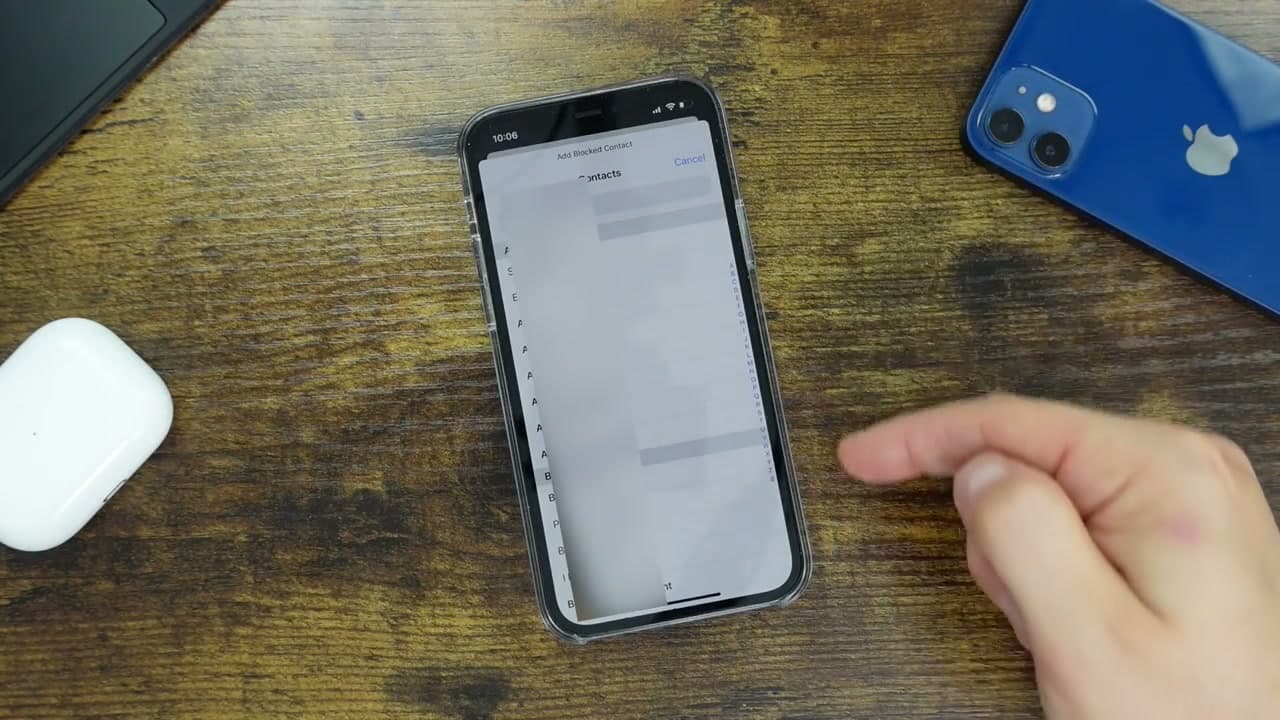
You do not have to wait for someone to call to block them. On that Blocked Contacts screen, tap 'Add New' at the bottom. Your contact list opens.

Tap any contact and they are added to the block list right away. This is handy when someone has been bothering you and you would rather block them before the next call.

6

Step 6: Unblock a Number When You Want

2:18
Step 6: Step 6: Unblock a Number When You Want

Blocking is never permanent. On the Blocked Contacts screen, tap 'Edit' in the top right. A red minus button appears next to every entry.

Tap the red minus next to the number you want to free up, then tap 'Unblock' to confirm. They can reach you again right away. Tap 'Done' when you are finished.

Tip

If you get a lot of spam from numbers that are never the same twice, turn on Settings, Phone, 'Silence Unknown Callers.' It sends anyone not in your contacts straight to voicemail without you blocking each one.

Products used in this step

Products Used

Your Guide

DHTV

As an Amazon Associate we earn from qualifying purchases. Links on this page may be affiliate links - clicking them and buying doesn't change your price, but helps support ShowMeStepByStep.

Tags

Test your knowledge

Did the lesson stick? Find out in 2 minutes.

5 quick questions covering what you just read. No signup, no score saved — just a gut check.

Quick reference

Key takeaways from How to Block a Number on iPhone (and Unblock It Later)

5 questions, answers, and one-line explanations. Tap to expand.

  1. 1.In the Phone app, where do you start to block a recent caller?

    Answer: Tap Recents to open your call history

    Recents lists every recent caller, saved or not, so you can block straight from there.

  2. 2.After tapping the blue (i) info button, what do you look for?

    Answer: 'Block this Caller' in red at the bottom

    'Block this Caller' sits in red at the bottom of the caller's info screen.

  3. 3.What does blocking a contact actually stop?

    Answer: Calls, messages, and FaceTime from them

    The block prompt warns you'll get no calls, messages, or FaceTime from blocked numbers.

  4. 4.Where can you see everyone you've blocked?

    Answer: Settings, then Phone, then Blocked Contacts

    The master block list lives under Settings, Phone, Blocked Contacts.

  5. 5.How do you unblock a number later?

    Answer: Tap Edit, then the red minus, then Unblock

    On the Blocked Contacts screen, Edit reveals a red minus to unblock anyone.

What's next

Related collections

Curated theme pages that include this tutorial.

Weekly Digest

Liked this tech tutorial?

Pick the categories you want to hear about. Weekly digest of new step-by-step tutorials. No spam, easy unsubscribe.

Send me tutorials about

We only email about new tutorials. Easy unsubscribe anytime.