How to Turn Off an iPhone (Any Model, Step by Step)

Also in:Adulting

By ShowMeStepByStepPublished Updated

Based on a video by Jeremy Chapman.

The way you turn off an iPhone has changed enough times over the years that most people end up Googling it. The old days of holding one button until the slider appeared are long gone. On every iPhone from the iPhone 8 onward - that's iPhone X, 11, 12, 13, 14, 15, 16, and the latest 17 - the gesture is now a combination of side button and volume button.

That's not the only way, though. You can also power down through Control Center, through the Settings app, or with a one-finger shortcut you set up once and use forever. If your screen has stopped responding to taps, there's a specific button sequence that forces a restart without any touchscreen input at all.

This walkthrough is built from Jeremy Chapman's clear demonstration on YouTube. Every method below works on any modern iPhone running iOS 12 or later. By the end you'll know five ways to do this, you'll know which one to reach for when, and you'll have a brand-new home screen shortcut that restarts your phone with a single tap.

If you're new to iPhone in general, our step-by-step iPhone setup guide covers the first-day basics, and our walkthrough on long screenshots on iPhone is a handy companion for capturing entire web pages.

Step-by-Step Guide

1

Hold the Volume and Side Button Together

0:40
Step 1: Hold the Volume and Side Button Together

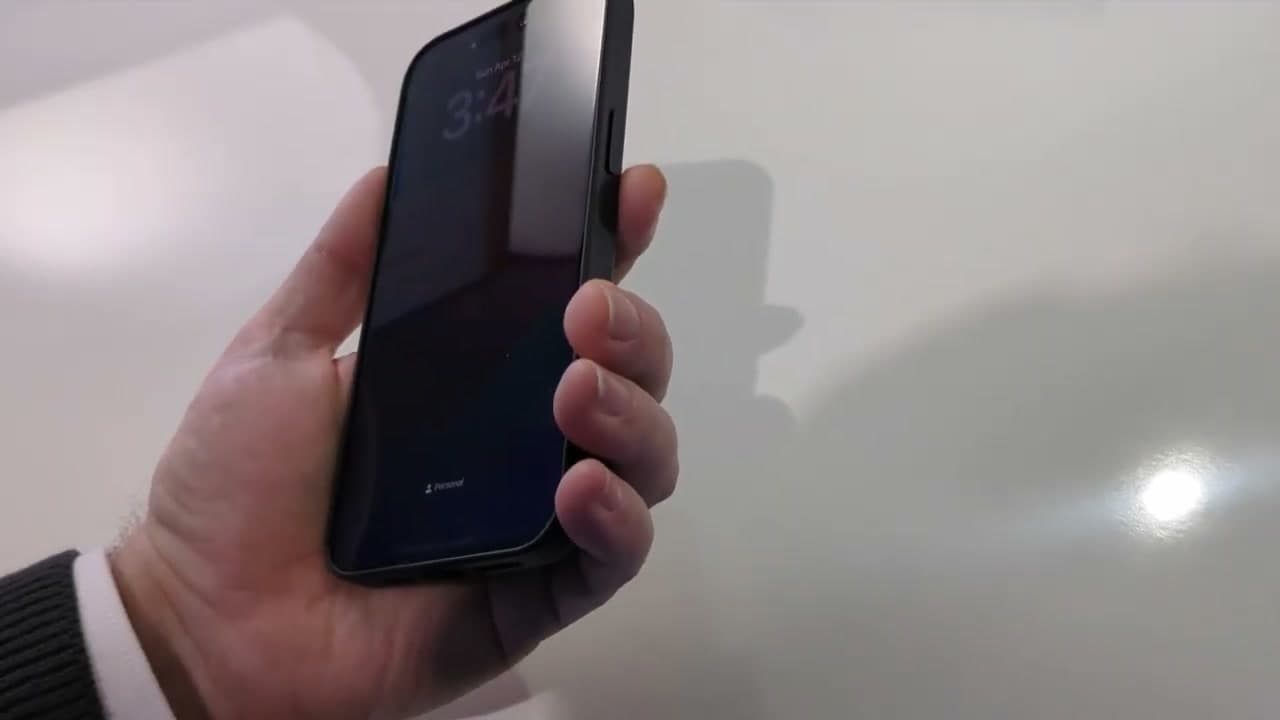
Pick up your iPhone and find the side power button on the right edge. On the left edge are two volume buttons - up on top, down below. Press and hold the side button together with either volume button (up or down works the same).

Hold both buttons for about three seconds. You're not trying to take a screenshot here, which is a quick press - this is a longer hold. The screen dims, and the power-off slider appears.

Tip

If you accidentally trigger Emergency SOS, the volume hold is too long. Let go and try again with a shorter, steadier 3-second press of both buttons.

2

Slide to Power Off

0:45
Step 2: Slide to Power Off

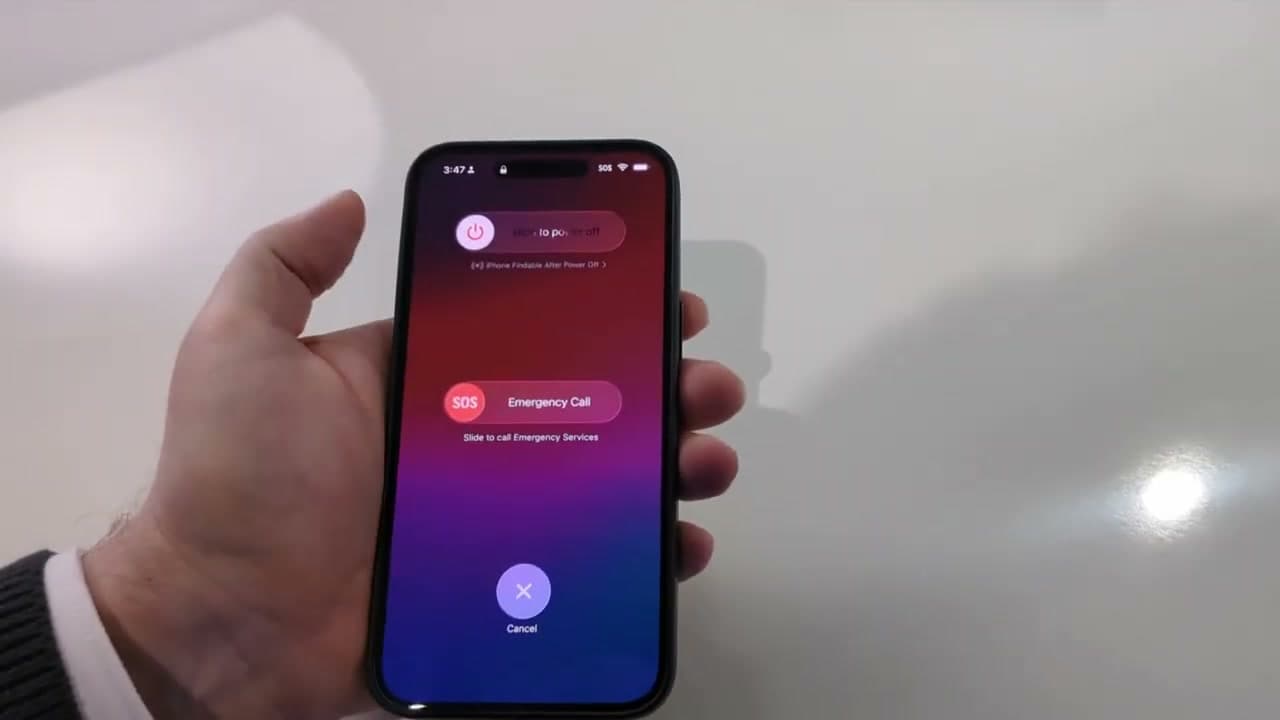
The slider screen shows three things stacked top to bottom: a white "slide to power off" slider at the top, an SOS Emergency Call slider in the middle, and a Cancel button at the bottom. The top one is what you want.

Place your finger on the small power icon on the left side of the top slider and drag it all the way to the right. The screen goes black, and the iPhone fully powers down. To turn it back on, press and hold the side button until the white Apple logo appears.

Tip

Tap Cancel if you opened this screen by accident. Nothing happens to the phone unless you actually slide the top slider.

3

Force Restart When the Screen Is Unresponsive

2:05
Step 3: Force Restart When the Screen Is Unresponsive

If the touchscreen has frozen and won't respond to taps, you can still restart the phone with three quick button moves. Press and release the volume up button. Then press and release the volume down button. Then press and hold the side button for about 15 seconds.

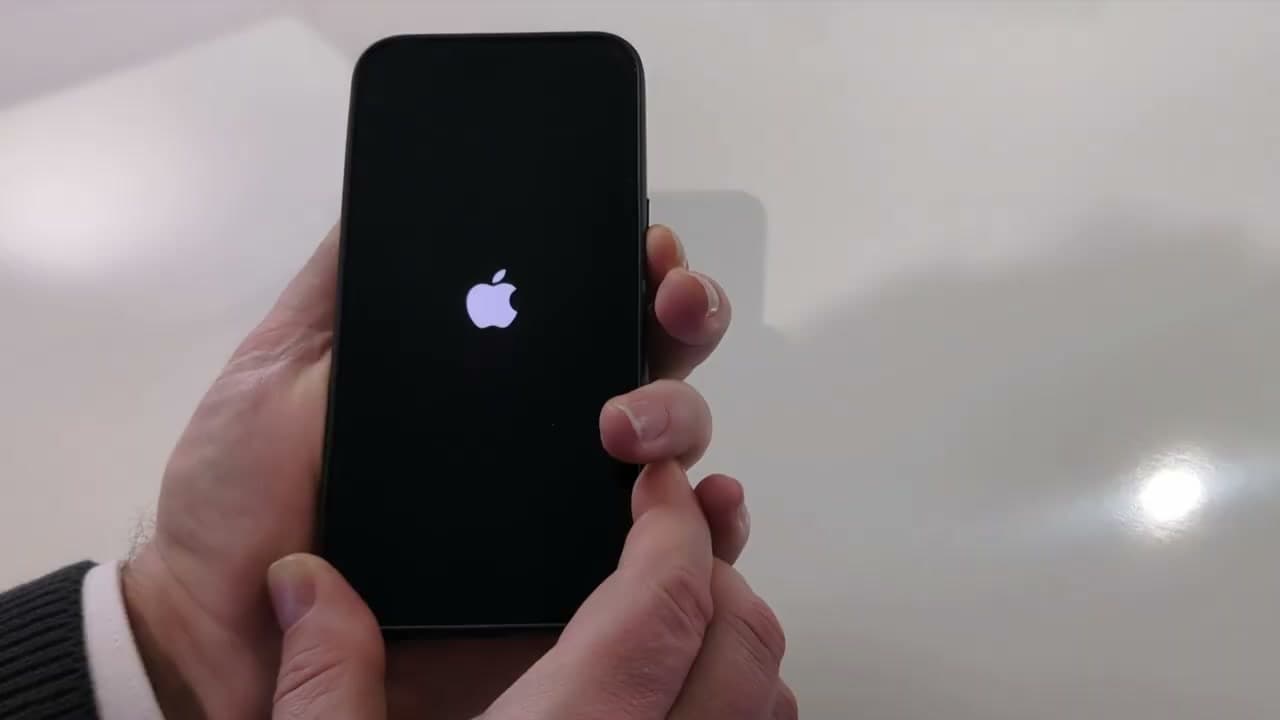
Keep holding the side button even after the screen goes black. After 10-15 seconds you'll see the white Apple logo on a black background - that means the restart is working. Release the side button once you see the logo and let the phone finish booting up.

Tip

If you let go of the side button at the black screen before the Apple logo appears, the phone powers off instead of restarting. Just press and hold the side button again to wake it back up.

4

Power Off From Control Center

2:20
Step 4: Power Off From Control Center

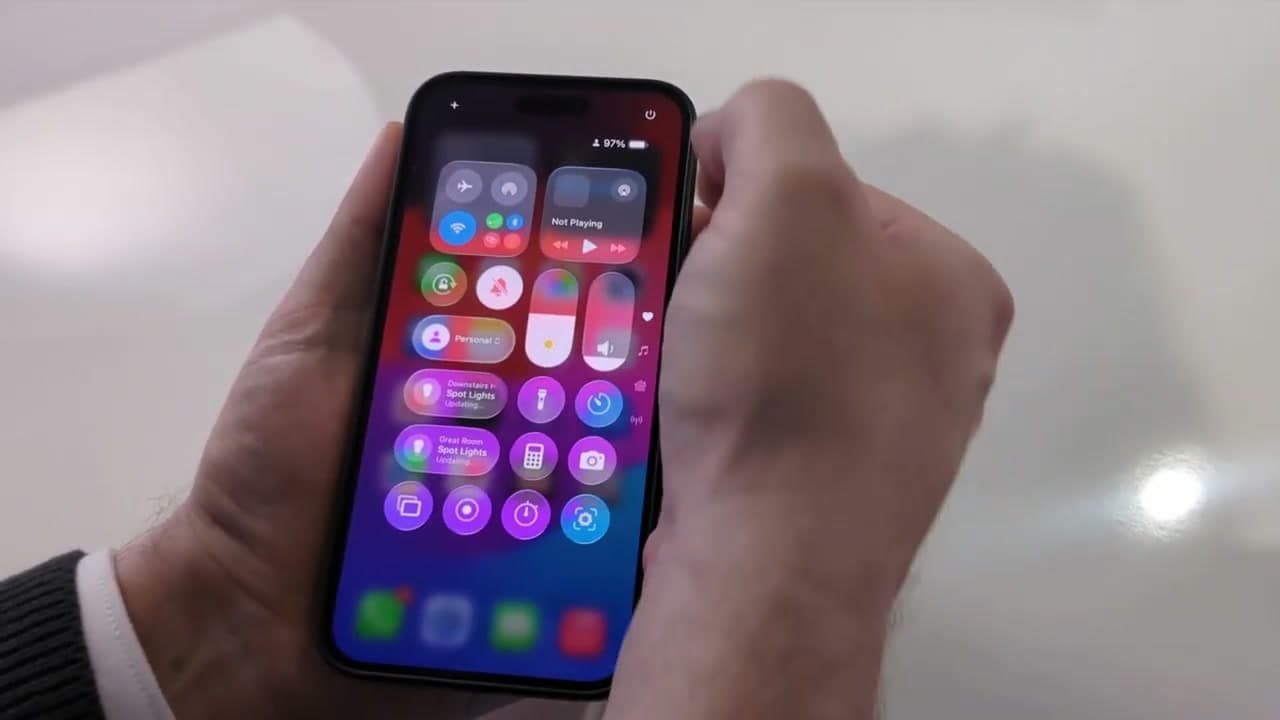
If your screen is responsive and you'd rather skip the buttons, you can power down from Control Center. Swipe down from the top-right corner of your screen. The Control Center panel appears with toggles for Wi-Fi, Bluetooth, brightness, and more.

Look for the power icon - a small circle with a vertical line, sitting in the top-right corner of the panel. A quick tap does nothing here. You have to press and hold the power icon for about two seconds. You'll feel a short haptic buzz, then the same slide-to-power-off screen from the button method appears. Drag the slider to turn off.

Tip

On iPhones with a Home button (iPhone SE and older), swipe up from the bottom of the screen instead of down from the top-right to open Control Center.

5

Power Off From the Settings App

2:39
Step 5: Power Off From the Settings App

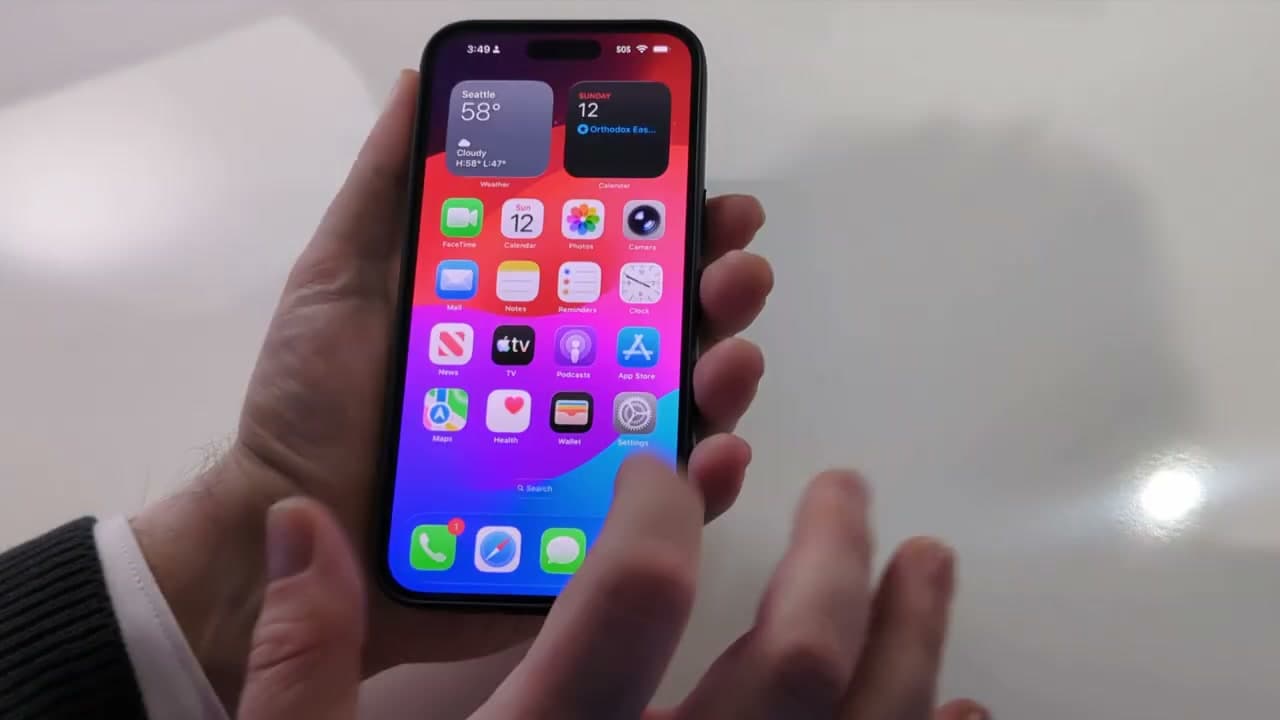
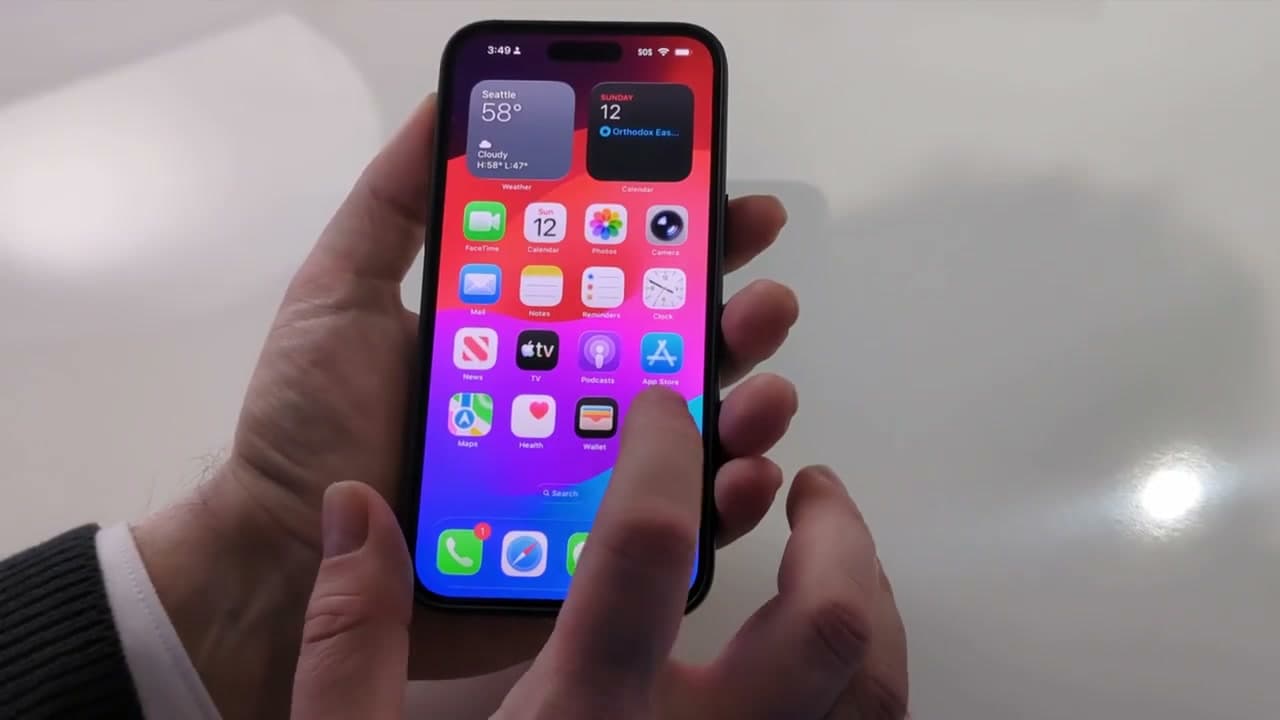
There's also a way to power down without touching a single button or gesture. Open the Settings app (the gray gear icon on your home screen). Tap General at the top of the second group of options. Scroll all the way down to the bottom of the General screen.

At the very bottom you'll see Shut Down in red text. Tap it, and the familiar power-off slider appears. Drag it to the right to turn the phone off completely.

Tip

This method is the gentlest one if any of the physical buttons are sticky, worn, or starting to fail. It only needs the touchscreen to work.

6

Turn On AssistiveTouch for a One-Tap Shortcut

3:03
Step 6: Turn On AssistiveTouch for a One-Tap Shortcut

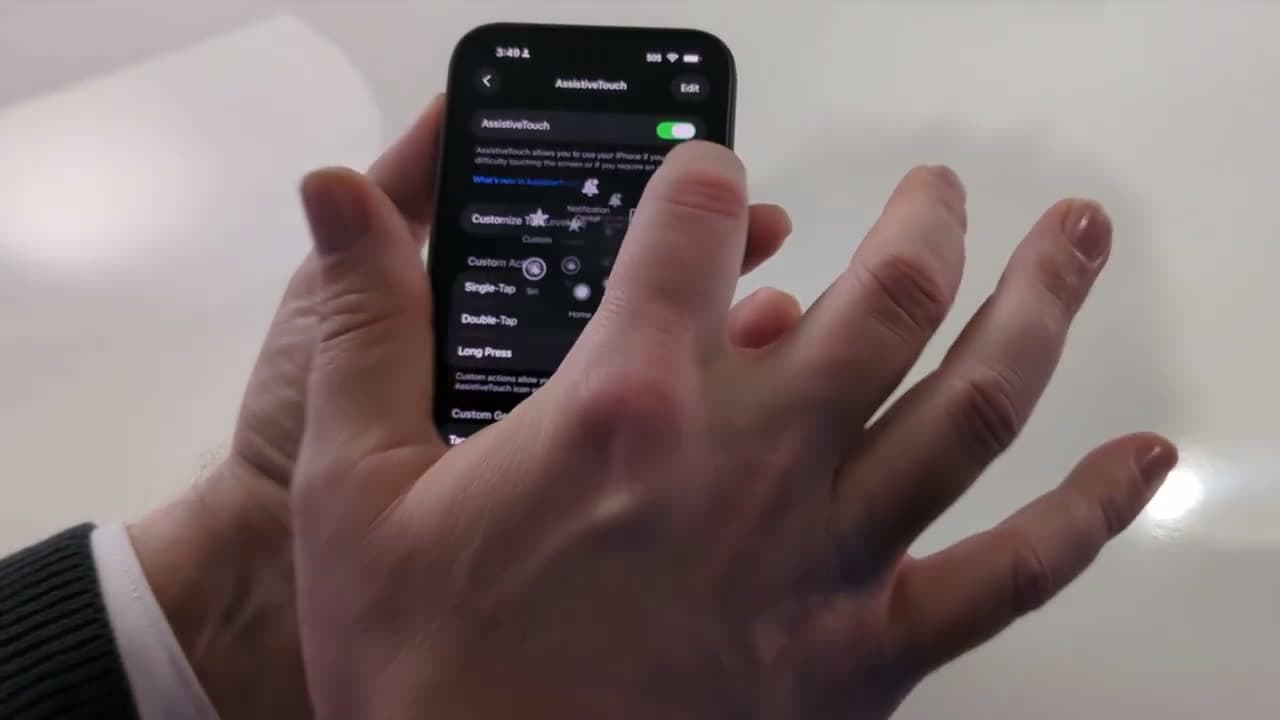
Here's the trick that pays you back every day from this point forward. Open Settings, scroll down and tap Accessibility. In the Accessibility menu, tap Touch. At the top of the Touch screen, tap AssistiveTouch and flip the toggle on.

A small round dot menu appears on the screen. You can drag it to any edge or corner so it's out of the way. Tap the dot and a tray of shortcut icons pops up - Notifications, Control Center, Home, and a few others by default.

Tip

AssistiveTouch doesn't change anything about how the phone works otherwise. The little dot only does something when you tap it, and it never shows up in screenshots.

Products used in this step

7

Add Restart to Your AssistiveTouch Menu

3:33
Step 7: Add Restart to Your AssistiveTouch Menu

Back in the AssistiveTouch screen, tap Customize Top Level Menu. The default tray of icons appears with a plus button you can use to add more, or you can replace any of the existing icons. Tap the Custom placeholder button (or one you don't use, like Siri).

Scroll down the long list of actions and tap Restart. Tap the blue check mark in the upper-right corner to confirm. While you're at it, edit a second icon and add Screenshot the same way - it's the easiest one-finger screenshot trick on iPhone.

Now any time you want to restart, tap the floating AssistiveTouch dot, then tap Restart. The phone reboots with a single tap. No more 15-second button holds, no more digging through menus.

Tip

If the menu gets cluttered, use the minus button in the customize screen to remove icons you'll never tap, or hit Reset to go back to the factory layout.

Products used in this step

Products Used

☐ The Checklist

How to Turn Off an iPhone (Any Model, Step by Step)

Tools
1
Steps
7
Video
5 min

Your Guide

Jeremy Chapman

As an Amazon Associate we earn from qualifying purchases. Links on this page may be affiliate links - clicking them and buying doesn't change your price, but helps support ShowMeStepByStep.

Tags

Test your knowledge

Did the lesson stick? Find out in 2 minutes.

5 quick questions covering what you just read. No signup, no score saved — just a gut check.

Quick reference

Key takeaways from How to Turn Off an iPhone (Any Model, Step by Step)

5 questions, answers, and one-line explanations. Tap to expand.

  1. 1.Which button combo brings up the power-off slider on a modern iPhone?

    Answer: The side button held with either volume button

    Holding the side button with either volume button for a few seconds shows the slide-to-power-off screen.

  2. 2.On the slider screen, which option actually powers the phone down?

    Answer: The top slide-to-power-off slider

    Dragging the top slider all the way right is what shuts the phone off; the others do something else.

  3. 3.Your screen is frozen and won't respond. What sequence forces a restart?

    Answer: Volume up, volume down, then hold the side button

    Press and release volume up, then volume down, then hold the side button until the Apple logo appears.

  4. 4.When force restarting, what happens if you release the side button too early?

    Answer: The phone powers off instead of restarting

    Letting go before the Apple logo shows just powers the phone off, so keep holding until you see it.

  5. 5.Why is the Settings app shutdown method handy to know?

    Answer: It works even when the buttons are worn or failing

    Shutting down from Settings only needs the touchscreen, so it works when physical buttons are failing.

What's next

Related collections

Curated theme pages that include this tutorial.

Weekly Digest

Liked this tech tutorial?

Pick the categories you want to hear about. Weekly digest of new step-by-step tutorials. No spam, easy unsubscribe.

Send me tutorials about

We only email about new tutorials. Easy unsubscribe anytime.