How to Turn Off iPhone (4 Ways)

Also in:TechAdulting

By ShowMeStepByStepPublished Updated

Based on a video by WorldofTech.

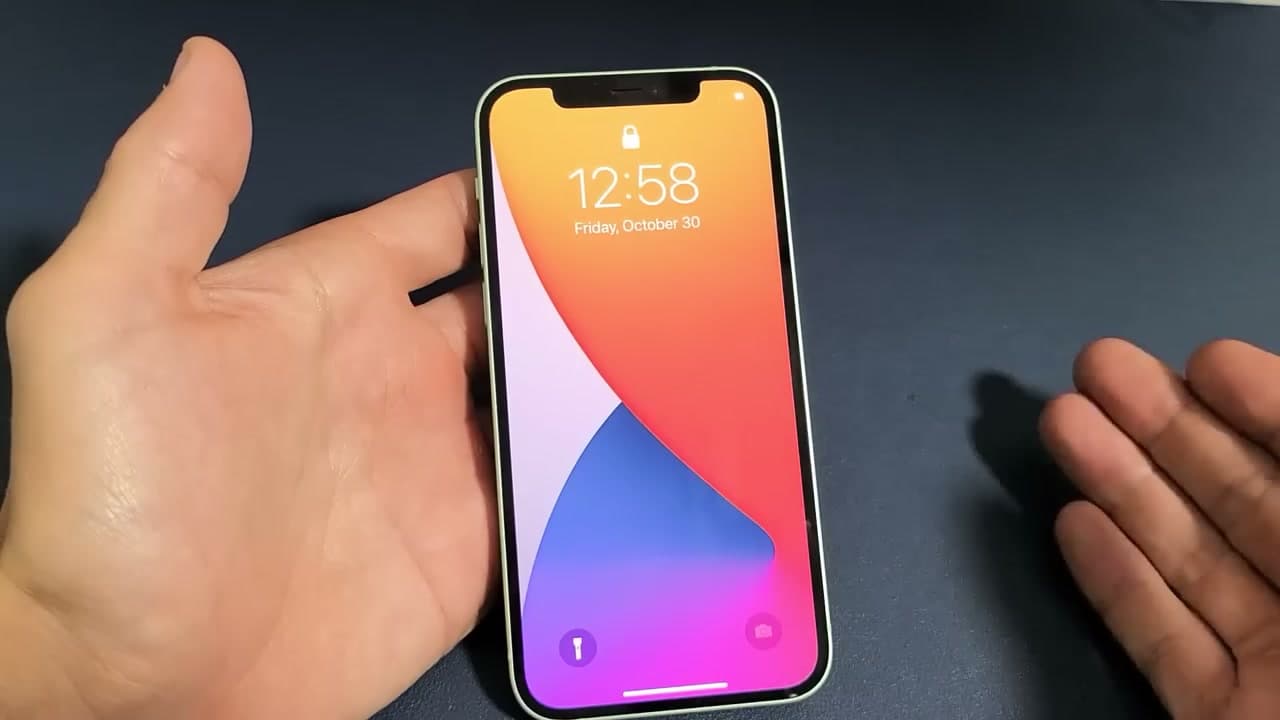
Turning off an iPhone 12 or newer is a little different than older models - there's no single button hold that does it. WorldofTech walks through all four methods so you've got options no matter what your phone is doing.

The two button-combo methods work fast. The Settings route is handy if your volume buttons aren't cooperating. And the force restart is the one to know when your screen goes completely unresponsive.

Common questions

Why won't my iPhone turn off with the side button alone?

On iPhone X and newer, the side button by itself just brings up Siri or Apple Pay. You have to hold the side button together with either volume button until the power slider appears. The single-button shutdown only works on older models with a Home button.

What's the difference between turning off and a force restart?

A normal shutdown powers the phone all the way down and waits for you to turn it back on. A force restart reboots a frozen phone without the slider: press and release Volume Up, then Volume Down, then hold the Side button until the Apple logo shows. Use it only when the screen is unresponsive.

Will turning my iPhone off delete anything?

No. Powering off keeps all your photos, apps, and settings exactly as they were. It just clears the temporary memory, which is why an off-and-on cycle quietly fixes a lot of small glitches.

Step-by-Step Guide

1

Method 1: Volume Up + Side Button

0:14
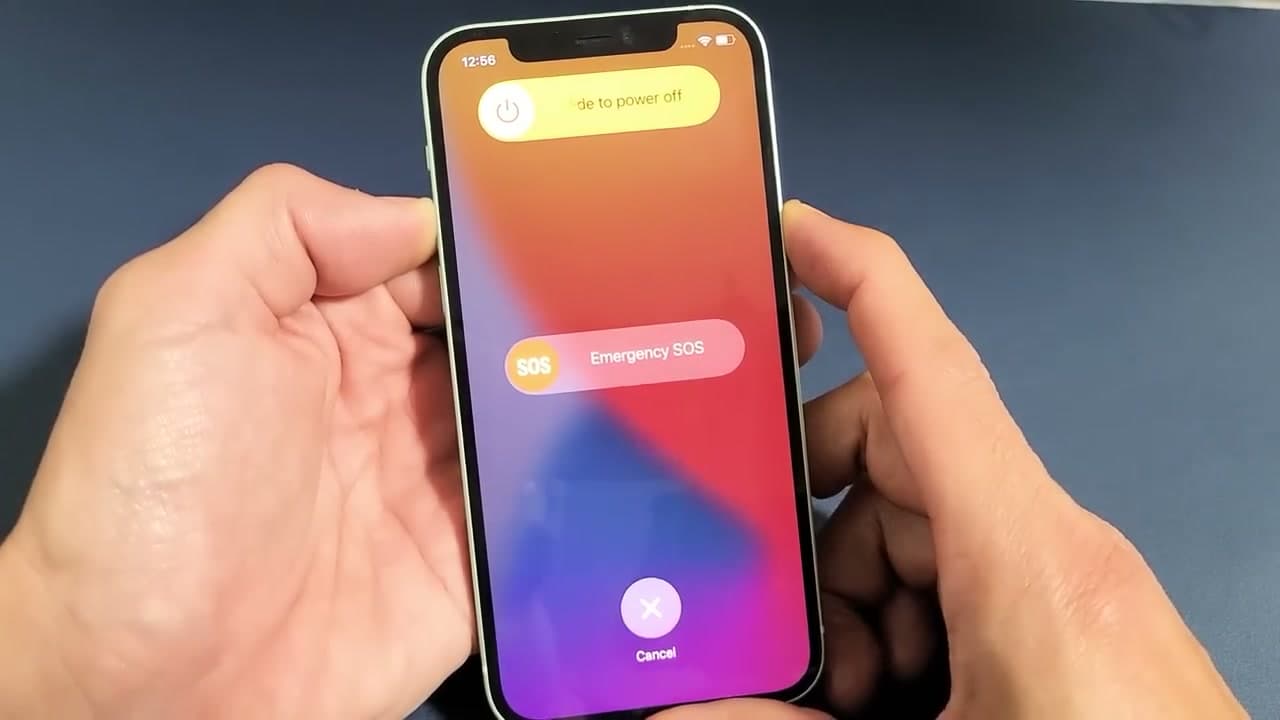
Step 1: Method 1: Volume Up + Side Button

Press and hold the Volume Up button and the Side button at the same time. Keep holding both - don't let go early or you'll just take a screenshot. Wait until the power-off menu slides onto the screen. Then drag the power icon all the way to the right to shut the phone down.

Tip

A quick press of Volume Up + Side takes a screenshot. You need a press-and-hold to get the power menu. Give it 2-3 seconds.
2

Method 2: Volume Down + Side Button

0:44
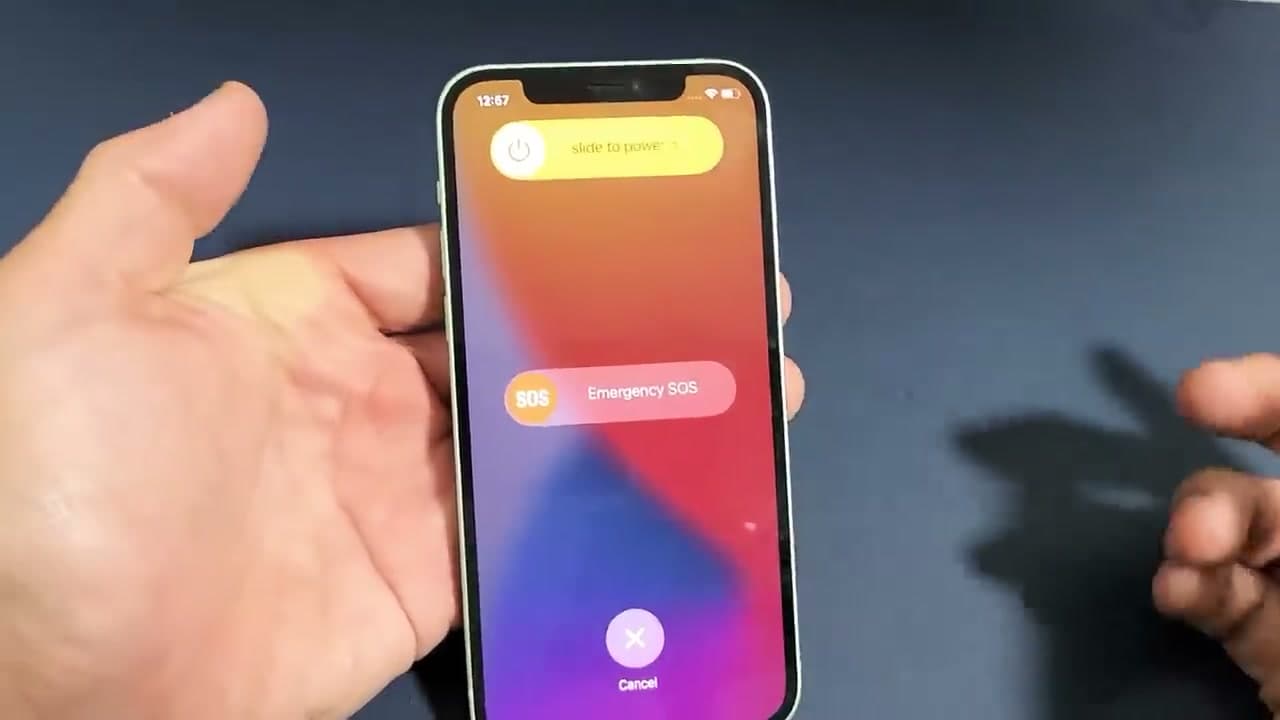
Step 2: Method 2: Volume Down + Side Button

This one works exactly like the first method, just with the other volume button. Press and hold Volume Down and the Side button together until the power-off menu appears. Slide to power off. Both combos are equally reliable on iPhone 12 and newer - use whichever feels more natural for your grip.

Products used in this step

3

Method 3: Shut Down Through Settings

1:03
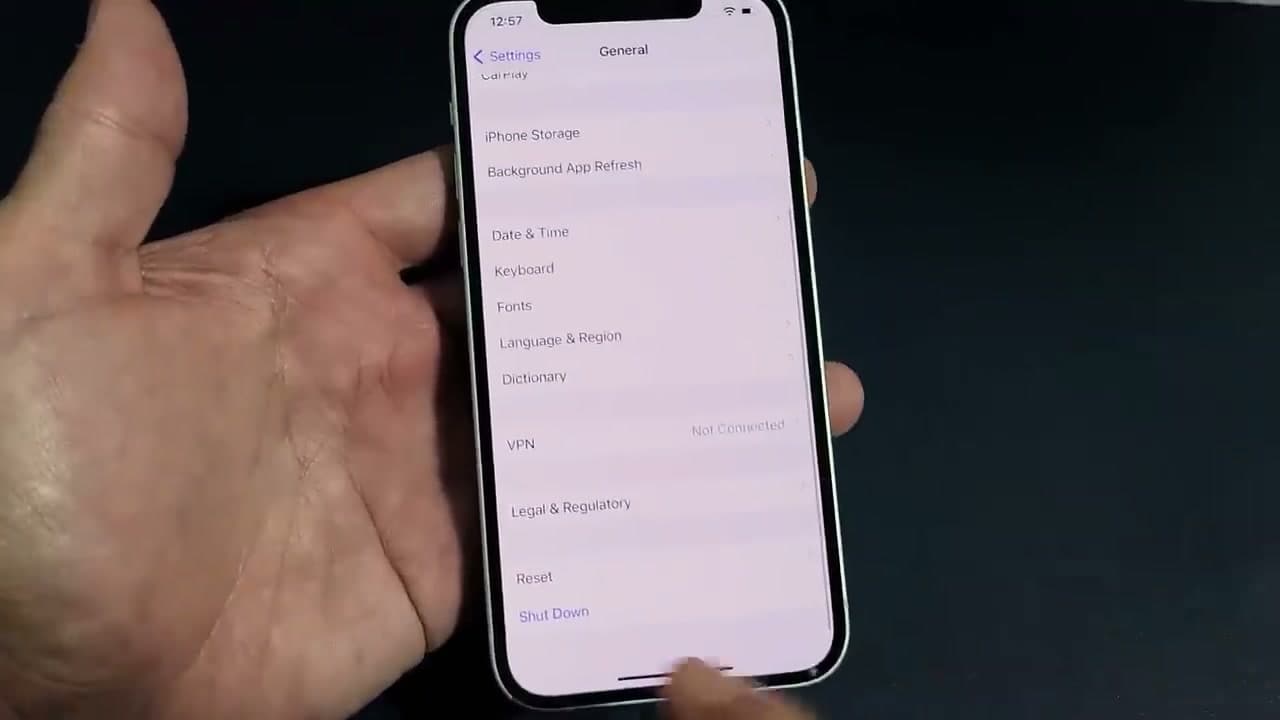
Step 3: Method 3: Shut Down Through Settings

Open Settings, scroll down to General, then scroll all the way to the bottom. Tap Shut Down. The power-off slider appears - drag it to confirm. This method doesn't require pressing any buttons at all, so it's useful if your volume buttons are damaged or hard to reach.

4

Turn Your iPhone Back On

1:23
Step 4: Turn Your iPhone Back On

After the phone is fully off, press and hold the Side button. Hold it for about three seconds until you see the Apple logo. You can let go as soon as the logo appears - the phone takes care of the rest. Don't tap - hold until the logo shows up.

5

Method 4: Force Restart a Frozen iPhone

1:43
Step 5: Method 4: Force Restart a Frozen iPhone

If your screen is frozen and none of the other methods are working, this is your fix. Quickly press and release Volume Up. Then quickly press and release Volume Down. Then press and hold the Side button - don't let go until the Apple logo appears. No data is lost. The phone just reboots.

Tip

The timing matters on the force restart - Volume Up and Volume Down are quick taps, but the Side button is a press-and-hold. Keep holding through the black screen until the Apple logo appears.

Products Used

Your Guide

WorldofTech

As an Amazon Associate we earn from qualifying purchases. Links on this page may be affiliate links - clicking them and buying doesn't change your price, but helps support ShowMeStepByStep.

Tags

Test your knowledge

Did the lesson stick? Find out in 2 minutes.

5 quick questions covering what you just read. No signup, no score saved — just a gut check.

Quick reference

Key takeaways from How to Turn Off iPhone (4 Ways)

5 questions, answers, and one-line explanations. Tap to expand.

  1. 1.What button combination powers down a Face ID iPhone?

    Answer: Hold Volume Up and the Side button until a slider appears

    Holding Volume Up with the Side button brings up the slide-to-power-off prompt.

  2. 2.Why does powering off require swiping a slider rather than just a button press?

    Answer: To prevent accidental power-offs from pocket presses

    The slider is a deliberate extra step so a pocket or bag cannot accidentally shut off your phone.

  3. 3.Which Settings path lets you shut down an iPhone without pressing any buttons?

    Answer: Settings > General > Shut Down

    Settings > General > Shut Down shows the power-off slider without any physical button combination.

  4. 4.How do you turn an iPhone back on after it is fully powered off?

    Answer: Press and hold the Side button until the Apple logo appears

    Holding the Side button is the standard way to boot an iPhone from a powered-off state.

  5. 5.When would you use a force restart instead of a normal shutdown?

    Answer: When the screen is frozen and the phone is not responding to touch

    A force restart bypasses the software layer so you can reboot even when the screen is completely unresponsive.

What's next

Related collections

Curated theme pages that include this tutorial.

Weekly Digest

Liked this tech setup tutorial?

Pick the categories you want to hear about. Weekly digest of new step-by-step tutorials. No spam, easy unsubscribe.

Send me tutorials about

We only email about new tutorials. Easy unsubscribe anytime.