How to Write a Professional Email: 8 Etiquette Tips

Also in:Adulting

By ShowMeStepByStepPublished Updated

Based on a video by Harvard Business Review.

Email etiquette mistakes won't tank your career, but they quietly shape how competent your coworkers think you are. There's no class for this. Most of us learn it the hard way after a senior person points out the same habit in three different threads.

This walkthrough comes from Jeff Su partnering with Harvard Business Review. Eight tips, every one of them learnable in 30 seconds, every one of them saves your reader time. If you remember one big idea: every line of an email is competing with someone else's inbox of 200 unread messages. Make the ask obvious, the structure tight, and the link clickable. The rest takes care of itself.

For more communication basics, see how to introduce yourself professionally and how to give a presentation.

Step-by-Step Guide

1

Step 1: Put a Call to Action in the Subject Line

1:25
Step 1: Step 1: Put a Call to Action in the Subject Line

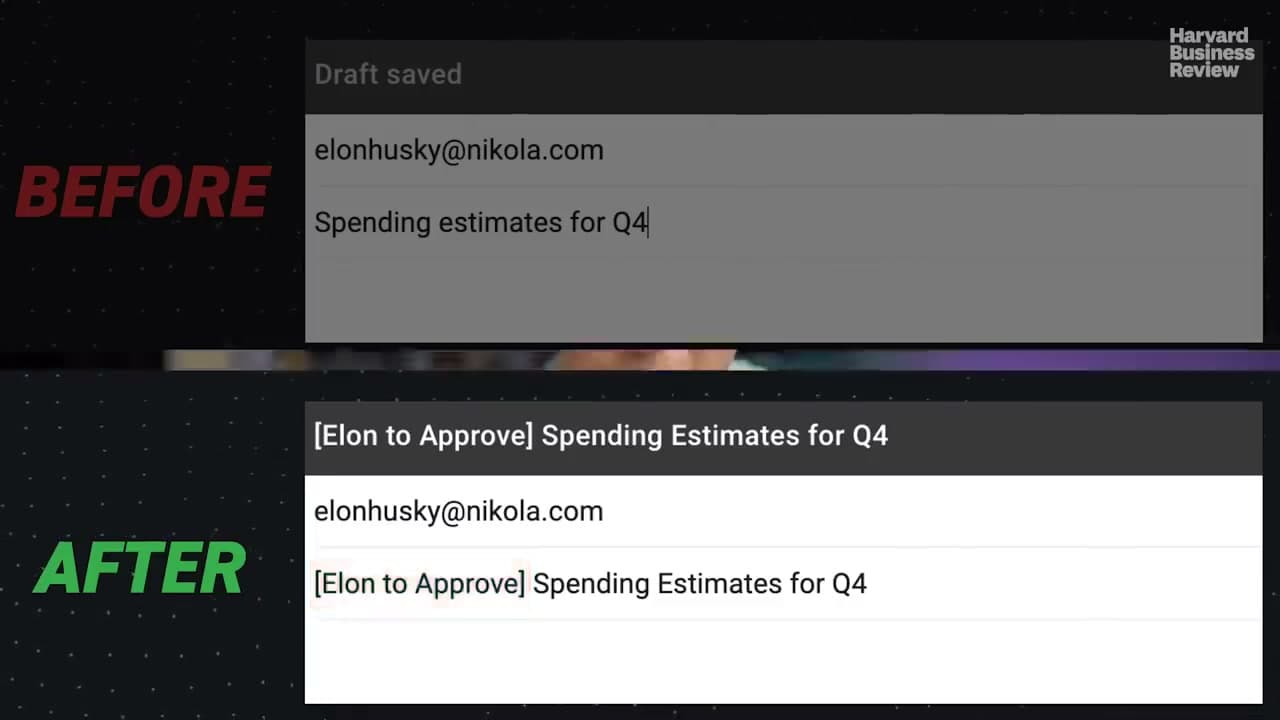
Skip generic subject lines like 'Action required - feedback for project X.' Try '5 minute survey - feedback for project X' instead. The recipient knows what you want and roughly how long it will take before they even open the email.

If a time estimate doesn't fit, name the person and the ask: '[Elon to Approve] Spending Estimates for Q4.' Elon sees his name in bold in the preview pane and knows exactly what's expected of him. The whole point is to remove the moment of 'wait, what is this about?' that delays every reply.

Tip

Brackets at the front of the subject [Approve], [FYI], [Action], [5 min read] make the request scannable in a mobile inbox.
2

Step 2: Keep One Topic in One Email Thread

2:20
Step 2: Step 2: Keep One Topic in One Email Thread

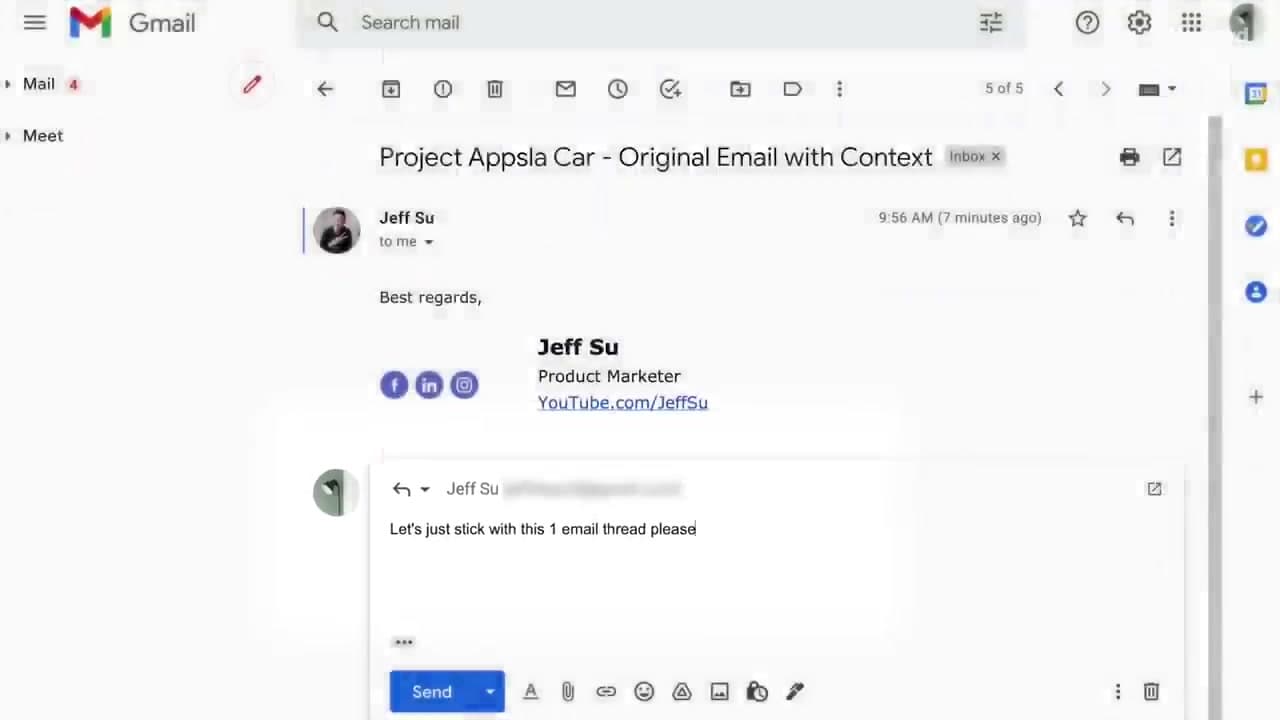
Don't spin off a brand new email every time you have a fresh question on the same project. The recipient loses the history from the original chain, and your name shows up four times in their inbox for what should have been one conversation.

Hit reply on the existing thread. Everyone can scroll up to see what was decided last week. If the topic truly shifts, fine, start a new thread - but for the same project, same thread. Your coworkers will quietly thank you.

3

Step 3: Explain When You Add or Drop Recipients

2:55
Step 3: Step 3: Explain When You Add or Drop Recipients

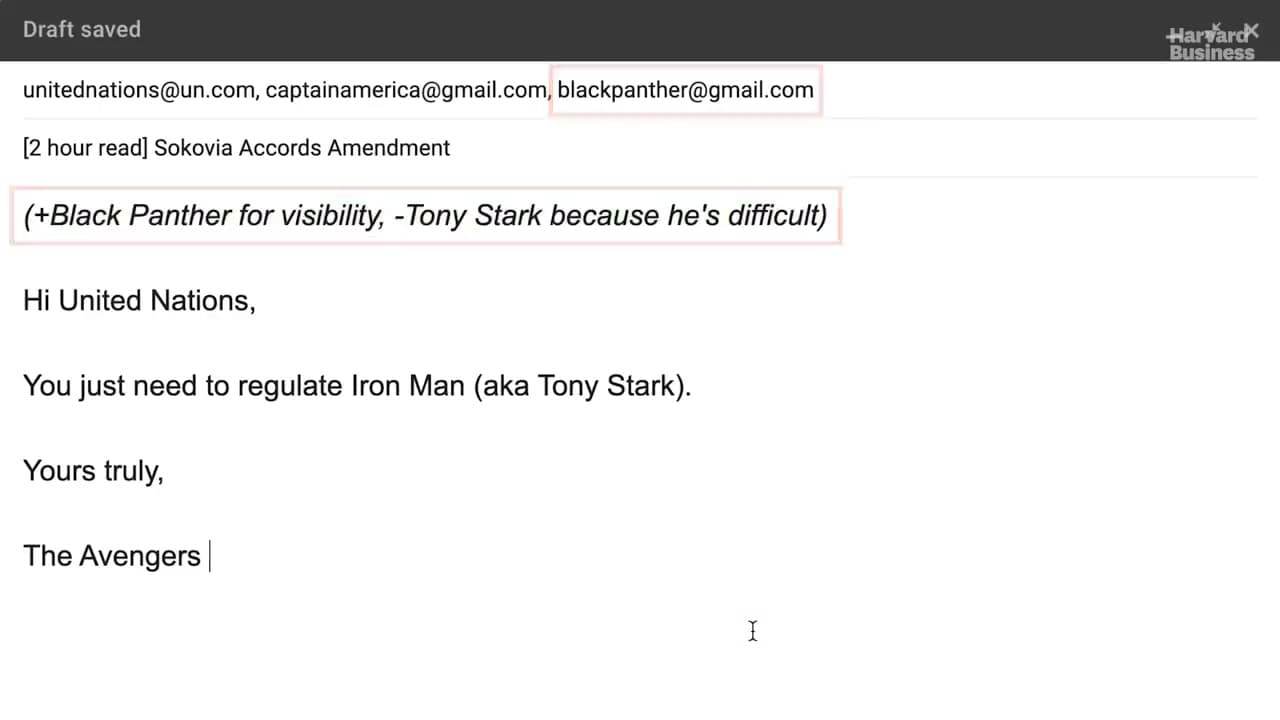
When you add someone to a thread or drop someone off, say so at the top of the email. A line like '(+Sarah for product context, -Mike to spare his inbox)' in italics or parentheses does the job in five seconds.

The new readers know why they're suddenly on a thread, and the people you removed don't get pinged on a conversation that no longer concerns them. Without this line, Sarah opens the thread, sees twenty messages of context she's missing, and has to ask. With it, she's already caught up.

4

Step 4: Put the Main Point First, Then Context

3:35
Step 4: Step 4: Put the Main Point First, Then Context

Don't bury the ask at the bottom. Lead with the main point in one sentence, then add the why underneath. 'Hi Jane, could you pull the electric car revenue projection numbers? Context: the product marketing team is building a forecast deck for the boss and we'd love 2025 to 2030 in Google Sheets.'

Senior readers can grab the ask and move on without reading the back half. Junior readers can scroll for more if they need it. When you front-load the context, you force everyone to read filler before getting to what you actually need.

Tip

A literal CONTEXT subheader under your one-line ask is a polite signal that the next part is optional reading.

5

Step 5: Summarize a Messy Email in Your Reply

4:33
Step 5: Step 5: Summarize a Messy Email in Your Reply

When someone sends you a wall of disorganized text, don't reply to it line by line. Spend a minute bucketing their points into two or three lines, then lead your reply with 'Just to confirm, you're asking about X, Y, and Z.'

You catch any misreads before you waste a round trip. The sender also feels heard rather than corrected, which matters when the messy email is from your boss. An ACTION ITEMS list followed by CONTEXT is a clean format for the reply itself.

6

Step 6: Hyperlink URLs Instead of Pasting Raw Links

5:14
Step 6: Step 6: Hyperlink URLs Instead of Pasting Raw Links

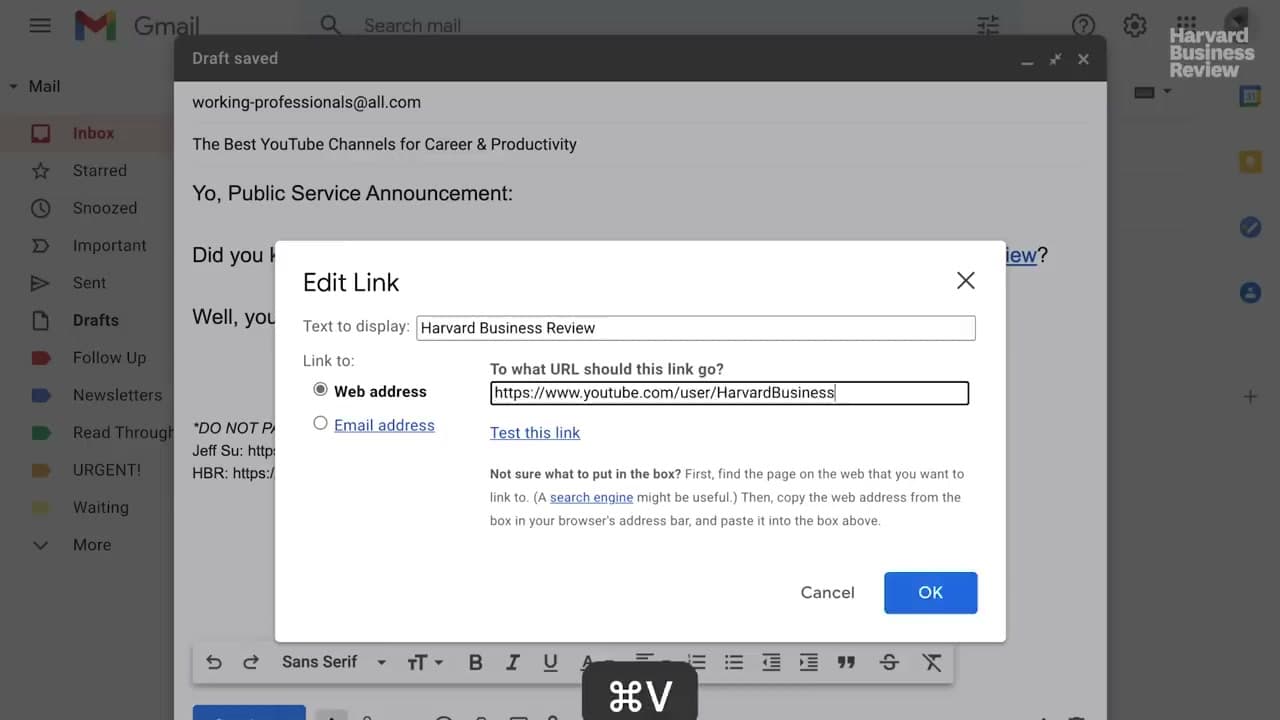
Don't paste a 200 character URL into the body of an email. Highlight the anchor text you want, hit Ctrl+K on Windows or Cmd+K on Mac, and paste the URL into the popup.

The email reads cleaner. You're also far less likely to break the link by adding a stray character or dropping one when you copy-paste. 'See the brief here' beats a raw URL every time, and it's the difference between looking polished and looking like you typed it on your phone.

7

Step 7: Change Your Default Reply From Reply All to Reply

5:40
Step 7: Step 7: Change Your Default Reply From Reply All to Reply

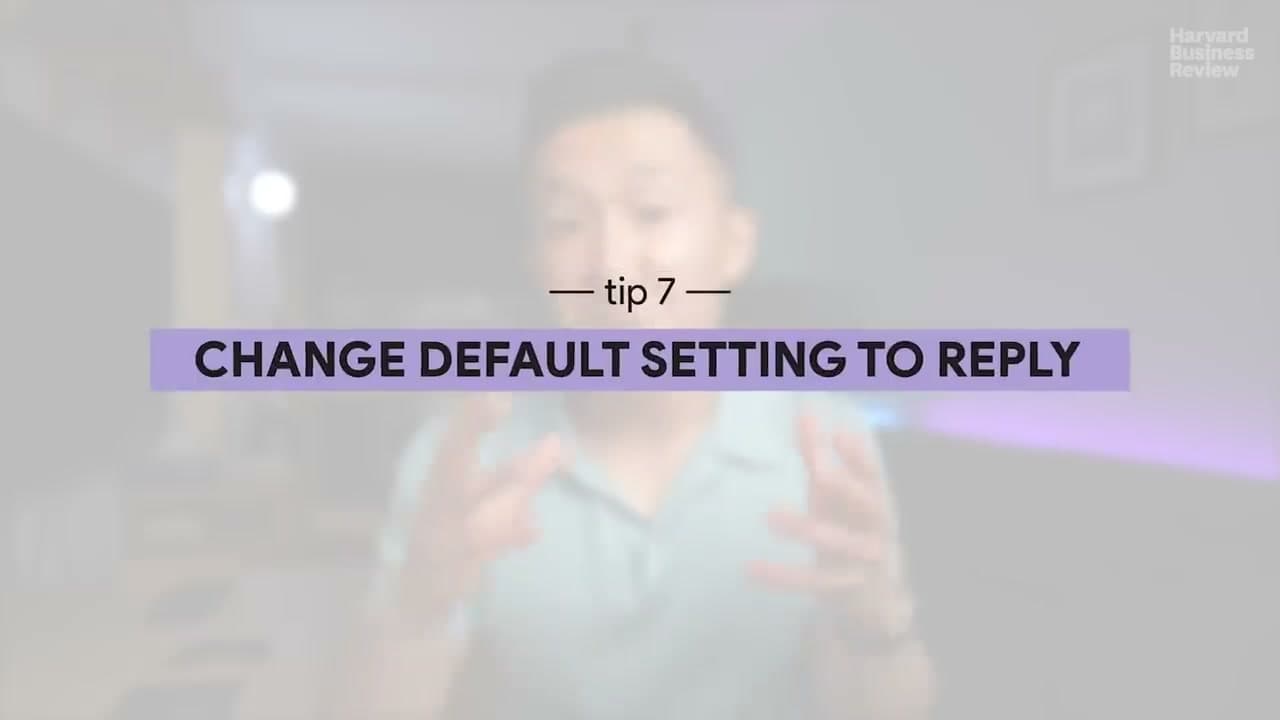
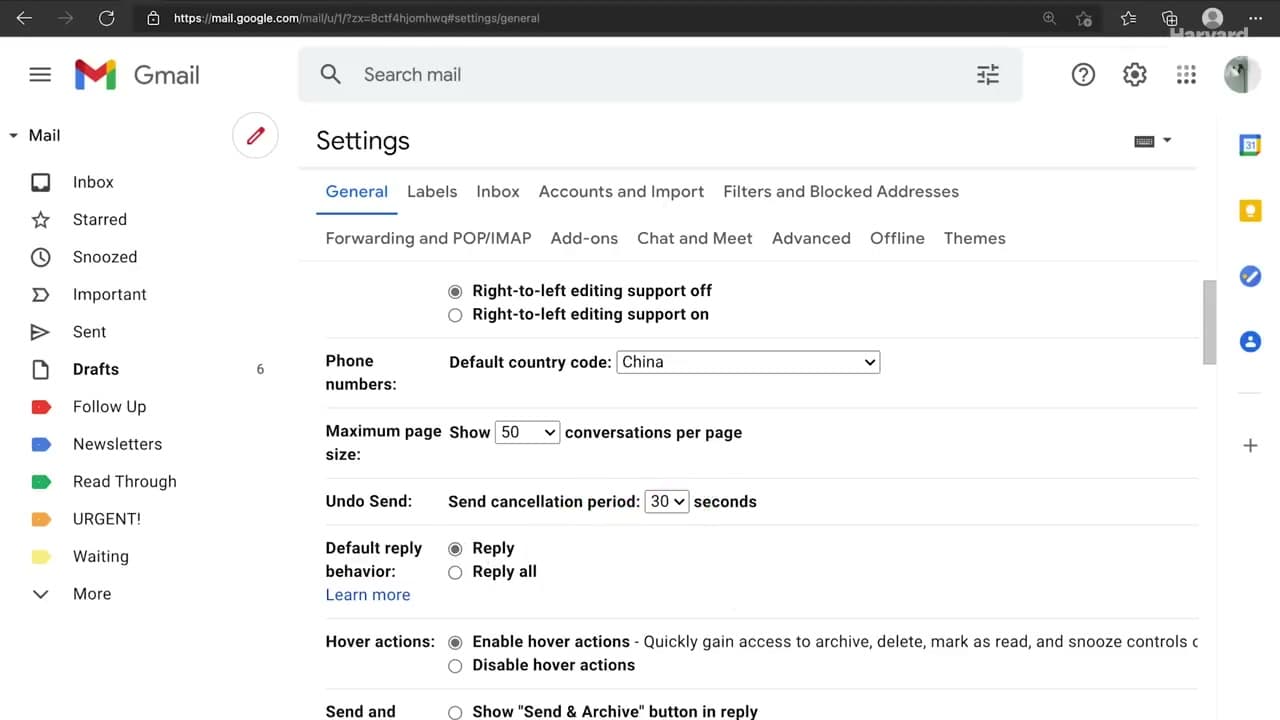
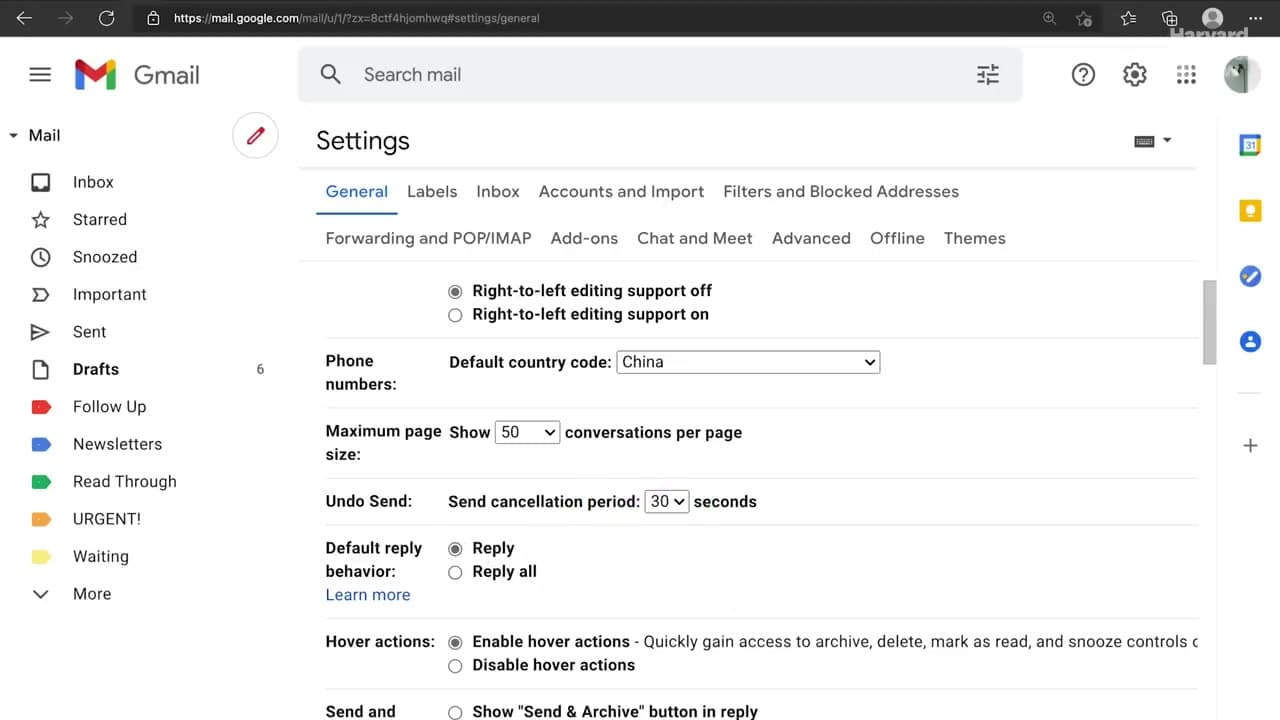
Open your email client's general settings and flip the default reply button from Reply All to Reply. Gmail, Outlook, and most clients let you do this with one toggle.

Most replies don't need to go to twenty people. One careless tap can blast a half-finished thought to a whole distribution list. Defaulting to Reply contains the damage when you're moving fast. When you genuinely need Reply All, you pick it deliberately.

8

Step 8: Extend Your Undo Send to 30 Seconds

6:05
Step 8: Step 8: Extend Your Undo Send to 30 Seconds

In Gmail, Outlook, and most major clients you can change the undo send window inside Settings. The default is usually five seconds. Push it to 30.

Every email worker has hit send and spotted a typo two seconds later, or realized they CC'd the wrong person. Five seconds isn't enough to catch and act on the mistake. Thirty seconds is. It's the single highest-leverage setting change in your whole email life.

Tip

In Gmail: Settings, See all settings, General tab, Undo Send, set to 30 seconds, save. In Outlook for web: Settings, Mail, Compose and reply, Undo send, slide to 10 (max) seconds.

Your Guide

Harvard Business Review

As an Amazon Associate we earn from qualifying purchases. Links on this page may be affiliate links - clicking them and buying doesn't change your price, but helps support ShowMeStepByStep.

Tags

Test your knowledge

Did the lesson stick? Find out in 2 minutes.

5 quick questions covering what you just read. No signup, no score saved — just a gut check.

Quick reference

Key takeaways from How to Write a Professional Email: 8 Etiquette Tips

5 questions, answers, and one-line explanations. Tap to expand.

  1. 1.What kind of subject line works best?

    Answer: A call to action - name the ask and a time estimate

    '5-minute survey - feedback for project X' tells the reader what's needed and how long it'll take.

  2. 2.For the same project, should every new question be a new email thread?

    Answer: No - reply on the existing thread to keep history together

    One thread per topic; everyone can scroll up to see what was decided last week.

  3. 3.When you add or drop someone from a thread, what should you do?

    Answer: Note it at the top in a brief line like '(+Sarah for product context, -Mike to spare his inbox)'

    One-line note keeps new readers oriented and prevents removed readers from being re-pinged.

  4. 4.Where should the main point or ask go in the email?

    Answer: The first sentence, with the context underneath

    Front-load the ask. Senior readers grab it and move on; junior readers scroll for context.

  5. 5.What's described as 'the single highest-leverage setting change' in your email?

    Answer: Extending undo-send from 5 seconds to 30 seconds

    5 seconds isn't enough to catch a typo or wrong-recipient mistake; 30 is.

What's next

Weekly Digest

Liked this communication tutorial?

Pick the categories you want to hear about. Weekly digest of new step-by-step tutorials. No spam, easy unsubscribe.

Send me tutorials about

We only email about new tutorials. Easy unsubscribe anytime.