How to Factory Reset Any Android Phone in 7 Steps

TechEasy6:227 stepsBrowse more →
Also in:Adulting

By ShowMeStepByStepPublished Updated

Based on a video by HardReset.Info.

Selling an old Android, handing it down, troubleshooting a software bug, or wiping it before a service swap - they all end at the same screen. Factory reset puts the phone back to the day it left the factory, with none of your data on it. This walkthrough follows the system-settings method, which works on every modern Android phone - Samsung Galaxy, Google Pixel, OnePlus, Motorola, Xiaomi, and the rest - regardless of brand or skin.

Read this before you tap anything. Factory reset erases everything - photos, apps, contacts, accounts. Back up first. Anything that is not in Google Photos, Google Drive, Samsung Cloud, or copied off to a microSD card is gone the moment you confirm. And on Android 5.1 and newer, signing out of your Google account before the reset matters too - otherwise the phone gets stuck on Factory Reset Protection (FRP) and the next owner cannot finish setup without your login.

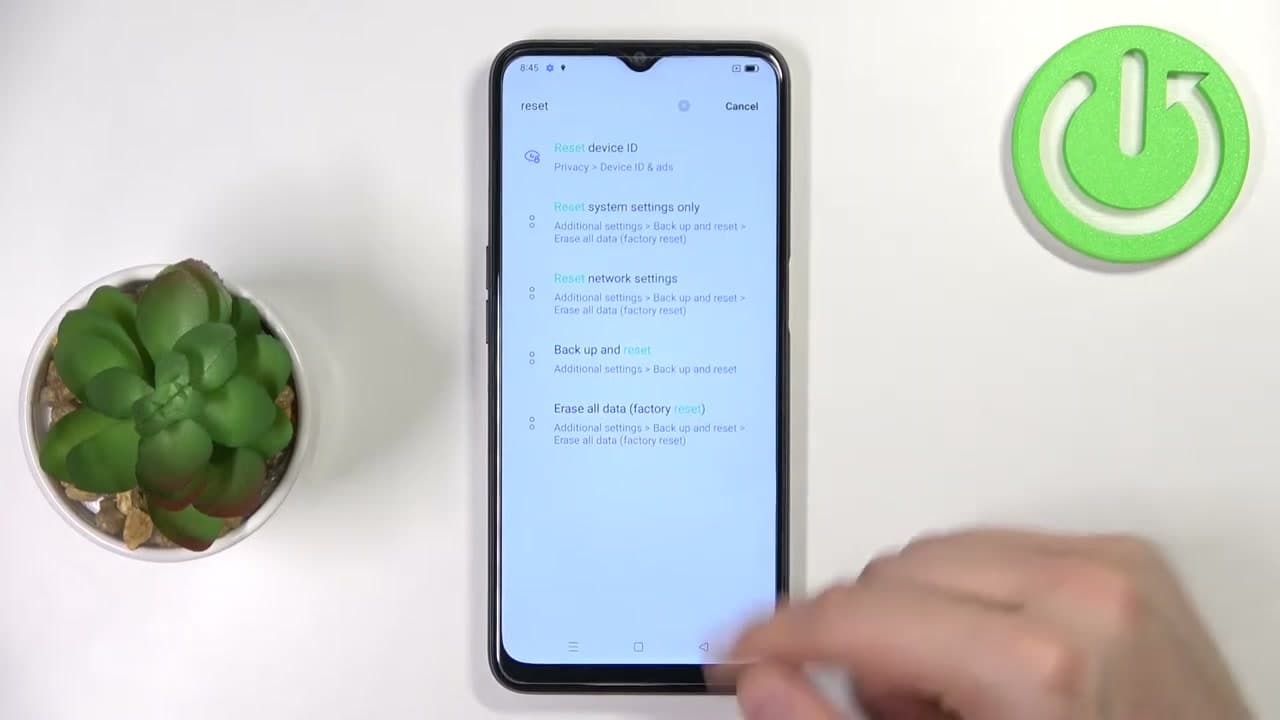
The exact menu names differ between Samsung One UI, Google's stock Android, OnePlus OxygenOS, and Xiaomi MIUI - but the destination is the same. Every Android phone has Settings - System (or General Management) - Reset - Erase all data. If you cannot find it by scrolling, every modern Settings app has a search bar at the top. Type reset and tap the result.

Step-by-Step Guide

1

Step 1: Back Up Your Photos, Contacts, and Apps First

0:22
Step 1: Step 1: Back Up Your Photos, Contacts, and Apps First

Before you touch the reset button, open Google Drive (or your phone's built-in backup - Samsung Cloud on Galaxy, OneDrive on some OnePlus models) and run a full backup. Sync your photos to Google Photos, confirm your contacts are pushed to your Google account, and let the phone finish uploading.

Factory reset wipes everything on the device. Anything not in the cloud or copied to a microSD card is gone the second you confirm. Watch from 0:22 to see the reset warning the host explains - it lists exactly what will be erased.

Tip

On Samsung Galaxy phones, go to Settings - Accounts and backup - Back up data and run a Samsung Cloud or Google One backup before anything else. On Google Pixel, Settings - System - Backup turns on the daily Google One backup. Wait for it to show Just now or Today before you keep going.
2

Step 2: Open Settings and Scroll Down to Find Reset

0:28
Step 2: Step 2: Open Settings and Scroll Down to Find Reset

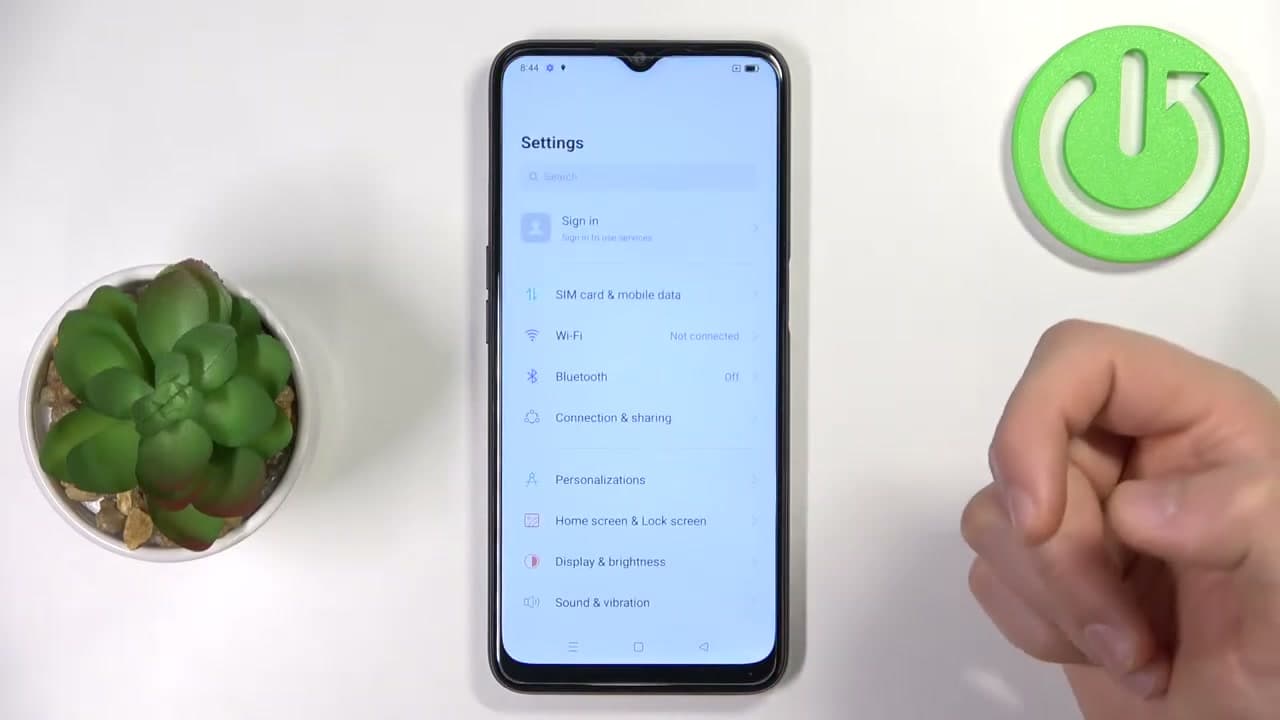
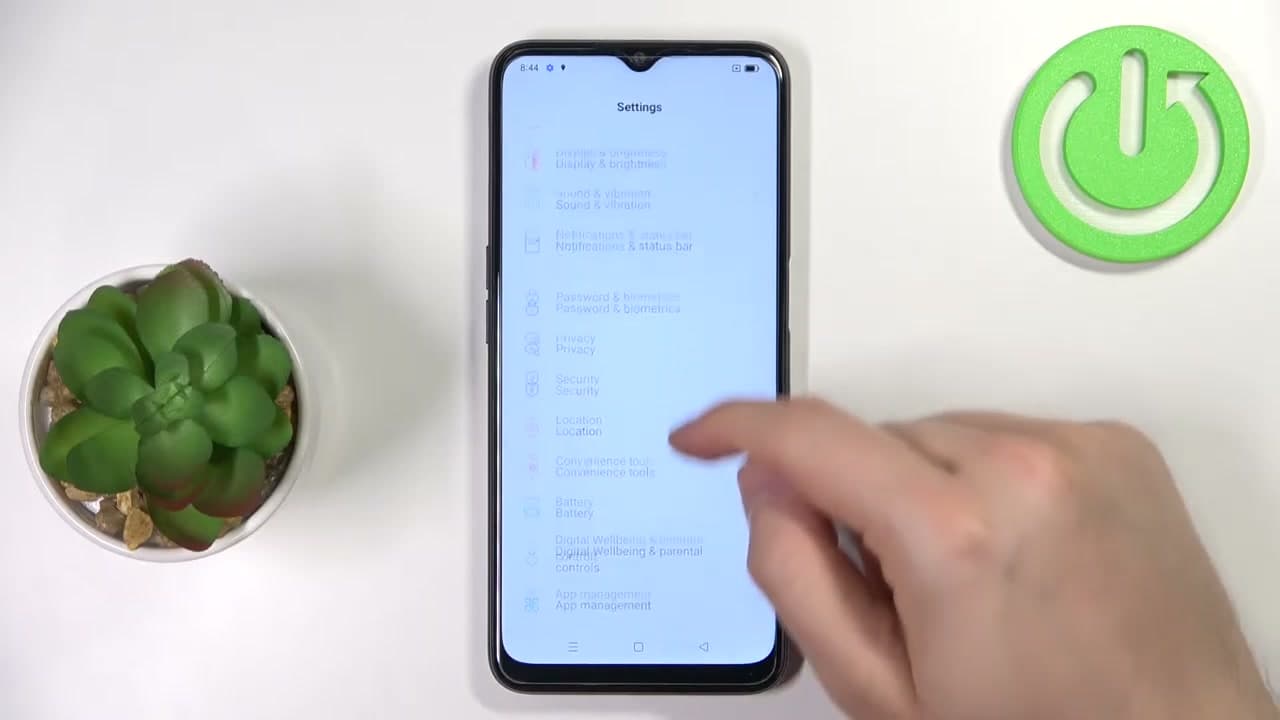
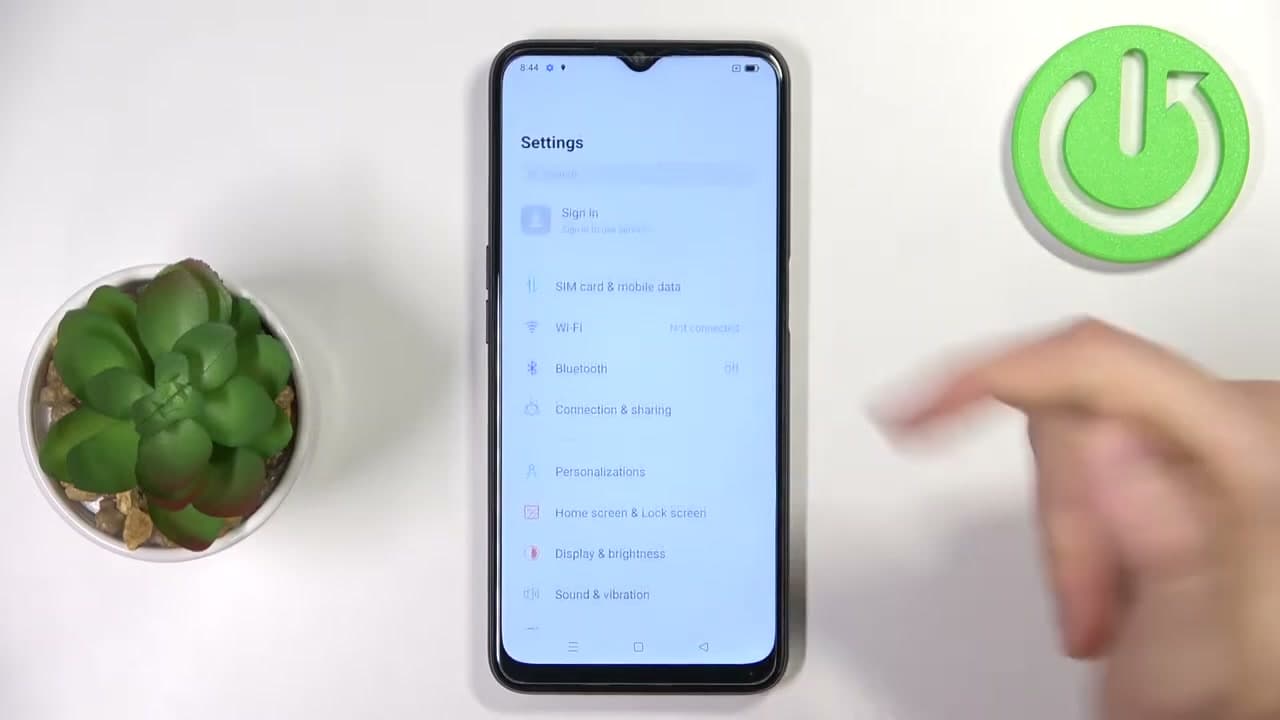
Pull down the notification shade and tap the gear icon, or open the Settings app from your app drawer. Scroll down and look for Reset, System, or General Management. On Samsung Galaxy it lives under General Management. On Google Pixel and stock Android it sits under System. On Xiaomi and older devices it is buried in Additional Settings as Backup and Reset.

The label changes by brand but the menu always exists. If your phone is more than a few years old or runs a heavily skinned version of Android, you might have to dig two levels deep.

3

Step 3: Use the Search Bar if You Cannot Find Reset

0:46
Step 3: Step 3: Use the Search Bar if You Cannot Find Reset

If scrolling does not turn up Reset, tap the search bar at the top of the Settings screen and type the word reset. Every Android phone built in the last five years has this search field at the top.

The phone surfaces Erase all data (factory reset) directly so you can skip the menu hunt. Tap that result to jump straight to the reset screen. Watch at 0:46 to see the search shortcut in action.

Tip

On Samsung phones, the search icon is a small magnifying glass in the top-right corner instead of a full bar. Tap it, type reset, and the same shortcut shows up.

4

Step 4: Tap Erase All Data (Factory Reset)

0:58
Step 4: Step 4: Tap Erase All Data (Factory Reset)

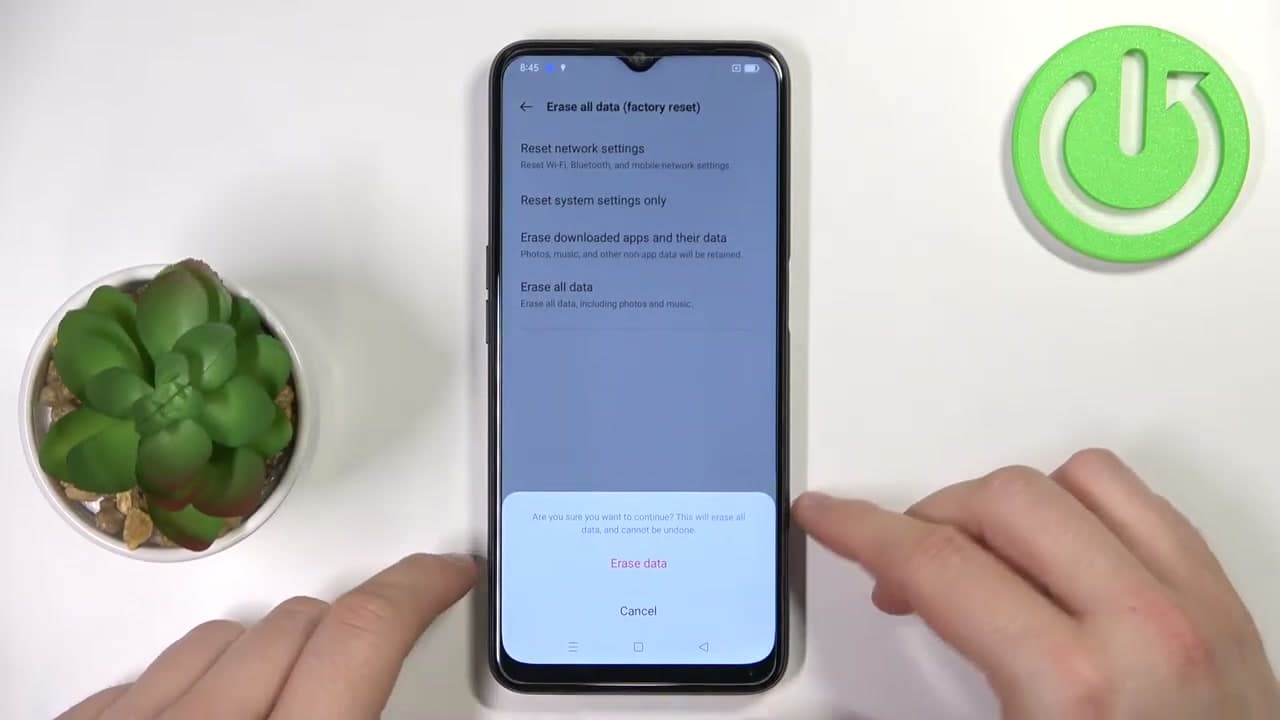
On the Reset screen you see a list of options - Reset network settings, Reset system settings only, Erase downloaded apps, and at the bottom Erase all data. The Erase all data row is the full factory reset. Tap it.

The phone now shows the warning screen that lists exactly what is about to be wiped: accounts, downloaded apps, music, photos, system settings, and on some Samsung and Xiaomi phones, the contents of your inserted microSD card. Read the list before you continue.

Tip

On Samsung Galaxy you may see one more screen between this and the confirmation - a list of every Google account currently signed in. Sign out of each one here so Factory Reset Protection does not lock the phone after the wipe. Settings - Accounts - Remove account on each one.

5

Step 5: Read the Warning, Then Tap Erase Data

1:10
Step 5: Step 5: Read the Warning, Then Tap Erase Data

Read the four options on this screen carefully. Reset network settings only resets Wi-Fi and Bluetooth. Erase downloaded apps and their data leaves your photos. Erase all data wipes everything. Tap Erase all data.

A confirmation card slides up from the bottom asking are you sure - this will erase all data and cannot be undone. Tap Erase data to continue. If you have a microSD card you want to keep, cancel out, pop it out with the SIM tray tool, then come back.

Tip

The SIM card tray tool that came with your phone (or a straightened paperclip) pops the tray out through the small pinhole on the side of the phone. Power the phone off for 30 seconds first - hot-swapping the SD card can corrupt files on some Android models.

Products used in this step

6

Step 6: Enter Your PIN and Tap Erase Data One Last Time

1:35
Step 6: Step 6: Enter Your PIN and Tap Erase Data One Last Time

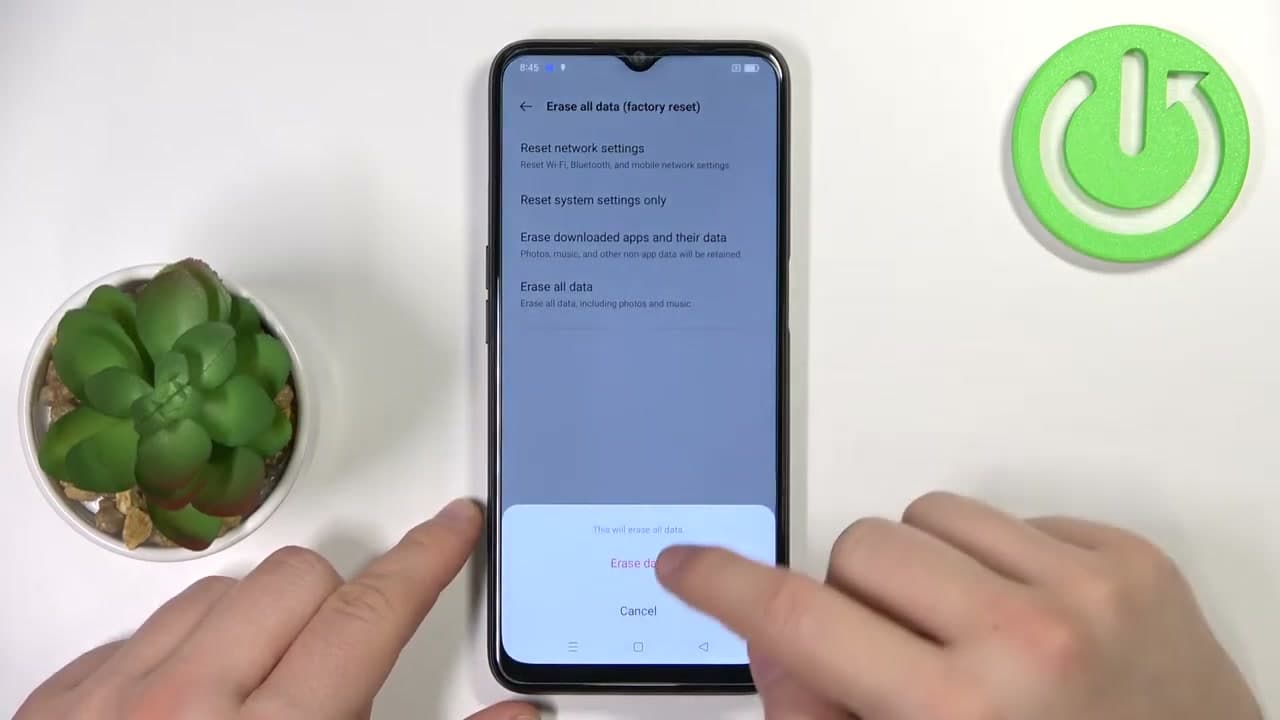
The phone asks for your lock-screen PIN, pattern, or password before it will reset. Type it in. A second confirmation appears with the message This will erase all data. Tap Erase data.

This is the point of no return. Once you tap that final button the wipe begins and you cannot stop it. If you are selling the phone, this is the step that guarantees the next owner cannot recover any of your photos, messages, or saved logins.

Tip

If you forgot the PIN or pattern, this is the wall you hit. The system-settings method needs the unlock code. You will have to use the recovery mode method instead - hold the power and volume-down buttons together while the phone is off to boot into recovery, then pick wipe data / factory reset.

7

Step 7: Wait for the Reset and Run First-Time Setup

2:10
Step 7: Step 7: Wait for the Reset and Run First-Time Setup

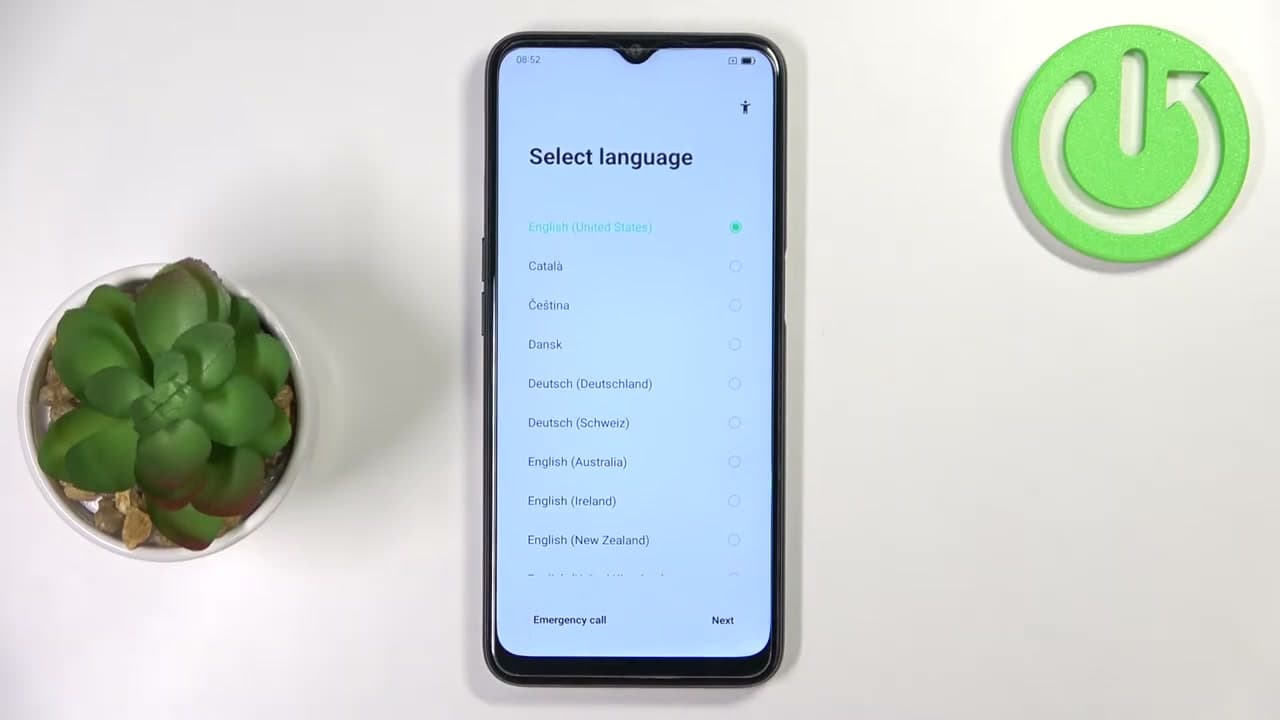
The phone reboots and shows the manufacturer logo, then a black screen with a progress spinner. Do not touch it - the wipe takes five to fifteen minutes depending on storage size. When it finishes, the Select Language / Welcome screen appears.

Follow the prompts to pick a language, connect Wi-Fi, sign into your Google account, and decide whether to restore from your earlier backup or set up as new. If you are selling the phone, power it off at the Welcome screen and box it up - the next owner will sign into their own Google account from a fresh start. Watch from 2:10 to see the first-time setup screens in order.

Tip

If the phone asks for the password of the last signed-in Google account during first-time setup, that is Factory Reset Protection working as designed. Type the password you used before the reset and continue. If you bought the phone used and you get stuck here, contact the previous owner - only their Google credentials will unlock it.

Products Used

Your Guide

HardReset.Info

As an Amazon Associate we earn from qualifying purchases. Links on this page may be affiliate links - clicking them and buying doesn't change your price, but helps support ShowMeStepByStep.

Tags

What's next

Related collections

Curated theme pages that include this tutorial.

Weekly Digest

Liked this tech tutorial?

Pick the categories you want to hear about. Weekly digest of new step-by-step tutorials. No spam, easy unsubscribe.

Send me tutorials about

We only email about new tutorials. Easy unsubscribe anytime.