How to Start a YouTube Channel in 7 Steps

Side HustlesEasy8:477 steps
Also in:Finances

Based on a video by Ben Claremont.

Starting a YouTube channel takes about 20 minutes of setup before you upload your first video. The catch is that the defaults YouTube ships with are wrong - public visibility, no custom thumbnails, no long-form uploads, no branding. Spend the time on setup once and every future upload gets easier.

This walkthrough follows Ben Claremont through the entire setup. By the end your channel will have a name and handle, custom branding, intermediate features unlocked, smart upload defaults, and the monetization milestones tracked so you know exactly what to chase.

Step-by-Step Guide

1

Step 1: Sign In With or Create a Google Account

0:30
Step 1: Step 1: Sign In With or Create a Google Account

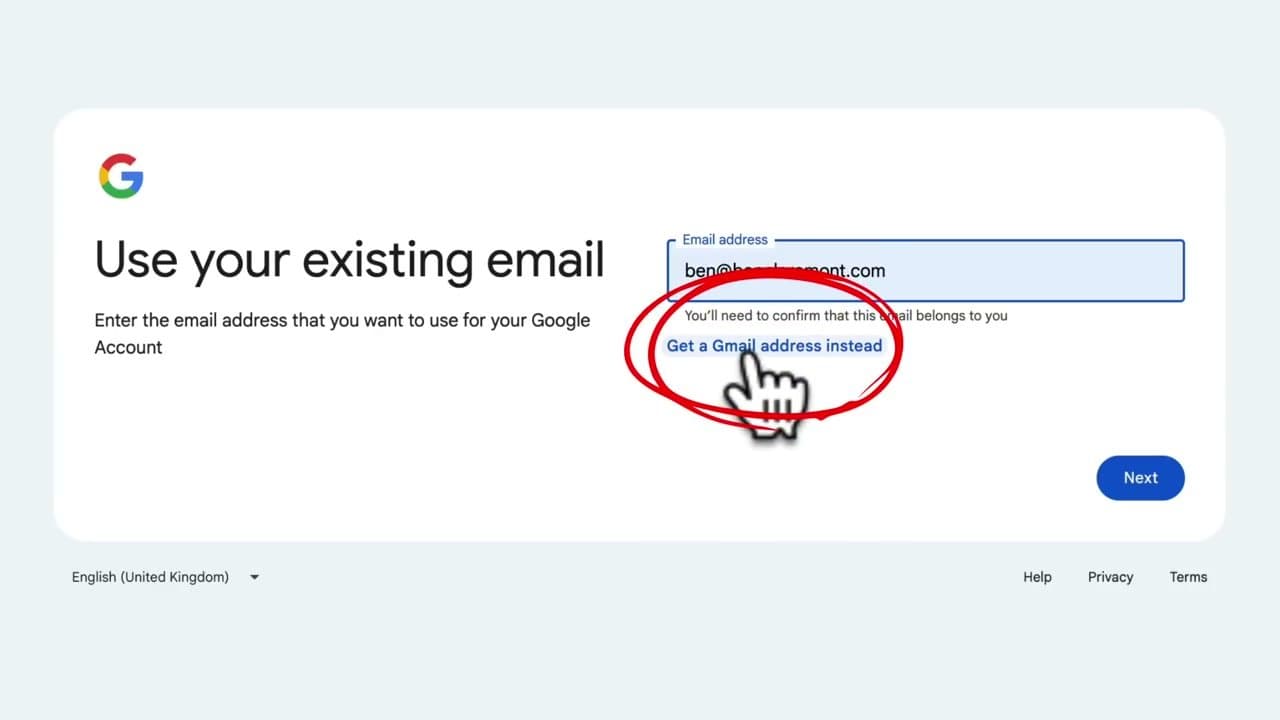
Go to youtube.com and click Sign In at the top right. If you don't already have a Gmail account, click Create Account, choose 'For Work or My Business,' and walk through the signup form (name, birthday, password, recovery email).

Your YouTube channel hangs off this Google account, so use one you'll keep long-term. You can use an existing personal Gmail or create a new dedicated one - separating your channel from personal email keeps things tidy if the channel grows.
2

Step 2: Create Your Channel With a Name and Handle

1:00
Step 2: Step 2: Create Your Channel With a Name and Handle

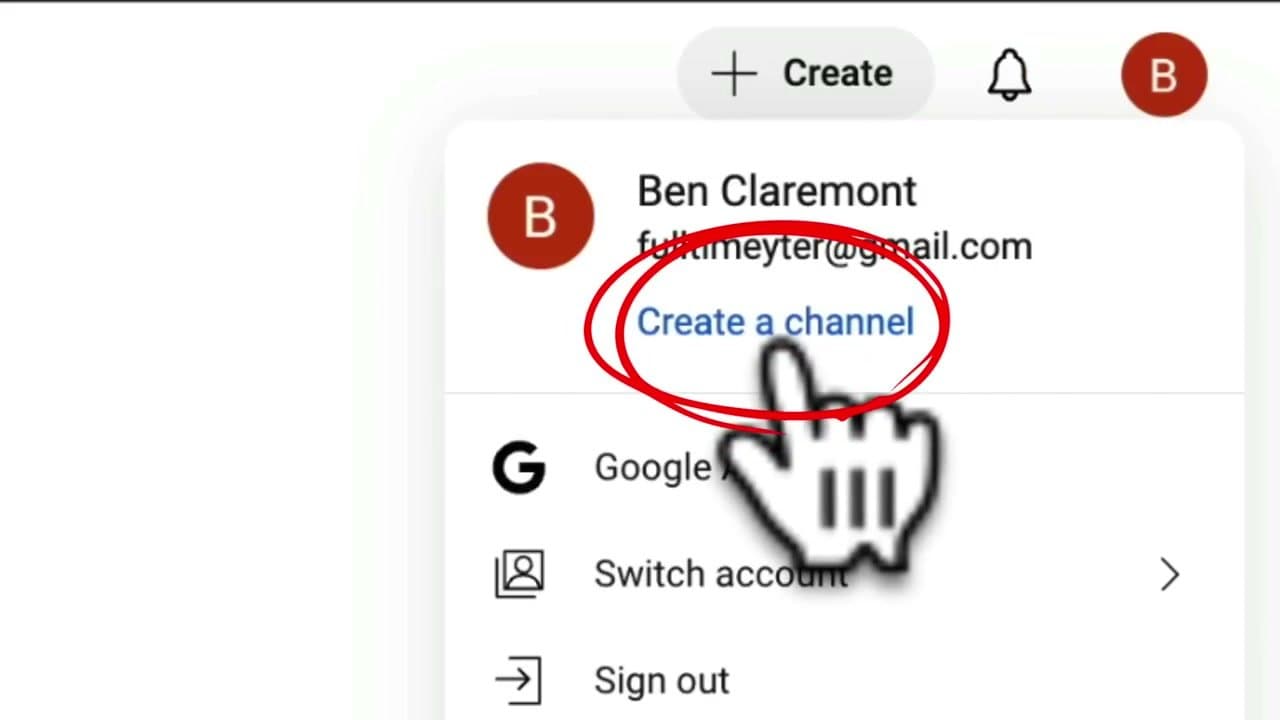
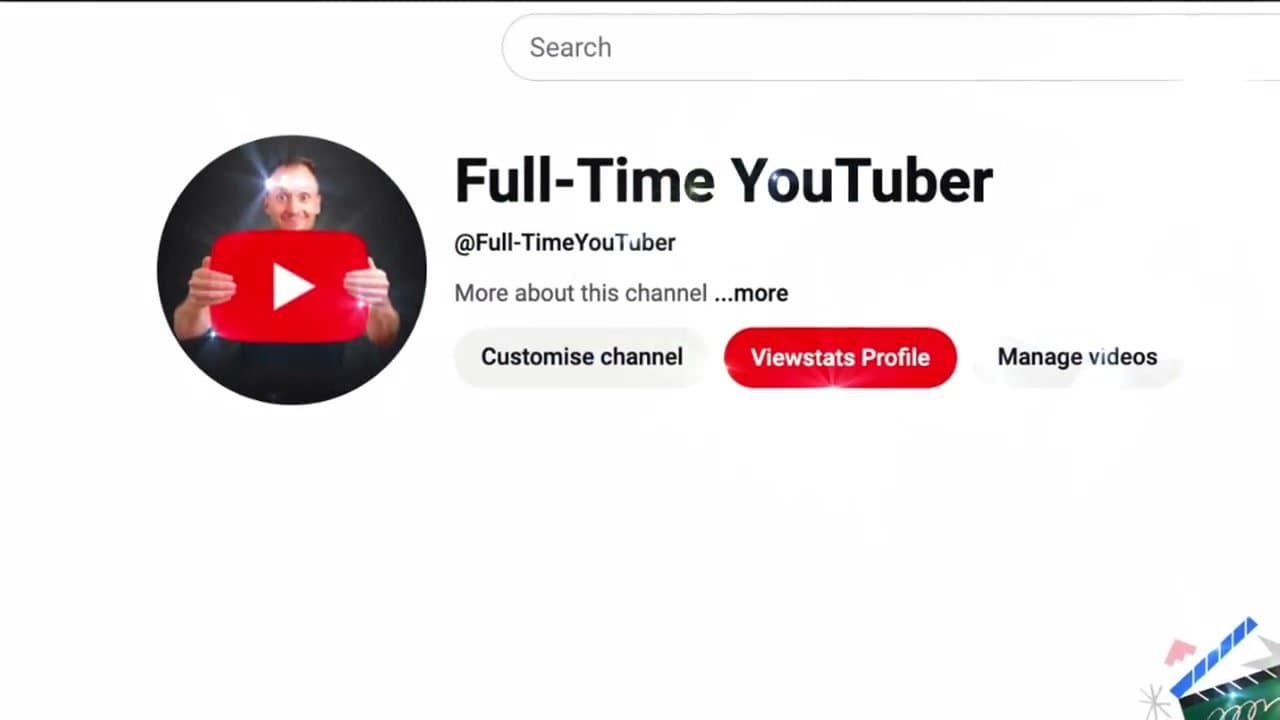
From the top right, click your profile circle, then 'Create a Channel.' Pick a name (shows next to your videos and on your channel page) and a handle (the @username in your URL and comment section).

Keep the handle short and memorable - both can be changed later, but the handle is your URL so easy-to-remember matters. The name can be anything; the handle has to be unique across all of YouTube.

3

Step 3: Add a Profile Picture

2:15
Step 3: Step 3: Add a Profile Picture

Click the profile picture upload button. You can pick from YouTube's library or upload from your computer. A clear headshot or a clean logo works best - both build recognition over time.

Click and drag the corners to resize and center the image inside the circle. The crop is forced into a circle, so anything in the corners gets cut off. Click Create Channel when it looks right.

4

Step 4: Verify Your Phone to Unlock Intermediate Features

2:45
Step 4: Step 4: Verify Your Phone to Unlock Intermediate Features

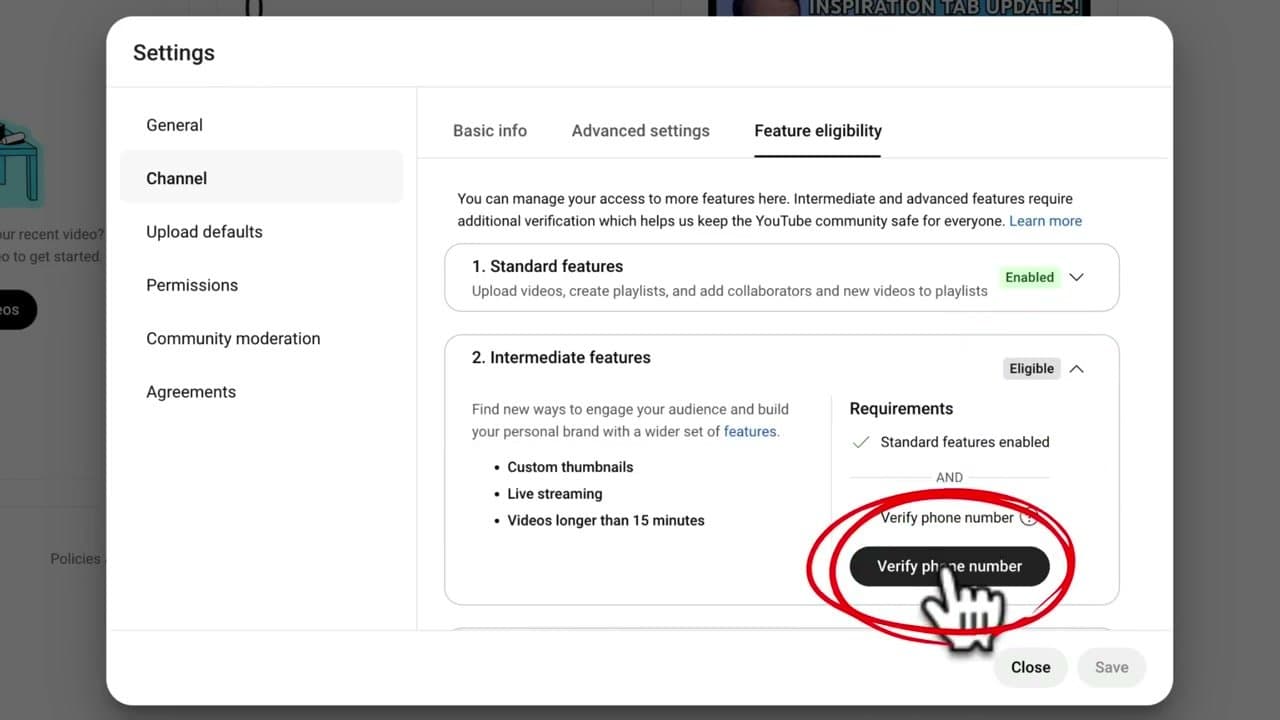
Click your profile > YouTube Studio > Settings > Channel > Feature Eligibility. Open the Intermediate Features dropdown and click Verify Phone Number. Enter your phone, type the code YouTube texts you, submit.

This unlocks videos longer than 15 minutes, custom thumbnails, and live streaming - all things you'll want before your first real upload. Without verification, you're capped at short uploads with auto-generated thumbnails.

5

Step 5: Set Smart Upload Defaults

3:15
Step 5: Step 5: Set Smart Upload Defaults

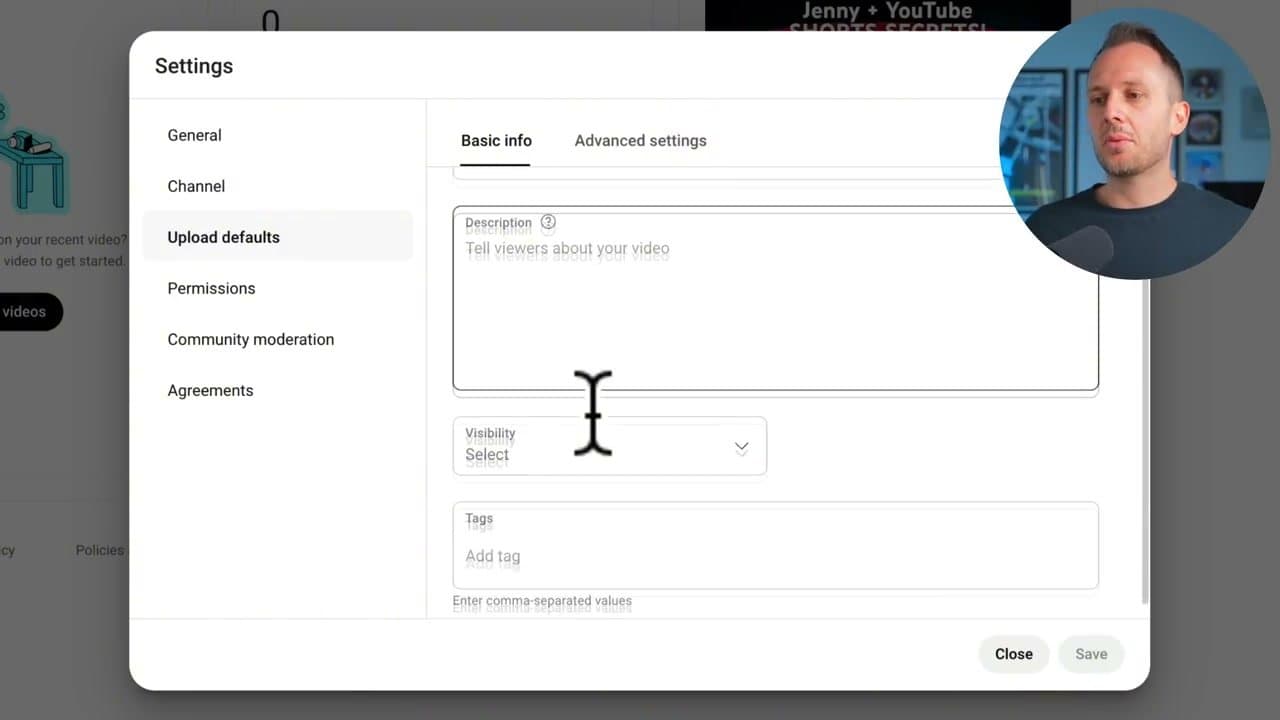
In Settings > Upload Defaults, change the default visibility from Public to Unlisted. This gives you time after upload to add your title, description, and thumbnail before anyone sees it.

Add default tags if you have a fixed niche. Under Advanced, set your default language and 'Made for Kids' status (most channels are not made for kids - set No so you don't get asked every upload).

Tip

Setting a default Made-for-Kids status is the single biggest time-saver. Without it, YouTube interrupts every upload to ask, and the prompt is easy to miss.

6

Step 6: Customize Your Channel Branding

6:00
Step 6: Step 6: Customize Your Channel Branding

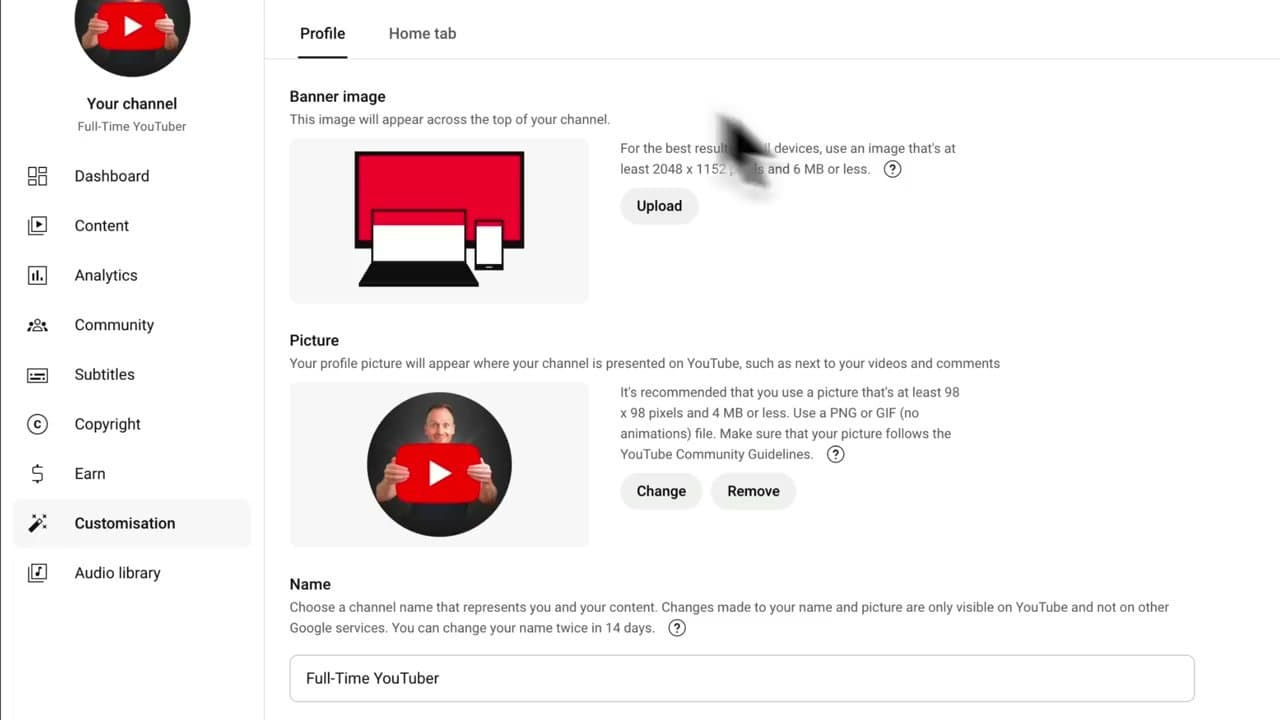
From YouTube Studio, click Customization on the left. Upload a banner (use a Canva template - YouTube banners need to look right on TVs, phones, and computers, so keep important text centered).

Add a description that explains what viewers will get from the channel. Add links to your website and social profiles. Add a watermark that doubles as a subscribe button (shows up in the corner of every video). Click Publish when done.

7

Step 7: Track Monetization Progress and Turn on Two-Step Verification

7:40
Step 7: Step 7: Track Monetization Progress and Turn on Two-Step Verification

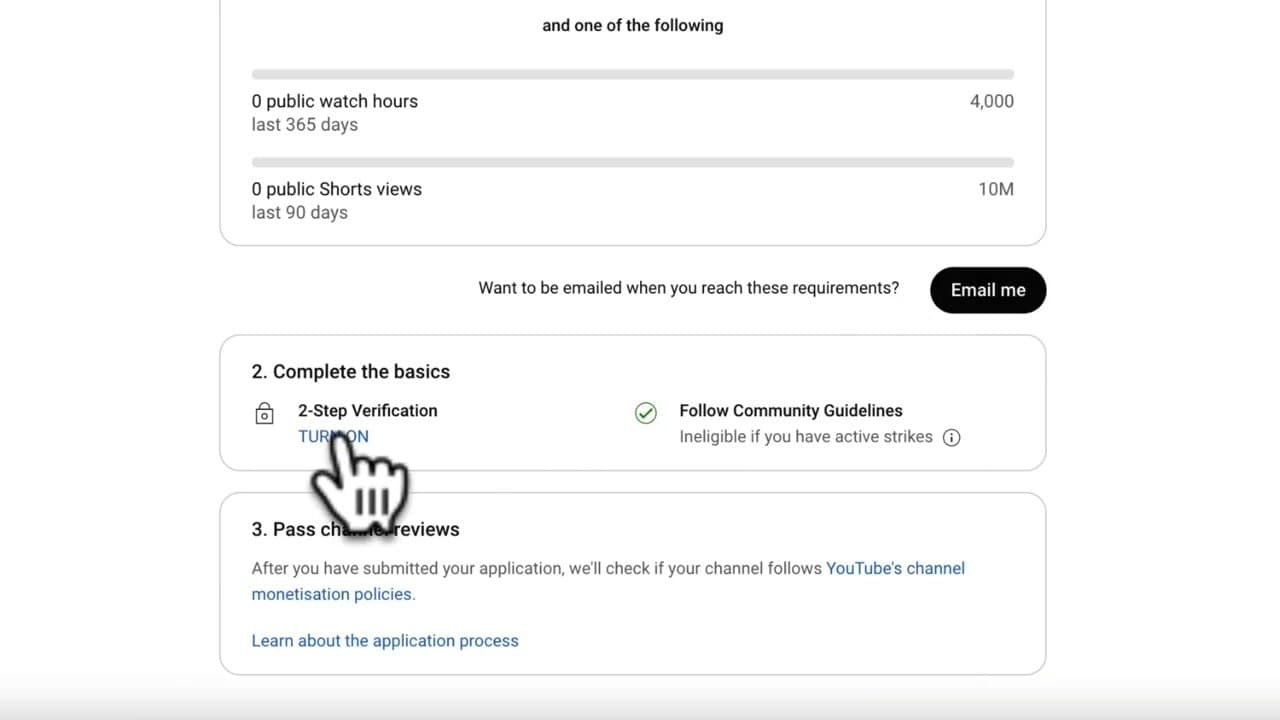
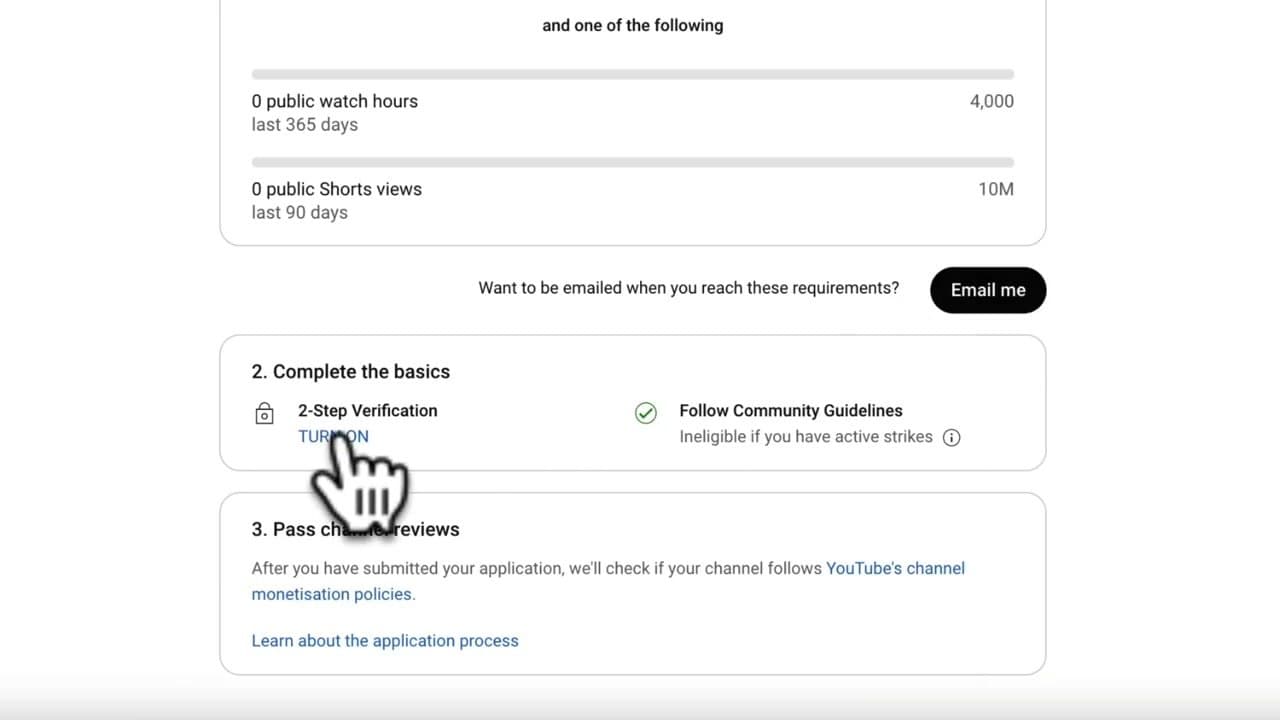
Click Earn in YouTube Studio. This page tracks your progress toward monetization eligibility: 1,000 subscribers and either 4,000 watch hours in the last year or 10 million Shorts views in 90 days.

Click 'Email me' so YouTube notifies you when you hit each milestone. Then click 'TURN ON' for 2-Step Verification on the right side - you can't enable monetization without it, so do it now to avoid the bottleneck later.

Your Guide

Ben Claremont

As an Amazon Associate we earn from qualifying purchases. Links on this page may be affiliate links - clicking them and buying doesn't change your price, but helps support ShowMeStepByStep.

Tags

Related Tutorials